

Contents
On this page
Elementor - Plugixa Multi Currency for WooCommerce
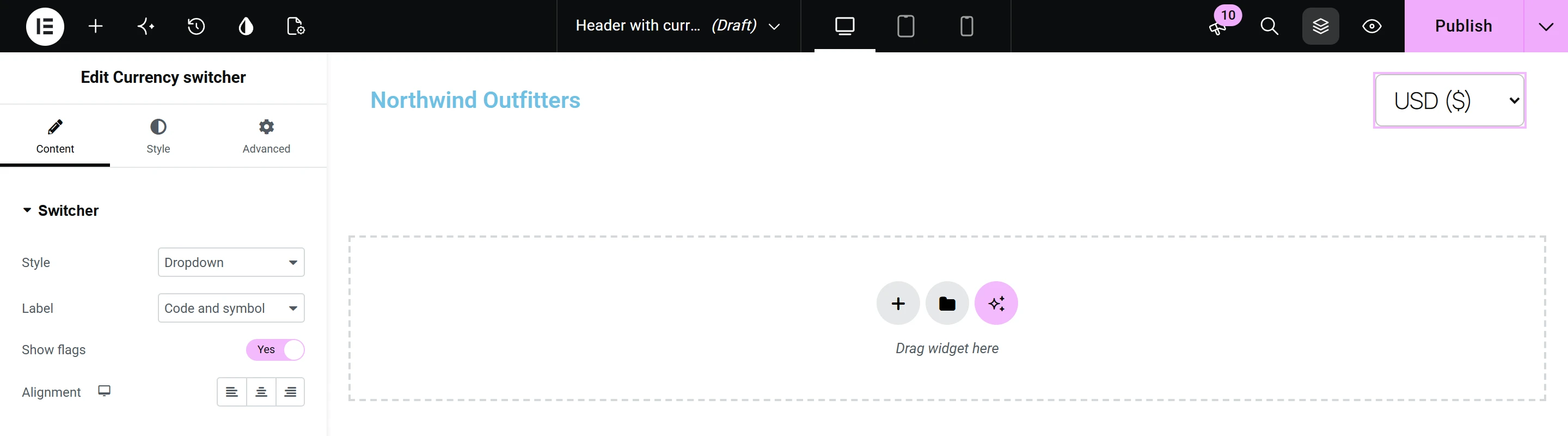
Pro adds a Currency switcher widget to Elementor, so you can place the switcher in an Elementor header, footer or page like any other widget. It renders the same switcher as the block and the shortcode.
Add the widget
- Edit a page or a template with Elementor.
- Search for Currency switcher in the widget panel and drag it where you want it.
- Set its options and update the page.
The widget appears when Elementor is active and the Elementor widget app is on in the App manager.
Options
Content > Switcher:
| Control | Options |
|---|---|
| Style | Every switcher style: Dropdown, List, Flags only, and with Pro Pill and Inline links. |
| Label | Code and symbol, Code, Symbol or Name. |
| Show flags | On or off. |
| Alignment | Left, Center or Right. |
Style > Switcher: Text colour and Background.
See Currency switcher for what each style looks like, and Switcher placement for the Pro styles.
Tips
- In a header, the Inline links or Dropdown style takes the least space.
- The widget only shows when at least two currencies can be offered, like every switcher.
Quick Links
Share