

Contents
On this page
Currency switcher - Plugixa Multi Currency for WooCommerce
The currency switcher is how a shopper picks the currency prices are shown in. There are four ways to add one, and they all render the same switcher, so you can use several on one site.
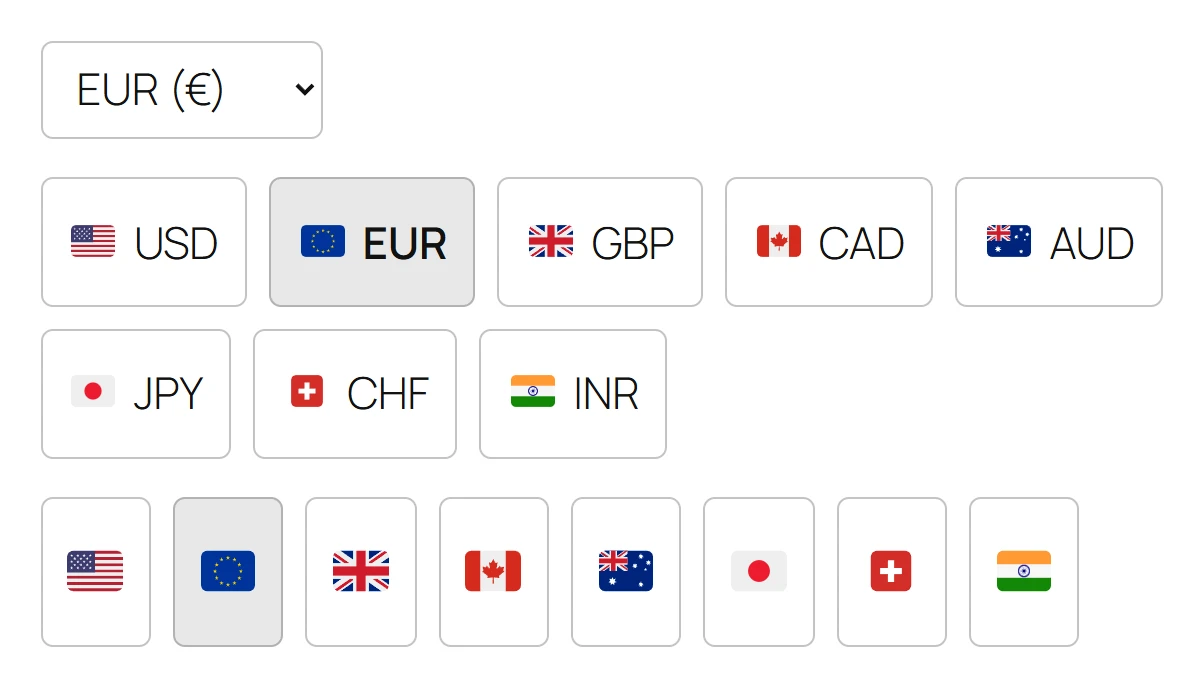
The four switchers
| Switcher | Where it goes |
|---|---|
| Currency Switcher block | Any block area: the header or footer template part, a sidebar, a page, or inside the Navigation block. |
[plugixa_currency_switcher] shortcode |
A page, a post, a Shortcode block, or a classic theme template. |
| Currency Switcher widget | A widget area of a classic theme. |
| Floating button | Fixed in the bottom corner of every page, switched on in Settings. |
A switcher only appears when at least two currencies can be shown in it: your store currency and at least one enabled currency with Show in the currency switcher on.
Styles
| Style | What it looks like |
|---|---|
| Dropdown | A select list. The default. |
| List | A row of bordered buttons, one per currency, with the active one highlighted. |
| Flags only | Only the flags. Each flag’s name is read out by screen readers and shown on hover. |
What each currency is labelled with is the Show option:
| Show | Example |
|---|---|
| Code and symbol | EUR (€). The default. When the symbol is the code itself, only the code. |
| Code | EUR |
| Symbol | € |
| Name | Euro |
Flags come from each currency’s Flag (country code). The dropdown never shows flags, because a select list cannot show images and Windows has no flag emoji font.
Pro adds two more styles, pill and inline links, and places switchers for you under the product price and in the mini-cart PRO. See Switcher placement.
The Currency Switcher block
- In the block editor or the site editor (Appearance > Editor), click the inserter and search for Currency Switcher. It is in the WooCommerce category.
- Insert it where you want it, for example in the header template part.
- In the block settings, under Switcher, choose the Style, what to Show, and whether to Show flags.
- Use the block’s own settings for alignment, text and background colour, font size, margin and padding.
The block is rendered on the server, so it is part of the cached page like any other block.
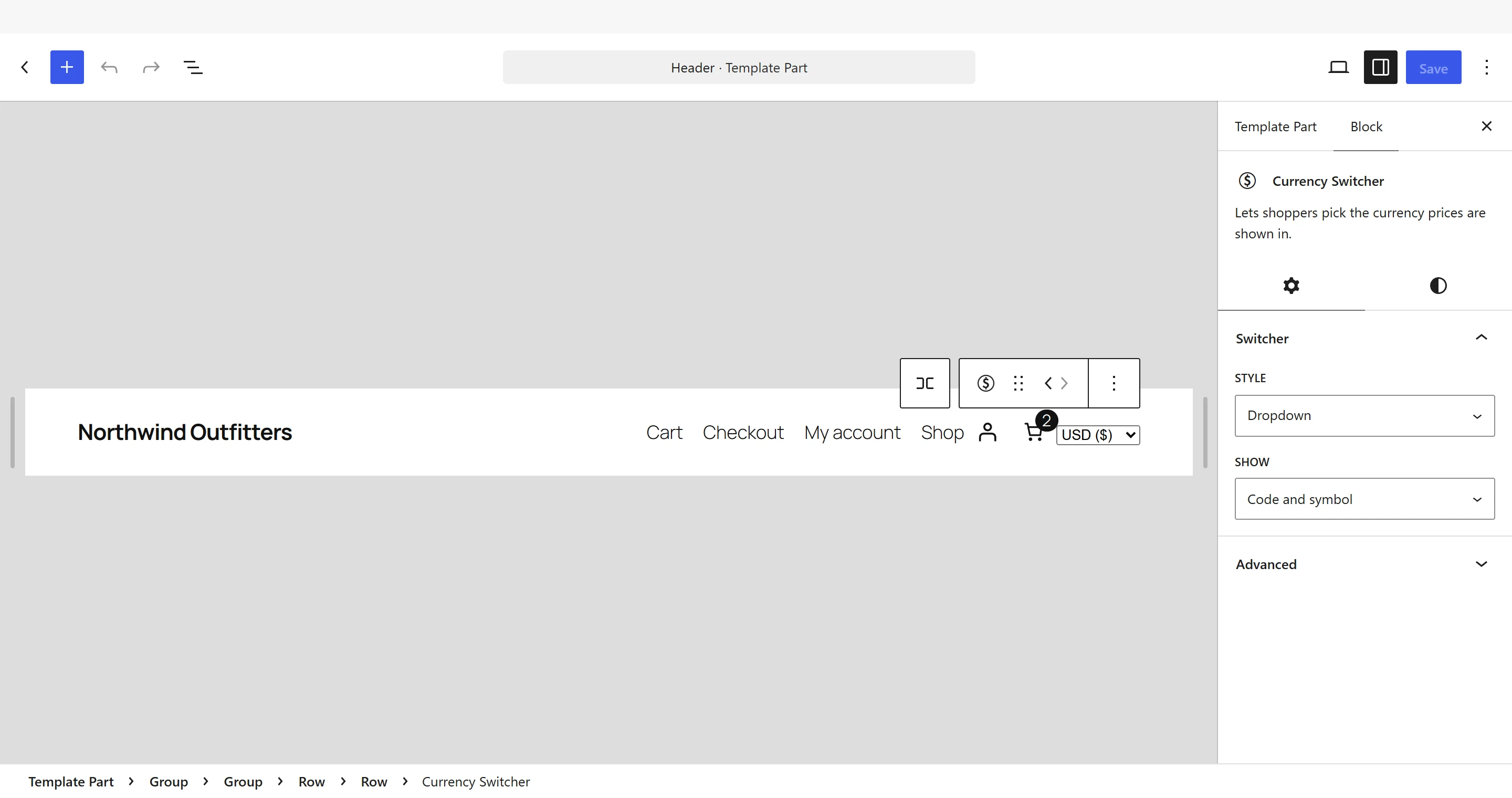
In a menu
To put the switcher in your menu, add the Currency Switcher block inside the Navigation block in the site editor. It takes its own menu item there, like the site logo and social links do. The List style, or a dropdown, suits a menu best.
The shortcode
[plugixa_currency_switcher]
[plugixa_currency_switcher style="list" label="code" flags="1"]
| Attribute | Values | Default |
|---|---|---|
style |
dropdown, list, flags (and pill, inline with Pro) |
dropdown |
label |
code_symbol, code, symbol, name |
code_symbol |
flags |
1 to show flags, 0 to hide them |
1 |
The widget
In a classic theme, go to Appearance > Widgets and add Currency Switcher to a widget area. It has a Title, a Style and Show flags.
The floating button
- Go to Settings and open the Storefront tab.
- Switch on Show a floating currency button.
- Choose the Button position: Bottom right or Bottom left.
- Click Save.
The button shows the active currency’s symbol and code. Clicking it opens a panel listing every currency by name. It is added to every page of the storefront, never in wp-admin.
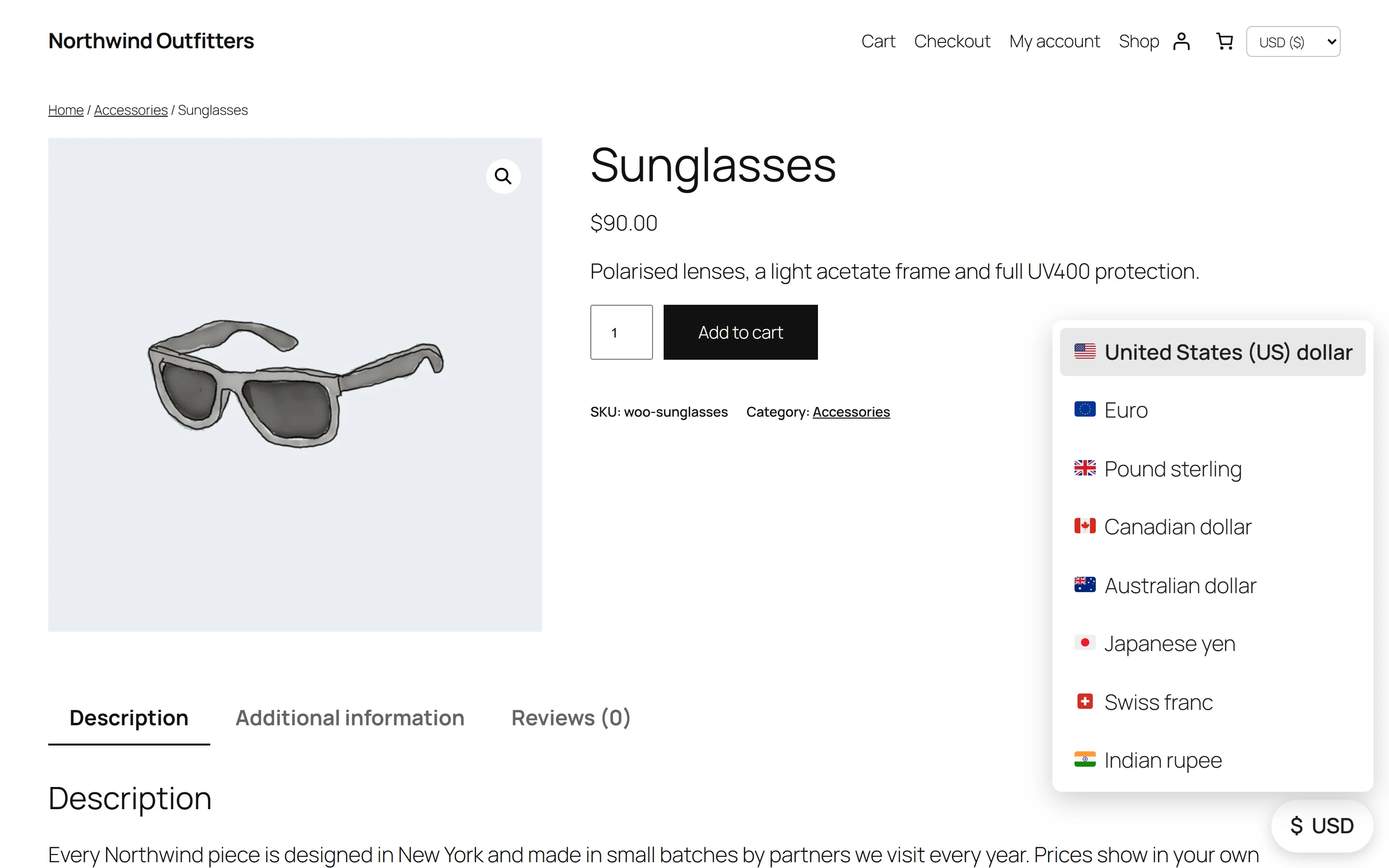
What happens when a shopper switches
- The shopper picks a currency. With JavaScript on, the switch is instant: the choice is sent to the site and the page reloads in the new currency.
- The choice is saved in the
plugixa_mc_currencycookie for 30 days, and in the shopper’s WooCommerce session. - Every page, the cart and the checkout use that currency until the shopper picks another one.
Without JavaScript, the switcher still works: the dropdown is a form with a Change button and
the list is plain links. Both add ?pmc_currency=EUR to the address, and the plugin saves the
choice and sends the shopper back to the clean address. You can use the same parameter in your
own links, for example https://example.com/shop/?pmc_currency=GBP.
Search engines never get a converted page: crawlers always see your store currency, and the
switch links are marked nofollow.
Accessibility
- The dropdown has a label for screen readers, Currency.
- The list is a navigation landmark named Currency, and the active currency is marked as current.
- The floating button announces the active currency, for example Currency: EUR. Change currency, and says whether its panel is open.
Which currency a new visitor sees
A visitor who has never picked a currency sees your store currency. Pro can pick the currency from the visitor’s country or language on their first visit PRO. See Country detection and Multilingual.
Quick Links
Share