

Contents
On this page
Fixed prices - Plugixa Multi Currency for WooCommerce
By default every price is converted from your store currency. With fixed prices you type the exact price a product costs in a currency instead, for example 49.00 EUR and 45.00 GBP for a product priced 55.00 USD. A fixed price is used as it is: no rate, margin, rounding or charm ending is applied to it.
Products without a fixed price keep converting automatically, so you only fix the prices that matter to you.
Where to set fixed prices
| Where | Best for |
|---|---|
| The product edit screen | One product at a time, with sale dates per currency. |
| Fixed prices > Prices by product | Many products at once, in a grid. |
| Products > All Products > Quick Edit | A quick change from the product list. |
| CSV export and import | A whole catalogue, in a spreadsheet. |
wp plugixa-mc prices |
Scripts. See WP-CLI. |
All of them write the same product data, so a price set in one place shows in the others. Fixed prices are stored on the product, so WooCommerce’s own product export, import and duplicate carry them along.
On the product
Simple products
- Edit the product and open the General tab of the Product data box.
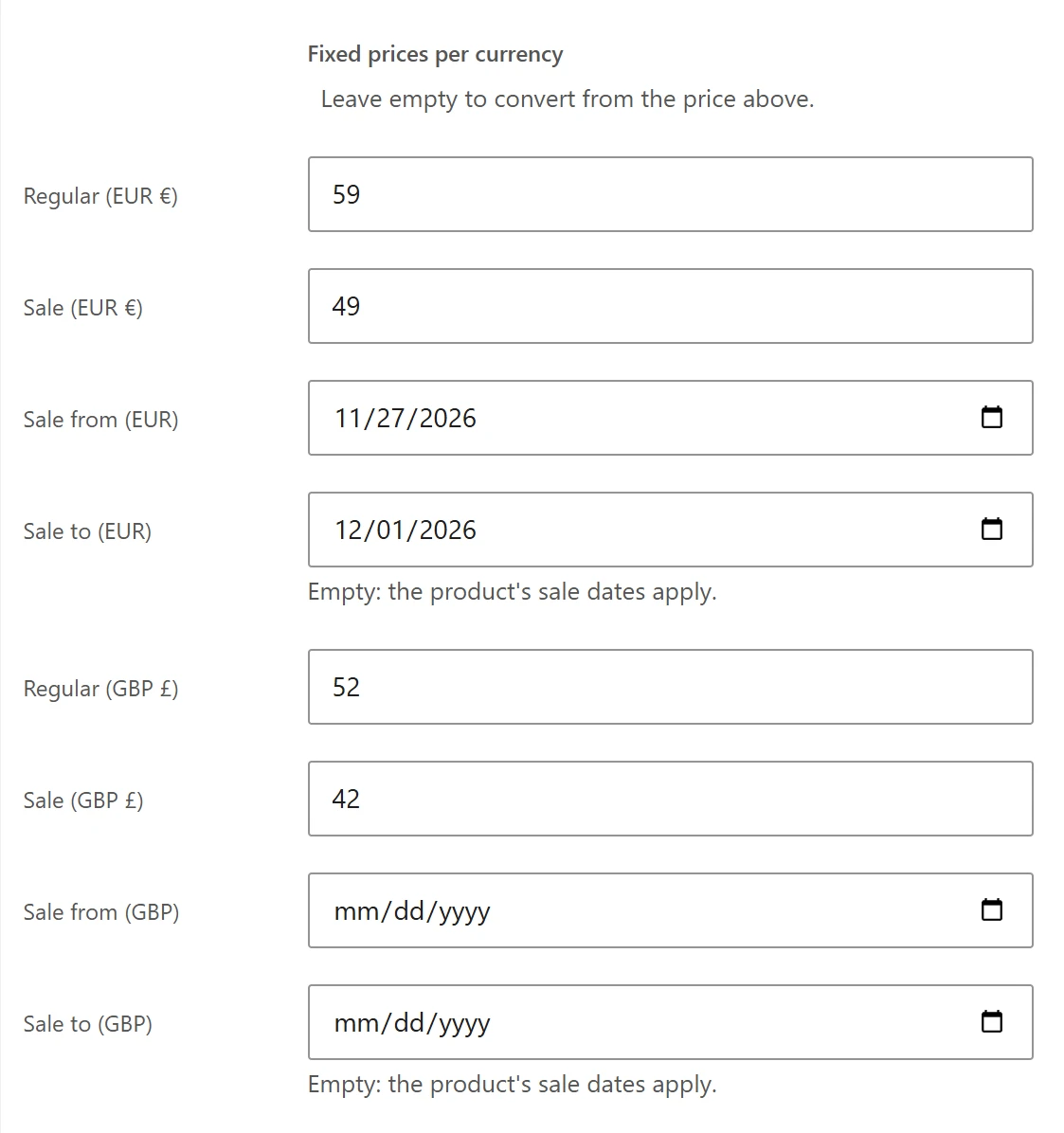
- Under the regular and sale price, find Fixed prices per currency: Leave empty to convert from the price above.
- For each currency, fill in Regular and, if you want, Sale. Each field is labelled with the currency code and symbol, for example Regular (EUR €).
- Optionally set Sale from and Sale to for that currency.
- Click Update.
Variable products
Each variation has the same fields under its own prices. Open Variations, expand a variation, fill in its prices per currency, and click Save changes. A variable product is priced on its variations: there is no fixed price on the parent.
Sale prices and dates
A fixed Sale price must be lower than the fixed Regular price of the same currency.
By default, a currency’s fixed sale follows the product’s own sale schedule: it starts and ends with WooCommerce’s Sale price dates. To run a sale in one currency only, or on other dates, set Sale from and Sale to for that currency. Sale to is inclusive: the sale ends at the end of that day, in your site’s time zone, as WooCommerce does for its own schedule. Leave Sale to empty to use the product’s sale dates.
The Sale badge and the strike-through follow the price shown: a product on sale in euros shows as on sale to a shopper browsing in euros, even when it is not on sale in your store currency.
Same price in every currency
The General tab also has Same price in every currency. When it is ticked, the product’s price is used as typed in every currency: 9.99 stays 9.99, with no exchange rate or rounding. A fixed price set for one currency still wins over it. It works on simple, external and variable products; variations follow their product.
The Prices by product grid
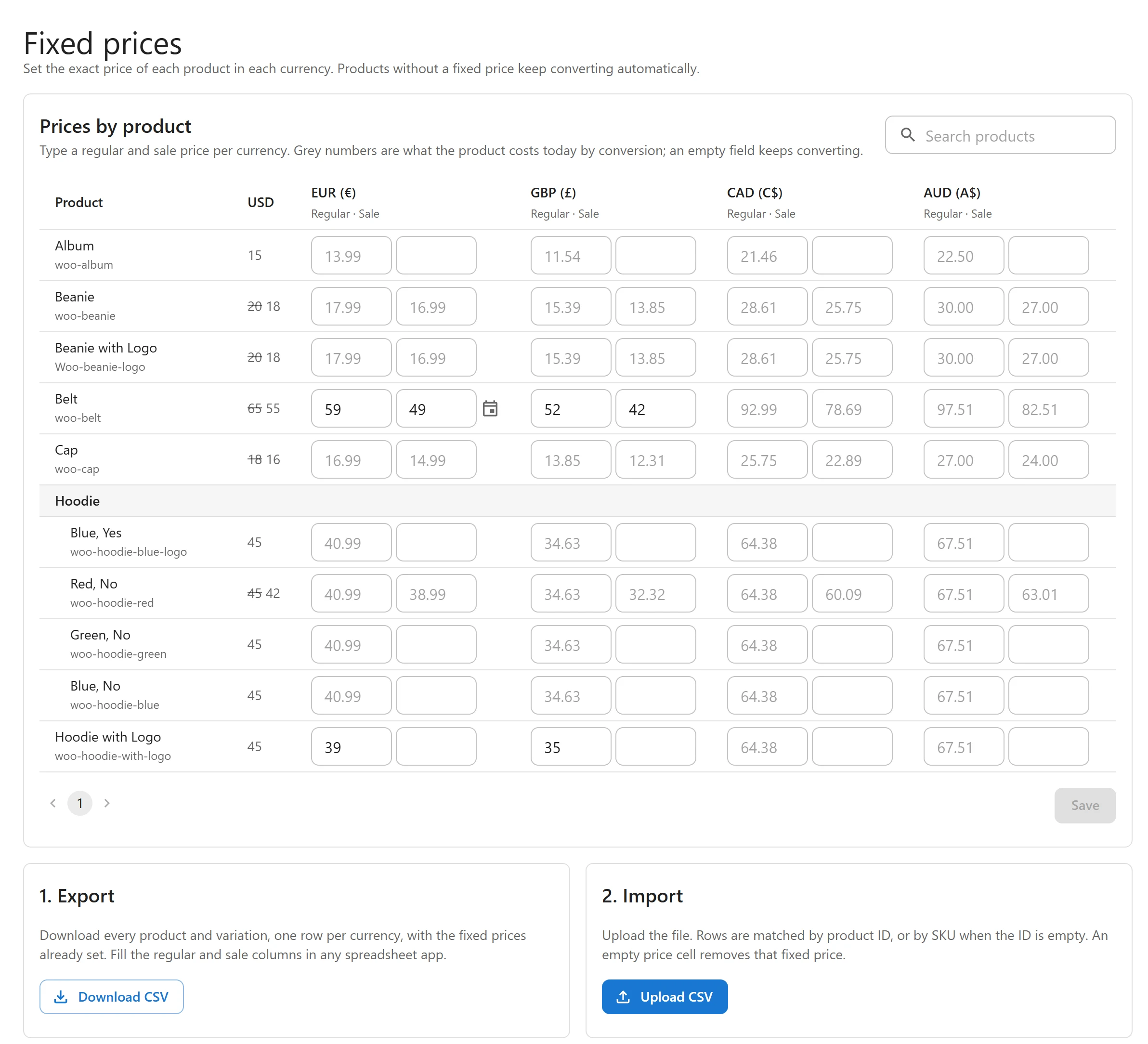
Open Plugixa Multi Currency > Fixed prices. Prices by product lists every product and variation, one row each, with a Regular and a Sale field per currency.
- Grey numbers in an empty field show what the product costs today by conversion. An empty field keeps converting.
- Same price everywhere marks a product set to the same price in every currency.
- Use Search products to find a product.
- Edited cells stay on the screen until you click Save with the number of changes, for example Save 12 changes, or Discard.
- A change that cannot be saved, such as a sale price higher than the regular price, is marked in red with its reason, and the others are saved.
Save or discard your changes before going to another page of the grid.
CSV export and import
The same screen has a two-step import, for changing many prices in a spreadsheet:
- Export. Click Download CSV. The file lists every product and variation, one row per currency, with the fixed prices already set.
- Fill the
regularandsalecolumns in any spreadsheet app, and save as CSV. - Import. Click Upload CSV and pick your file. It is imported right away.
The result says how many products were updated and how many lines were skipped, with the reason for each skipped line.
| Column | Meaning |
|---|---|
product_id |
The product or variation ID. Rows are matched by it. |
sku |
Used to match the row when product_id is empty. |
name, type |
For your reference. Not imported. |
currency |
The currency code, for example EUR. Required. |
regular |
The fixed regular price. Required column. An empty cell removes that fixed price. |
sale |
The fixed sale price. An empty cell removes it. |
sale_from, sale_to |
The currency’s own sale dates, like 2026-12-31. An empty cell clears them. |
A line is skipped when no product or variation matches (a variable product is priced on its
variations), when the currency is not one of yours (your store currency has no fixed prices),
when a price is not a valid number, when the sale price is not lower than the regular price, or
when a date is not like 2026-12-31. Files over 5 MB are refused: split them and import the
parts.
Quick Edit
In Products > All Products, hover a simple or external product and click Quick Edit. A Fixed prices group shows a Regular and a Sale field per currency. Change them and click Update. For variations, use the product edit screen or the grid.
How fixed prices combine with other rules
- A fixed price replaces the conversion completely: no rate, margin, rounding or charm ending.
- Prices by user role still apply on top of a fixed price. See Prices by user role.
- Changing a currency’s rate does not change its fixed prices.
- Shipping costs and coupon amounts can be fixed per currency too. See Fixed shipping and coupons.
Quick Links
Share