

Contents
On this page
Checkout - Plugixa Multi Currency for WooCommerce
Shoppers browse in the currency they picked, and the cart and the checkout follow it. What happens when they pay depends on one setting per currency: At checkout.
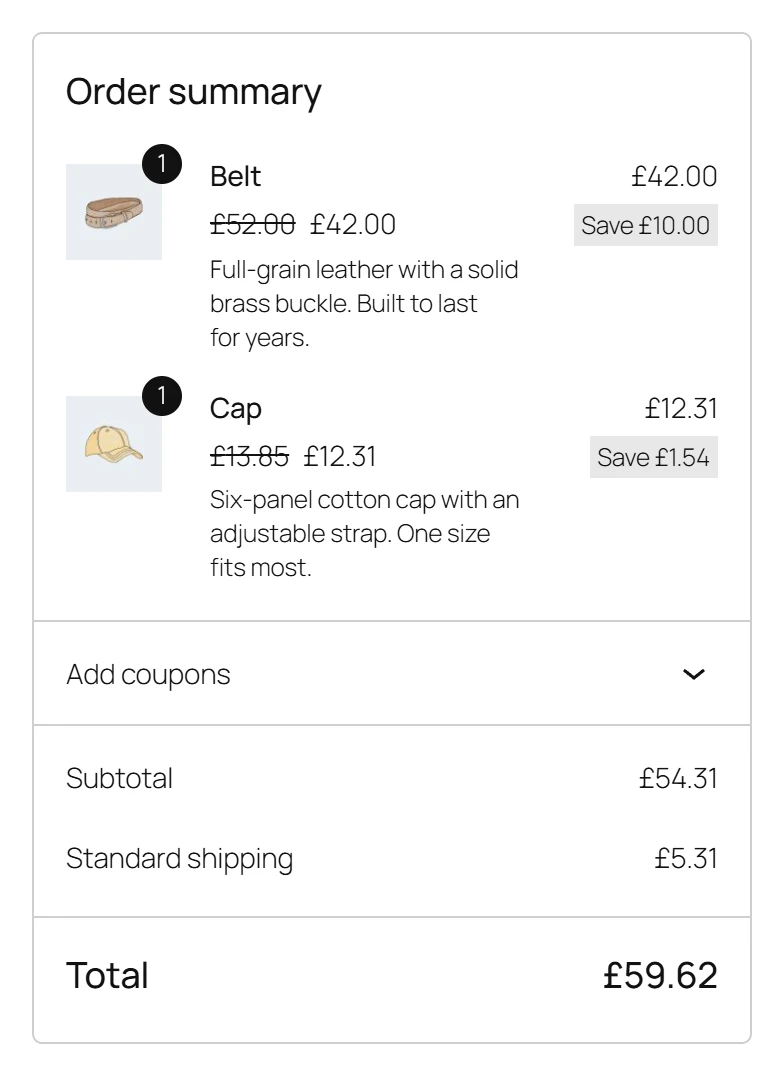
Two ways to charge
| At checkout | What the shopper pays | Use it when |
|---|---|---|
| Charge in this currency | The order is placed and paid in the shopper’s currency. | Your payment methods accept this currency. PayPal and Stripe take most currencies. |
| Charge in the store currency | Prices are shown in the shopper’s currency as a guide. At checkout the order switches to your store currency, and that is what is charged. | Your payment methods do not accept this currency, or you only want to receive your own. |
Set it for each currency on its form under Storefront, or for all of them at once in the setup wizard’s Checkout step, where the second option reads Show only, charge in your store currency.
Charge in this currency
Nothing changes for the shopper at checkout: the cart, shipping, taxes and total stay in the currency they picked, and the payment method receives the order in that currency. The order is saved in that currency, with the rate it was placed at. See Orders and refunds.
Check that each payment method you offer supports each currency you charge in. A payment method that does not take a currency may refuse the payment or hide itself. Pro can show only the payment methods you choose for each currency PRO. See Payment methods and order limits.
Charge in the store currency
The shopper browses and fills the cart in their currency. When they open the checkout page, the checkout switches to your store currency and a notice says so, for example:
Your order will be charged in USD, our store currency: $84.00, about €78.83 today. Prices you saw in EUR were a guide.
In the Classic checkout, the order review table also gets an About in EUR line under the total, with the amount in the shopper’s currency. That amount uses the rate and margin, without the shop’s rounding.
The order is placed and paid in your store currency, so the payment method only ever sees your store currency. The shopper’s choice is kept: back in the shop, prices show in their currency again.
With Pro, the product page and the cart can also say which amount will be charged before the shopper reaches the checkout PRO. See Price in other currencies.
What the cart converts
| Amount | How it is converted |
|---|---|
| Product and variation prices | Rate, margin and the Product prices rounding rule. Sale prices keep their strike-through. |
| Shipping rates | Rate, margin and the Shipping rounding rule. Taxes on shipping are converted too. |
| Free shipping minimum | The Free shipping method’s minimum order amount, converted, so the threshold means the same in every currency. |
| Fixed-amount coupons | The coupon amount and its minimum and maximum spend, converted. |
| Percentage coupons | Left as they are: 10% is 10% in every currency. |
| Cart fees from other plugins | Rate, margin and the Fees rounding rule. |
| Taxes and totals | Calculated by WooCommerce from the converted amounts. |
A shopper who changes currency with items in the cart gets the cart recalculated in the new currency. The mini-cart follows too.
Cart fees that are a percentage
WooCommerce does not record whether a fee is a flat amount or a percentage of the cart. The
plugin converts every fee, which is right for a flat fee typed in your store currency, such as
a 5.00 handling fee. A fee worked out as a percentage of the cart total is already in the
shopper’s currency and must not be converted again. A developer can exclude it with the
plugixa_multi_currency_convert_fee filter. See
Hooks and PHP helpers.
Classic and Block checkout
Both work the same way:
- The Classic cart and checkout (
[woocommerce_cart]and[woocommerce_checkout]). - The Cart and Checkout blocks, which load prices through the WooCommerce Store API. The plugin converts the Store API responses and tells the blocks which currency, symbol and separators to use.
The plugin declares compatibility with both the Cart and Checkout blocks and High-Performance Order Storage (HPOS).
WooPayments Multi-Currency
Use one multi-currency tool at a time. When WooPayments’ own Multi-Currency feature is switching currencies (it is on and has more than one currency), Plugixa Multi Currency steps aside on the storefront so prices are never converted twice, and the switchers are hidden. An admin notice explains it:
Plugixa Multi Currency is paused on your storefront because WooPayments Multi-Currency is also switching currencies…
To use Plugixa Multi Currency, remove the extra currencies in Payments > Settings > Multi-Currency, or turn that feature off. WooPayments as a payment method works normally.
Quick Links
Share