

Contents
On this page
Getting started - Plugixa Multi Currency for WooCommerce
This page takes you from a fresh install to a first order in another currency. It takes about ten minutes.
Requirements
| Requirement | Version |
|---|---|
| WordPress | 6.6 or later |
| PHP | 8.2 or later |
| WooCommerce | 9.6 or later, active |
The plugin declares WooCommerce as a required plugin, so WordPress asks you to activate WooCommerce first. If WooCommerce is missing or older than 9.6, the plugin shows the notice Plugixa Multi Currency needs WooCommerce 9.6 or newer and does nothing on your storefront.
It works with WooCommerce High-Performance Order Storage (HPOS) and with both the Classic and the Block Cart and Checkout.
Before you start: your store currency
Your store currency is the one your products are priced in, set in WooCommerce > Settings > General > Currency. Every other currency is converted from it, and every rate is relative to it. Set it before you run the wizard: the wizard shows it on its first step but does not change it.
Install the plugin
- In WordPress, go to Plugins > Add New Plugin and click Upload Plugin.
- Choose the plugin ZIP file and click Install Now, then Activate.
- The setup wizard Set up Multi Currency opens.
The wizard opens by itself once, after the first activation, for an administrator. To come back to it later, open Plugixa Multi Currency > Dashboard: until setup is finished, a banner there says Finish setting up with a Start setup button.
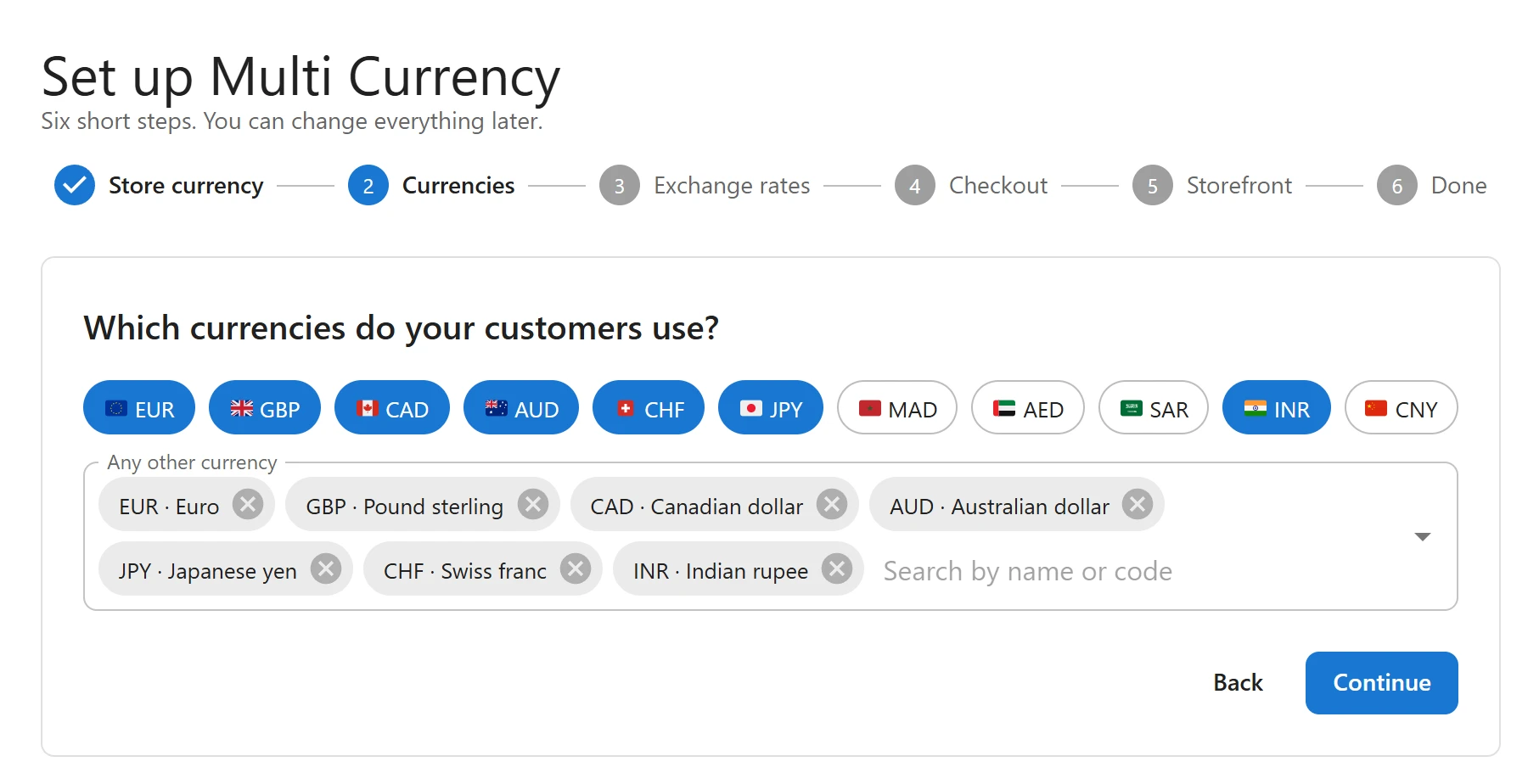
Run the setup wizard
The wizard has six steps: Store currency, Currencies, Exchange rates, Checkout, Storefront and Done. Everything you choose here can be changed later.
- Store currency. The wizard shows your WooCommerce store currency. If it is wrong, change it in WooCommerce first, then come back. Click Continue.
- Currencies. Under Which currencies do your customers use?, click the currencies you want (the popular ones are shown as chips), or search for any other currency in Any other currency. Click Continue: the currencies are added.
- Exchange rates. Each currency needs a rate: how much 1 unit of your store currency is worth in it. Click Get today’s rates from the European Central Bank to fill them in, or type your own. Switch on Update rates automatically every day to keep them current. Click Continue.
- Checkout. Under Which currencies do you charge in?, choose for each currency Charge in this currency, or Show only, charge in your store currency. Pick the second for currencies your payment methods do not take. Click Continue.
- Storefront. Under How shoppers get their currency, switch on Show a floating currency button if you want a currency button on every page, and pick its Button position. Click Finish setup.
- Done. The wizard says Your store is ready to sell in a number of currencies, your store currency included. Choose Go to the dashboard, Review currencies or View site.
The European Central Bank publishes rates for about thirty currencies. For a currency it does not publish, such as the UAE dirham, type the rate yourself. See Exchange rates.
Add the switcher to your shop
Shoppers need a way to pick their currency. You have four, and can use several:
- The Currency Switcher block, in your header, a sidebar or inside the Navigation block.
- The
[plugixa_currency_switcher]shortcode, in a page, a post or a classic theme. - The Currency Switcher widget, in a classic theme’s widget area.
- The floating button, switched on in the wizard or in Settings > Storefront.
In a block theme, open Appearance > Editor, edit the header template part and add the Currency Switcher block. See Currency switcher for the styles and options.
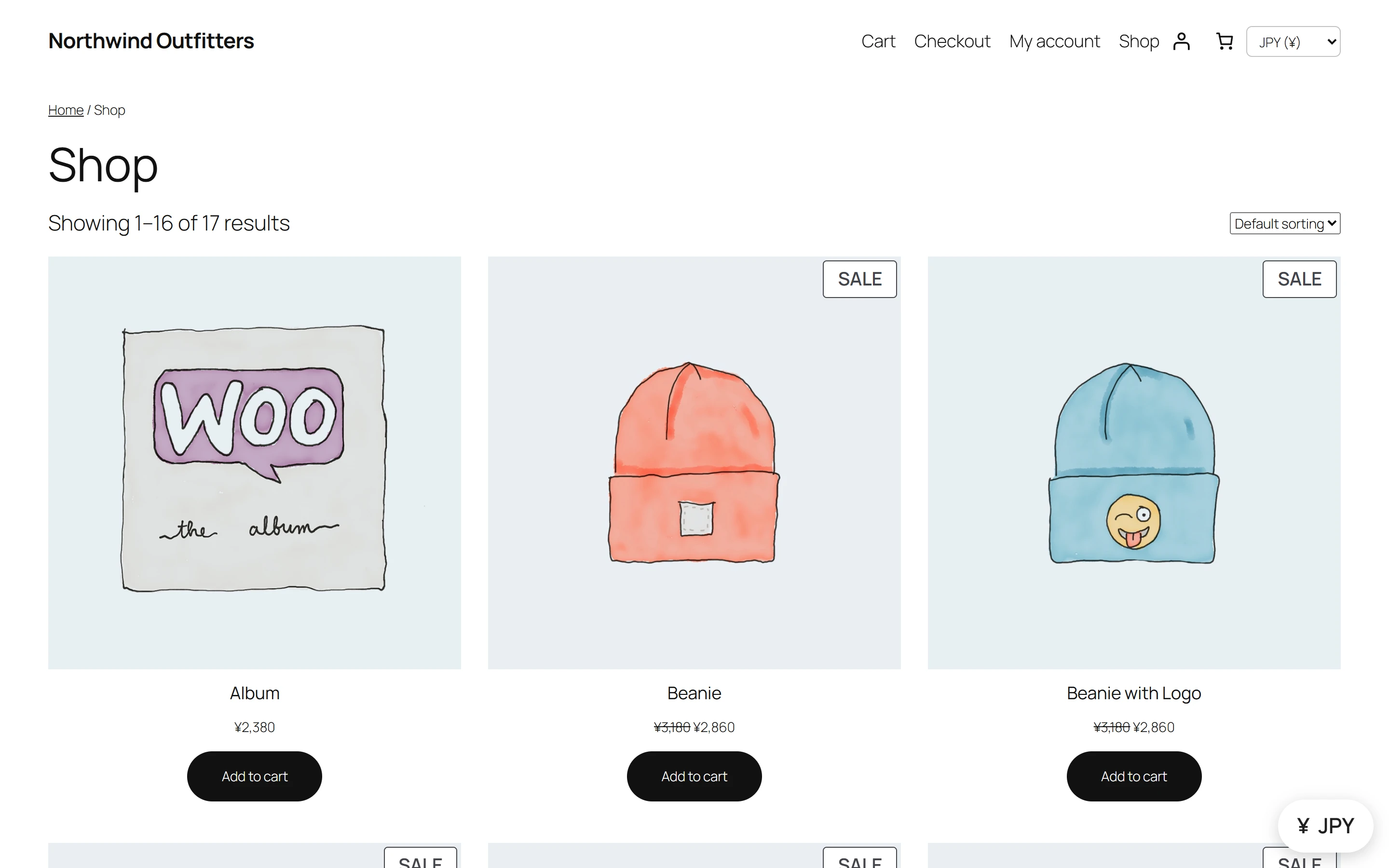
Check a first order
- Open your shop in a private browser window, so you are not logged in.
- Pick another currency in the switcher. Prices on the page change to it.
- Add a product to the cart and go to the checkout. The cart, shipping and total are in the currency you picked.
- Place the order with a test payment method, such as Cash on delivery.
- In wp-admin, open WooCommerce > Orders. The Currency column shows the order’s currency, with its total in your store currency underneath.
- Open the order. Its notes say which rate it was paid at, for example Paid in EUR at 1 USD = 0.93268 EUR (including margin).
If the currency is set to charge in your store currency, the checkout shows a notice instead: the order is charged in your store currency, with the amount in the shopper’s currency as a guide. See Checkout.
What to read next
- Currencies: symbols, separators and the order in the switcher.
- Margins and rounding: make converted prices look like prices.
- Page caching: if your site uses a page cache, read this before you go live.
Quick Links
Share