

Contents
On this page
Currencies - Plugixa Multi Currency for WooCommerce
The Currencies screen lists every currency your store sells in. Open it from Plugixa Multi Currency > Currencies. There is no limit on how many currencies you add.
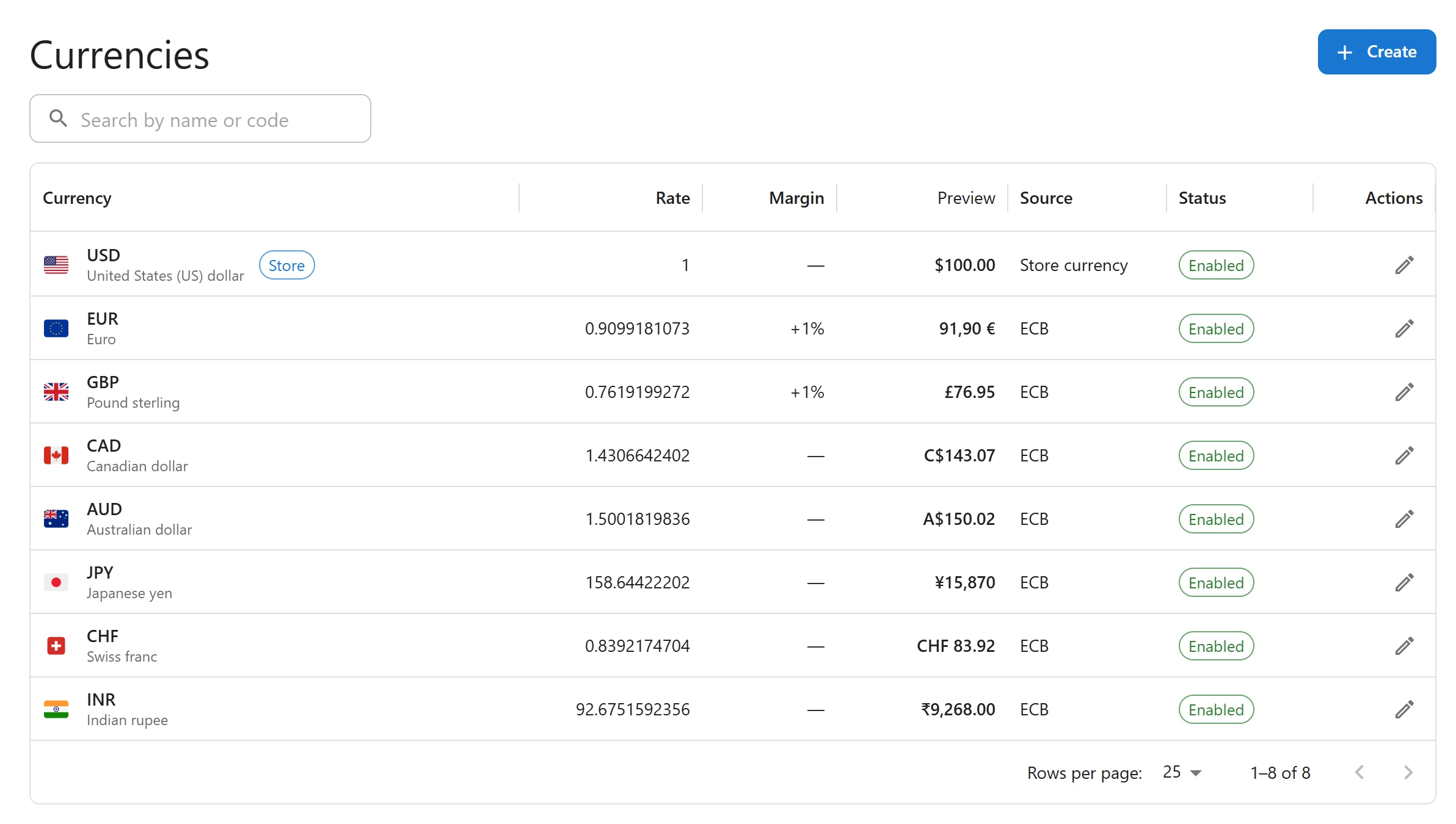
The currencies list
| Column | What it shows |
|---|---|
| Currency | The flag, the ISO code and the currency’s name. Your store currency carries a Store badge. |
| Rate | How much 1 unit of your store currency is worth in this currency. Always 1 for the store currency. |
| Margin | The margin added on top of the rate, for example +2% or +2% +0.50. |
| Preview | What a product priced 100 in your store currency costs in this currency, with the rate, margin and rounding. |
| Source | Where the rate comes from: ECB, Frankfurter, Manual, Manual only, or Store currency. |
| Status | Enabled, or Off when the currency is switched off. |
Use Search by name or code above the list to find a currency. Click a row to edit it.
The store currency
The first row is your store currency, the one set in WooCommerce > Settings > General. The plugin adds it for you, with a rate of 1. You cannot switch it off or remove it, and it has no rate, margin or rounding: your prices are already in it. You can still change its symbol and separators.
To sell in another store currency, change it in WooCommerce. Every rate is relative to the store currency, so update the rates of your other currencies afterwards. See Exchange rates.
Add a currency
- On the Currencies screen, click Add currency.
- In Currency, search by name or code and pick the currency. The currencies already in your list are not offered.
- The symbol, its position, the decimals, the separators and the flag are filled in from WooCommerce’s own data for that currency. Change them if you need to.
- Enter the Rate, or leave it for the daily update to fill in. See Exchange rates.
- Click Save.
The Preview card beside the form shows what four sample store prices cost in the new currency as you type: What shoppers pay for these store prices, with the rate, margin and rounding above.
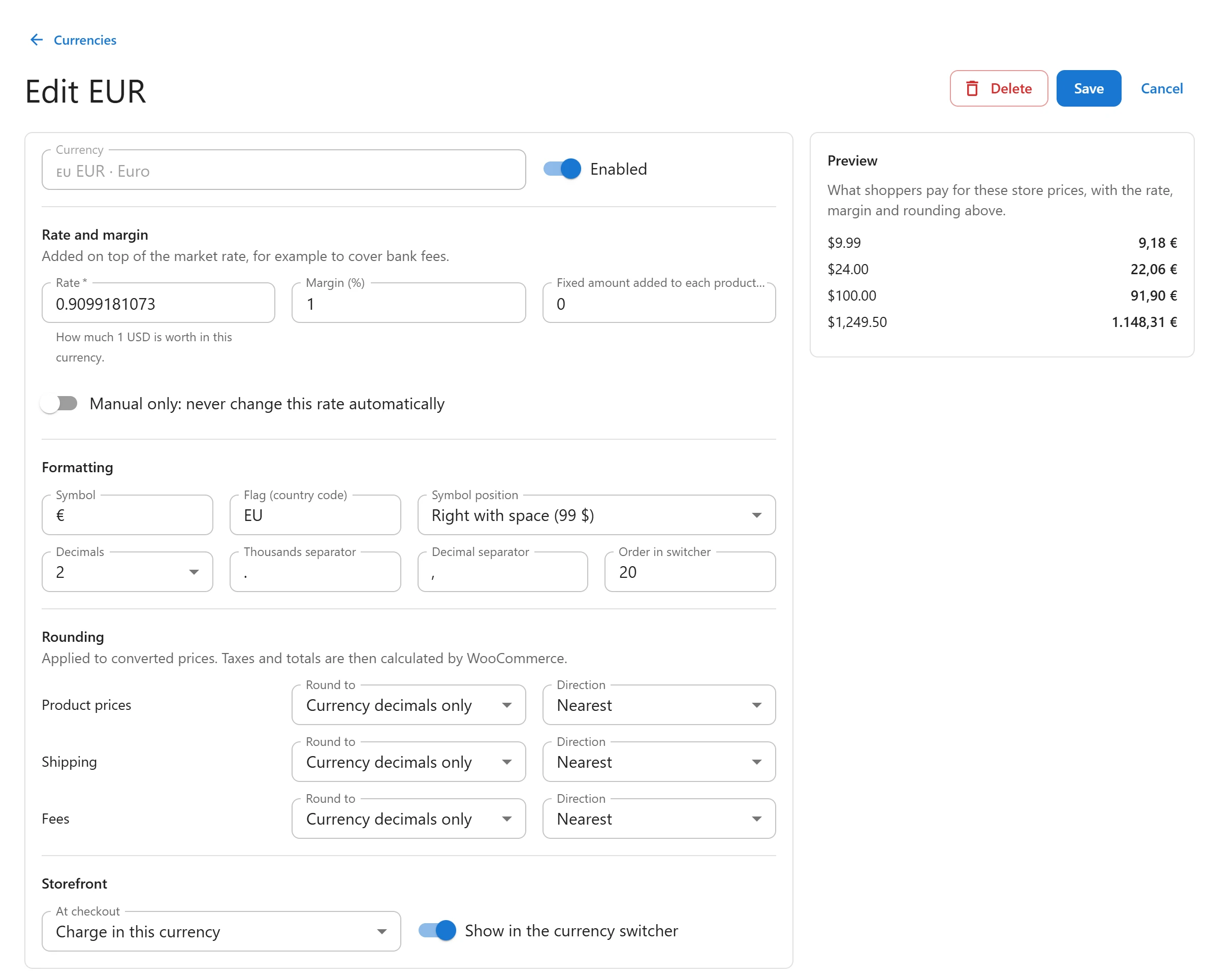
The currency form
Rate and margin
| Field | What it does |
|---|---|
| Rate | How much 1 unit of your store currency is worth in this currency, with a dot for decimals, for example 0.92. It must be more than zero. |
| Margin (%) | A percentage added on top of the rate, for example 2 to cover bank fees. It can be negative, down to just above -100. |
| Fixed amount added to each product price | An amount in this currency added to every converted product price, after the percentage. Shipping, fees and coupons do not get it. |
| Manual only: never change this rate automatically | Keeps your rate as it is when rates are updated. |
How these combine is explained step by step in Margins and rounding.
Formatting
| Field | What it does |
|---|---|
| Symbol | The symbol shown with prices, for example € or CHF. Up to 16 characters. |
| Flag (country code) | A two-letter country code, for example FR, used for the flag in the switcher. Leave it empty for no flag. |
| Symbol position | Left ($99), Right (99$), Left with space ($ 99) or Right with space (99 $). |
| Decimals | From 0 to 4. Japanese yen uses 0, most currencies use 2. |
| Thousands separator | The character between thousands, for example , or a space. |
| Decimal separator | The character before the decimals, for example . or ,. |
| Order in switcher | A number. Currencies are listed in the switcher from the lowest number to the highest. A new currency goes last. |
Each currency keeps its own format everywhere WooCommerce shows a price in it, including order screens and emails, whatever the shopper’s current currency is.
Rounding
Three rules, for Product prices, Shipping and Fees, each with Round to and Direction. See Margins and rounding.
Storefront
| Field | What it does |
|---|---|
| At checkout | Charge in this currency, or Charge in the store currency to show prices in this currency as a guide only. See Checkout. |
| Show in the currency switcher | Lists the currency in every switcher. Switch it off to keep the currency enabled without listing it in the switcher. |
At the top of the form, Enabled switches the whole currency on or off.
Switch a currency off
Edit the currency and switch off Enabled, then click Save. The currency leaves every switcher, and a shopper who had picked it sees your store currency again. Its settings stay, so you can switch it back on later. The Status column shows Off.
Remove a currency
- Open the currency and click Remove.
- Confirm in the dialog Remove this currency?
Customers can no longer pick it. Orders already placed in that currency keep their currency and their saved rate. The store currency cannot be removed.
Tips
- A switcher only appears when at least two currencies are enabled and shown in it, your store currency included.
- Changing a rate changes the prices shoppers see right away. Orders already placed keep the rate they were placed at. See Orders and refunds.
- With Pro, the currency form has more panels: charm endings, payment methods and order limits PRO, and the rate history. See Charm pricing and Rate alerts and history.
Quick Links
Share