

Contents
On this page
Dashboard - Plugixa Multi Currency for WooCommerce
The dashboard is the first screen of Plugixa Multi Currency. It answers three questions at a glance: which currencies are you selling in, are the rates current, and what are they today.
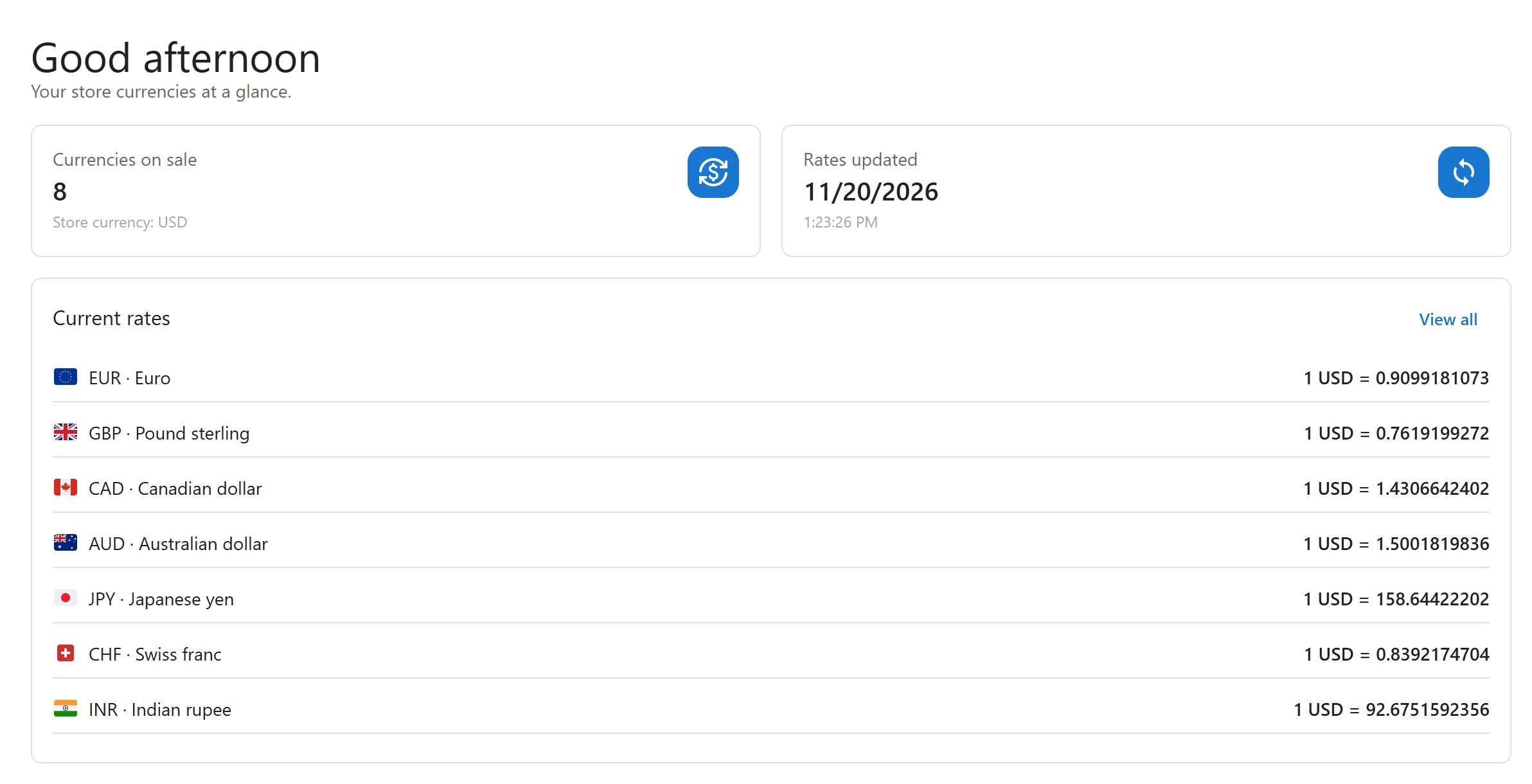
Tiles
| Tile | What it shows |
|---|---|
| Currencies on sale | How many currencies are enabled, your store currency included, with Store currency: and its code underneath. |
| Rates updated | The date and time rates were last fetched, or Never with the hint Turn on automatic rates in Settings. Click it to open Settings > Exchange rates. |
Current rates
The Current rates card lists every currency other than your store currency with its rate. A switched-off currency is marked Off. View all opens the Currencies screen.
Messages
The dashboard shows a message at the top when something needs you:
| Message | What to do |
|---|---|
| Finish setting up: pick your currencies, rates and how shoppers switch. | Click Start setup to run the setup wizard. Shown until the wizard is finished. See Getting started. |
| You sell in one currency so far. Add the currencies your customers use. | Click Add currency. |
| Exchange rates have not been updated for more than 3 days. | Open Settings > Exchange rates and click Update rates now. See Exchange rates. |
Pro: revenue on the dashboard
With Pro, the dashboard adds Revenue and Orders tiles for the last 30 days, and a Revenue by currency chart, all added up in your store currency with the rate saved on each order PRO. See Revenue reports.
Navigation
The sidebar lists Dashboard, then the screens in sections: Currencies under Currencies, and Settings and App manager under Configuration. Pro adds its own screens to these sections and a Reports section. The search box in the top bar finds any screen by name.
Quick Links
Share