

Contents
On this page
Price in other currencies - Plugixa Multi Currency for WooCommerce
Two storefront extras for shops that sell in several currencies:
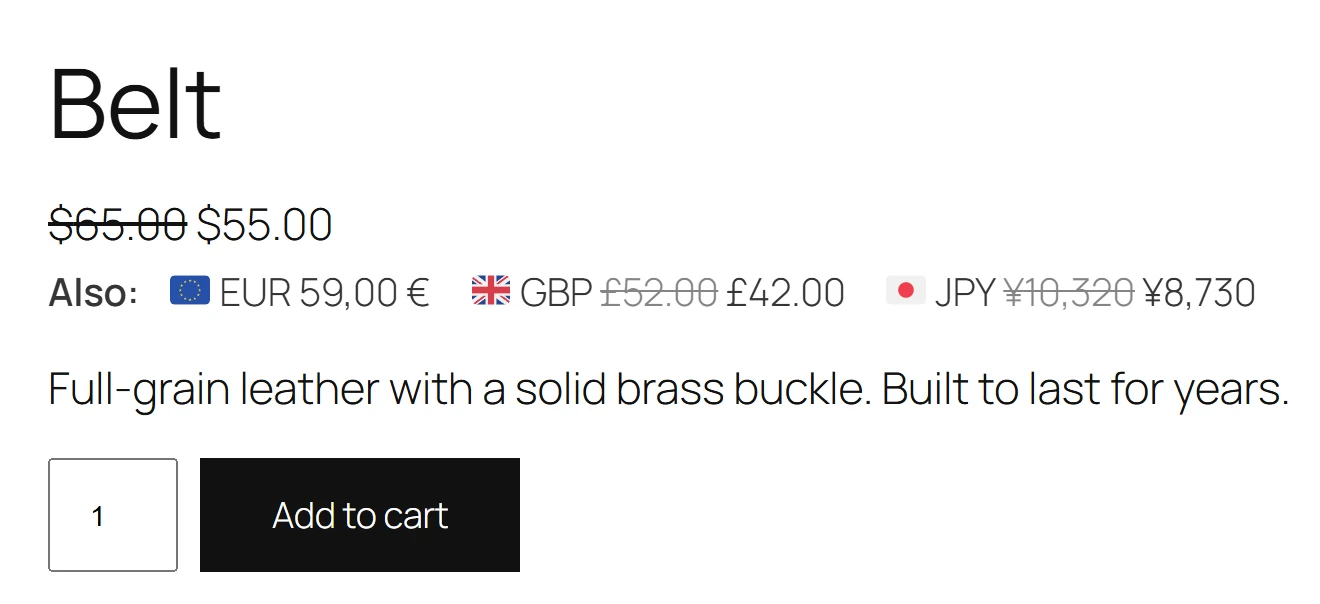
- Price in other currencies: the product’s price in each other currency you sell in, under the main price.
- Charged-in notice: for currencies that are charged in your store currency, the product page and the cart say what will actually be charged.
Open Settings and the Price in other currencies tab.
Show the price in other currencies
-
Under On product pages, choose how to show it:
Option What shoppers see Do not show Nothing. The default. A line under the price One line under the price, starting with Also: A collapsed box under the price A box titled Price in other currencies that opens on click. -
In Currencies to show, pick the currencies to list. Leave empty to show all of them.
-
Click Save.
The prices are worked out by WooCommerce itself with the currency switched for a moment, so fixed prices, rounding, charm endings and sale prices all apply: each one is exactly what a shopper in that currency would see. The currency the shopper is browsing in is not repeated.
It is added after the price on classic product pages, and after the Product Price block in block themes.
Place it yourself
To put the list somewhere else, turn On product pages to Do not show and use:
- The Price in Other Currencies block, in a single product template or inside a product
query. Its display option is a line (
list) or a collapsed box (details). - The shortcode, on a product page or anywhere with a product ID:
[plugixa_price_in_currencies display="list"]
[plugixa_price_in_currencies id="123" display="details"]
| Attribute | Values | Default |
|---|---|---|
id |
A product ID. Empty: the current product. | empty |
display |
list or details |
list |
Tell shoppers what they will be charged
This option is for currencies set to Charge in the store currency on their form. Tell shoppers what they will be charged is on by default. With it on:
- The product page shows, under the price, the amount charged in your store currency, for example You will be charged in USD: and the price.
- The Classic cart says Your order will be charged in USD at checkout, about and the total in your store currency.
- The Cart block says Your order will be charged in USD at checkout. Prices in EUR are a guide. It shows no amount there, because the block updates the cart without reloading the page.
The tab tells you which currencies this applies to. If none of your currencies is set to charge in the store currency, it says so and the option does nothing.
At the checkout itself, the free plugin already shows both amounts. See Checkout.
Quick Links
Share