

Contents
Settings backup - Plugixa Multi Currency for WooCommerce
A settings backup is one file with everything you set up: settings, currencies with their rates and rules, and each Pro feature’s settings. Use it to copy a setup from a staging site to the live one, to set up a second shop the same way, or to keep a copy before a big change.
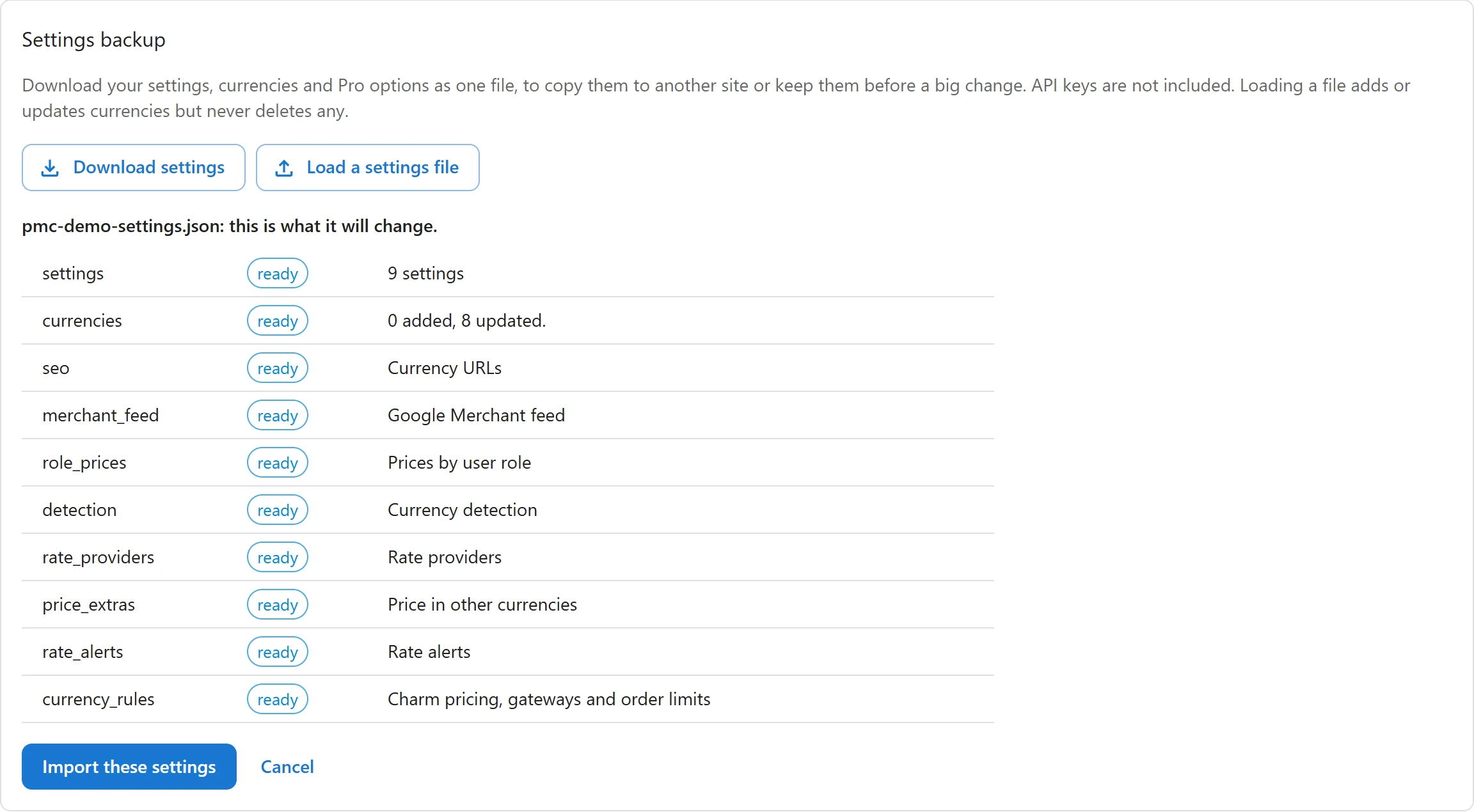
Open Plugixa Multi Currency > Tools and find the Settings backup card.
Download your settings
Click Download settings. Your browser saves a JSON file with:
- The plugin’s settings.
- Your currencies, with their rates, margins, formatting, rounding and checkout mode.
- The Pro settings: currency URLs, the Google Merchant feed, prices by user role, currency detection, rate providers, price in other currencies, rate alerts, and charm pricing, gateways and order limits per currency.
API keys are not included, nor the Google Merchant feed’s secret key, nor the uninstall setting. Fixed prices are stored on your products, not in this file: copy them with the CSV export on the Fixed prices screen.
Load a settings file
- Click Load a settings file and choose the file.
- The card shows, section by section, this is what it will change. Nothing is changed yet.
- Click Import these settings to apply it, or Cancel.
Each section then reports imported, or why it was not.
| Message | Meaning |
|---|---|
| This is not a Plugixa Multi Currency settings file. | The file is from something else. |
| This file is not valid JSON. | The file is damaged or was edited by hand. |
| The file is from a store in one currency and this store is in another | Currencies and rates are left out, because every rate is relative to the store currency. The other sections are still imported. |
| This site does not have that feature (Pro, or the module is off). | The section is skipped. Switch the app on in the App manager and load the file again. |
| Some parts were not imported; see above. | One or more sections failed. Their lines say why. |
Loading a file adds or updates currencies but never deletes any. Values that are not valid on this site, such as a payment method that does not exist here, are refused and reported.
After loading on another site
- Enter the API keys of your rate providers again, in Settings > Rate providers.
- If you use the Google Merchant feed, copy the new feed addresses into Merchant Center: each site has its own secret key.
- Run Update rates now to fetch fresh rates for the new site.
The same backup can be made from the command line with wp plugixa-mc settings. See
WP-CLI.
Quick Links
Share