

Contents
On this page
Country detection - Plugixa Multi Currency for WooCommerce
In the free plugin, a new visitor sees your store currency until they pick another one. Pro can pick the currency for them on their first visit, from the country they are in or the address saved in their account. A shopper’s own choice in the switcher always wins.
Two settings tabs work together:
- Country detection: geolocation and the country overrides.
- Currency detection: the other sources, in order, and switching at checkout.
The order of sources
Detection is used only until a shopper picks a currency. The sources are tried in this order, and the first that finds one of your enabled currencies wins:
- The shopper’s own choice: the switcher, a currency link, or a currency address.
- The page language, with WPML, Polylang or TranslatePress. See Multilingual.
- The country saved in a signed-in customer’s account.
- The Cloudflare visitor country.
- WooCommerce geolocation.
- Your store currency.
Search engines always see your store currency, whatever the detection says.
Geolocation
- Open Settings > Country detection.
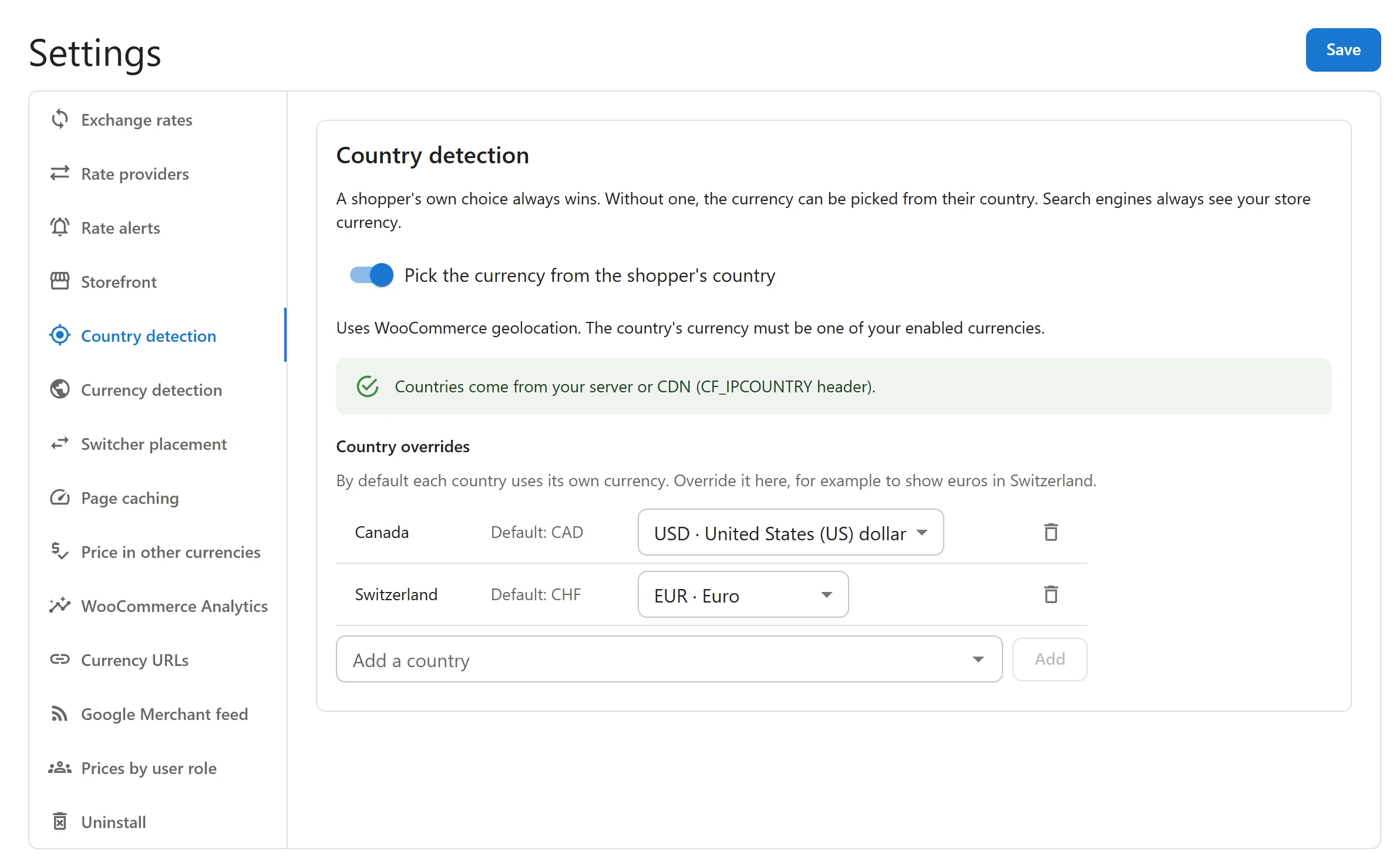
- Switch on Pick the currency from the shopper’s country: Uses WooCommerce geolocation. The country’s currency must be one of your enabled currencies.
- Click Save.
The tab tells you where countries come from on your site:
| Message | Meaning |
|---|---|
| Countries come from your server or CDN (with the header name) | Your host or CDN sends the visitor’s country in a header. |
| Countries come from the MaxMind GeoLite2 database in WooCommerce. | WooCommerce looks the IP address up in its local MaxMind database. |
| No country source found, so detection cannot work yet. | Add a free MaxMind licence key in WooCommerce (Open the MaxMind settings), or turn on the visitor country header at your CDN (Cloudflare: IP Geolocation). |
The lookup happens on your own server. The IP address is not sent to any outside service and is not stored by the plugin.
Country overrides
Every country starts with its own currency: France pays in euros, Japan in yen. A country whose currency is not one of your enabled currencies gets no detected currency, and its visitors see your store currency.
To change that, add an override under Country overrides: By default each country uses its own currency. Override it here, for example to show euros in Switzerland.
- Click Add a country.
- Pick the country, then the currency it should get. The default is shown as Default: and the currency.
- Click Save.
Overrides apply to every country source: geolocation, Cloudflare, saved addresses and the checkout.
The other country sources
Open Settings > Currency detection and tick the sources you want:
| Source | What it uses |
|---|---|
| Billing country of a signed-in customer | The country saved in the customer’s account. Called Saved delivery country of a signed-in customer when the delivery address decides. |
| Cloudflare visitor country (CF-IPCountry header) | The country Cloudflare adds to each request. If the request did not come through Cloudflare, the tab says so: turn on IP Geolocation in your Cloudflare dashboard (Network). |
Which address decides the country chooses between Billing address and Delivery address. Delivery suits shops whose market is where the goods go. When there is no separate delivery address, the billing address is used.
Click Save at the bottom of the tab.
Switch currency at checkout
Tick Switch to the billing country’s currency at checkout (or delivery country’s, as the address setting says). When a shopper enters a country whose currency you sell in, the cart switches to it and a notice says so, for example:
Prices are now shown in EUR, the currency of your billing country.
It works in the Classic and the Block checkout. The new currency is remembered like a choice made in the switcher.
Page caching
With geolocation on, a visitor with no currency cookie may get a page in another currency than your store’s. The plugin tells WP Rocket not to cache pages for visitors without the cookie, so no visitor is served another country’s page. For other caches and CDNs, use cache-first mode, where prices are switched in the browser. See Cache-first mode.
Privacy
Pro adds a paragraph to the plugin’s suggested privacy policy text, saying that when prices are shown in the visitor’s currency automatically, their IP address is used on your own server, with a local database, to find their country. Remove it if you do not use geolocation. See Privacy and uninstall.
Quick Links
Share