

PHP Version in WordPress: How to Check It (Site Health, Plesk, cPanel)
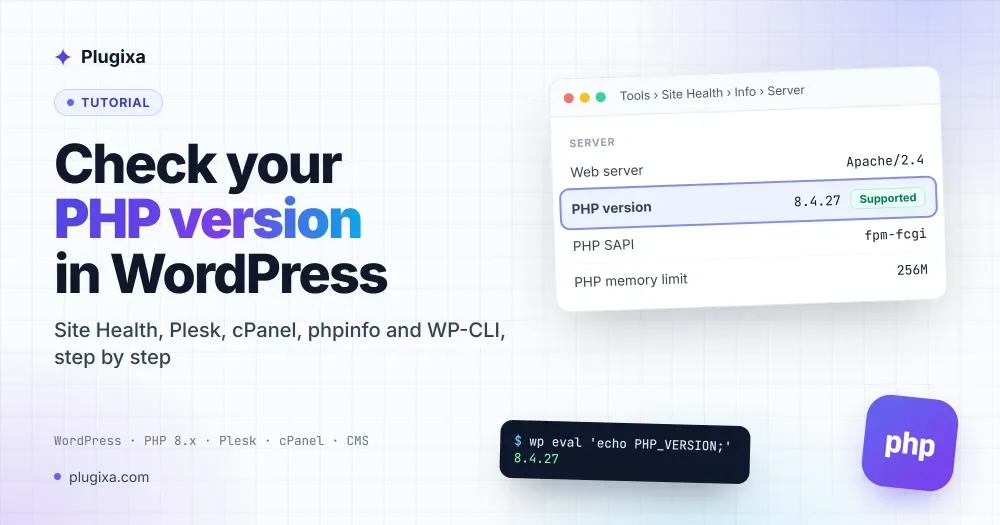
The quick answer: in your WordPress admin, open Tools → Site Health → Info, expand Server, and read the PHP version line. That is the version actually running your site.
If you cannot log in to WordPress, or you manage sites from a hosting panel, the same number is one or two clicks away in Plesk and cPanel too. This guide walks through each method with screenshots, then explains which version you should be on and how to change it.
Why your PHP version matters
WordPress is written in PHP, and your hosting server decides which PHP version runs it. That one number affects three things:
- Security. Each PHP branch gets security fixes for a limited time, then none. When a PHP flaw like PHP2Shell is disclosed, the first question is which version you run.
- Speed. Newer PHP releases run WordPress faster and use less memory.
- Compatibility. Plugins and themes declare a minimum PHP version. Below it, they refuse to activate or break after an update.
Method 1: WordPress Site Health
Site Health is built into WordPress (since 5.2), so there is nothing to install. You need an administrator account.
- In the WordPress admin menu, go to Tools → Site Health.
- Click the Info tab at the top of the page.
- Click Server to expand it.
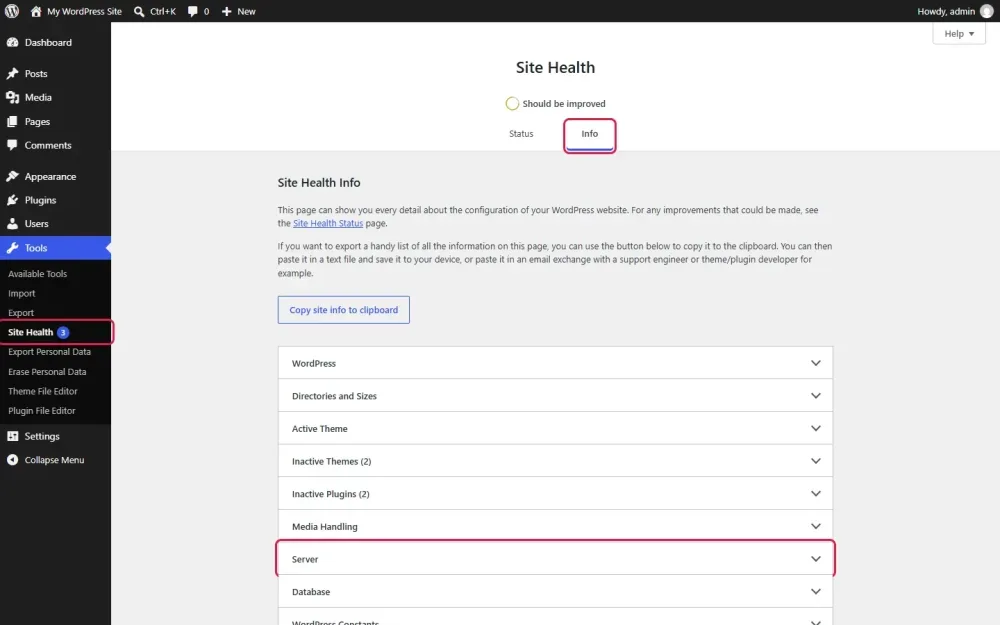
- Read the PHP version row. In this example the site runs PHP 8.4.27.
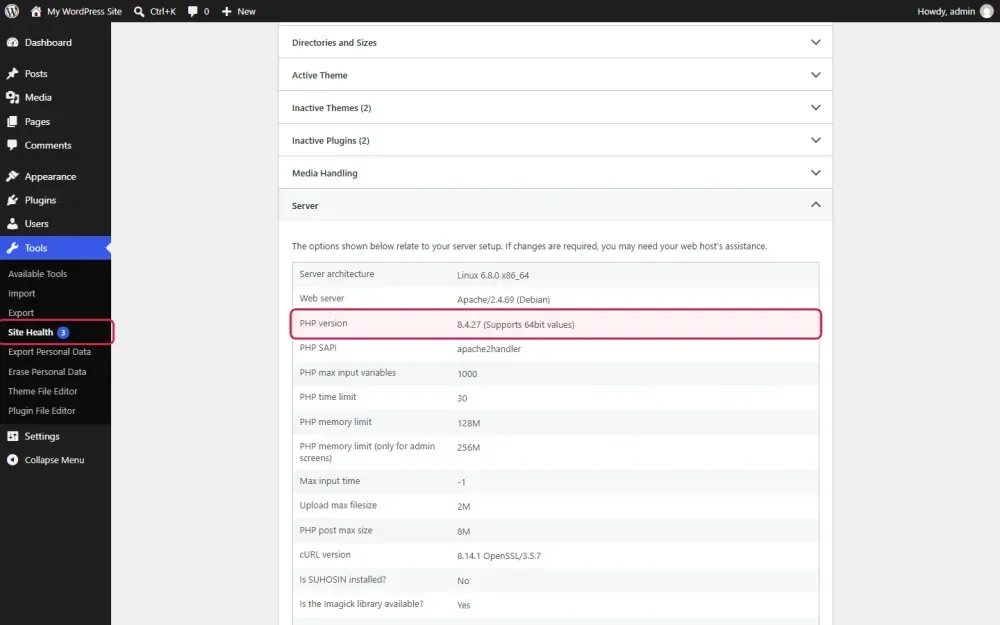
The rows below it are useful too: PHP memory limit, Upload max filesize and PHP time limit explain most “upload failed” and “memory exhausted” errors.
Tip: the Copy site info to clipboard button on the Info tab copies the whole report. Paste it into a support ticket and the developer has your PHP version, server and plugin list in one go.
If your PHP version is out of date, the Status tab says so too, as a recommended improvement or a critical issue.
Method 2: Plesk
Plesk shows the PHP version of each website in three places. The screenshots below come from Plesk Obsidian, logged in as a customer, which is the view most site owners see.
From the domain Dashboard
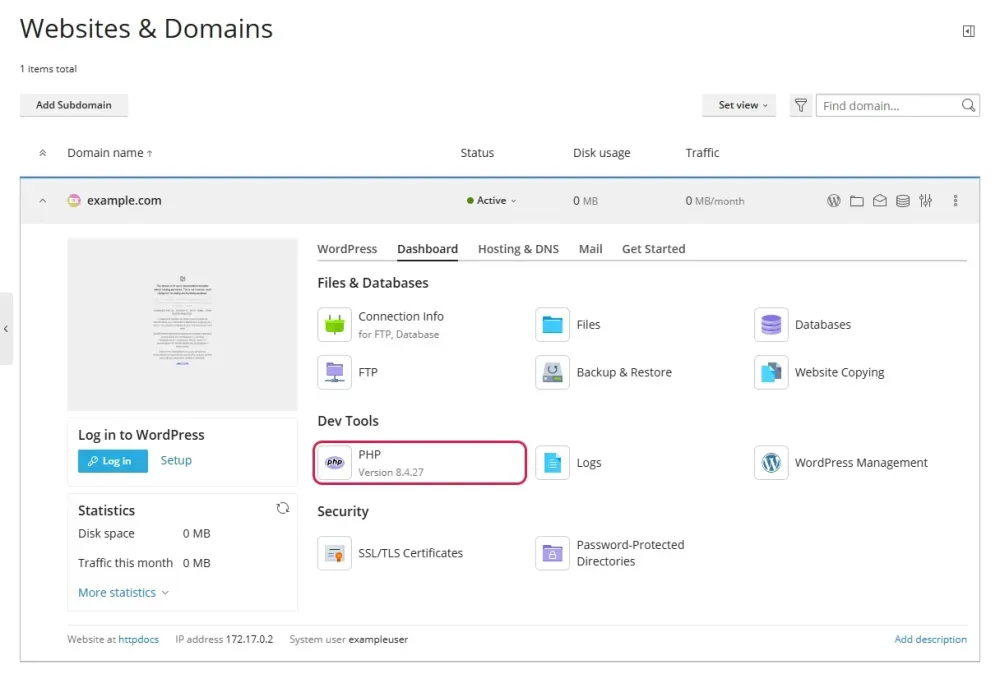
- Log in to Plesk and open Websites & Domains.
- Click your domain to expand it, then open the Dashboard tab.
- Under Dev Tools, the PHP tile shows the version, here Version 8.4.27.
From WP Toolkit
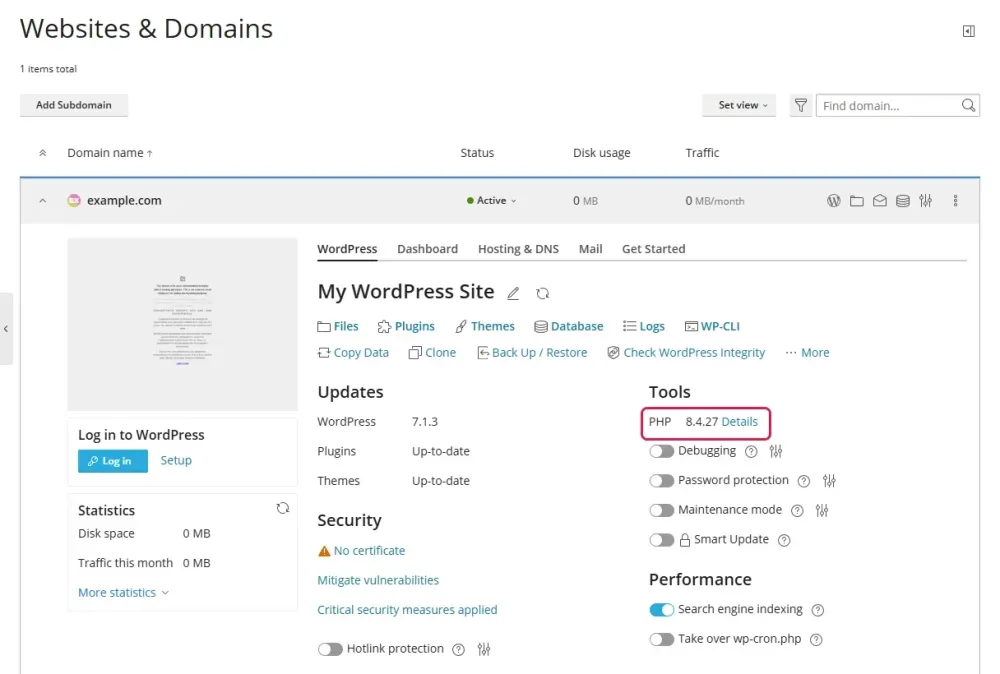
If WordPress was installed or scanned with WP Toolkit, the domain has a WordPress tab. Under Tools, the PHP line shows the version the WordPress site runs on, with a Details link.
From PHP Settings (where you change it)
Click the PHP tile (or Details in WP Toolkit) to open PHP Settings for the domain. The PHP support (PHP version …, run PHP as …) line shows the current version and how PHP is served, usually as an FPM application.
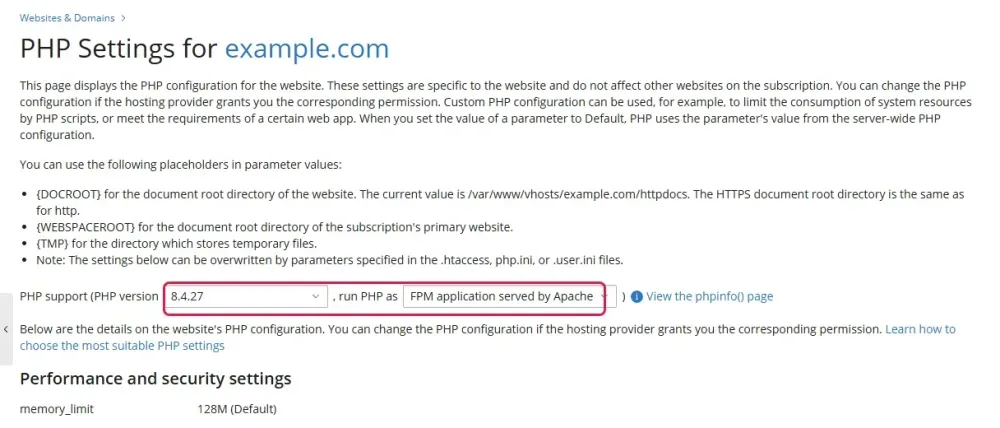
This is also where you switch versions: pick another one from the dropdown, scroll down and click OK. Only the versions your host has installed appear in the list. The View the phpinfo() page link next to it opens a full PHP report for the site, without creating any file.
Method 3: cPanel
On cPanel hosting, the PHP version is set per domain in MultiPHP Manager.
- Log in to cPanel.
- In the Software section, click MultiPHP Manager.
- Find your domain in the table. The PHP Version column shows the version it runs, for example
PHP 8.3 (ea-php83). - If the column says Inherit, the domain uses the server’s default, shown as System PHP Version at the top of the page.
To change it, tick the domain, choose a version from the dropdown at the top right of the table and click Apply.
Some cPanel hosts run CloudLinux, which adds a Select PHP Version tool in the same Software section. If MultiPHP Manager is missing or your changes there seem to have no effect, check Select PHP Version: its Current PHP version is the one your account uses.
The names in cPanel are build labels: ea-php83 means PHP 8.3 built by cPanel’s EasyApache. For the exact patch number (8.3.x), use Site Health or a phpinfo() page.
Method 4: A phpinfo() page
This works on any host, even when you cannot reach the WordPress admin.
- Using your host’s file manager, FTP or SFTP, create a file named
info.phpin the folder that holdswp-config.php. - Put this single line in it:
<?php phpinfo();
- Open
https://your-domain.com/info.phpin your browser. The version is in the header at the top.
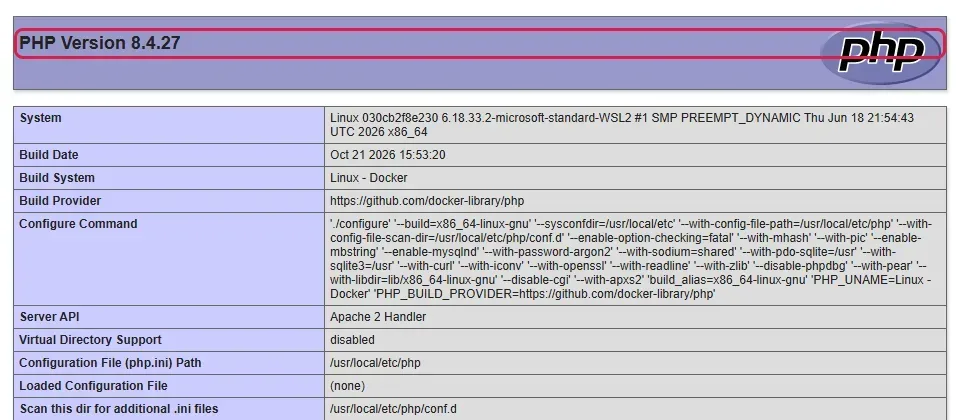
- Delete the file as soon as you have read it. A public phpinfo() page lists your server paths, modules and settings, exactly what an attacker looks for. On Plesk, use the built-in View the phpinfo() page link instead, which needs no file.
Method 5: WP-CLI and SSH
If you have SSH access, three commands report the version. Run the WP-CLI ones from the WordPress folder:
wp --info
wp eval 'echo PHP_VERSION;'
php -v
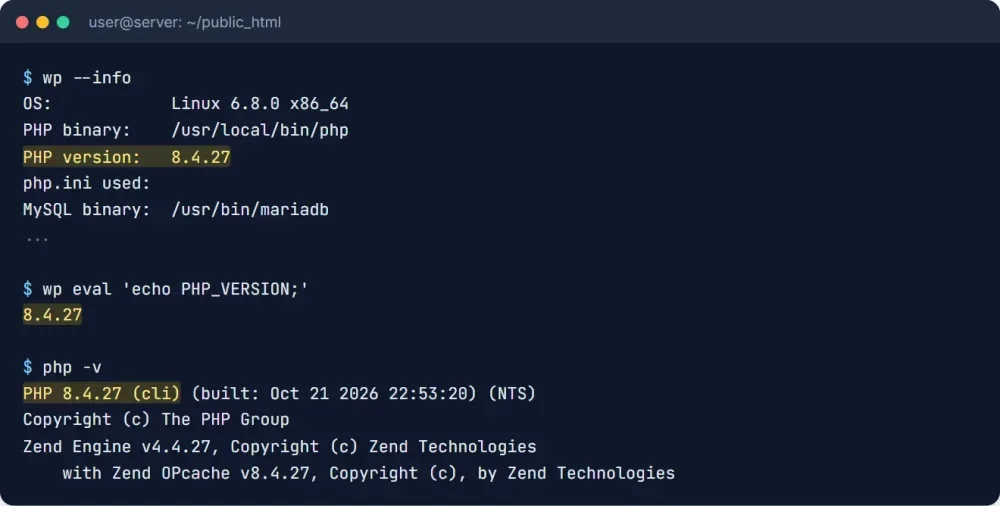
One caution: all three report the PHP used on the command line. Servers often have several PHP versions installed, and the command line default is not always the one serving your website. On Plesk and cPanel servers in particular, php -v can show one version while the site runs another. When the two disagree, trust Site Health, the hosting panel or phpinfo(), which show what the website really uses.
Which PHP version should WordPress run?
Run a PHP version that still receives security fixes. Each PHP branch gets two years of bug fixes and two more of security fixes, then nothing at all.
- The PHP project lists every branch and its end date on its supported versions page.
- WordPress publishes the version it recommends on its requirements page.
If your branch is no longer listed as supported, plan an upgrade even if the site seems fine: the next security flaw will not be fixed for it. Within a supported branch, stay on the latest release (8.4.27 rather than 8.4.10, for example), because that is where security fixes land.
All Plugixa plugins run on PHP 8.2 or newer, so any supported PHP 8 release works with them.
How to change your PHP version safely
- Back up your files and database. In Plesk, use Backup & Restore. In cPanel, use Backup or your host’s backup tool.
- Update WordPress, your theme and plugins first. Current versions are the ones tested on current PHP.
- Test on a staging copy for a big jump (for example 7.4 to 8.3). Plesk’s Website Copying and WP Toolkit’s Clone make one in a few clicks.
- Switch the version in Plesk PHP Settings or cPanel MultiPHP Manager.
- Check the site and the admin, then confirm the new version in Site Health.
If something breaks, switch back in the same screen while you look for the plugin or theme at fault. For an urgent security update on your own server, see our PHP2Shell guide, which covers patching PHP on Plesk, cPanel and plain Linux.
Troubleshooting
Site Health is missing from the Tools menu. It needs WordPress 5.2 or newer and an administrator account. On multisite, only super admins see it. Some hosts and security plugins also hide it; use your hosting panel or phpinfo() instead.
Plesk or cPanel shows a different version than Site Health. The panel may show the server default rather than your domain’s own setting, or PHP was not restarted after a change. Wait a minute, reload Site Health, and if it still disagrees, ask your host to restart PHP-FPM for the domain.
The dashboard says “PHP Update Required” or “PHP Update Recommended”. WordPress shows this when your PHP version is older than it recommends. The site keeps working, but plan the upgrade with the steps above.
Frequently asked questions
Does updating WordPress update PHP? No. PHP is installed on the server, separately from WordPress. WordPress, theme and plugin updates never change your PHP version; your host or your hosting panel does.
Can I check the PHP version without logging in to WordPress? Yes: in Plesk (Websites & Domains, Dashboard tab), in cPanel (MultiPHP Manager), with a temporary phpinfo() file, or over SSH.
Is it safe to show my PHP version? In Site Health and in your hosting panel, yes: only you can see it. A public phpinfo() file is not, so delete it right after use.
Is this different for other CMS like Joomla or Drupal?
The hosting side is identical: Plesk PHP Settings, cPanel MultiPHP Manager, phpinfo() and php -v work for any PHP CMS. Only the in-admin screen differs (Joomla shows it under System → System Information).
Need a hand?
If Site Health shows something you are not sure how to read, get in touch and we will help. And if you are looking for WordPress plugins built for current PHP versions, browse the Plugixa plugins.