

Contents
Selling exams with WooCommerce - Plugixa Exam
WooCommerce takes the money; Plugixa Exam decides who may sit what. Prices, carts, payment gateways, taxes, invoices and refunds all stay in WooCommerce, exactly as your shop already works. What this adds is the other half: when an order is paid, the customer may sit the exam - for as long, and as many times, as they bought.
It needs WooCommerce 9.0 or later, and works with both the classic checkout and the Checkout block, and with WooCommerce’s high-performance order storage.
Selling an exam in three steps
- Make the exam paid. Open the exam, and on its Access tab, under Who may sit this exam, switch on Enrolment required. From now on only people who hold access - bought, or granted by you - may start it. You, and anybody who can edit exams, are always let in, so you can still preview it.
- Create a product. On the exam’s Sales tab press Create product, give it a name, a price, an access period and a number of attempts. That makes an ordinary WooCommerce product - virtual, sold one at a time - with the exam already attached. Open it in WooCommerce afterwards to add a description, images, a sale price or anything else a product can have.
- Put it in front of people. The exam’s own page now shows the price and a Buy now button to anybody who may not sit it yet, and the catalogue shows the price on its card.
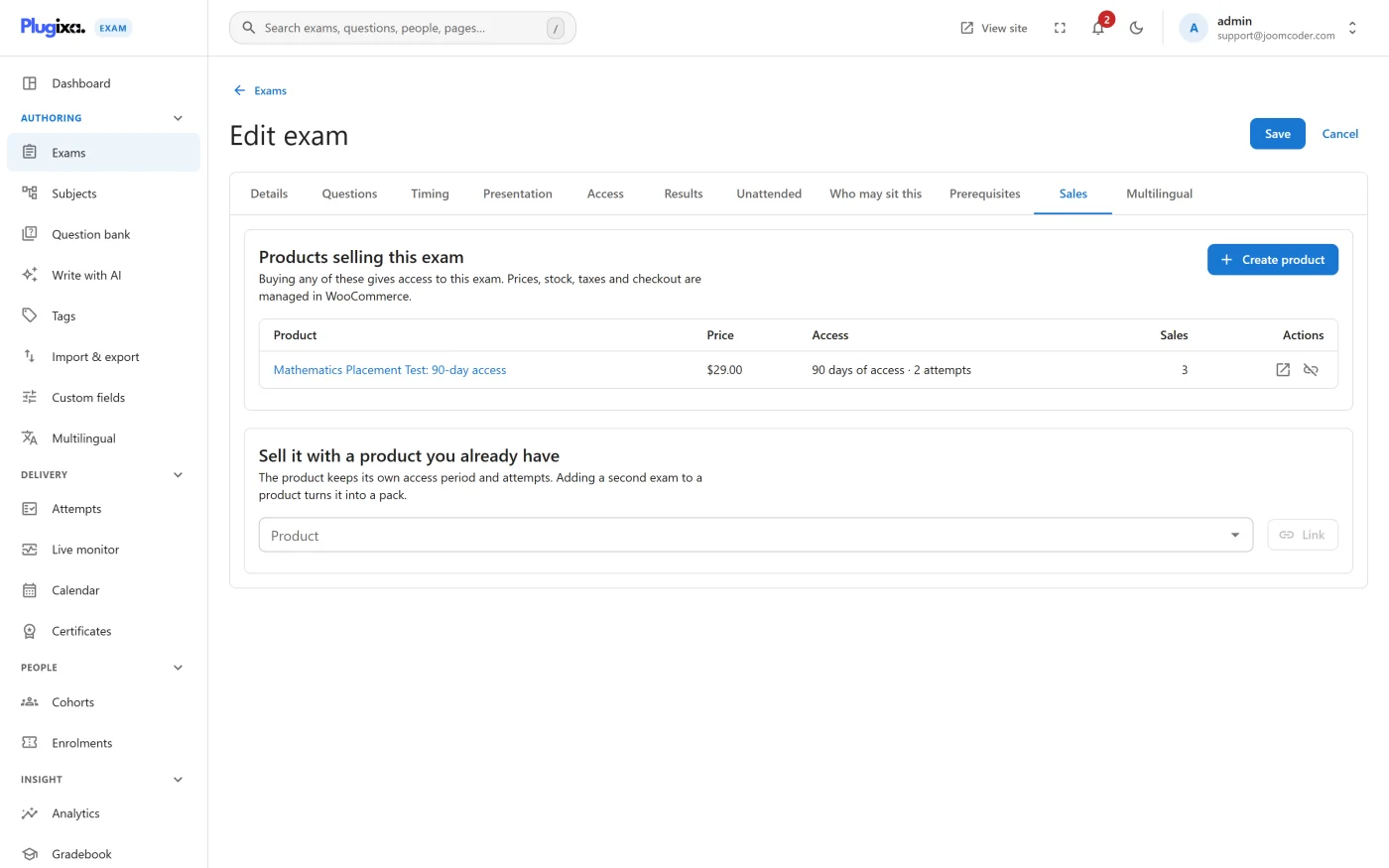
Prefer to start from WooCommerce? Any simple or variable product has an Exam access tab: pick the exams, the access period and the attempts there.
What a product sells
| Setting | What it means |
|---|---|
| Exams | Every exam the product gives access to. More than one makes a pack. |
| Access period (days) | How long the customer may sit the exams, counted from payment. 0 never ends. |
| Attempts included | How many sittings one purchase pays for. 0 means as many as the exam itself allows. |
A variable product can sell the same exam on different terms - 30 days for €19, 90 days for €29 - by setting a period and attempts on each variation. A variation left blank uses the product’s.
What was sold is what the customer keeps. The terms are copied onto the order when it is placed. Shortening the access period on a product next month changes what new customers buy; it never reaches back into an order already paid.
When access starts and stops
Access follows the order, whatever its status becomes and however it got there:
| The order is | The customer |
|---|---|
| Processing or completed (paid) | may sit the exam |
| Pending, on hold, failed, cancelled | may not - and gets it back if the order is paid |
| Refunded, or the exam’s line refunded | may not |
| In the trash | may not - and gets it back if the order is restored |
| Deleted for good | may not, permanently |
A partial refund of money only - a goodwill discount - takes nothing away. Only refunding the line itself, or the whole order, does.
Orders that contain only exams complete themselves as soon as they are paid, so you never have to press Complete on something with nothing to ship. Access starts at payment either way.
Somebody halfway through a paper can always finish it. If their access ends or the order is refunded while they are sitting it, the paper they already started runs to the end. They simply cannot start another.
Accounts
Access belongs to a person, so a cart holding an exam requires an account at checkout - a guest order would have nobody to give the exam to. Carts without an exam follow your shop’s usual guest-checkout rules.
Access goes to the customer the order belongs to, never to whoever happens to own the billing email address. WooCommerce lets anybody register with any address, so matching by email would let a stranger claim somebody else’s purchase. An order with no customer holds its access as Awaiting a customer until you attach one in WooCommerce.
What customers see
- On the exam page, a clear offer: each way to buy it, its terms and its price. After their access has run out it says Renew your access; after their attempts are used, Get more attempts. Somebody who holds access sees Your access runs until 12 December · Attempts left: 2 of 3 instead - counting everything they hold, so after an early renewal it shows the new end date and every attempt left, and adds 1 of them must be used by … when the older purchase ends first.
- While their order waits for payment - a bank transfer on hold, or an order they have not finished paying - the exam page says Your order is waiting for payment with the order number, instead of offering it again. An unpaid order gets a Pay for this order button. After 30 days the offer comes back.
- On the product page, a What’s included list of the exams, their time limits and pass marks.
- After paying, Start exam and Access until … under the line on the thank-you page, in their order history, and in the order emails.
- In their account, a My exams tab right after Orders, listing everything they bought, what is left of it, and a button back in.
- A reminder email a few days before their access ends, unless they have already renewed. Edit its wording under Notifications.
The offer on the exam page is the same for every visitor, so the page can still be served from a page cache.
Renewals and buying more
Buying again adds to what somebody already has, and never wastes it:
- A renewal bought before the current access ends runs on from the current end date: ten days left plus a new 30 days is 40 days.
- It is usable immediately - somebody who has used up their attempts is never told to wait for access they have just paid for.
- When several purchases are held at once, the one that ends soonest is used first.
Somebody who already holds access that never ends, with unlimited attempts, cannot add the same exam to their cart again - there is nothing more to buy.
Refunds and certificates
By default, refunding a purchase withdraws the certificates it paid for - only the ones earned by attempts that purchase paid for, never a certificate earned another way. The certificate is withdrawn, not deleted: its verification page says so, and you can restore it from Certificates. Switch this off under Settings → WooCommerce → After a sale if you treat refunds as a goodwill gesture.
Attempts and results are never deleted by a refund.
Settings → WooCommerce
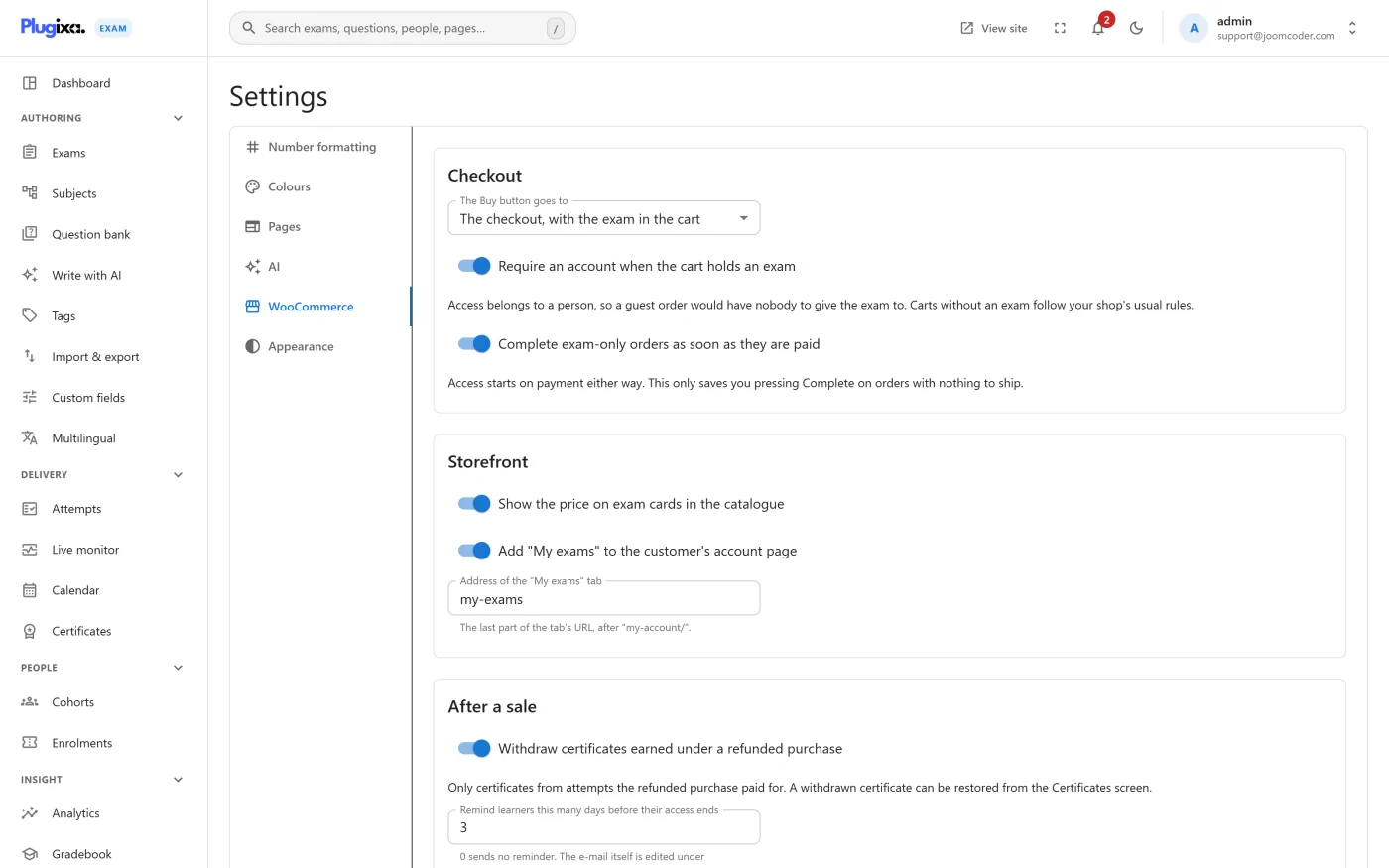
| Setting | Default | What it does |
|---|---|---|
| The Buy button goes to | The checkout | Straight to the checkout with the exam in the cart, or to the cart so the customer can keep shopping |
| Require an account when the cart holds an exam | On | See Accounts above |
| Complete exam-only orders as soon as they are paid | On | Saves pressing Complete |
| Show the price on exam cards | On | The catalogue card shows €19 or From €12 |
| Add “My exams” to the customer’s account page | On | And the tab’s address, my-exams by default |
| Withdraw certificates earned under a refunded purchase | On | See above |
| Remind learners this many days before their access ends | 3 | 0 sends no reminder |
| Scan past orders | - | Gives access for any paid order placed before this was switched on. Safe to run again |
Support tools
- People → Enrolments lists every purchase and grant, with a link straight to the order. Change the end date or the attempts, revoke, restore, or grant access by hand. See Enrolments.
- The order screen in WooCommerce has an Exam access box showing what that order holds - or Access starts when this order is paid on an unpaid order that sells an exam - and a Resync exam access button that re-reads the order.
Troubleshooting
| Symptom | Usual cause |
|---|---|
| Anybody can sit the exam without buying it | Enrolment required is off on the exam. The Sales tab warns about this. |
| No price or Buy button on the exam page | No published, purchasable product sells the exam - check the product is published and in stock. |
| A customer paid and cannot get in | The order is still on hold (bank transfer, cheque) - mark it paid. Otherwise open the order and press Resync exam access. |
| The order says Awaiting a customer | It was placed with no account attached. Attach the customer to the order in WooCommerce. |
| The customer is told they have used every attempt | The purchase included a fixed number. Sell them more, or change the attempts on their row under Enrolments. |
| They bought more attempts and are still refused | The exam’s own Max attempts also applies, and it counts every attempt ever made. Set it to 0 on a paid exam and let each purchase carry its attempts. |
| The My exams tab gives a 404 | Visit Settings → Permalinks once to rebuild the site’s addresses. |
What to do next
- Manage and grant access by hand: Enrolments PRO
- Decide who else may sit an exam: Access and enrollment
- Tell other systems about a sale: Webhooks -
enrolment.grantedandenrolment.revoked