

Contents
On this page
AI subtitles - Plugixa Stream
AI subtitles do two jobs in the episode editor:
- Generate from speech: OpenAI’s Whisper listens to the episode and writes subtitles in its spoken language.
- Translate: Claude, from Anthropic, translates an existing subtitle track into other languages, keeping every timing.
You bring your own API keys. Requests go from your site straight to OpenAI and Anthropic, and each company bills your own account for what you use. The plugin adds no fee and no usage limit of its own.
Every result is an ordinary WebVTT file in the Media Library and an ordinary subtitle track on the episode, marked as AI. You can download it, correct it and upload it again like any other track.
1. Add your keys
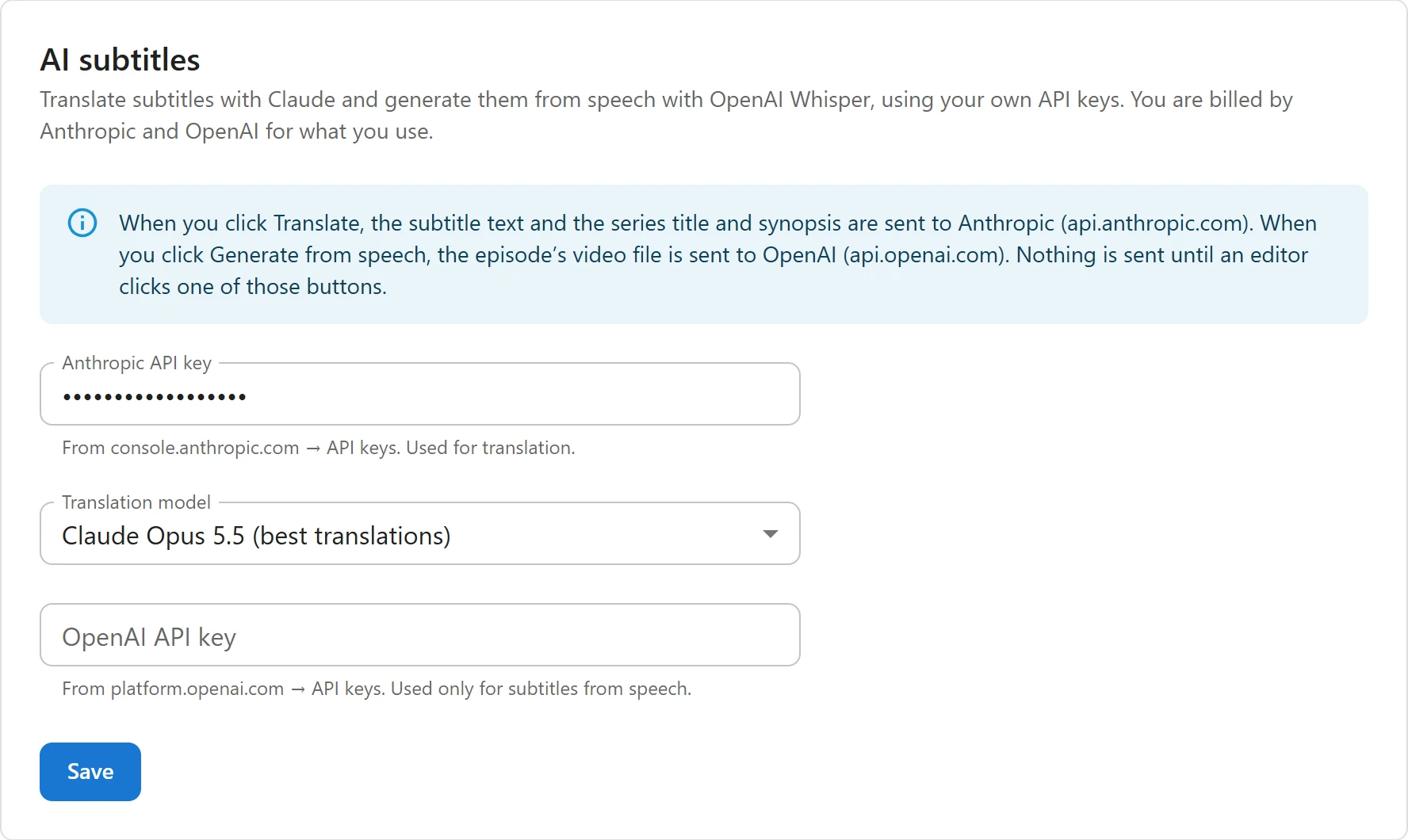
Open Settings -> AI subtitles.
| Field | What it is |
|---|---|
| Anthropic API key | “From console.anthropic.com → API keys. Used for translation.” |
| Translation model | The Claude model used for translations, see below. |
| OpenAI API key | “From platform.openai.com → API keys. Used only for subtitles from speech.” |
Click Save. You only need the key of the feature you use. Keys are stored encrypted and never sent back to the browser: a saved key shows as dots with “Saved. Leave empty to keep it.”
Which models are used
| Job | Model id sent | Notes |
|---|---|---|
| Translation | claude-opus-5-5 |
The default. Shown as Claude Opus 5.5, for the best translations. |
| Translation | claude-sonnet-5-5 |
Claude Sonnet 5.5: fast, lower cost. |
| Translation | claude-haiku-5-5 |
Claude Haiku 5.5: fastest, lowest cost. |
| Speech to subtitles | whisper-1 |
Always. It is the OpenAI model that returns timed WebVTT. |
On Opus and Sonnet, the request allows Anthropic’s server-side fallback: if a safety check declines a request, Anthropic may run it again on the model it recommends for that case. Haiku has no fallback.
2. Generate subtitles from speech

- Set the title’s Spoken language in the series editor. Whisper then knows what to listen for, and the track gets that language. Without it, Whisper guesses.
- Open a saved episode and find the AI subtitles block.
- Click Generate from speech. The button reads “Listening…” while it works, which can take up to a few minutes.
The new track appears in the Subtitles list with an AI chip (“Generated automatically from the audio”). A track in the same language and of the same type is replaced.
What is sent: the episode’s video file, to OpenAI (api.openai.com).
File size limit
OpenAI accepts files up to 25 MB, and the plugin checks before sending. A larger file is refused: “The episode video is larger than 25 MB, the most the speech-to-text service accepts. Upload a smaller rendition or the audio alone.”
Where the file comes from:
| Video source | What is sent |
|---|---|
| A Media Library file | The file itself. |
| A file URL (not HLS) | The file, downloaded to your server for the request, then deleted. |
| Bunny Stream | Bunny’s 480p MP4 copy. Turn on MP4 fallback in Bunny, see Bunny Stream. |
An HLS (.m3u8) URL, YouTube, Vimeo, an embed |
Nothing: these cannot be transcribed. |
3. Translate subtitles
- Make sure the episode has a subtitle track: uploaded, taken from the video, or generated from speech. Without one, the Translate button stays disabled.
- In Translate into, pick one or more languages, or type a language tag.
- Click Translate. Each language is its own request, with progress such as “Translating into French (2 of 3)…”. If one fails, the languages already done are kept.
The source track is the one in the series’ spoken language; else the first track you uploaded yourself; else the first track. Choosing a target the episode already has shows “Languages this episode already has will be replaced with a new translation.”
What is sent, to Anthropic (api.anthropic.com): the text of each subtitle line with a number,
the series title and the first 60 words of its synopsis, so names and tone stay consistent.
Timings never leave your site: the lines come back by number and are put back on their original
timings. If a line is missing from the answer, nothing is saved: “The translation came back with
lines missing. Nothing was saved; try again.”
Long episodes are sent 80 lines per request. Busy or rate-limited requests are retried up to 3 times.
A whole series at once
On a series, click Translate series above the Episodes list. The dialog translates every episode into the languages you pick, one by one.
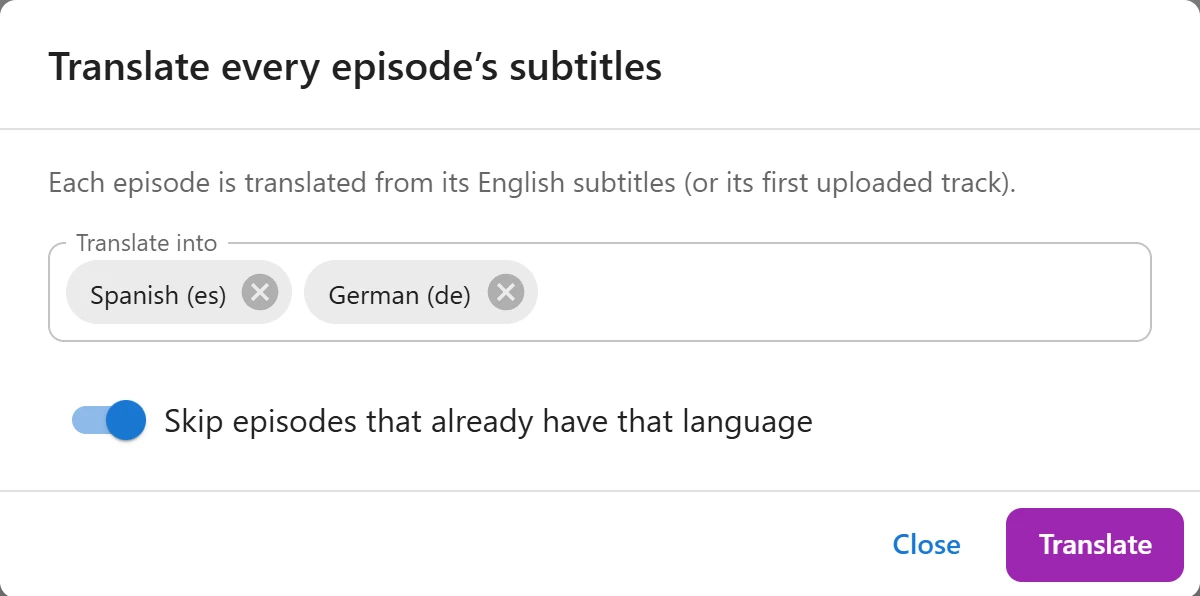
- Skip episodes that already have that language leaves existing tracks alone.
- Episodes with no subtitles to start from are skipped and counted.
- Stop ends the run after the current request.
What viewers see
In the player’s menu, an AI track has an AI badge (“Translated automatically”).
To correct an AI track, download its .vtt file from the Media Library, fix it, and pick the
corrected file in the track’s row of the episode editor. The track then counts as your own upload
and loses its AI mark.
Privacy and costs
The settings tab says it plainly: “Nothing is sent until an editor clicks one of those buttons.” Viewers never trigger a request. Settings need a user who may manage settings; the buttons need a user who may edit the episode.
Prices are set by Anthropic and OpenAI and billed to your accounts. Check their pricing pages before translating a large catalog.
Related
Quick Links
Share