

Contents
On this page
Episodes - Plugixa Stream
Episodes live inside their series. Open a series under Plugixa Stream > Series & movies: its Episodes panel sits under the form, once the series has been saved. A movie has a Video panel instead, for its one video.
The Episodes panel
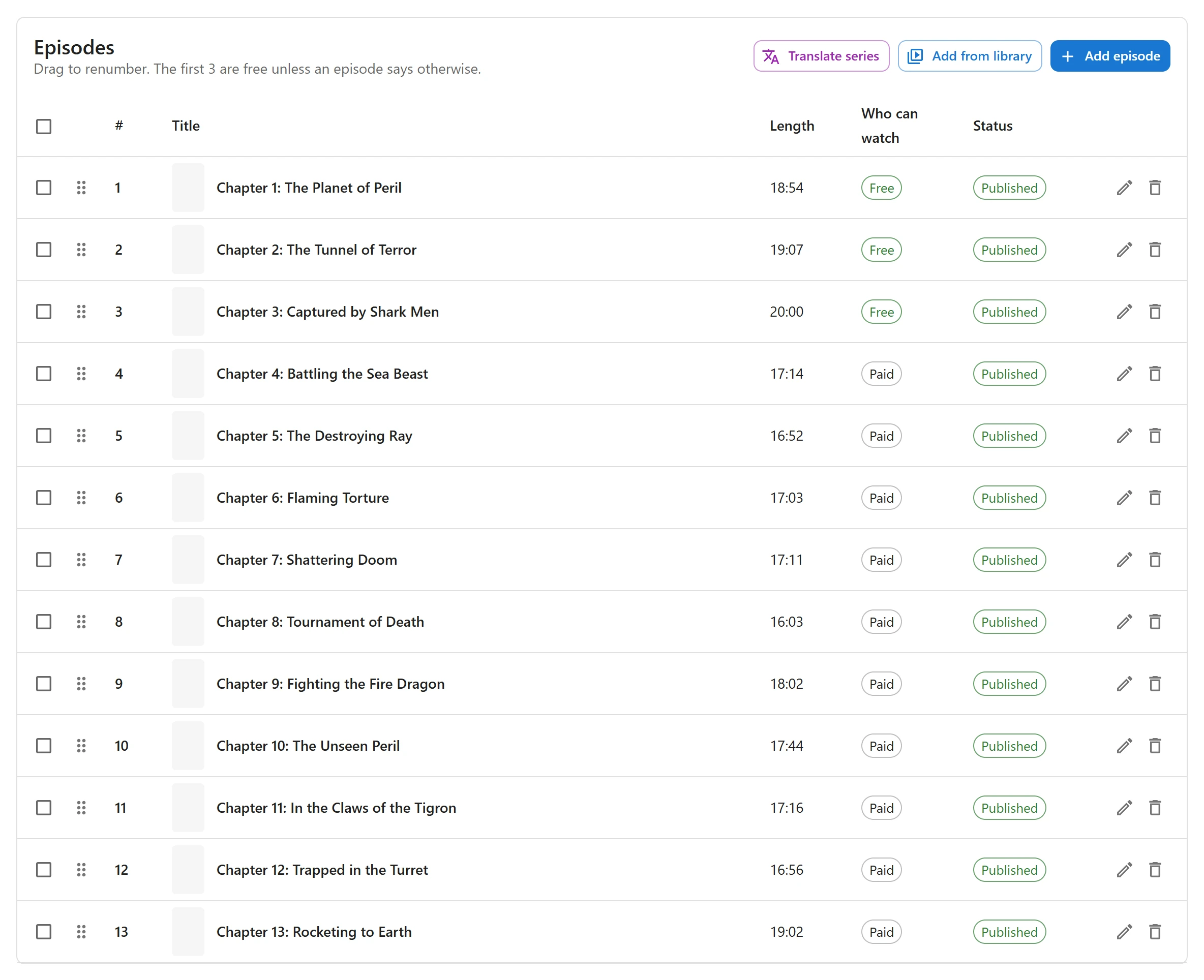
| Column | What it shows |
|---|---|
| Box | Selects the episode for the bulk buttons |
| Handle | Drag to move the episode |
| # | The episode number |
| Title | The thumbnail and title. No video yet shows when the episode has no video. |
| Length | Its duration |
| Who can watch | Free or Paid, worked out from the series’ free episodes and the episode’s own setting |
| Status | Published, Draft or Scheduled. Hover Scheduled to see the release date. |
| Actions | Edit, and delete. Deleting asks first and is permanent. |
The text under the Episodes heading reminds you how many opening episodes are free.
Add one episode
- Click Add episode. The New episode dialog opens with the next free number.
- Fill in the fields below and click Save.
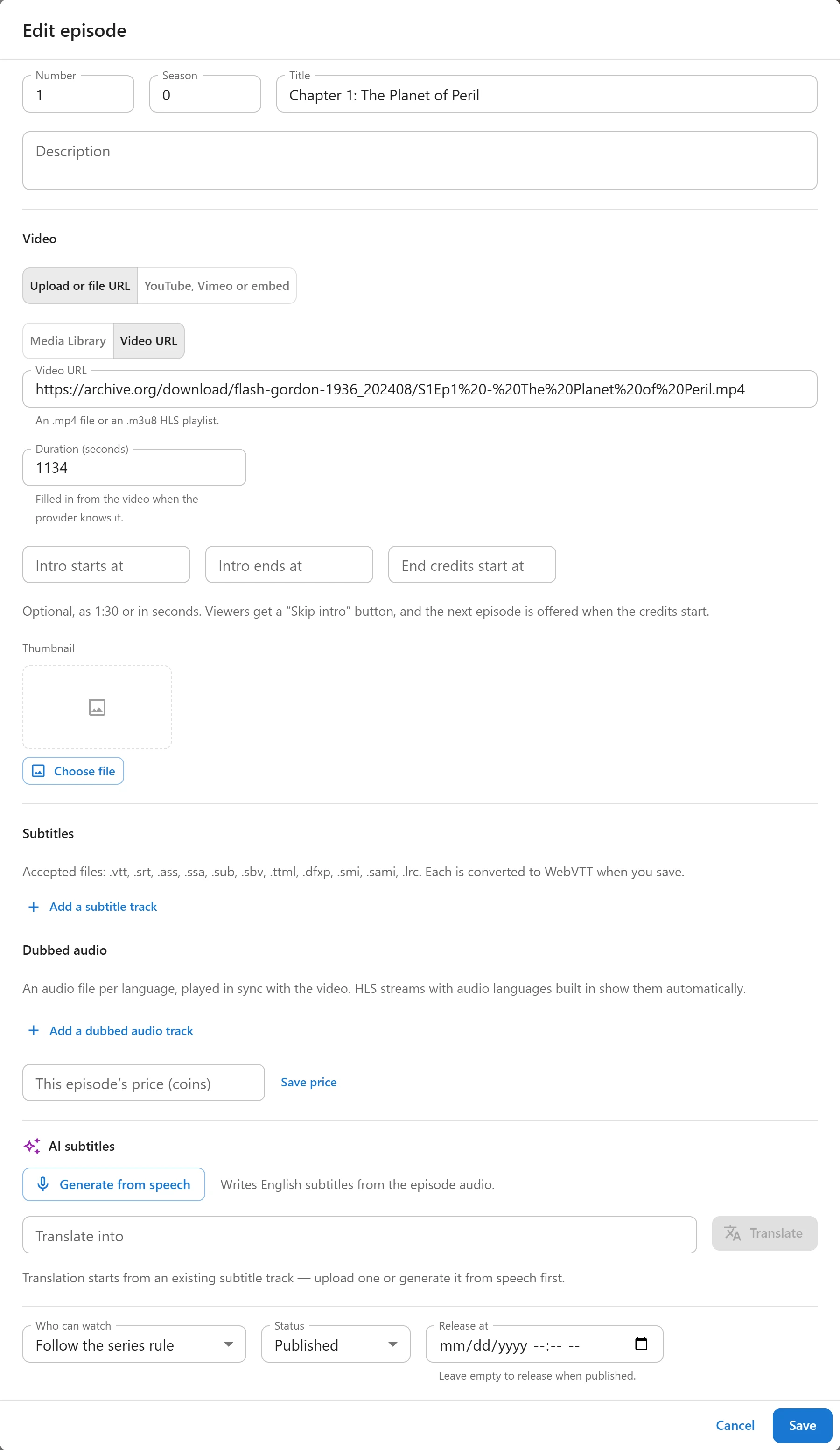
| Field | What it is |
|---|---|
| Number | The episode’s place in the series. Numbers start at 1 and each number can be used once per series. |
| Season | A season number, 1 by default |
| Title | Optional. Left empty, the episode is called “Episode 4” and so on. |
| Description | Shown on the episode’s page |
| Video | Where the video plays from: Upload or file URL, or YouTube, Vimeo or embed. See Video sources. |
| Duration (seconds) | Filled in from the video when the source knows it. Type it otherwise. |
| Intro starts at, Intro ends at, End credits start at | Optional skip markers, see below |
| Thumbnail | An image for the episode card. Without one, the series poster is used. |
| Who can watch | Follow the series rule, Always free or Never free. See Free and locked episodes. |
| Status | Draft or Published |
| Release at | A date and time to release the episode, see below |
With Pro, the dialog also has Subtitles and Dubbed audio PRO sections, and a saved episode shows its own price, Quality encoding and AI subtitles tools PRO. See Prices, Subtitles and audio tracks, Encoding and AI subtitles.
An episode plays only when it and its series are both Published.
Add a whole season from the Media Library
- Upload the season’s video files to the Media Library, if they are not there yet.
- In the Episodes panel, click Add from library.
- Select every file of the season and click Add episodes.
One episode is created per file, one after the other, while a bar shows Created 3 of 12 episodes. Each new episode:
- takes its number from the file name, or the next free number when the name has none,
- is called “Episode 7” and so on, until you give it a title,
- takes its duration from the file,
- is saved as a Draft.
The number comes from the file name. A marker wins: ep07, EP 7, e07, episode-7 and
s01e07 are all episode 7, and so are 第7集, 7话 and الحلقة 7. Without a marker, the last
number in the name counts once years, resolutions such as 1080p or 4K, codecs such as x264
and season tags such as s01 are set aside, so drama_2024_07_1080p.mp4 is episode 7. Files with
no number in their name take the next free numbers after the others.
A file whose number is already taken by an episode of the series, or by another file in the same batch, is skipped. Check the numbers when it is done and drag any episode that landed in the wrong place. Then publish the episodes, or give them release dates.
Add from library is shown while Settings > Video > Upload new episodes to is set to this server. See Settings.
Change the order
Drag an episode by its handle to a new place. The whole series is renumbered from 1 in the new order, so episode numbers always run without gaps. Viewers swiping through the series follow this order.
Change who can watch several episodes
Tick the episodes, then click one of the buttons that appear at the top of the panel:
| Button | Sets Who can watch to |
|---|---|
| Make free | Always free |
| Make paid | Never free |
| Follow series rule | Follow the series rule |
The box in the header row selects every episode.
Schedule a release
- Open the episode and set Status to Published.
- Under Release at, pick the date and time. It uses your site’s time zone, set in Settings > General in WordPress.
- Click Save.
The episode shows Scheduled in the list and stays hidden from viewers until that time. WordPress then publishes it by itself. A date in the past, or no date, publishes at once. An episode left as Draft is never released, whatever its date.
The Dashboard lists the next scheduled episodes under Coming up.
WordPress runs scheduled tasks when the site gets visits. On a quiet site an episode can go live a little after its time, unless your host runs WP-Cron from a server cron job.
Skip intro and end credits
Type a time as 1:30, 1:05:30 or in seconds.
| Marker | What viewers get |
|---|---|
| Intro starts at and Intro ends at | A Skip intro button between the two times, jumping to the end of the intro |
| End credits start at | The next episode is offered from that time |
The markers are used only when they make sense: the intro must end after it starts, and the credits must start after the intro ends. See The player.
A movie’s video

A movie holds one video, stored like episode 1 of the title.
- Save the movie, then click Add the video in its Video panel.
- The The movie’s video dialog opens. It has the same fields as an episode, without the number, season and title.
- Choose the video and click Save.
The panel then shows the video’s length and status, No video file yet. while it has no video, and a reminder to publish the video if it is still a draft. Click Edit to change it. A movie cannot have a second video.
Move episodes between sites
To add or update many episodes from a spreadsheet, or to copy a catalogue to another site, use Import / export on the Series & movies list. Each episode is one row of the CSV file. See Import and export.
Quick Links
Share