

Contents
On this page
Video sources - Plugixa Stream
Each episode, and each movie’s video, has its own source. You choose it in the Video section of the episode dialog, with the switch at the top:
- Upload or file URL: a video file on your own server, from the Media Library or by URL.
- YouTube, Vimeo or embed: a video that plays on another service’s player.
Episodes of one series can mix sources. Changing the switch clears the video already chosen.
A video from the Media Library
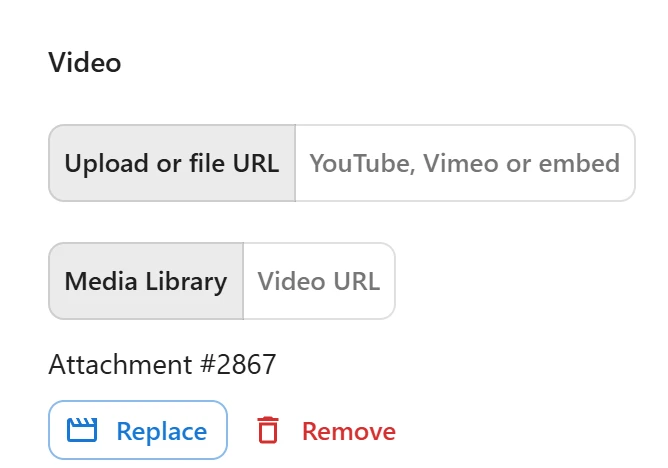
- Choose Upload or file URL, then Media Library.
- Click Choose video. Pick a video, or upload one, and click Use this.
The duration is filled in from the file when WordPress knows it. To add a whole season of files at once, see Episodes.
A video file URL
- Choose Upload or file URL, then Video URL.
- Paste the address of an
.mp4file, for example a file on your own storage or a CDN. With Pro, you can also paste an.m3u8HLS playlist PRO.
The URL plays as a plain video file, so use a format every browser plays, such as MP4. Type the Duration (seconds) yourself: a URL does not report it.
A URL ending in .m3u8 is an HLS streaming playlist, which needs Pro. Without Pro, saving the
episode is refused with “This link is a streaming playlist (.m3u8), not a video file. Use a link
to an MP4 file.” With Pro, it plays as an HLS stream.
YouTube, Vimeo or another embed
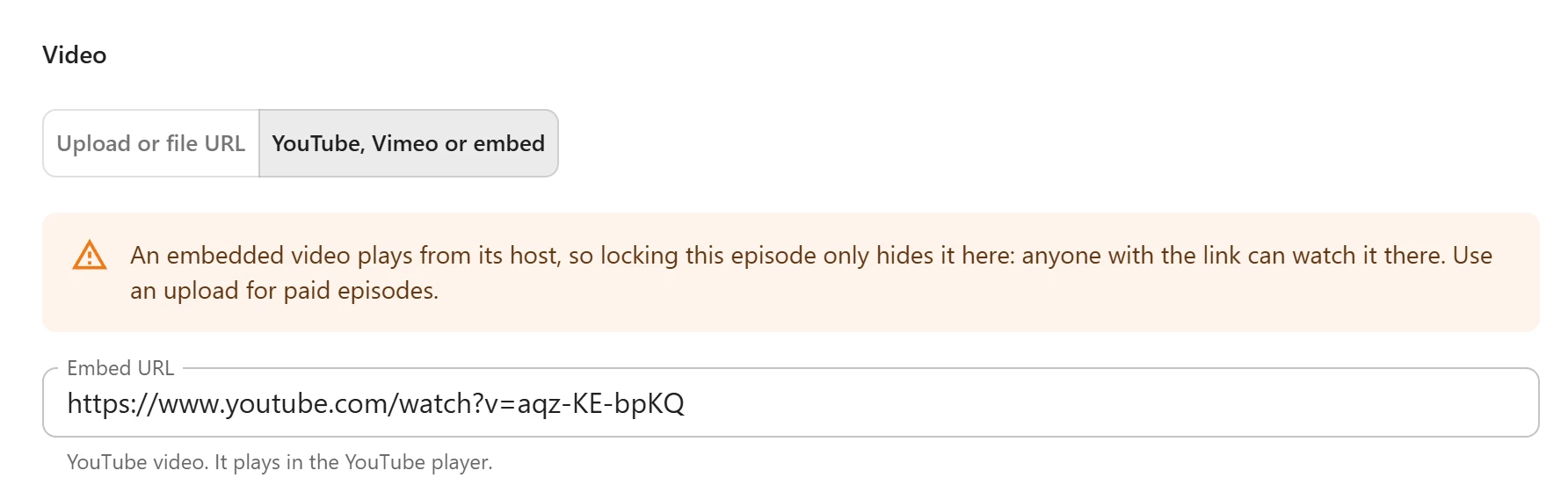
- Choose YouTube, Vimeo or embed.
- Paste the link into Embed URL. It must start with
https://.
| Link | How it plays |
|---|---|
| YouTube | In the YouTube player, loaded from youtube-nocookie.com. Any common YouTube link works, and the plugin turns it into the embed address. |
| Vimeo | In the Vimeo player |
Any other https URL |
Loaded as it is in a frame, with that site’s own controls. Paste the service’s embed address, not its watch page. Progress is not saved for these. |
The plugin checks the link when you save and refuses a YouTube or Vimeo link that does not point to a video.
An embedded video plays from its host. Locking an embedded episode only hides it on your site: anyone with the link can watch it on YouTube or Vimeo. The dialog warns you when an embedded episode is not set to Always free. For Vimeo, set the video to “Hide from Vimeo” in Vimeo and allow only your domain under “Where can this be embedded?”.
YouTube and Vimeo are only contacted when a viewer plays such an episode or opens a title whose trailer comes from them. See Privacy and uninstall.
How files are delivered
Files on your own server are delivered by your web server, straight from their public URL. They never stream through PHP, so playback does not load WordPress for every chunk of video.
The player asks your site for an episode’s video only when the viewer opens it, and your site answers with the URL only when the viewer may play the episode. A locked episode gets no URL. But the URL of a file it does hand out is not signed and does not expire: anyone who copies it from the browser can share it. That suits free episodes. For paid episodes, a video service with signed links, such as Bunny Stream PRO, keeps the address private. See Bunny Stream.
Vertical and widescreen videos
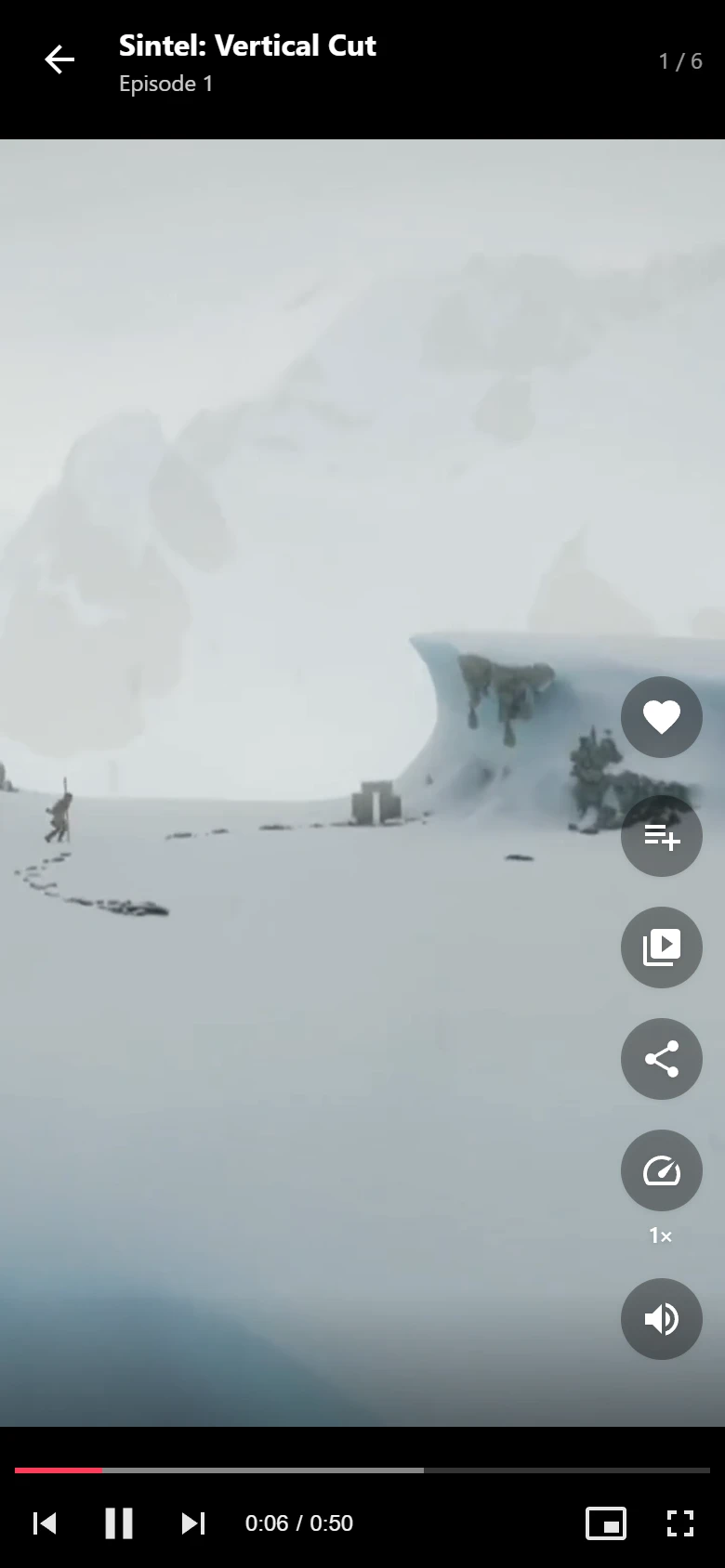
You do not set a shape. The player reads each video’s own shape and fits it to the screen:
- When the video’s shape is close to the screen’s, such as a vertical episode on a phone held upright or a widescreen episode on a laptop, it fills the screen.
- Otherwise the whole picture is shown with bars, rather than cropped. A widescreen film on an upright phone is never cut down to the middle of the frame.
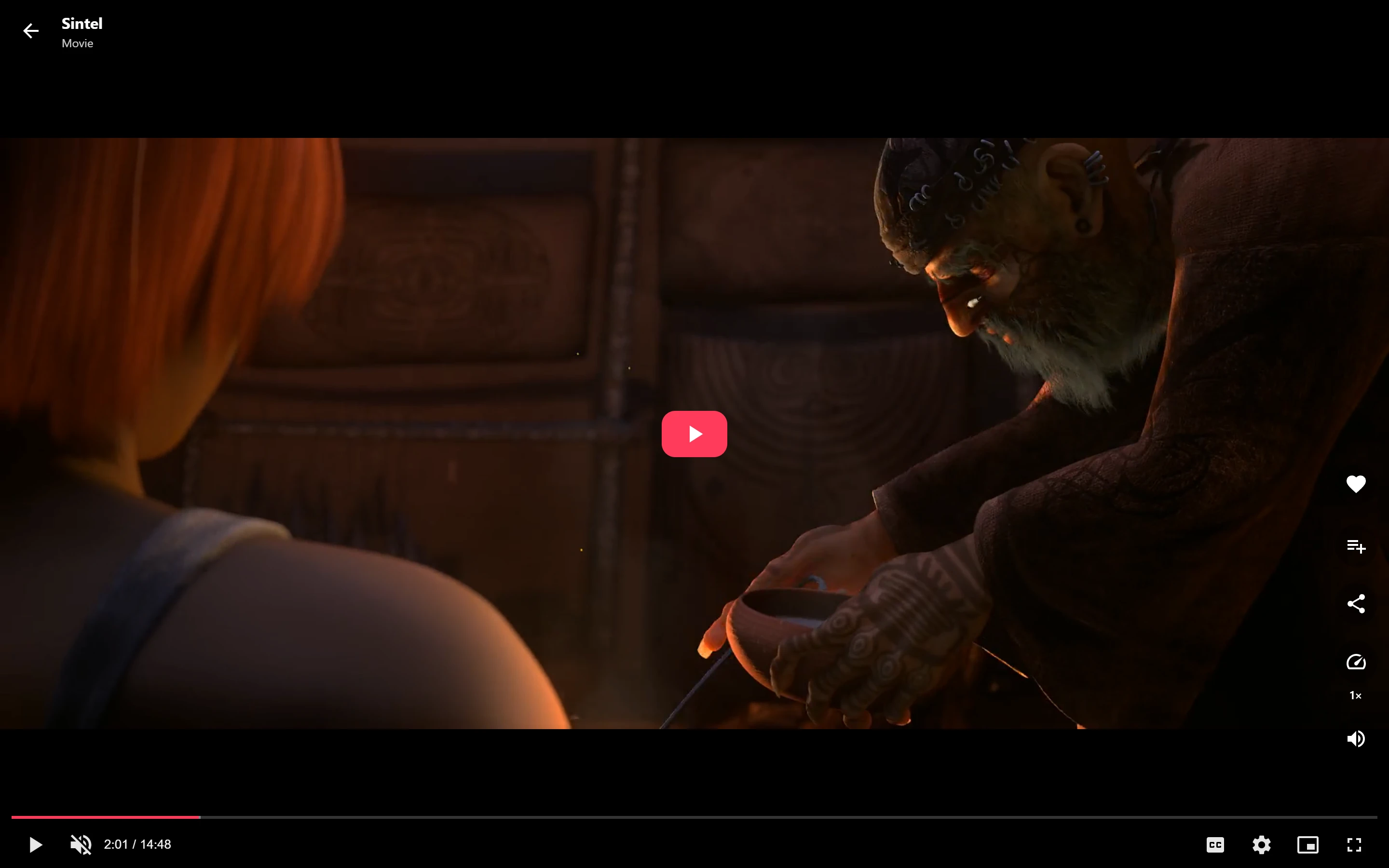
On a phone, full screen turns a widescreen video to landscape where the browser allows it. Vertical, square and widescreen episodes can sit in the same series.
Quality
A Media Library file or an MP4 link plays in its one quality.
With Pro, an HLS stream can carry several qualities PRO. The player picks the right one by itself from the viewer’s connection and screen size, so a 4K screen gets the 4K quality when the stream has one. When the stream has more than one quality, viewers can also choose it themselves under Quality, or go back to Auto. See The player.
Pro also gives you two ways to turn your videos into several qualities PRO:
- Encoding: turns an uploaded file into 4K, 1080p, 720p and 480p streams on your own server.
- Bunny Stream: uploads go to Bunny.net, which encodes and streams them.
When an episode will not play
| What you see | Why |
|---|---|
| No video yet in the Episodes panel | The episode has no source. Open it and choose one. |
| “This episode is stored on a video service that is not installed on this site.” | The episode was added through a video service, such as Bunny Stream, whose code is not active on this site. |
| “This episode could not be played.” in the player | The file URL is wrong, the file was moved, or the browser cannot play its format. |
See Troubleshooting for more.
Quick Links
Share