

Contents
On this page
Screen limits - Plugixa Stream
A screen limit stops one login being shared by a whole group. You choose how many devices one account can play on at the same time. A viewer over the limit sees who else is watching and can stop another screen to watch on this one.
What counts as a screen
- A screen is a login session. Two tabs in one browser are one screen. A phone and a TV signed in to the same account are two.
- A screen counts while its player is open. Closing the player frees the screen at once. A screen that has not been heard from for 2 minutes (a laptop that went to sleep) is forgotten. The open player checks in every 45 seconds.
- Only signed-in viewers are limited. Guests can only play free episodes and have no account to share.
- People who edit the catalog are never limited.
Signing out ends a screen.
Set the limit
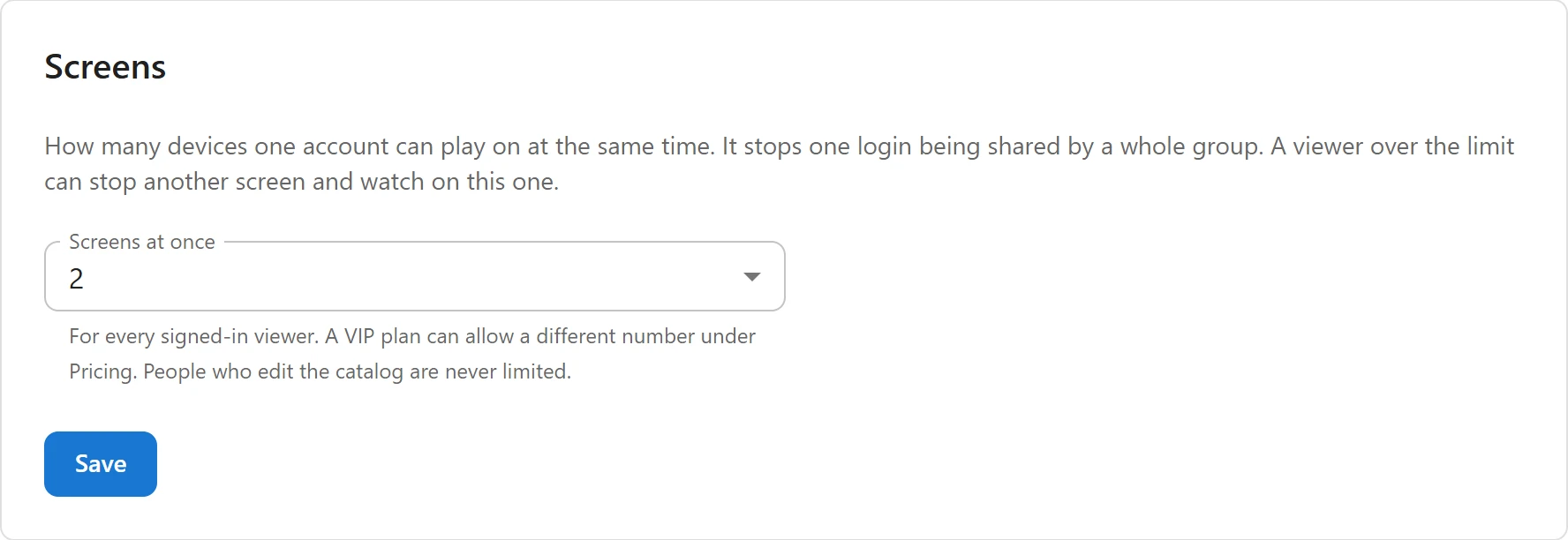
- Open Settings -> Screens.
- Choose Screens at once: No limit (the default) or 1 to 6.
- Click Save.
The limit applies to every signed-in viewer, unless their VIP plan says otherwise.
A different number for a VIP plan
A VIP plan can allow more screens than the site limit, for a family plan for example, or fewer:
- Open Settings -> Prices & coins and find the plan under VIP plans.
- Set its Screens to 1 to 6. Site limit uses the number from Settings -> Screens.
- Click Save.
While a viewer’s VIP plan is active, its number replaces the site limit. See VIP subscriptions.
What a viewer over the limit sees
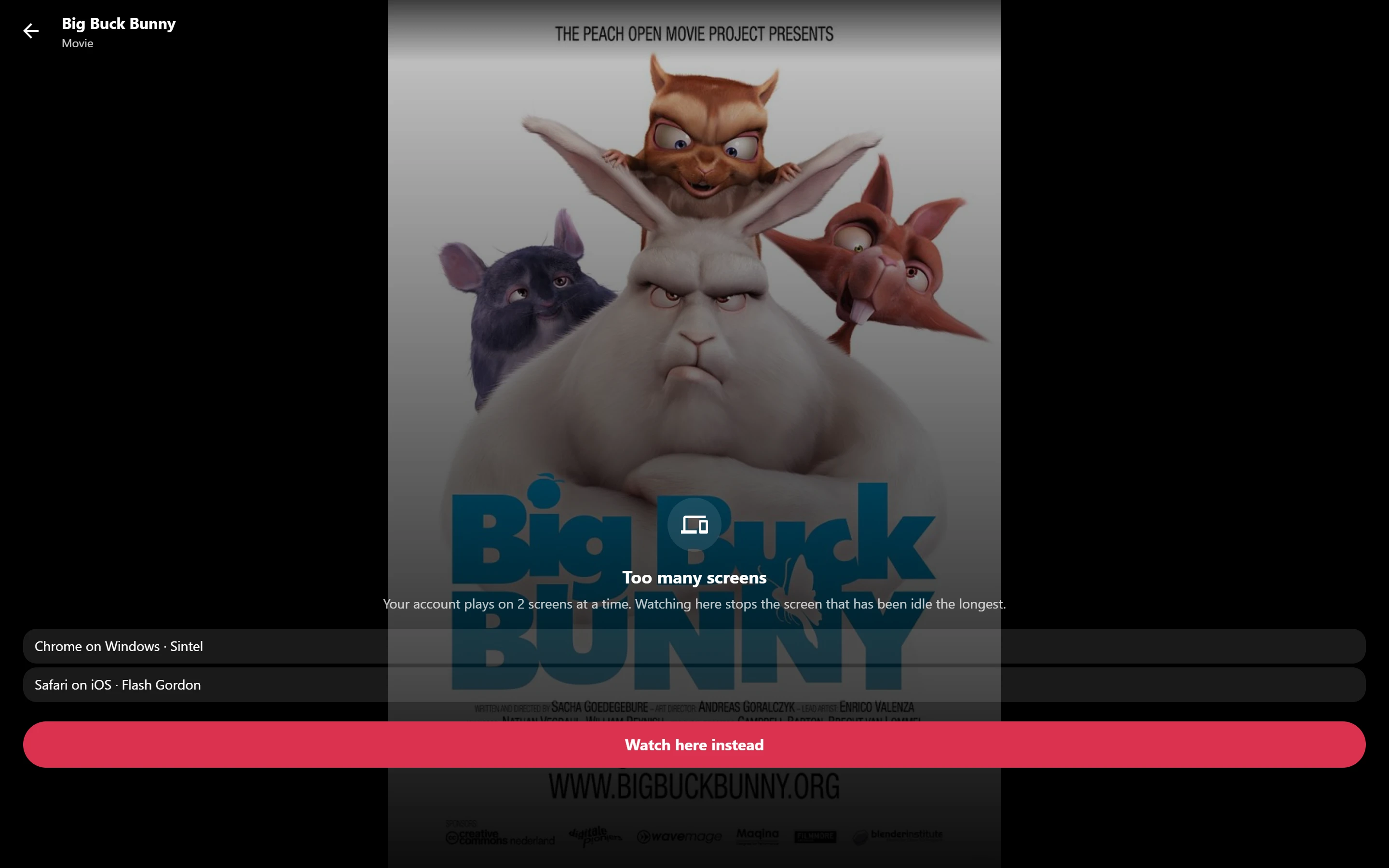
The limit is checked before the player gets any video address, so a held-back screen gets no stream. The player shows a card instead:
- Too many screens.
- “Your account plays on 2 screens at a time. Watching here stops the screen that has been idle the longest.” (or “1 screen” when the limit is 1).
- The other screens, each by its device and what it is watching, such as “Chrome on Windows · Sintel”. Devices are named by browser and system only.
- Watch here instead.
Watch here instead stops as many other screens as needed, the one quiet for longest first, and starts the episode here. On the stopped screen, the video pauses at its next check-in and the same card appears over the player, so the viewer there can take the screen back.
The viewer’s own screens
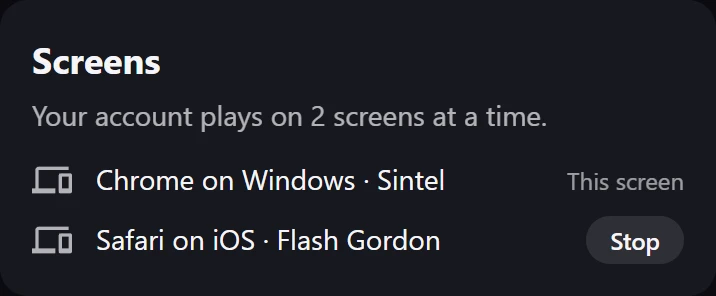
When a limit applies, the Me screen has a Screens section: the limit, then every screen playing now. The current device is marked This screen; every other one has a Stop button. “Nothing is playing right now.” when the list is empty.
Related
Quick Links
Share