

Contents
On this page
Home rows - Plugixa Stream
The home screen of the viewer app is a stack of rows of posters, under a featured carousel. You choose the rows, their headings, what each one shows and their order on the Home rows screen. The same rows can be placed on any other page of your site with a shortcode or a block.
The home screen, top to bottom
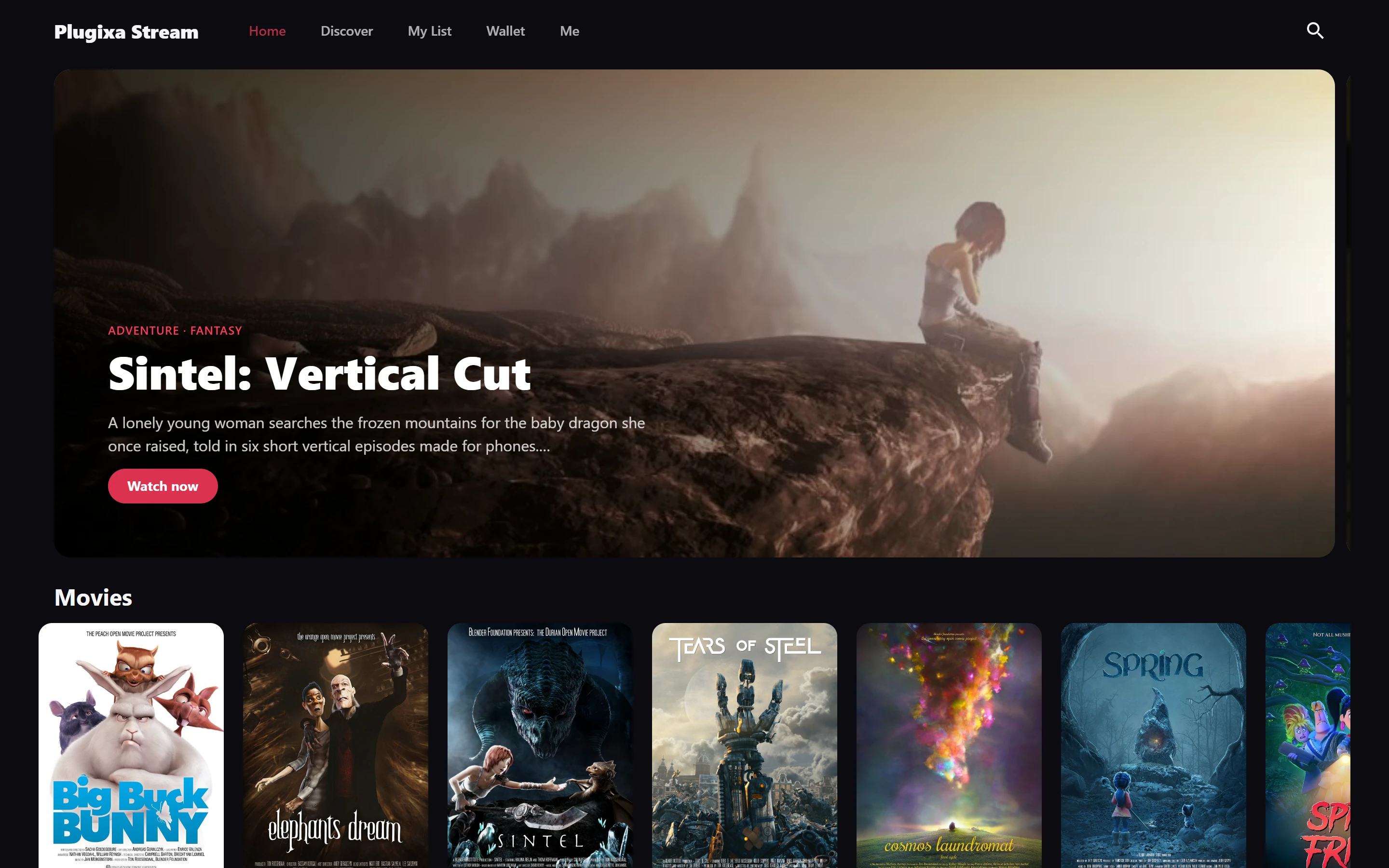
- The featured carousel: up to 5 titles marked Featured on the home page, newest first. Each slide shows the title’s banner (or its poster when it has no banner), up to two genres, the title, the start of its synopsis and a Watch now button. Viewers swipe or scroll through it: it never moves by itself.
- Continue watching: the viewer’s series and movies in progress, with how far they got. It appears by itself when there is something to resume, and is not one of your rows. See Resume and My List.
- Your rows, in the order you set.
A row with no titles to show is left out, so an empty genre or a new site never shows a blank row. Only published titles appear. When there is nothing at all to show, the home screen says “Nothing to watch yet. Check back soon.”
The Home rows screen
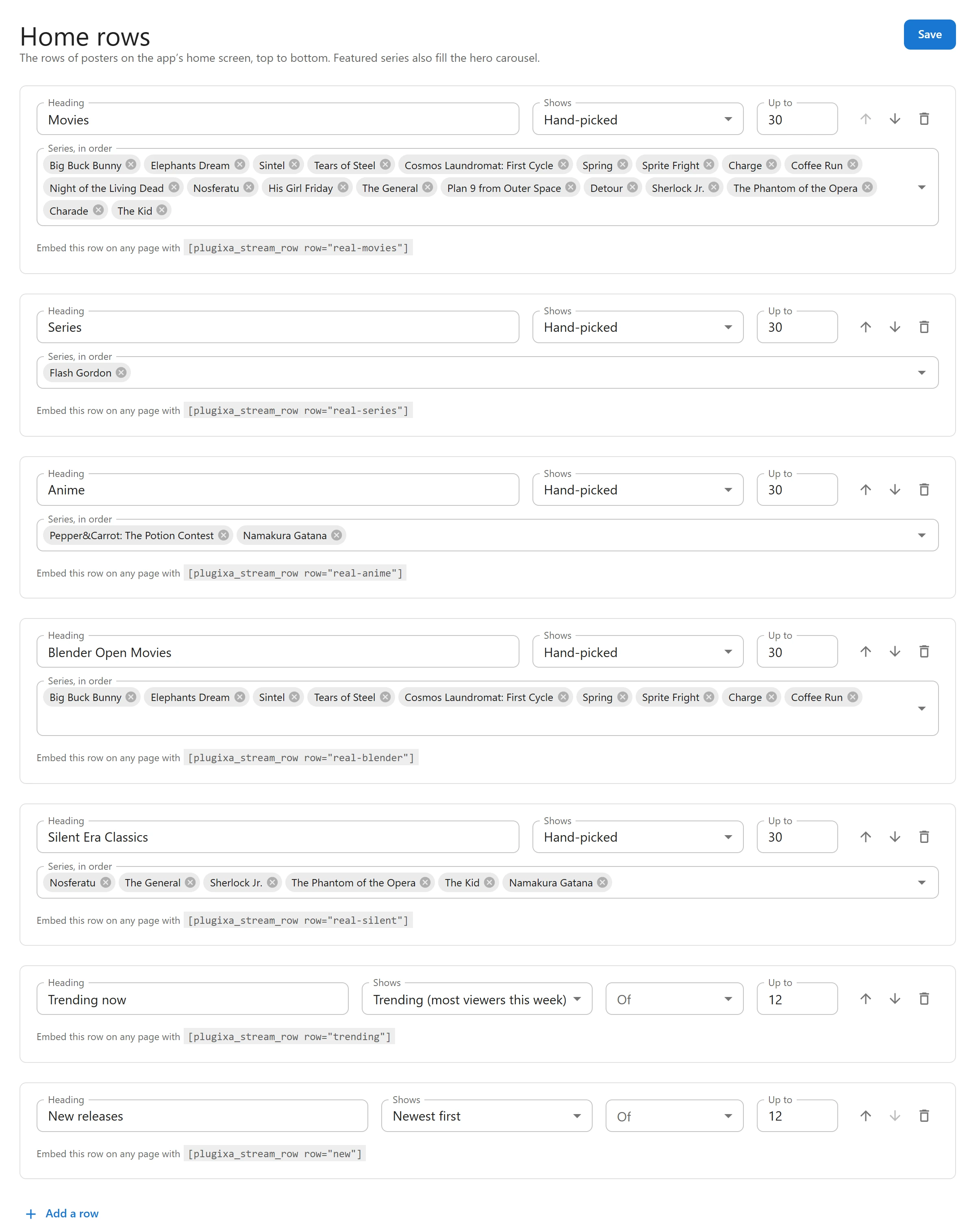
Open Plugixa Stream > Home rows. Until you save it the first time, it holds two rows: Trending now and New releases.
Each row has:
| Field | What it is |
|---|---|
| Heading | The row’s title on the home screen |
| Shows | The row type, see below |
| Of | Series and movies, Series only or Movies only. Not shown for hand-picked rows. |
| Up to | How many titles the row shows, 1 to 30 |
| Genre | For One genre rows: the genre to show |
| Series, in order | For Hand-picked rows: the titles to show, in the order you pick them |
The buttons at the end of each row move it up, move it down or remove it.
Under each row, Embed this row on any page with gives its shortcode, such as
[plugixa_stream_row row="trending"]. See Shortcodes
and Blocks.
Nothing changes on the site until you click Save at the top of the screen. You can have up to 20 rows.
Row types
| Type | What the row shows |
|---|---|
| Trending (most viewers this week) | The titles watched by the most different signed-in viewers in the last 7 days |
| Newest first | The most recently published titles |
| Top rated (viewers’ stars) PRO | The best-rated titles. See Ratings and reviews. |
| Featured series | Titles marked Featured on the home page, newest first |
| One genre | Titles of the genre you choose, newest first |
| Hand-picked | Exactly the titles you choose, in your order |
Trending counts signed-in viewers only, as guests’ progress stays in their browser. On a new site, or one where viewers do not sign in, the trending row stays empty and is hidden until signed-in viewers start watching.
Build the home screen
- Click Add a row. A new row called New row appears at the bottom, set to Hand-picked and up to 12 titles.
- Type its Heading, for example “Short dramas”.
- Choose what it Shows.
- For Hand-picked, click into Series, in order, type to search your published titles and pick them one by one.
- For One genre, choose the Genre.
- Choose Of to limit the row to series or to movies, if you like.
- Move the row with the arrows.
- Click Save.
To feature a title in the carousel and in Featured series rows, open it under Series & movies, turn on Featured on the home page and save. Give it a Banner (16:9) so the carousel shows a wide picture. Featured titles show a star in the Series & movies list. See Series and movies.
Rows outside the app
The [plugixa_stream_row] shortcode and its block show the same rows on any page or post of
your site, using the same rules, so a landing page and the app always agree. A row placed this
way can also be a type without being one of your rows:
[plugixa_stream_row type="trending"]
[plugixa_stream_row type="genre" genre="drama"]
[plugixa_stream_row row="trending"]
See Shortcodes for every attribute.
Quick Links
Share