

Contents
On this page
Subtitles and audio tracks - Plugixa Stream
Every episode and every movie can carry subtitle tracks and dubbed audio tracks, one per language. Viewers pick them in the player, and the player remembers their choice for the next episode.
- Subtitles: a text file per language. Most subtitle formats are accepted and converted to WebVTT, the format browsers play, when you save.
- Captions (SDH): subtitles for deaf and hard-of-hearing viewers, with dialogue plus sounds. A language can have both plain subtitles and captions.
- Dubbed audio: an audio file per language, played in sync with the video.
Subtitles and audio tracks play with uploaded files, file URLs and HLS streams. YouTube and Vimeo episodes use the captions and audio of their own player.
Add tracks to an episode
-
Open the title under Series & movies and click the edit button of an episode in the Episodes list. For a movie, click Edit in the Video panel.
-
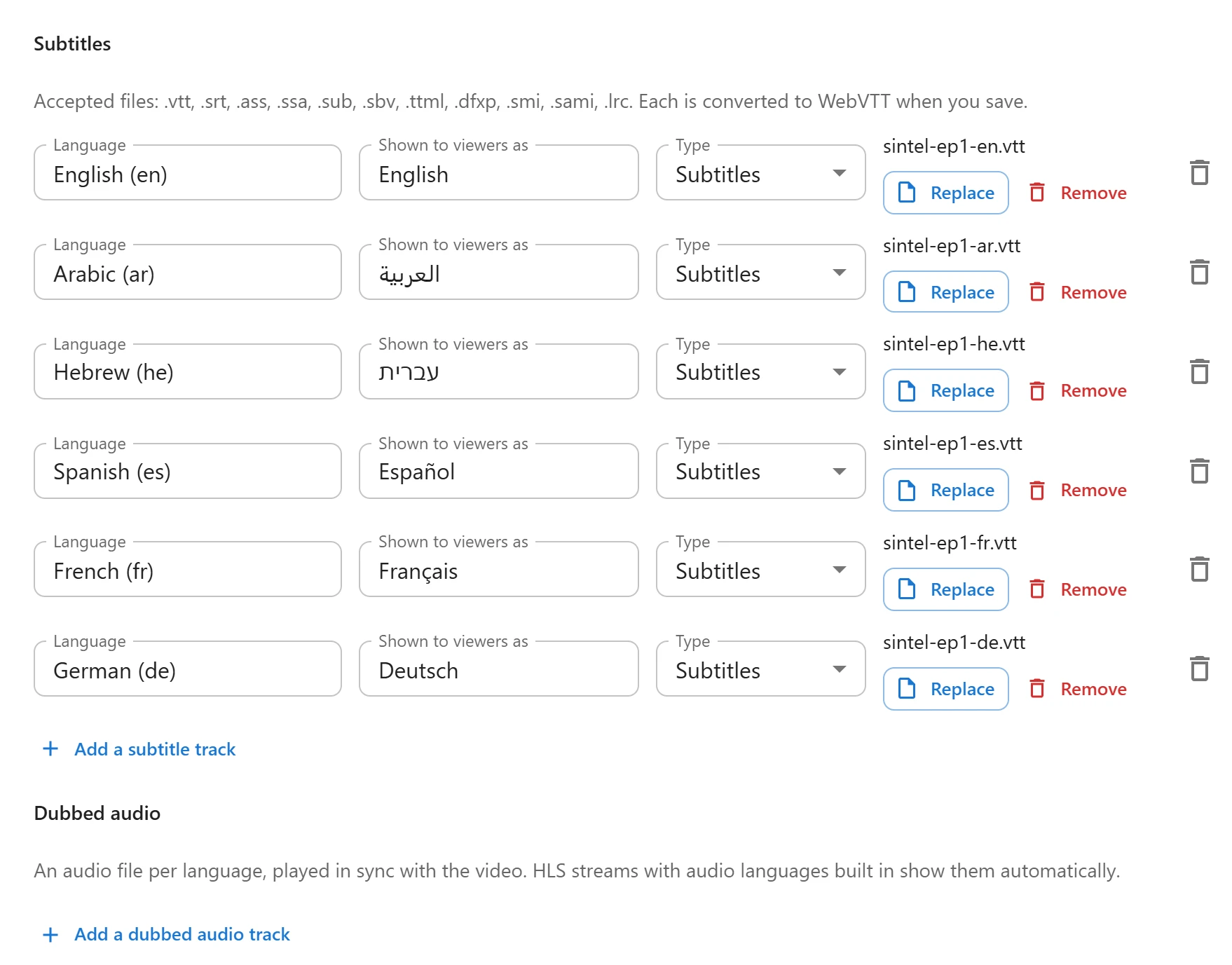
Scroll to Subtitles and click Add a subtitle track.
-
Fill in the row:
Field What it is Language Pick a language or type any language tag, such as es,pt-BRorzh-Hant.Shown to viewers as The name in the player’s menu. Filled with the language’s name when you pick one. Type Subtitles, or Captions (SDH) for deaf and hard-of-hearing viewers. File Upload the file or pick it from the Media Library. -
Add one row per language, then click Save.
The trash button at the end of a row removes the track from the episode. The file stays in the Media Library.
Dubbed audio
Under Dubbed audio, click Add a dubbed audio track and fill in Language, Shown to
viewers as and the audio file. Accepted files: .mp3, .m4a, .aac, .ogg, .oga and
.wav. Any other file is dropped when you save.
The player mutes the video and plays the audio file in its place, following every play, pause, seek and speed change. When the two drift more than 0.3 seconds apart, the audio is moved back in step.
An HLS stream that has audio languages built in needs no file: its languages appear in the player’s menu by themselves. Safari also lists the audio languages built into an MP4 file.
Accepted subtitle files
| Format | Extensions |
|---|---|
| WebVTT | .vtt |
| SubRip | .srt |
| Advanced SubStation Alpha, SubStation Alpha | .ass, .ssa |
| MicroDVD, SubViewer 2 | .sub |
| YouTube | .sbv |
| TTML, DFXP | .ttml, .dfxp |
| SAMI | .smi, .sami |
| LRC lyrics | .lrc |
When ffmpeg is installed on your server (see Encoding),
these are accepted too and converted by ffmpeg: .scc, .stl, .mks, .rt, .pjs, .jss,
.aqt and .mpl.
What happens to a file:
- A clean UTF-8 WebVTT file is used as it is, cue positions included.
- Every other file is converted to a new
.vttfile in the Media Library when you save the episode. The original stays in the library. - TTML, DFXP and SAMI files are converted as they are uploaded: only the
.vttcopy is stored. - Italic, bold and underline survive. Colours, positions and other style codes of SRT and ASS files are dropped.
- Old files are often not UTF-8: an Arabic SRT is usually Windows-1256, a Russian one Windows-1251. A file that is not UTF-8 is decoded with the usual encoding of the track’s Language, so set the language before you save.
- A file with no readable lines is refused with “That subtitle file has no readable cues.” A
picture-based
.subfile (VobSub) is refused at upload.
Subtitles can also be made for you: taken from the video file when it is encoded, or written by AI from the speech. A track taken from the video shows a From video chip, an AI track an AI chip. See Encoding and AI subtitles.
The languages the player starts with
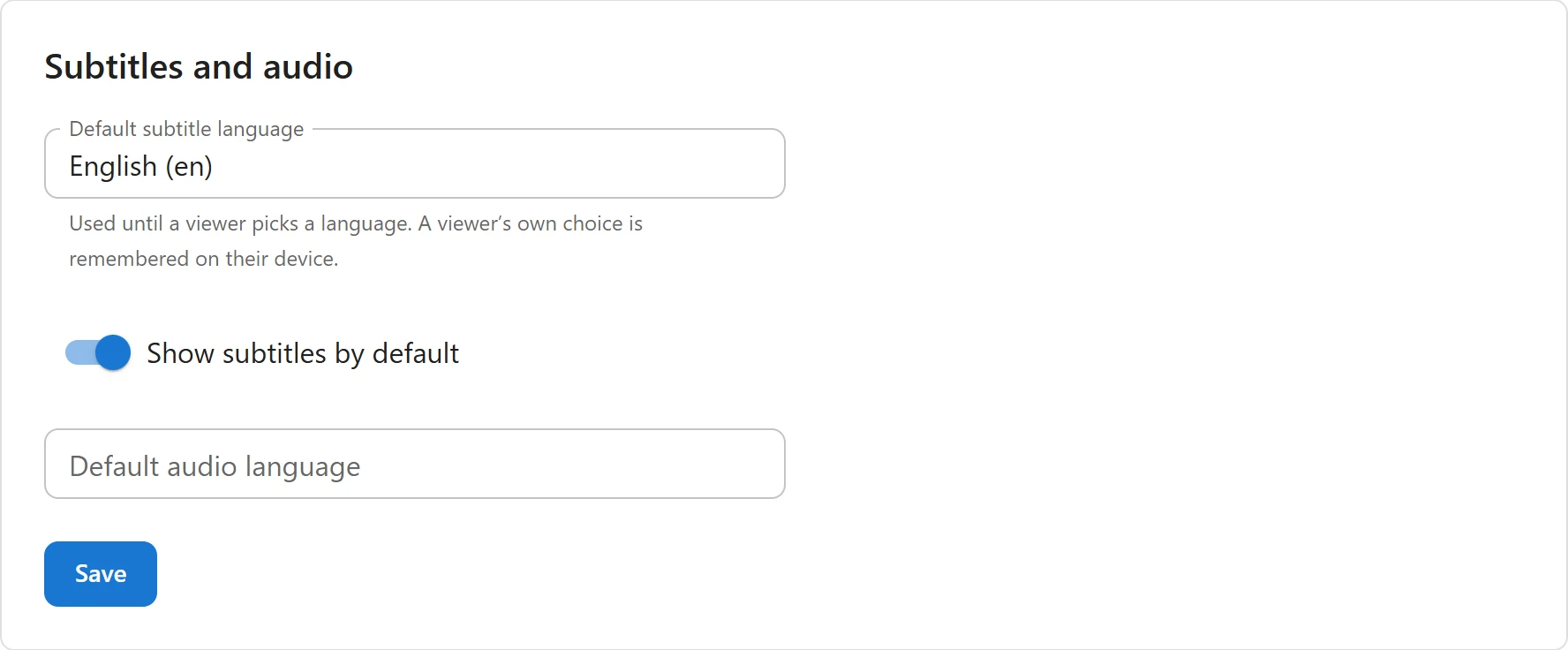
Open Settings -> Subtitles and audio.
| Setting | What it does |
|---|---|
| Default subtitle language | The subtitle language shown when subtitles are on. Empty by default. |
| Show subtitles by default | Starts every episode with subtitles on. With no default language, the episode’s first track is shown. Off by default. |
| Default audio language | The dubbed language played when an episode has it. Empty plays the original sound. |
Click Save. These are only a starting point: “Used until a viewer picks a language. A viewer’s own choice is remembered on their device.”
What viewers see
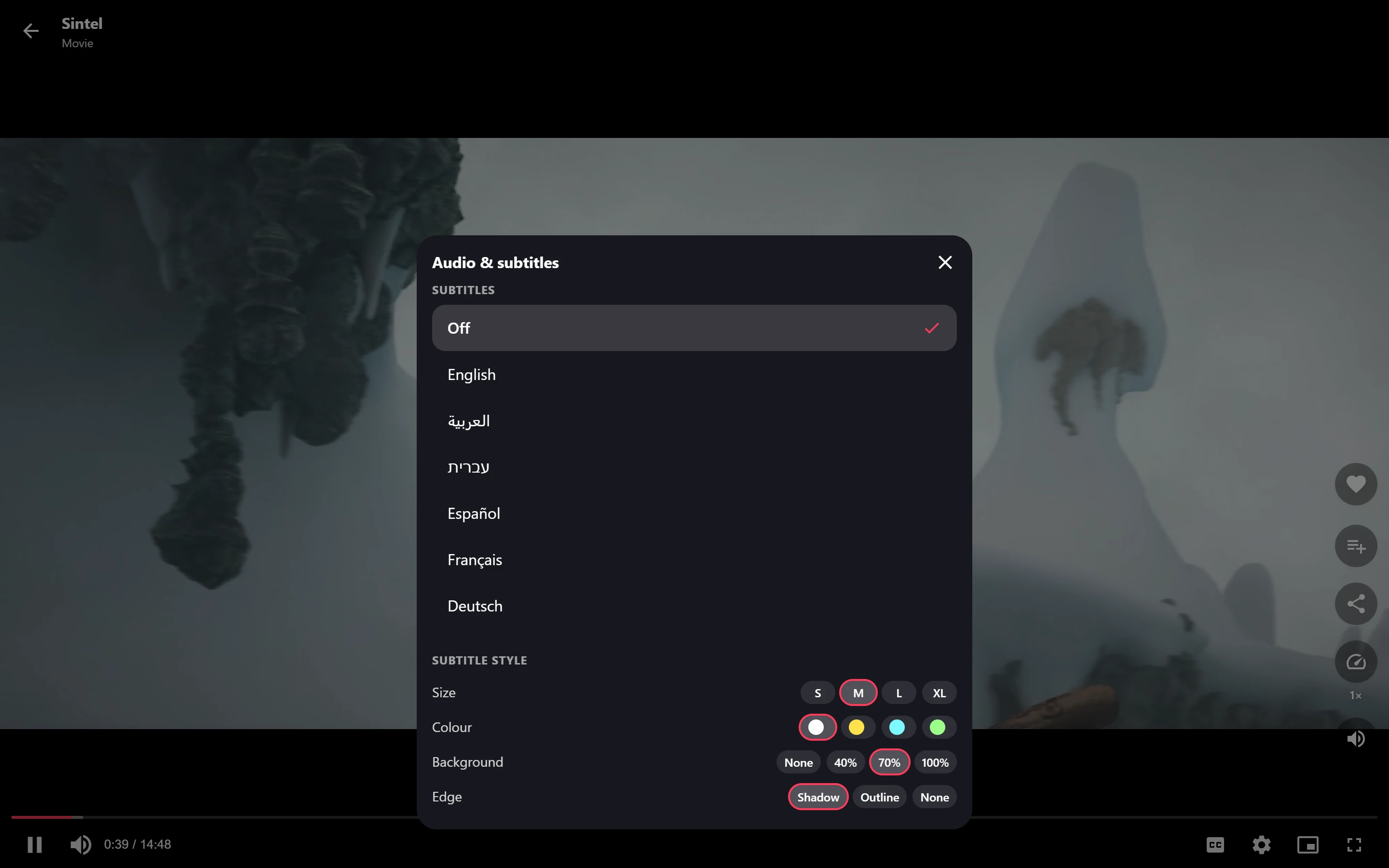
When an episode has subtitles or more than one audio language, the player’s settings button is called Audio & subtitles and lights up while a dub or subtitles are on. Its sheet has:
- Audio: Original, or “Original (English)” when the series’ Spoken language is set, then each dubbed language. An AI-made track has an AI badge.
- Subtitles: Off, then each track by its Shown to viewers as name. Captions have a CC badge.
- Subtitle style: four rows of buttons, remembered on the viewer’s device.
| Row | Choices | Default |
|---|---|---|
| Size | S, M, L, XL | M |
| Colour | White, Yellow, Cyan, Green | White |
| Background | None, 40%, 70%, 100% | 70% |
| Edge | Shadow, Outline, None | Shadow |
The c key turns subtitles on and off. Subtitles are drawn above the seek bar, so they stay
readable while the controls are showing.
A viewer’s language choice carries over to the next episode and the next visit. A viewer who chose
Brazilian Portuguese (pt-BR) still gets a plain Portuguese (pt) track when there is no
Brazilian one, and someone who chose captions gets captions in that language when they exist.
Related
Quick Links
Share