

Contents
On this page
The player - Plugixa Stream
The player opens over the Watch app when a viewer taps an episode, a Play button or a Continue watching card. It fills the whole screen on a phone, a tablet, a desktop or a TV, and stays open while the viewer moves from one episode to the next.
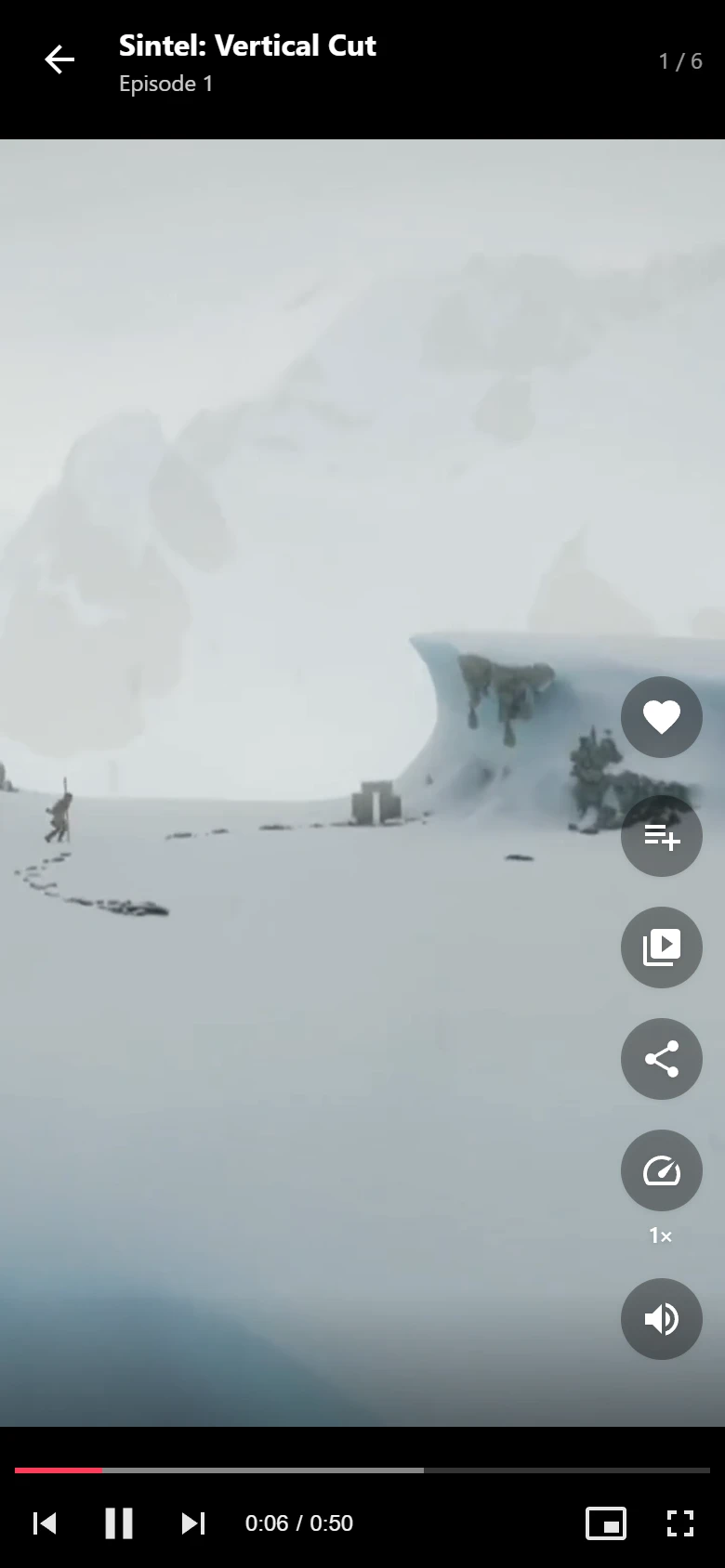
Any video shape
Each video is fitted to the screen by its own shape:
- When the video and the screen have about the same shape (a vertical drama on a phone held upright, a 16:9 episode on a laptop), the video fills the screen.
- When they do not, the whole frame is shown with black bars. A widescreen scene is never cropped to a phone’s width.
Turning a tablet, resizing a window or entering full screen re-fits the video at once. Episodes can be any length, from one minute to feature length.
Moving between episodes
| On | How |
|---|---|
| A touch screen | Swipe up for the next episode, down for the previous one |
| A computer | The previous and next buttons in the bottom bar, or the mouse wheel on a vertical episode |
| Any screen | The Episodes button, which opens a grid of every episode number to jump to |
| A keyboard | Arrow down or J for the next episode, arrow up or K for the previous one |
The mouse wheel only changes episode on a vertical video, so a stray scroll never throws a viewer out of a long widescreen episode. After the last episode the player says “That was the latest episode.” A movie has no Episodes button and no previous and next buttons.
The next episode is already loading. While one episode plays, the player keeps the one after it (and the one before it) ready and buffering, so a swipe starts the next episode almost at once.
The controls
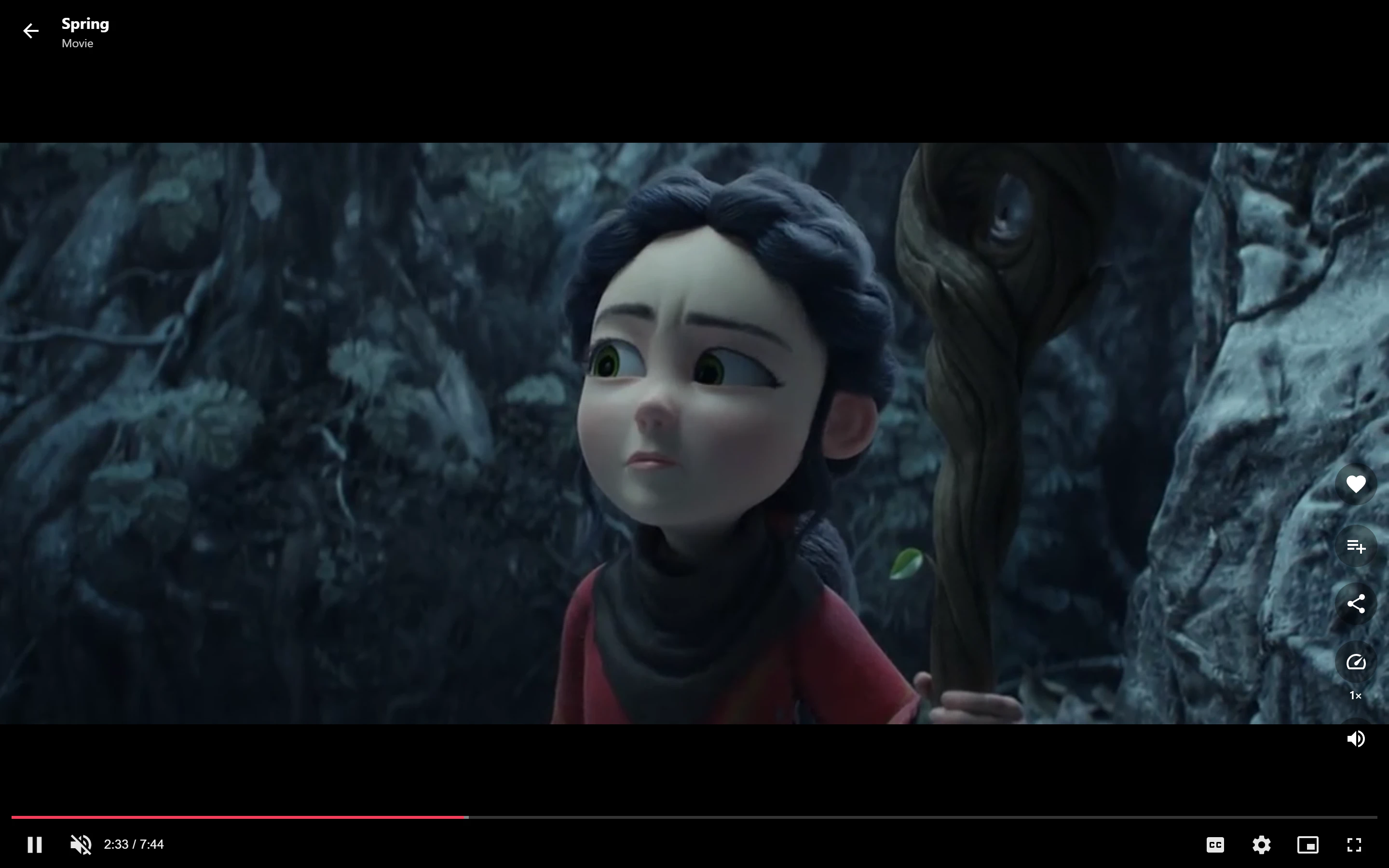
Down the right side:
| Button | What it does |
|---|---|
| Like | Likes the series. The number of likes shows under the heart. |
| My List | Saves the series to My List, or removes it. |
| Episodes | Opens the episode grid. Locked episodes carry a lock. |
| Share | Opens the device’s share menu, or copies the episode’s link (“Link copied”). |
| Settings | Only shown when there is something to choose, such as a quality. |
| Speed | Steps through 1×, 1.25×, 1.5×, 2× and 0.75×. |
| Mute | Turns the sound off or on. |
Guests who tap Like or My List see “Sign in to save series and likes.”
Along the bottom: play or pause, the time, previous and next (on computers), picture in
picture, AirPlay, full screen, and the seek bar. A tap or click on the picture pauses or
plays; a double click goes full screen. The back arrow at the top left, or Esc, closes the
player and returns to the series screen.
Speed and sound are kept from one episode to the next.
Keyboard shortcuts
| Key | Action |
|---|---|
Space |
Play or pause |
| Arrow right / arrow left | Forward or back 10 seconds |
Arrow down or J |
Next episode |
Arrow up or K |
Previous episode |
M |
Mute or unmute |
F |
Full screen on or off |
P |
Picture in picture on or off |
> / < |
Faster or slower playback |
Esc |
Leave full screen, close an open panel, or close the player |
C |
Subtitles on or off PRO |
The shortcuts do nothing while the viewer is typing in a text box.
Quality
PRO With Pro, for an HLS stream with several renditions, Settings offers Quality: Auto, then each rendition by its short side, such as 1080p or 2160p 4K. A vertical 1080 by 1920 rendition is listed as 1080p. Auto picks the rendition from the connection and the player’s real size on screen, so a 4K screen gets the 4K rendition when the stream has one.
The list does not appear in the free plugin, for a single MP4 file, for an embedded video, or in Safari, which picks the HLS quality itself.
Sound and autoplay
Browsers often refuse to start a video with sound before the viewer has touched the page. The player then starts the episode muted and shows Tap for sound. The next tap brings the sound back.
Picture in picture, AirPlay and full screen
- Picture in picture appears when the browser supports it, for videos played by the plugin’s own player (not for YouTube, Vimeo or other embeds).
- AirPlay appears in Safari when an AirPlay device is available.
- Full screen takes the whole player full screen, controls included. On a phone, a widescreen video also turns to landscape where the browser allows it. On an iPhone, the video itself goes full screen.
Skip intro and the next-episode countdown
Each episode can have three optional times, set in the episode form: Intro starts at, Intro ends at and End credits start at. See Episodes.
- Between the intro times, a Skip intro button jumps to the end of the intro.
- From the credits time, a Next episode in 10 button counts down and then plays the next episode. The countdown waits while the video is paused. Tapping it goes at once.
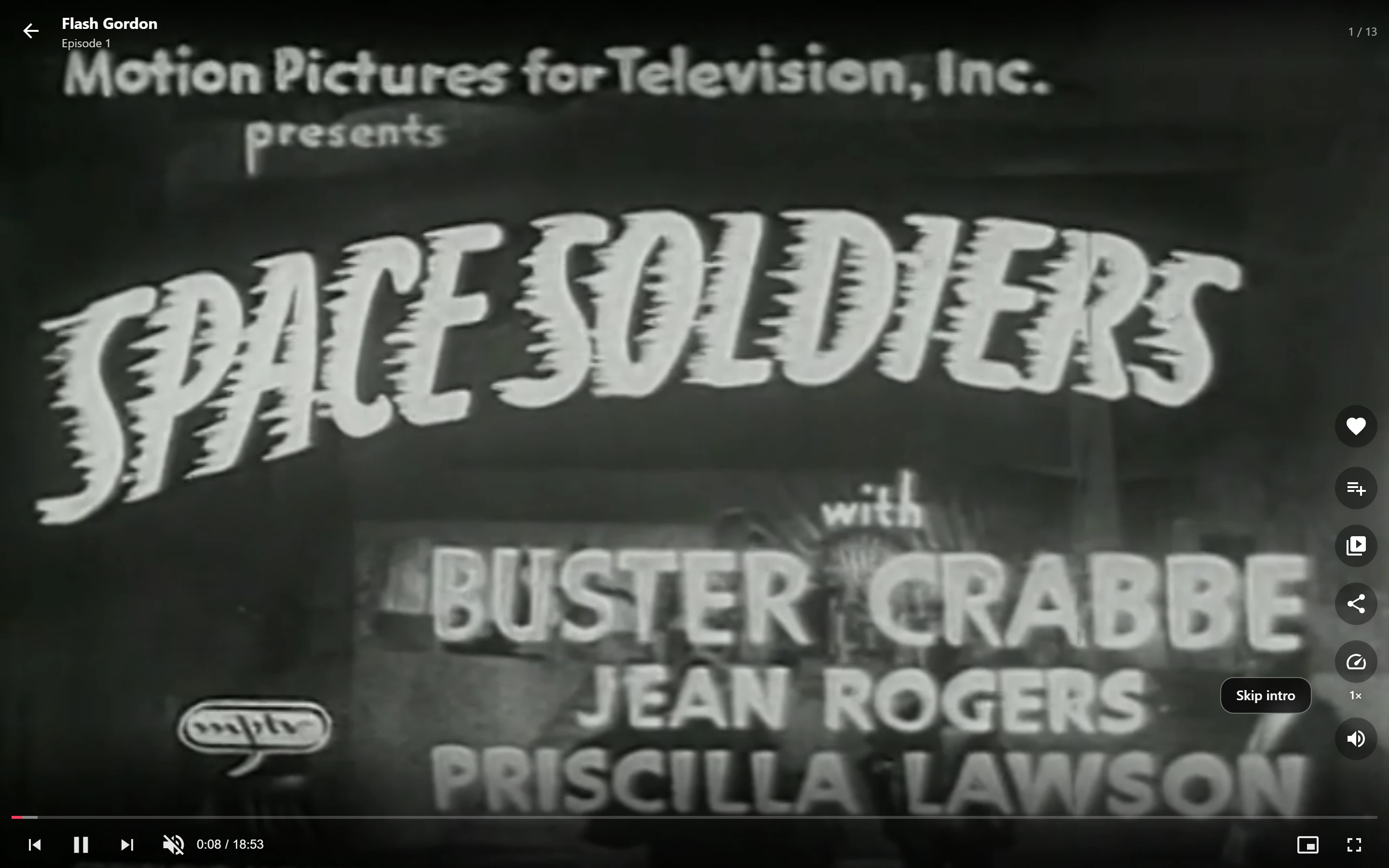
The countdown runs only when Settings -> General -> Play the next episode automatically is on and the next episode is not locked. With the setting off, the button reads Next episode and waits for a tap. Without markers, the next playable episode starts when the current one ends, under the same setting.
Resume and locked episodes
An episode the viewer already started opens where they left off. See Resume and My List.
An episode the viewer cannot play shows “This episode is locked” instead of a video. With Pro PRO, that card offers to unlock it with coins or VIP, see Coins and unlocks. If a video fails to load, the player says “This episode could not be played.” with a Try again button.
YouTube, Vimeo and other embeds
YouTube and Vimeo episodes play inside the same player and obey the same controls, gestures, resume and autoplay. Any other embed URL keeps its own controls: the player hides its bottom bar for it and keeps the side buttons. See Video sources.
Pro player extras
Pro adds to the same player:
- Subtitles and audio tracks PRO, in the Settings panel. See Subtitles and audio tracks.
- Casting to a TV PRO. See Cast to TV.
- A Video.js control bar PRO instead of the built-in one. See Video.js player.
- Video ads PRO. See Video ads.
Quick Links
Share