

Contents
On this page
Resume and My List - Plugixa Stream
Plugixa Stream remembers where each viewer stopped in every episode, which series they saved and which they liked. Signed-in viewers get this on every device. Guests get it in the browser they use, and keep it when they create an account.
There is nothing to set up: it works as soon as the plugin is active.
Resume on any device
For a signed-in viewer, the player saves the position in the episode while it plays, about every 10 seconds, and again when the viewer pauses, finishes the episode, or closes the tab. Positions are stored on your site, so a viewer who stops on their phone continues on their laptop or TV from the same second.
When the viewer comes back:
- The episode opens where they stopped. A position in the first 3 seconds, or in the last 5 seconds, starts the episode from the beginning instead.
- The series screen’s button reads Continue episode 4 (or Resume for a movie) and starts at the first unfinished episode after the last one they watched.
- Each episode tile shows a progress bar, and episodes they finished are dimmed.
Progress is only saved for episodes the viewer is allowed to play.
Continue watching
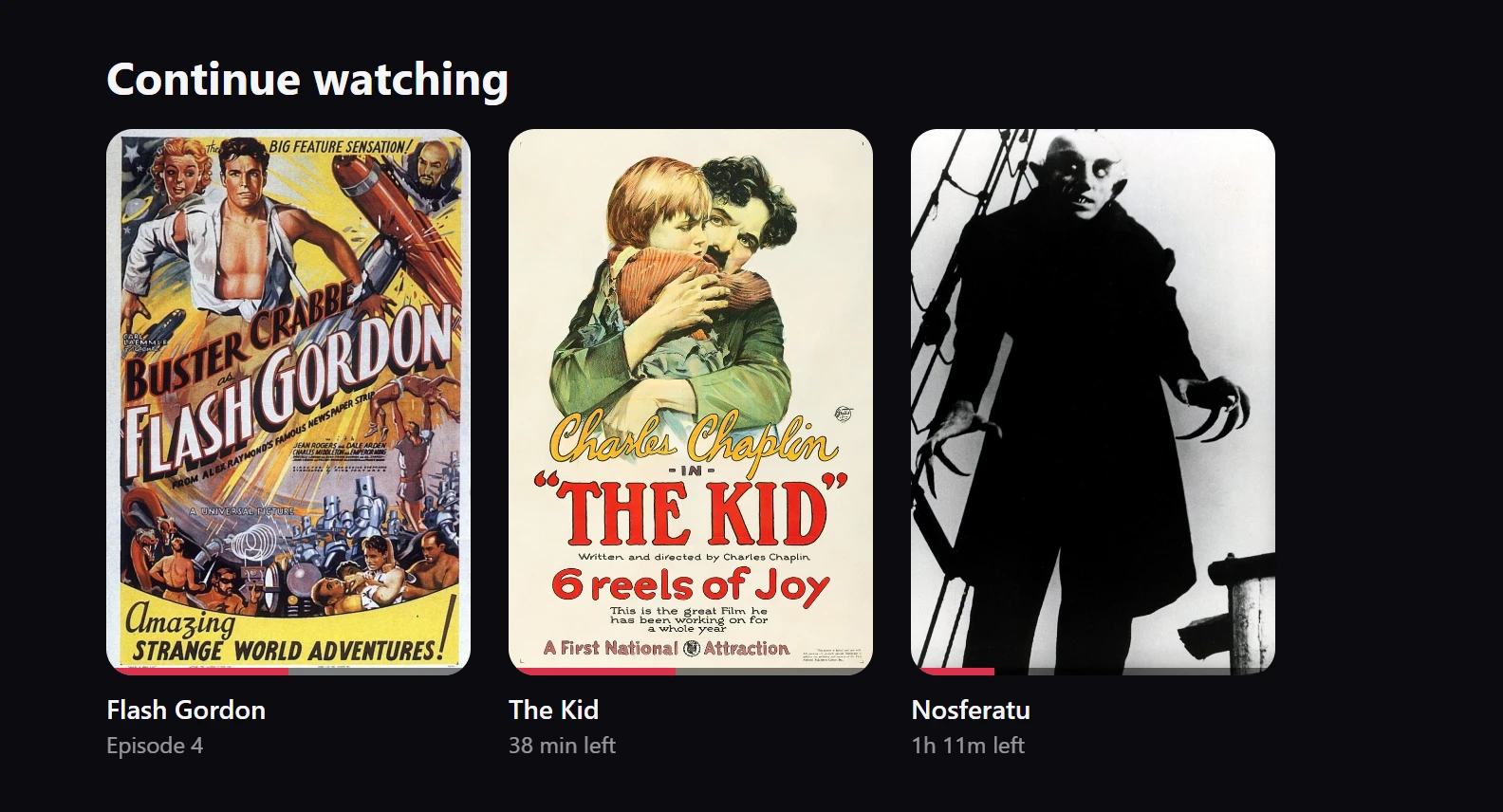
Home shows a Continue watching row with the series the viewer has started, the most recent first:
- A series in progress opens at the episode they were watching, with a progress bar and “Episode 4” under the poster. A movie shows how much is left, such as “38 min left”.
- A viewer who finished episode 4 to the end is offered episode 5 from the start.
- A series watched to its last episode leaves the row.
The row holds up to 12 series for a signed-in viewer. To show the same row on another page of
your site, use the [plugixa_stream_continue] shortcode or the Continue watching block.
See Shortcodes.
Guests: progress in the browser
A guest has no account, so their positions are kept in their browser’s storage on that device. They still get resume points, progress bars and a Continue watching row of up to 8 series. Another browser or device does not see them, and clearing the browser’s site data removes them.
Guest progress follows them into their account. When a guest signs in or creates an account, the next time the Watch page opens in that browser their saved positions (up to 50) are copied into the account and cleared from the browser. From then on they resume on any device.
My List
My List is the viewer’s own shortlist of series to watch.
- On the series screen, My List adds the series, and tapping it again removes it. The icon turns into a check mark while the series is in the list.
- In the player, the My List side button does the same.
- On a series page of your site, the Add to My List button of the series banner saves it in place for a signed-in viewer and changes to In My List. See Page templates.
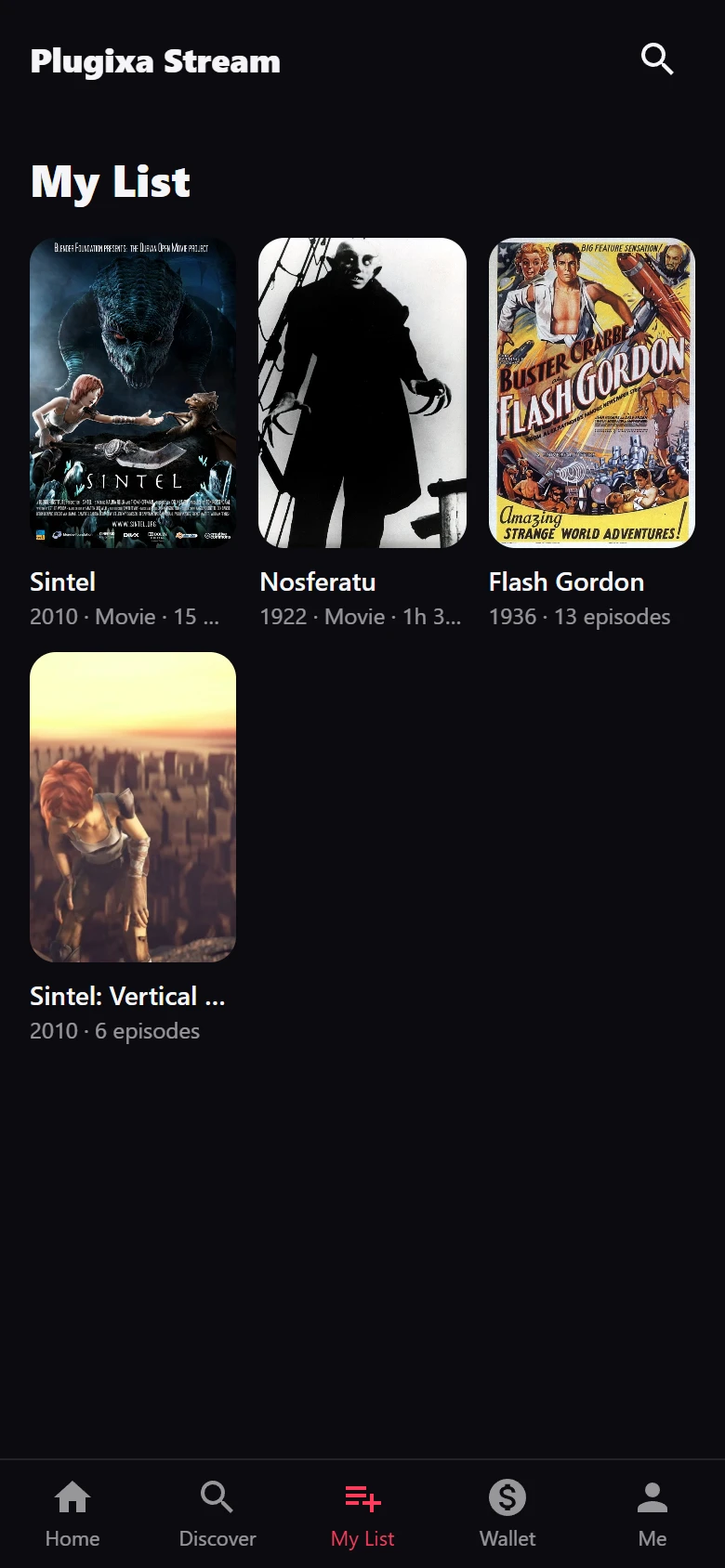
The My List tab shows the saved series as a poster grid, up to 100 of them. With nothing saved it says “Nothing saved yet. Tap “My List” on a series to keep it here.”
My List needs an account. A guest who taps My List on the series screen is sent to the sign-in page, and the My List tab shows a Sign in card instead.
Likes
The heart button in the player likes the series, and the number under it counts every viewer’s likes. Tapping it again removes the like. Likes need an account: a guest sees “Sign in to save series and likes.”
Watch history
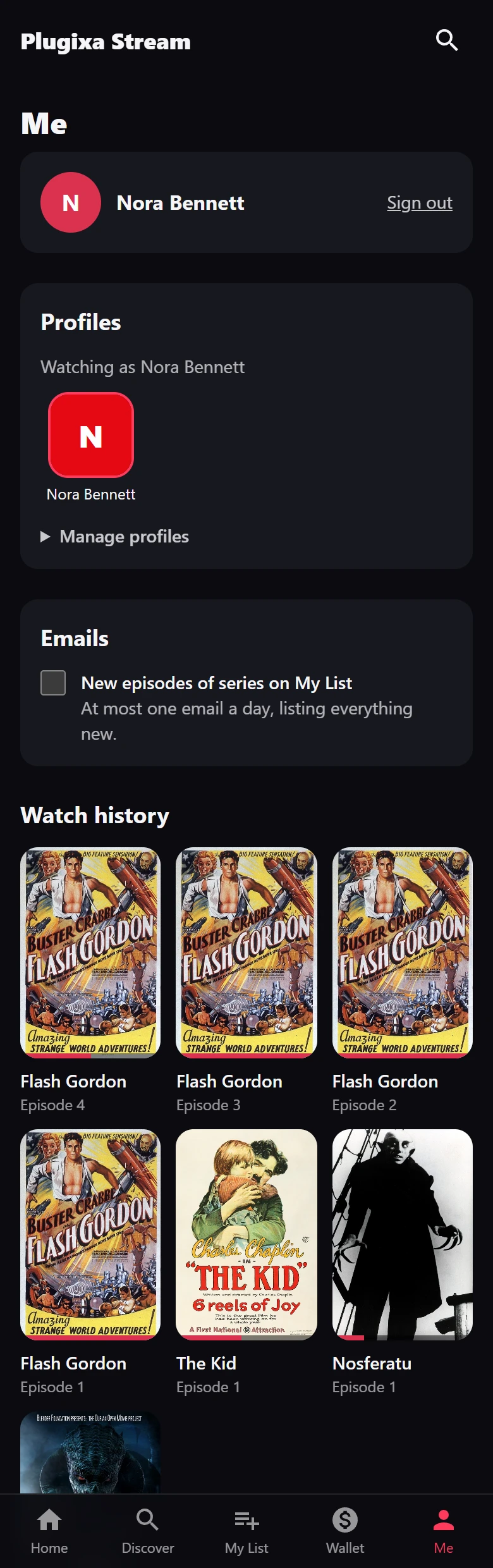
The Me tab lists the signed-in viewer’s Watch history: the 30 episodes they watched most recently, newest first, each with its series poster, “Episode N” and a progress bar (full for a finished episode). A tap opens that episode in the player. With nothing watched yet it says “Episodes you watch show up here.”
Clearing history
The Watch app has no button for a viewer to clear their own history. To remove a viewer’s data:
- One viewer, on request: use WordPress’s Tools -> Erase Personal Data with their email address. It removes their positions, history, My List and likes. Tools -> Export Personal Data gives them a copy first. See Privacy and uninstall.
- A deleted account: its viewing history, My List and likes are deleted with it.
- A deleted series: every viewer’s progress, My List entry and like for it are removed.
- A guest: clearing the browser’s data for your site removes their saved positions.
Profiles
With Pro, one account can have several viewer profiles PRO. Each profile has its own resume points, Continue watching row, history, My List and likes. See Profiles and kids mode.
Quick Links
Share