

Contents
On this page
Settings - Plugixa Stream
Settings holds the site-wide options of Plugixa Stream: how many episodes are free, which page runs the Watch app, where new videos go, the look of the viewer app and what happens to your content when the plugin is deleted.
Open Plugixa Stream -> Settings. The tabs run down the left side (above the content on a
phone). The open tab is in the address, for example #/settings?section=video, so you can
link to one. Users with the manage settings permission see every tab and can save. Out of
the box that is administrators. Other users who can view the catalog see only the shared tabs,
read-only; the tabs that hold keys and services (payments, Bunny, AI, TMDB and encoding) are
hidden from them.
Saving
Most tabs share one Save button at the bottom of the tab. A change made on one of these tabs is kept while you open another one, and one click on Save stores all of them. After saving you see Saved. at the top of the tab.
A few Pro tabs that hold API keys (Payments, Bunny Stream, Quality encoding, AI subtitles and TMDB) have their own Save button and save on their own.
The tabs
In the free plugin you see four tabs. Pro adds its own tabs between them, in this order:
| Tab | Edition |
|---|---|
| General | Free |
| Prices & coins | Pro |
| Payments | Pro |
| Video | Free |
| Player | Pro |
| Subtitles and audio | Pro |
| Video ads | Pro |
| Profiles | Pro |
| Screens | Pro |
| Emails | Pro |
| Ratings & reviews | Pro |
| Bunny Stream | Pro |
| Quality encoding | Pro |
| AI subtitles | Pro |
| TMDB | Pro |
| Appearance | Free |
| Data | Free |
General
| Field | Default | What it does |
|---|---|---|
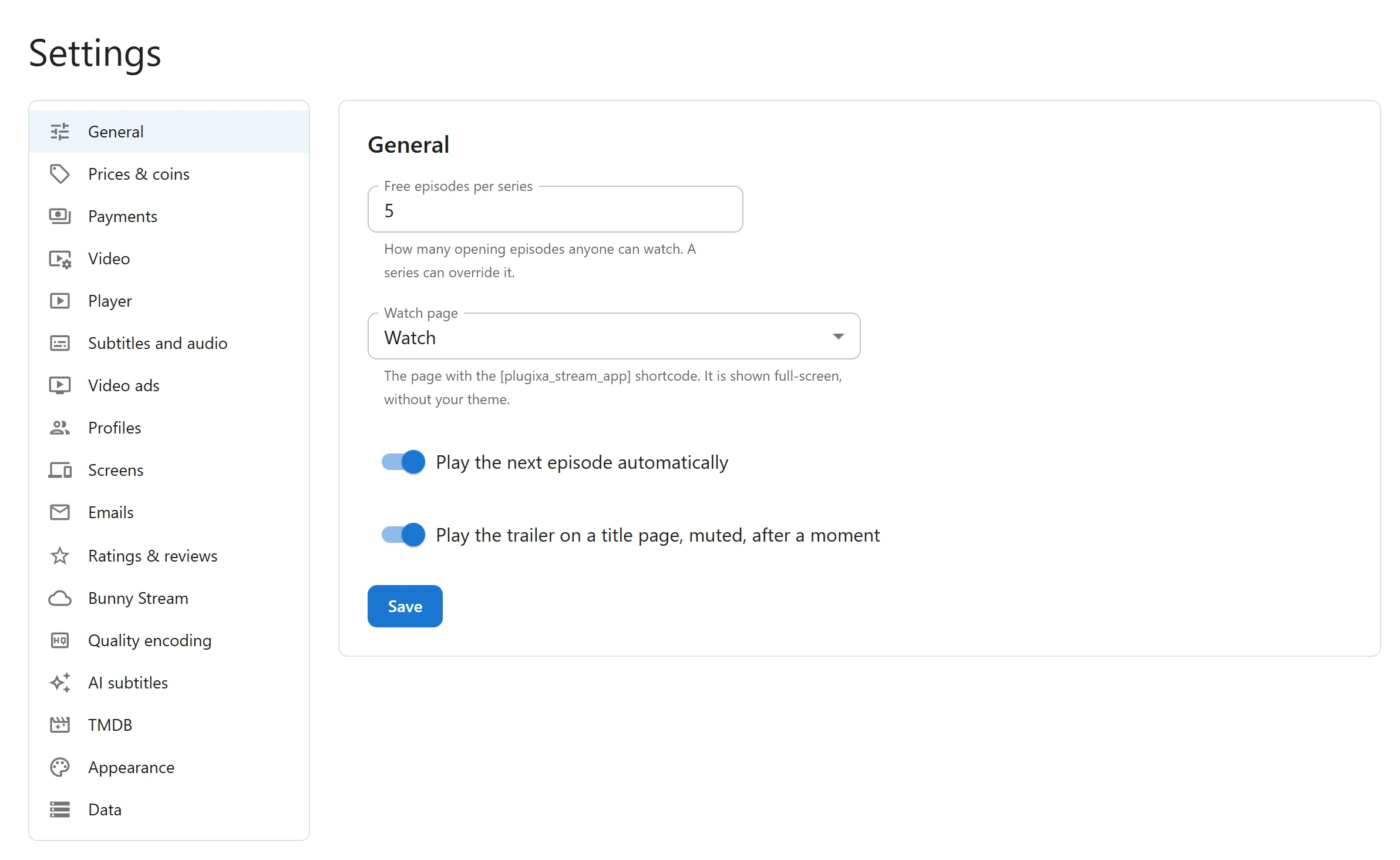
| Free episodes per series | 5 | How many opening episodes anyone can watch, signed in or not. A series can set its own number, and one episode can be made free or locked on its own. Any number from 0 to 1000. |
| Watch page | The page created on activation | The page that holds the [plugixa_stream_app] shortcode. It is shown full screen, without your theme. First page with the shortcode leaves the choice to the plugin. |
| Play the next episode automatically | On | When an episode ends, the next one starts after a short countdown. |
| Play the trailer on a title page, muted, after a moment | On | A title with a trailer plays it, muted, behind its artwork on the title page. |
On activation the plugin creates a published page called Watch with the shortcode, unless a page with the shortcode already exists, and selects it here. See Free and locked episodes for how the free count works per series, and Watch app for the page itself.
Video
| Field | Default | What it does |
|---|---|---|
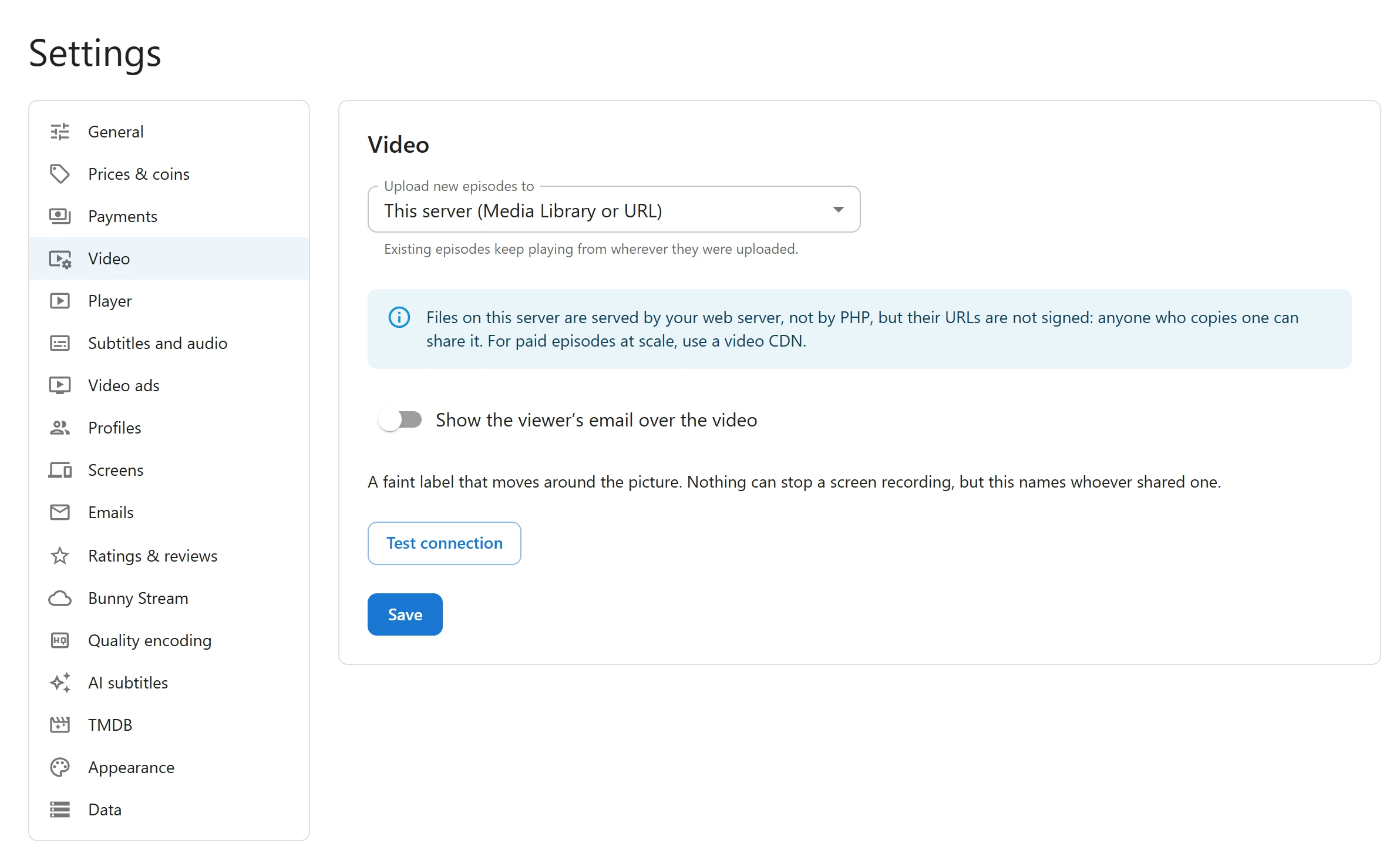
| Upload new episodes to | This server (Media Library or URL) | Where the episode editor uploads new videos. With Pro, Bunny Stream PRO is a second choice. Existing episodes keep playing from wherever they were uploaded. |
| Show the viewer’s email over the video | Off | Draws the signed-in viewer’s email as a faint label that moves around the picture. It cannot stop a screen recording, but it names whoever shared one. |
While This server is selected, a note explains that files on your server are served by your web server, not by PHP, and that their URLs are not signed: anyone who copies one can share it. For paid episodes at scale, use a video CDN such as Bunny Stream.
Test connection checks the selected destination and answers Connected. or shows what went wrong. Your own server always answers Connected.; the test matters for Bunny Stream.
YouTube, Vimeo and other embed links are not chosen here: you paste them per episode. See Video sources.
Appearance
The Appearance tab sets the look of the Watch app, the embeds and the Stream page templates: the App name and Logo in the app header, a starting Style (Cinema, Midnight, Noir, Emerald, Sunset or Light), the colours, the Corner roundness and the Font. Cinema is the default style. Every field, its default and how the styles work are on the Appearance page.
Data
| Field | Default | What it does |
|---|---|---|
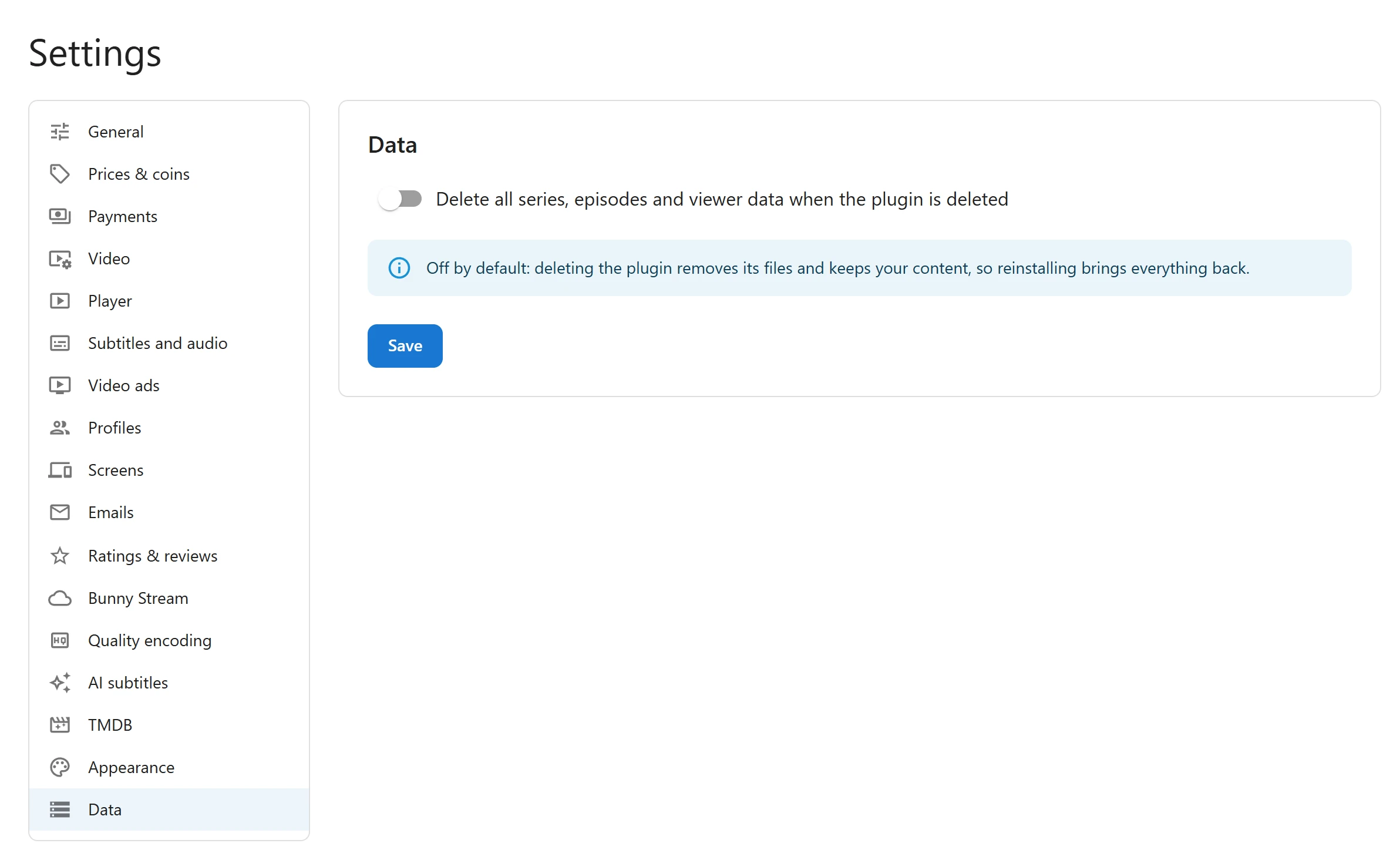
| Delete all series, episodes and viewer data when the plugin is deleted | Off | When on, deleting the plugin from the Plugins screen permanently removes every series, episode, viewing history and setting. Video files in the Media Library are kept. |
Only a site administrator can change this switch, even when other users may edit settings. With the switch off, deleting the plugin removes its files and keeps your content, so reinstalling brings everything back. What is removed, and when deleting is refused, is on Privacy and uninstall.
Tabs added by Pro
Each of these tabs belongs to a Pro feature PRO and is explained in full on that feature’s page.
Prices & coins
The currency, the default Coins per episode (50), the Whole-series discount (%) (30), prices by episode number, the coin packs, the VIP plans with an optional free trial, the daily check-in rewards and when bonus coins expire. See Prices, Coins and unlocks, VIP subscriptions and Daily check-in.
Payments
Your Stripe and PayPal keys, the test or live mode of each, the webhook address to copy into their dashboards and whether webhook events are arriving. See Stripe and PayPal.
Player
Which control bar the player shows: Plugixa (built in, lightest), the default, or Video.js. Swiping, the side buttons and the quality, audio and subtitle menus are the same with either. See Video.js player.
Subtitles and audio
The Default subtitle language, whether subtitles show by default (off), and the Default audio language. A viewer’s own choice is remembered on their device. See Subtitles and audio tracks.
Video ads
Pre-roll and mid-roll ads from a VAST ad tag, played by the built-in VAST player or the Google IMA SDK. Ads are off by default. See Video ads.
Profiles
Profiles per account (5) and what kids profiles may see: titles rated up to 7+ by default, without titles that have no age rating. See Profiles and kids mode.
Screens
Screens at once: how many devices one account can play on at the same time. The default is No limit. See Screen limits.
Emails
The new-episode email, purchase receipts and VIP reminders (all on), the hour of the daily email (09:00, in your site’s time zone), the Sender name and a test email. See Email notifications.
Ratings & reviews
Whether viewers can rate titles (on), whether they can write reviews (on), whether written reviews wait for your approval (published at once by default) and whether a viewer must have started a title to rate it (off). See Ratings and reviews.
Bunny Stream
Your Bunny library ID, API key, CDN hostname and token authentication key for signed playback URLs. See Bunny Stream.
Quality encoding
Whether ffmpeg was found on your server, its path, which qualities to make, the encoding speed, how many videos are encoded at once and whether new uploads are encoded automatically. See Encoding.
AI subtitles
Your Anthropic API key and translation model, and your OpenAI API key for subtitles from speech. See AI subtitles.
TMDB
Your TMDB API key or read access token, the language for titles and synopses, and the country used for age ratings. See TMDB.
When you go back to Free
Pro’s settings are kept when Pro is removed. Saving settings in the free plugin does not erase them, so they are back when Pro returns. See Free vs Pro.
Quick Links
Share