

Contents
On this page
Custom fields - Plugixa Stream
Custom fields add your own details to series and movies: a country, an awards line, a content warning, a link to the original book. Each field chooses where it appears: in the title editor, on the title page for viewers, in the admin filters, in the admin search and in the viewers’ search.
The Custom fields page
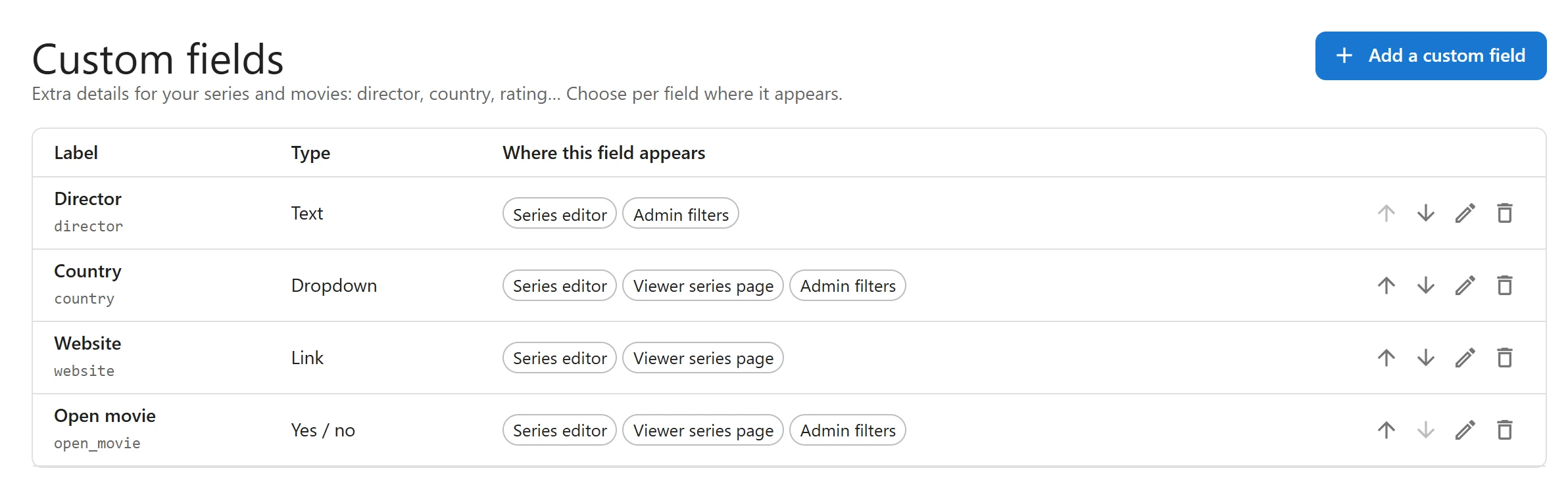
Open Custom fields in the admin sidebar (#/custom-fields). The table lists your fields in
order, with their Label, Type and Where this field appears (“Hidden everywhere” when
every switch is off). The arrows change the order, which is the order of the fields in the editor
and on the title page.
Add a field
-
Click Add a custom field.
-
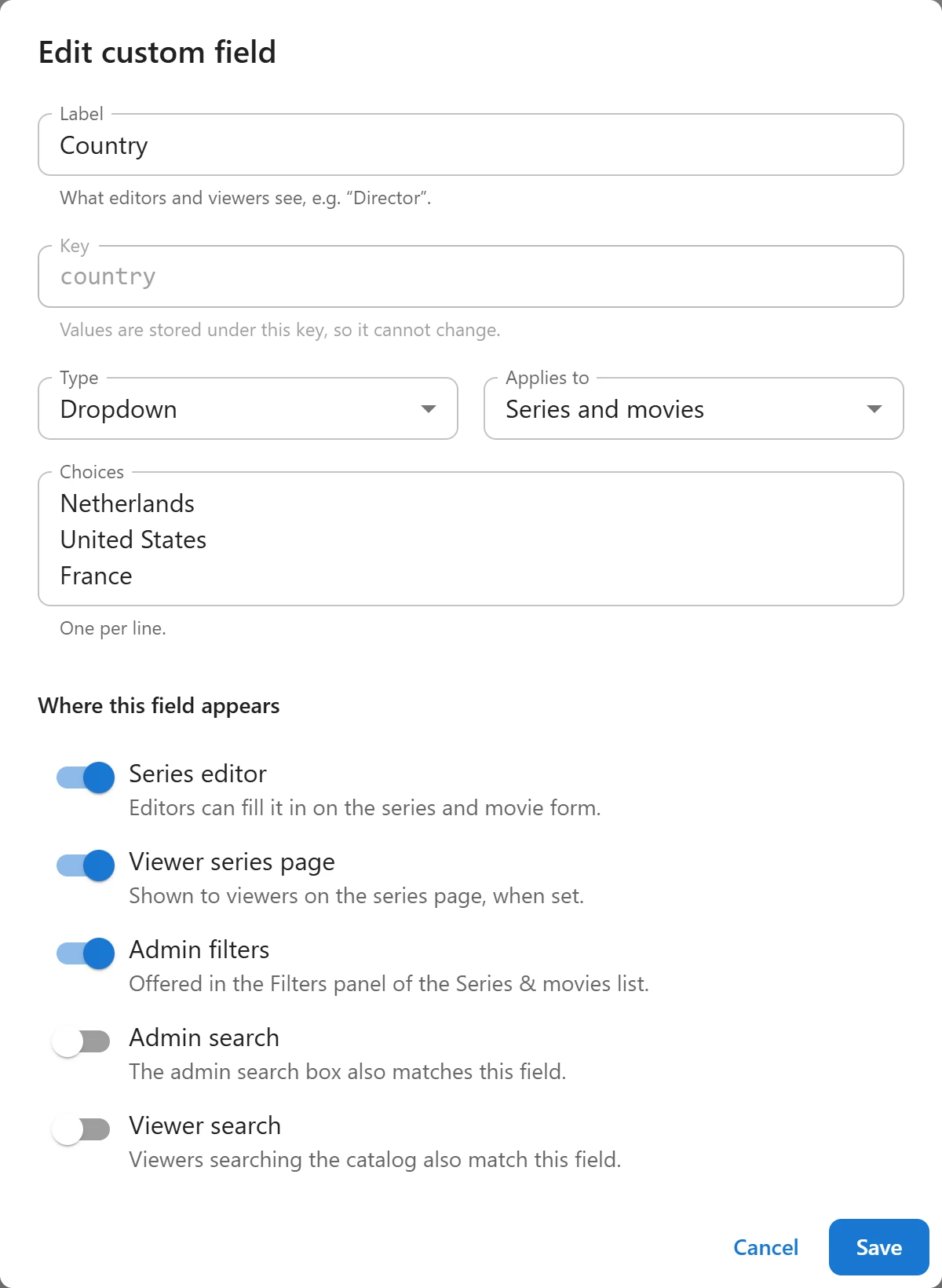
Fill in the dialog:
Field What it is Label “What editors and viewers see, e.g. “Director”.” Key “Lowercase letters, digits and underscores. Cannot be changed later.” It starts with a letter, up to 40 characters, and must be unique. Type See the table below. Applies to Series and movies, Series only or Movies only. Choices For a Dropdown: “One per line.” Placeholder The hint shown in the empty field in the editor. -
Under Where this field appears, switch on the places you want (see below).
-
Click Save.
Field types
| Type | Holds | Shown to viewers as |
|---|---|---|
| Text | One line of text | The text |
| Long text | Several lines | The text |
| Number | A number | The number, in the site’s number format |
| Dropdown | One of your Choices | The choice |
| Yes / no | A tick box | “Yes” when ticked; nothing when not |
| Date | A date | The date, in the site’s date format |
| Link | A web address | A link that opens in a new tab |
Where this field appears
| Switch | What it does | New field |
|---|---|---|
| Series editor | “Editors can fill it in on the series and movie form.” | On |
| Viewer series page | “Shown to viewers on the series page, when set.” | Off |
| Admin filters | “Offered in the Filters panel of the Series & movies list.” | Off |
| Admin search | “The admin search box also matches this field.” | Off |
| Viewer search | “Viewers searching the catalog also match this field.” | Off |
“Only text, dropdown and link fields can be searched”: the two search switches are for Text, Long text, Dropdown and Link fields.
Fill in the values
Open a title under Series & movies. The Custom fields panel lists the fields that apply to it and have Series editor on. Fill them in and click Save fields: the panel saves on its own. An empty value means “not set”.
What viewers see
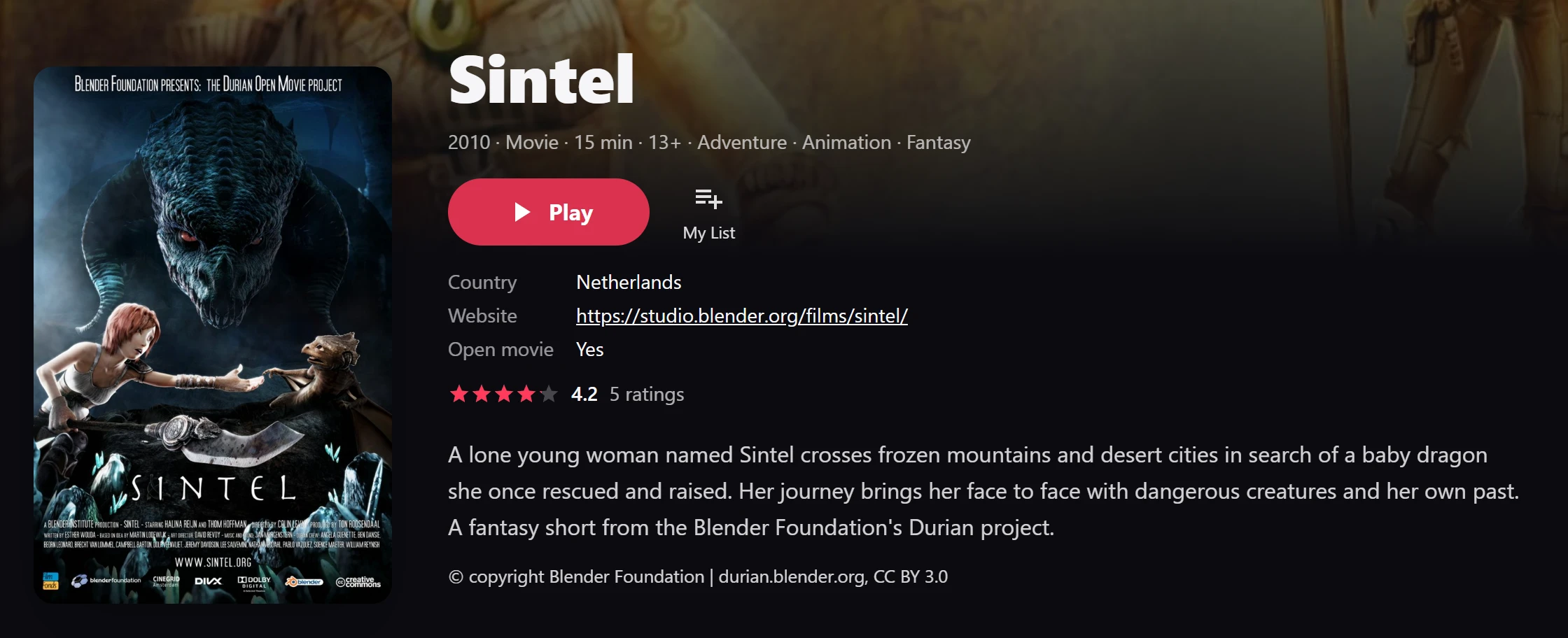
On a title page in the Watch app, the fields with Viewer series page on are listed as label and value pairs. A field with no value is left out, and so is a Yes / no field that is not ticked.
With Viewer search on, a viewer searching the catalog also finds titles whose field contains the words, along with the usual title and synopsis matches.
Filter and search in the admin
With Admin filters on, the field appears in the Filters panel of the Series & movies list:
| Type | Filter |
|---|---|
| Text, Long text, Link | Contains… |
| Dropdown | All or one of the choices |
| Yes / no | All, Yes or No. No also finds titles never set. |
| Number, Date | From and To |
With Admin search on, the search box of the list also matches the field.
Edit or delete a field
Edit opens the same dialog. The key cannot change: “Values are stored under this key, so it cannot change.”
Delete asks “Delete this field?”: “It disappears from the editor, filters, search and the viewer pages. Values already entered stay stored, and come back if you add a field with the same key.”
Related
Quick Links
Share