

Contents
On this page
Blocks - Plugixa Stream
Plugixa Stream adds eight blocks to the block editor, grouped under Plugixa Stream in the inserter. Three of them are the catalog embeds, the same as the shortcodes. The other five are the building blocks of the series, episode and browse pages, and work best in the page templates.
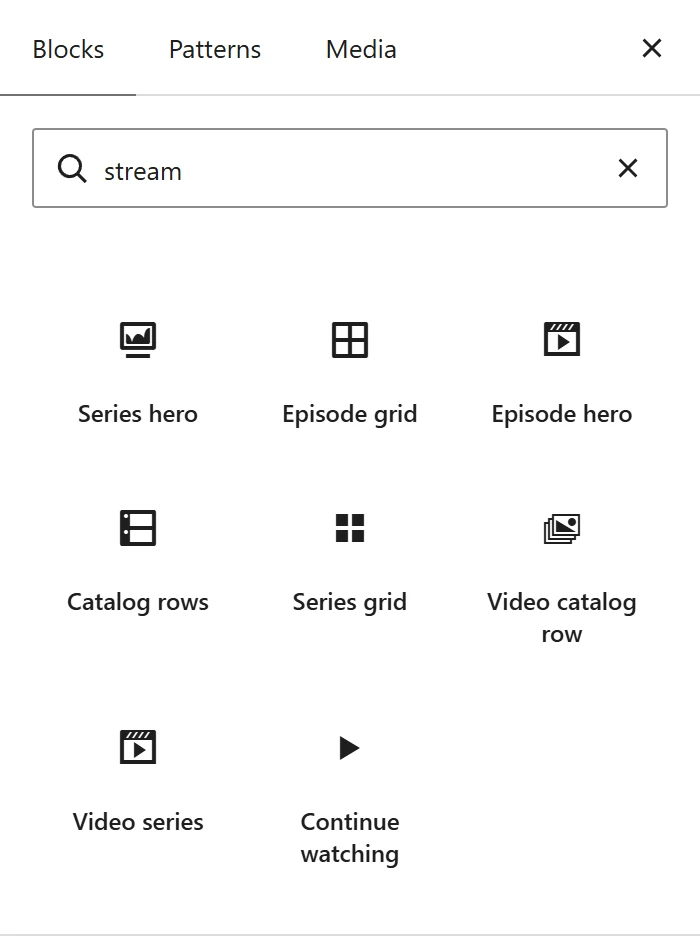
Every block is drawn by your site on each page view, from the same code as the front end. The editor shows a live preview, and a change to the plugin reaches every page that uses a block with nothing to re-save. Settings are in the block sidebar.
The catalog blocks
Video catalog row
A scrolling row of series posters. Same as [plugixa_stream_row].
| Setting | What it does |
|---|---|
| Show | Trending now, New releases, Featured or One genre |
| Genre slug | With One genre: the genre’s slug, such as drama |
| Heading | The heading above the row. Empty shows none. |
| Or a row from Plugixa Stream → Rows | The id of a row from Home rows, such as trending. Overrides the choice above. |
| How many | 1 to 30 posters. Default 12. |
| More like this | On a series or episode page: titles in the same genre. Overrides the choices above. |
Video series
One series or movie. Same as [plugixa_stream_series].
| Setting | What it does |
|---|---|
| Series ID | The series’ id, as in the admin address #/series/2814 |
| Layout | Poster card or Banner |
Continue watching
The signed-in viewer’s series in progress. Same as [plugixa_stream_continue]. Guests see
nothing.
| Setting | What it does |
|---|---|
| Heading | Empty shows “Continue watching” |
| How many | 1 to 20 series. Default 6. |
The page blocks
These blocks read the series or episode of the page they are on. In the template editor, where a template stands for every series, they preview your newest series or episode instead. Visitors on a page that is not about a series see nothing from Series hero, Episode hero or Episode grid.
Series hero
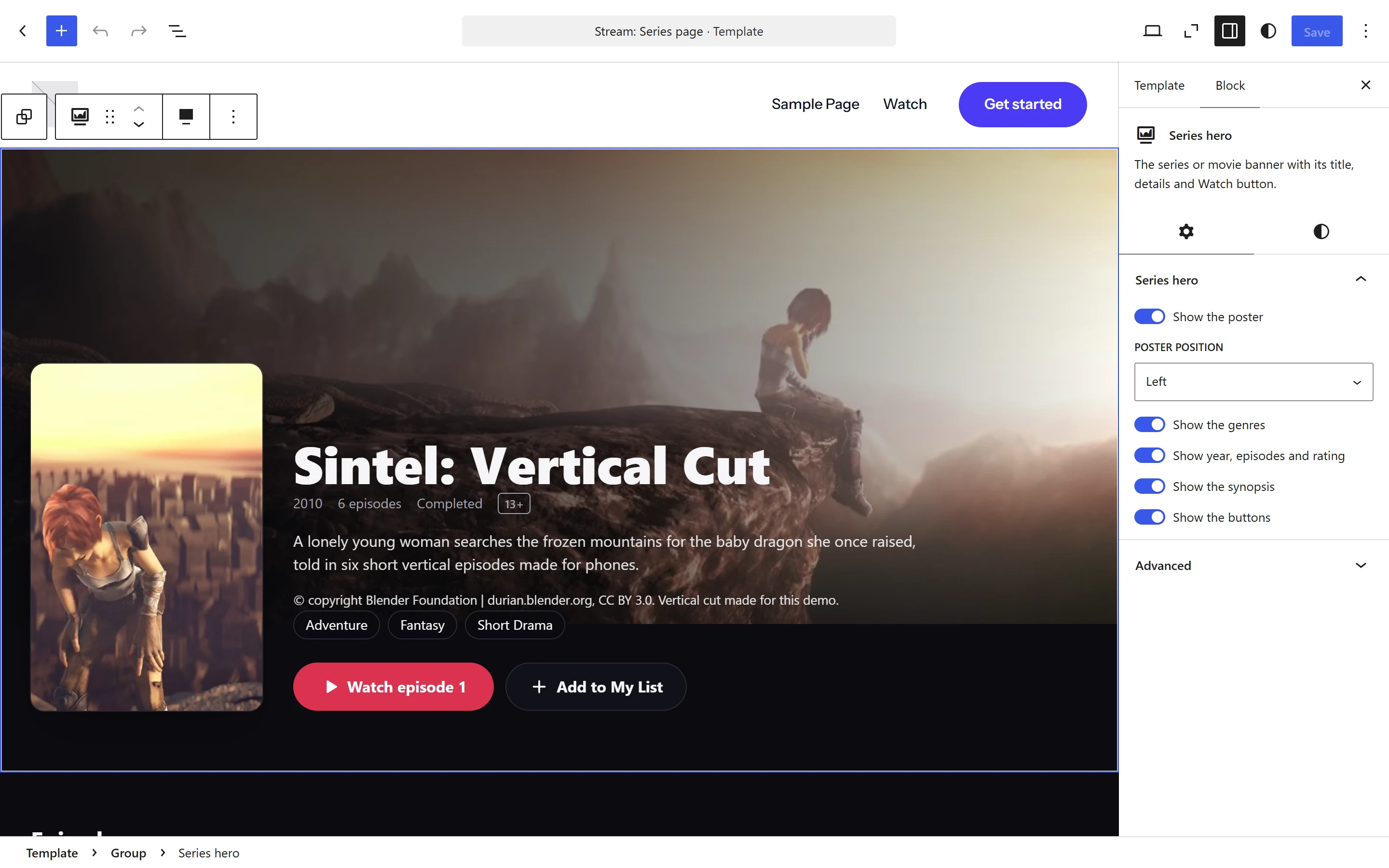
The series or movie banner: the poster, title, facts, synopsis, genre links and the Watch episode 1 (or Watch the movie) and Add to My List buttons. A signed-in viewer’s Add to My List saves the series in place and turns into In My List; a guest’s opens the series in the Watch app.
| Setting | Default |
|---|---|
| Show the poster | On |
| Poster position (Left or Right) | Left |
| Show the genres | On |
| Show year, episodes and rating | On |
| Show the synopsis | On |
| Show the buttons | On |
Episode grid
Every episode of the series, by season, each linking to that episode in the Watch app. On an episode page it lists that episode’s series and outlines the current episode. A movie shows nothing. An episode without a thumbnail gets its own crop of the series banner with its number on it.
| Setting | Default |
|---|---|
| Heading | “Episodes”, followed by the count |
| Columns | 4 (2 to 6, fewer on small screens) |
| Group by season | On. Off lists every episode in one run. |
| Show Free and locked badges | On. A locked episode keeps a hidden “Locked” label for screen readers when off. |
| Show durations | On |
Episode hero
One episode: its series name (a link to the series page), title, number, length, a Free mark when it is free, its description and a Watch this episode button.
| Setting | Default |
|---|---|
| Show the series name | On |
| Show episode number and duration | On |
| Show the description | On |
Catalog rows
Every row from Home rows, in order: the app’s home screen as part of a page. It has no settings. On page 2 and later of a browse page it hides itself.
Series grid
A grid of posters, each opening the series page.
On the browse page (/series/), a genre, tag, studio or language page, or the search results,
it lists that page’s own titles with page links (24 per page on the browse and term pages).
Anywhere else it shows the titles you choose:
| Setting | What it does |
|---|---|
| Heading | Empty shows none |
| Columns | 2 to 8. Default 6. |
| How many | 1 to 60. Default 24. |
| Order | Newest first or A to Z |
| Only one genre | A genre slug, such as drama |
How many, Order and Only one genre apply only outside a browse, genre or search page.
Block styles
Some blocks have other looks under Styles in the sidebar:
| Block | Style | Look |
|---|---|---|
| Episode grid | List | One column, the thumbnail beside the title |
| Series hero, Episode hero | Centred | No poster, the text and buttons centred on the banner |
| Series grid | Compact | Posters only, closer together. Titles stay for screen readers. |
| Group (core) | Stream colours | The Stream background, text colour and font for everything inside |
All Stream blocks also take the usual block settings: wide and full width, background, text and link colours (gradients included), margin, padding, font size and line height, and an HTML anchor. The heroes also take a minimum height.
Patterns
The inserter’s Patterns tab has a Stream category with ready-made sections:
| Pattern | What it holds |
|---|---|
| Stream home | Continue watching, your catalog rows and an “All titles” grid |
| Trending and new | A Trending now row and a New releases row |
| Featured and all titles | Your featured row above a compact grid of up to 48 titles |
| Series details (core blocks) | Title, year and episodes, genres and a Watch now button as core blocks, filled from the page’s series |
| Genre showcase | A heading and a poster grid of your largest genre. Change the genre in the grid’s settings. |
Core blocks bound to a series
The plugin registers a block bindings source, Stream series. A core Heading, Paragraph, Button or Image bound to it shows the data of the page’s series (or the episode’s series), so you can design your own series layout from ordinary blocks and style them like any other.
The quickest start is the Series details (core blocks) pattern. To bind a block yourself, open it in the Code editor and add a binding:
<!-- wp:paragraph {"metadata":{"bindings":{"content":{"source":"plugixa-stream/series","args":{"key":"subtitle"}}}}} -->
<p>Year and episodes</p>
<!-- /wp:paragraph -->
| Key | Gives |
|---|---|
title |
The title |
year |
The release year |
genres |
The genres, as a list (“Action, Adventure, and Sci-Fi”) |
episodes |
“13 episodes”, or “Movie” |
runtime |
A movie’s running time, such as “1 h 52 min” |
status |
“Ongoing” or “Completed” (empty for a movie) |
subtitle |
The year and the episode count, as under a poster |
url |
The series page’s address, for a Button’s link |
watch_url |
The series in the Watch app, for a Button’s link |
poster |
The poster image’s address, for an Image |
In the editor a bound block shows a placeholder such as “[Year]” and cannot be typed into; the page shows the real value. On a page that is not about a published series, the block keeps its own text.
Quick Links
Share