

Contents
On this page
Series and movies - Plugixa Stream
Everything a viewer can watch starts as a title. A series holds episodes, numbered from 1. A movie holds exactly one video. Both have a poster, a banner, genres, a page of their own and a rule for which episodes are free. Anime, documentaries and short dramas are series or movies too: use a genre to tell them apart.
The Series & movies list
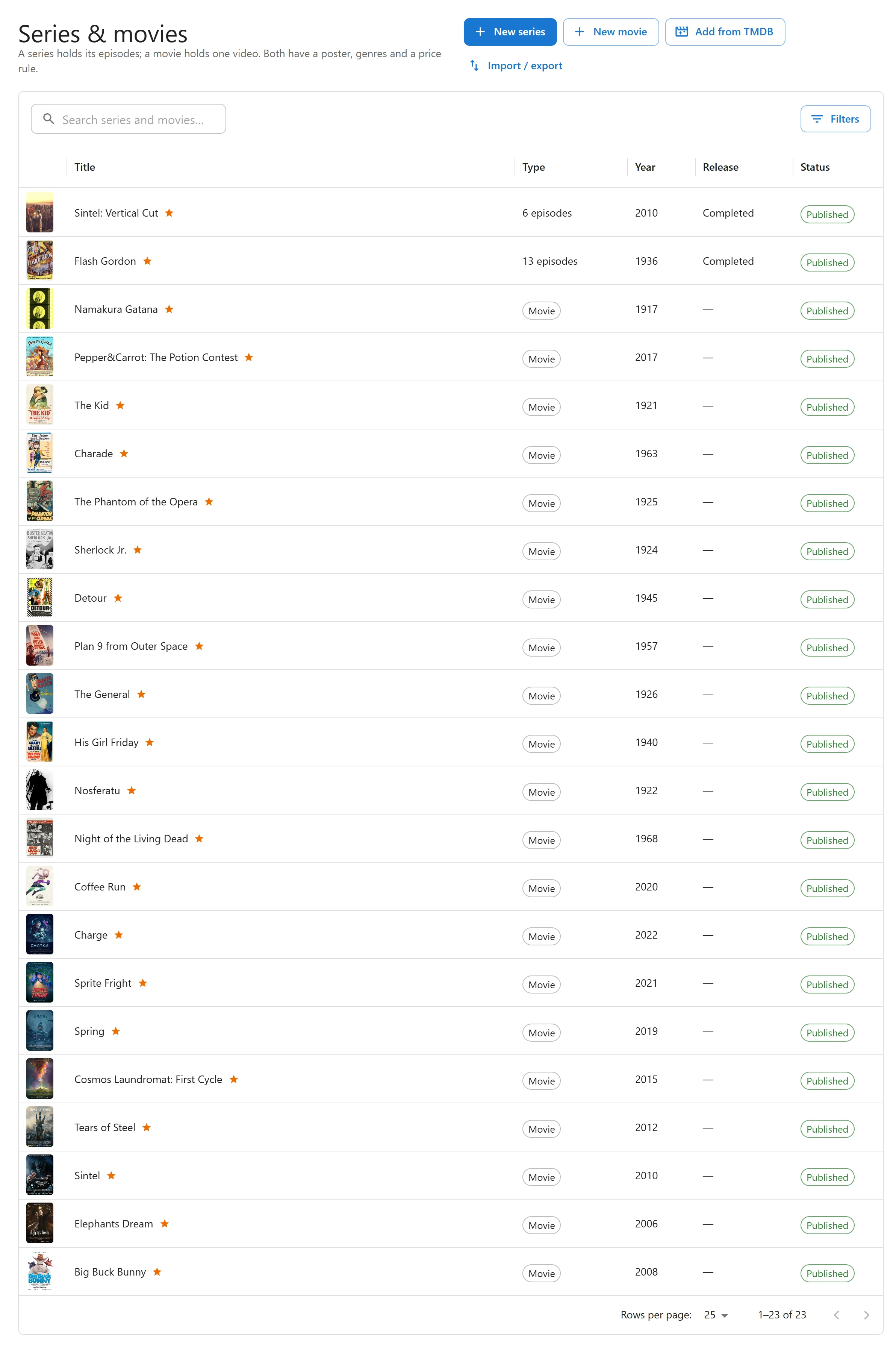
Open Plugixa Stream > Series & movies.
| Column | What it shows |
|---|---|
| Poster | The title’s poster, or an empty tile |
| Title | The title, with a star when it is featured on the home page |
| Type | Movie, or for a series its number of episodes, such as “13 episodes” |
| Year | The release year, when set |
| Release | Ongoing or Completed, for series only |
| Status | Published or Draft |
Click a row to open the title. The list shows 25 titles per page; change it to 50 or 100 at the bottom.
The buttons above the list:
- New series and New movie open an empty form of that type.
- Add from TMDB PRO fills a new title from The Movie Database. See TMDB.
- Import / export opens the CSV dialog. See Import and export.
Search and filters
Type in Search series and movies… to search titles as you type.
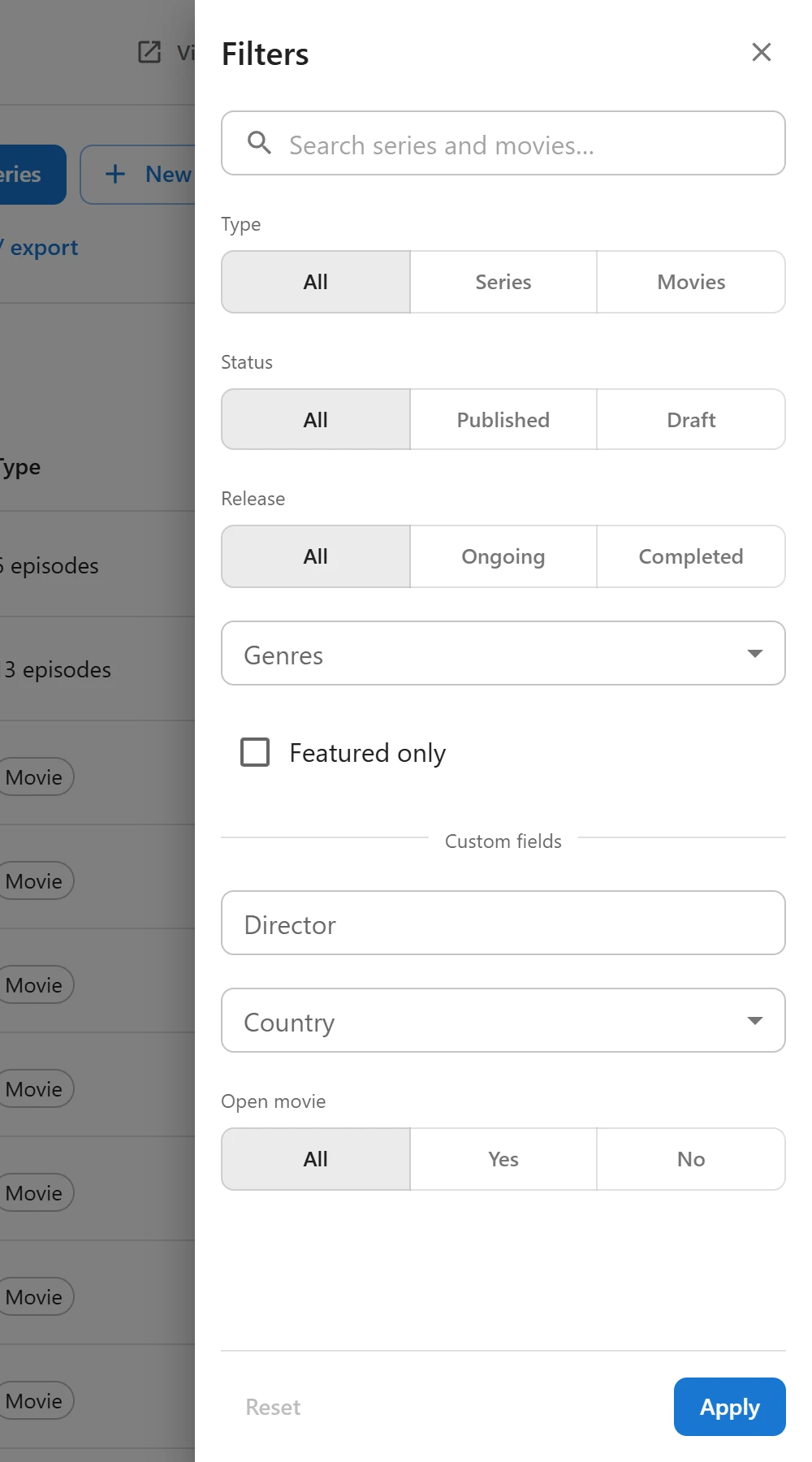
Click Filters to open the filter drawer:
| Filter | Choices |
|---|---|
| Search | The same search as the box above the list |
| Type | All, Series or Movies |
| Status | All, Published or Draft |
| Release | All, Ongoing or Completed |
| Genres | All, or one genre |
| Featured only | Only titles featured on the home page |
Click Apply. The applied filters show as chips above the list: remove one with its cross, or click Clear all. Reset in the drawer clears the drawer and the search. The number on the Filters button is how many filters are applied. With Pro, the drawer also filters by your custom fields PRO.
The list has no bulk actions. To change several episodes at once, use the selection in a series’ Episodes panel. See Episodes.
The title form
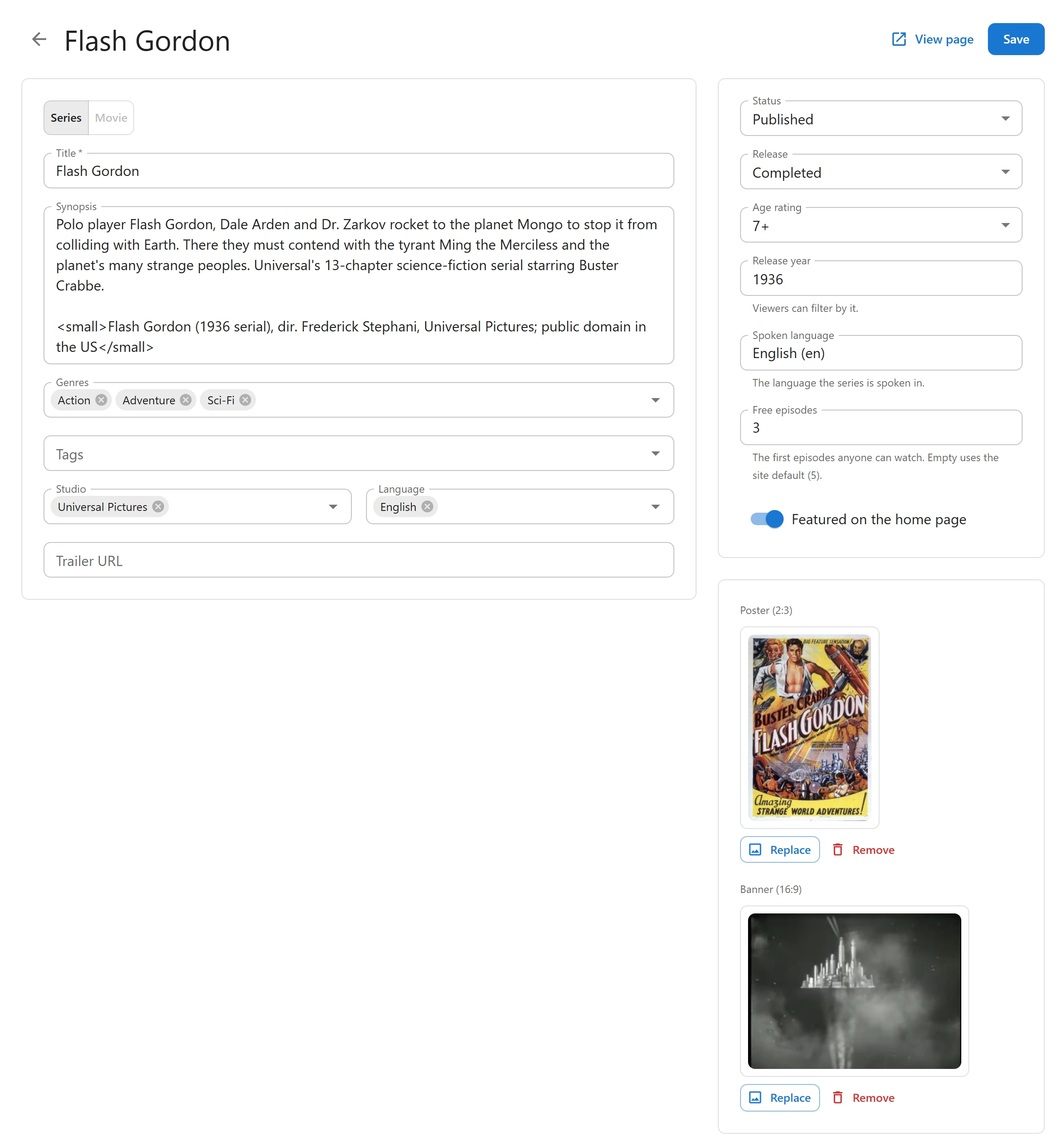
Click New series, New movie or a row of the list. The form has a main panel on the left and settings on the right. Click Save at the top. Once a published title is saved, View page opens its public page.
Main panel
| Field | What it is |
|---|---|
| Series / Movie | The type of title. A series with more than one episode cannot become a movie. A title with one video can switch either way. |
| Title | Required. |
| Synopsis | The description on the series screen, the series page and the featured carousel |
| Genres | Any number. Type a new name and choose Add “…” to create it. See Genres and taxonomies. |
| Tags | Free keywords, created the same way |
| Studio | The studios that made it |
| Language | The languages it is available in |
| Trailer URL | A full https:// link. A YouTube or Vimeo link, or a direct video file (.mp4, .m4v, .webm, .mov), can play muted behind the artwork on the title’s screen. |
Whether the trailer starts by itself is set under Settings > General, with Play the trailer on a title page, muted, after a moment. See Settings.
Settings panel
| Field | What it is |
|---|---|
| Status | Draft or Published. Viewers see only published titles. |
| Release | Series only: Ongoing or Completed |
| Age rating | Not rated, All ages, 7+, 13+, 16+ or 18+ |
| Release year | Four digits, such as 2026. Viewers can filter by it. |
| Spoken language | The language the series is spoken in, picked from the list or typed as a language code. With Pro, it names the original audio track and is the language AI translation starts from PRO. |
| Free episodes | Series only: how many opening episodes anyone can watch. Empty uses the site default. |
| Free to watch | Movies only: on makes the movie free, off locks it. |
| Featured on the home page | Puts the title in the featured carousel and in rows of featured titles |
| Poster (2:3) | A portrait image, used on every card and row |
| Banner (16:9) | A wide image for the featured carousel. Without one, the carousel uses the poster. |
How free and locked episodes work is explained in Free and locked episodes.
Pro panels
With Pro, more panels appear under the poster and banner once the title is saved:
| Panel | What it does |
|---|---|
| Prices for this series (or Price for this movie) PRO | The coin price per episode and for the whole series. See Prices. |
| Cast & crew PRO | The actors and director, with their roles. See Cast and crew. |
| Custom fields PRO | Your own fields for titles. See Custom fields. |
| TMDB PRO | Fills or updates the title from The Movie Database. See TMDB. |
Episodes or video
Under the form, a series has its Episodes panel and a movie its Video panel. Both appear after the first save. See Episodes.
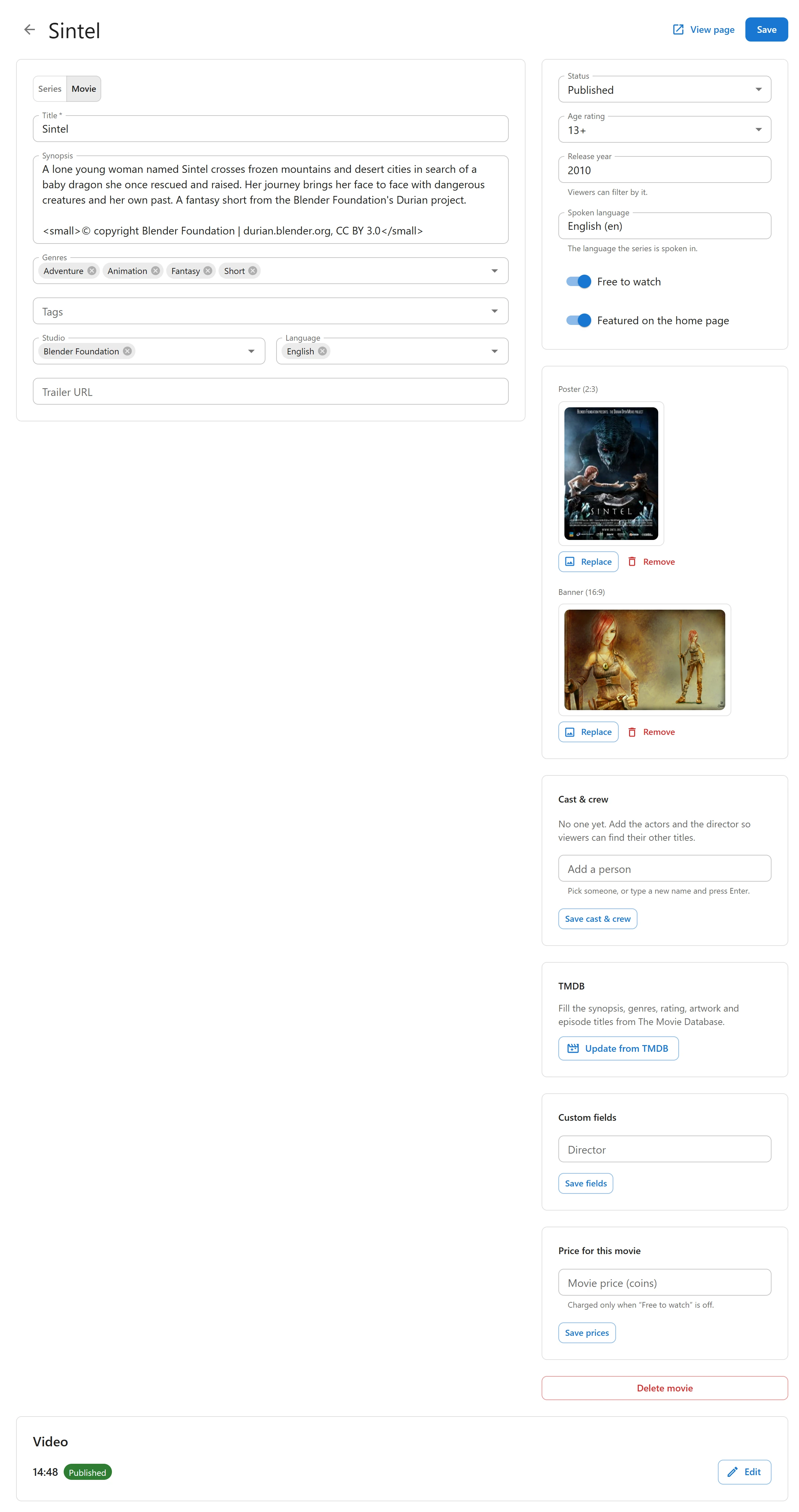
A movie is visible to viewers only when the movie and its video are both published. The Video panel reminds you when the video is still a draft.
Delete a title
Click Delete series (or Delete movie) under the panels on the right, then Delete. The title and all of its episodes are deleted permanently. Video files in the Media Library or on another server are not touched.
Who can do what
Site administrators can do everything. The plugin’s own capabilities let you give part of the job to other users:
| Capability | Allows |
|---|---|
plugixa_stream_view |
Opening the admin app and its lists |
plugixa_stream_create |
New series, New movie, adding episodes |
plugixa_stream_edit |
Saving changes, reordering episodes, editing home rows |
plugixa_stream_delete |
Deleting titles and episodes |
plugixa_stream_manage_settings |
The settings screens |
Importing a CSV file needs both create and edit. Grant capabilities with a role editor plugin.
Quick Links
Share