

Contents
Video.js player - Plugixa Stream
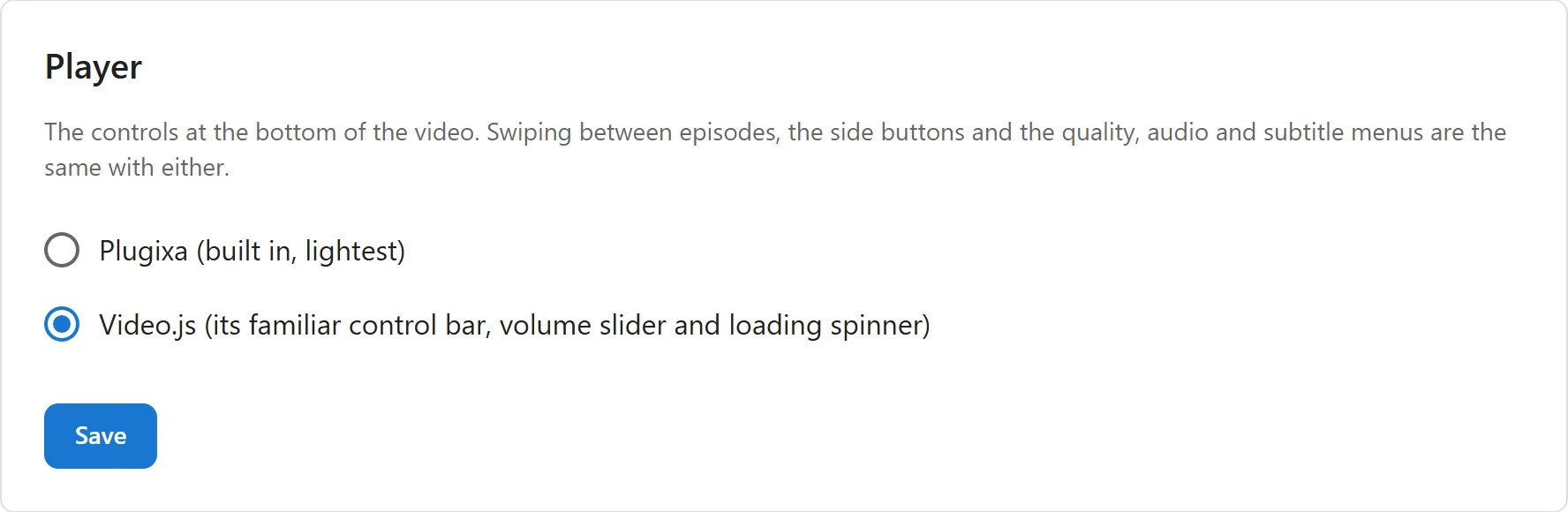
The player comes with its own light control bar. With Pro you can switch the bottom controls to Video.js instead: its familiar control bar, an inline volume slider and its loading spinner. It is a look and feel choice. The player behind it, and everything it does, stays the same.
Choose the player style
-
Open Settings -> Player.
-
Pick one:
Choice What viewers get Plugixa (built in, lightest) The player’s own controls. The default. Video.js (its familiar control bar, volume slider and loading spinner) Video.js controls at the bottom of the video. -
Click Save.
The change applies the next time the Watch page loads. Video.js ships with the plugin, and the browser only downloads it when this style is chosen: a site on the built-in style loads none of it.
The Video.js control bar

From left to right:
| Left | Right |
|---|---|
| Previous episode, play or pause, next episode | Subtitles on or off (c) |
| Volume button with its slider | Settings |
| Current time and length, such as 0:05 / 0:52 | AirPlay and Cast, when available |
| Picture-in-picture, fullscreen |
The progress bar runs above the row.
The previous, next, AirPlay, Cast, picture-in-picture and fullscreen buttons are the player’s own buttons, moved into the Video.js bar, so they show and work exactly as before. The subtitles and settings buttons open the same Audio & subtitles sheet as the side button they replace. See Subtitles and audio tracks.
What stays the same
Only the bottom controls change. With either style:
- Swiping between episodes, and the side buttons for likes, My List, episodes, share, speed and mute.
- Locked episodes and their unlock card.
- The quality, audio and subtitle menus.
- Saving progress and resuming.
- Casting to a TV.
- Clicks, double-clicks and keyboard shortcuts: the player handles them, not Video.js.
For a YouTube, Vimeo or other embedded episode, the Video.js bar is hidden: those play in their own player.
Related
Quick Links
Share