

Contents
On this page
Video ads - Plugixa Stream
Video ads play before an episode (pre-roll) and during long episodes (mid-roll). They come from your ad server’s VAST tag, the ad link that ad networks such as Google Ad Manager give you. The player shows them in its own ad layer, then the episode carries on where it stopped.
“VIP members, episodes bought with coins and embedded YouTube or Vimeo episodes never show ads.”
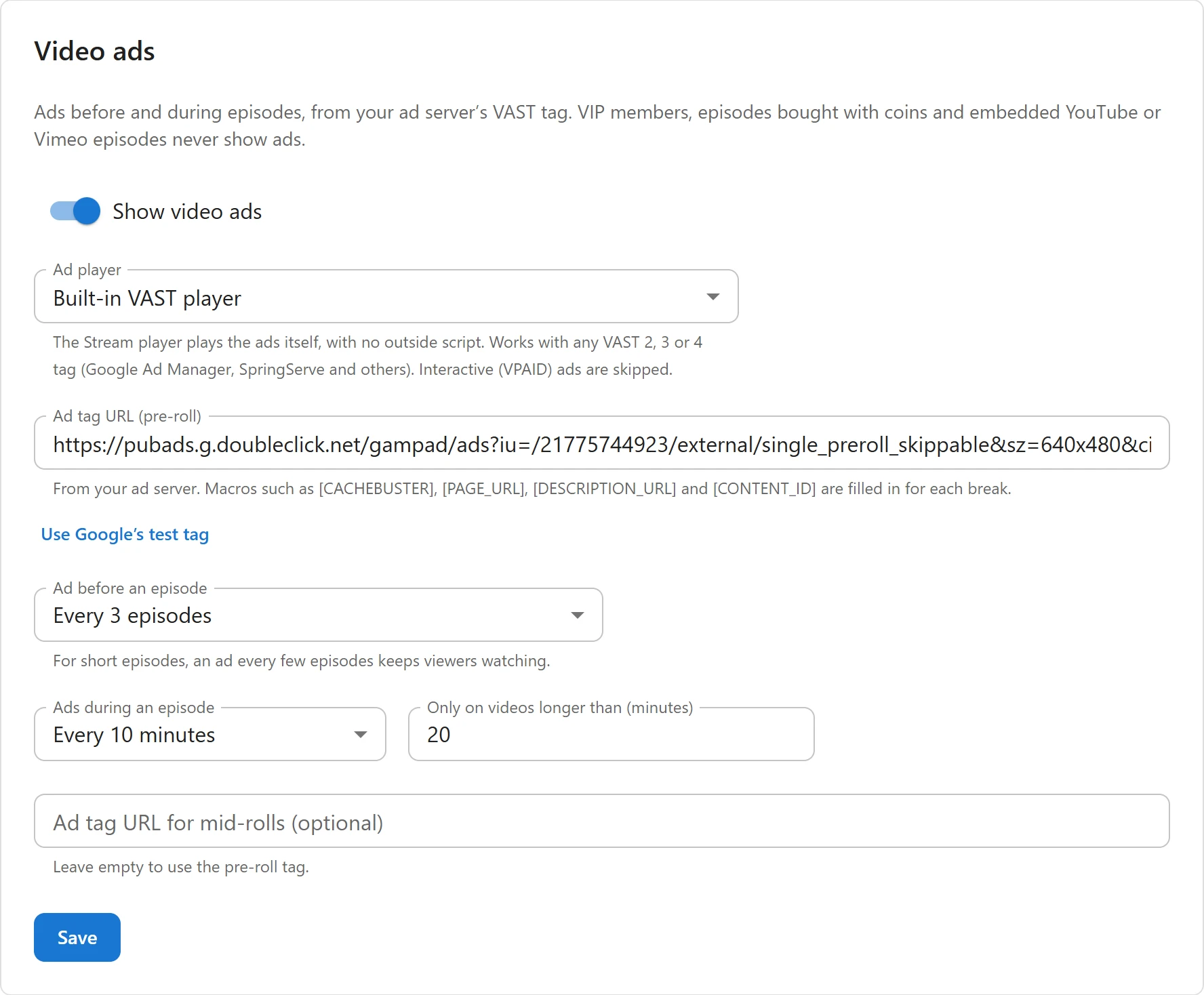
Set up ads
- Open Settings and click Video ads.
- Turn on Show video ads.
- Choose the Ad player and paste your Ad tag URL (pre-roll).
- Choose how often ads play.
- Click Save at the bottom of the page.
To try the setup before you have your own tag, click Use Google’s test tag: it fills in Google’s public sample tag, one skippable ad.
The settings
| Field | Default | What it does |
|---|---|---|
| Show video ads | Off | Turns ads on for the whole site |
| Ad player | Built-in VAST player | Which player plays the ads, see below |
| Ad tag URL (pre-roll) | Empty | Your VAST tag. It must start with https://: “The tag must start with https://”. |
| Ad before an episode | Every episode | Never, Every episode, or Every 2, 3, 5 or 10 episodes |
| Ads during an episode | None | None, or Every 5, 8, 10, 15, 20 or 30 minutes |
| Only on videos longer than (minutes) | 10 | Mid-rolls play only on episodes at least this long |
| Ad tag URL for mid-rolls (optional) | Empty | “Leave empty to use the pre-roll tag.” |
The last two fields are greyed out while Ads during an episode is None. With ads on and no tag, the tab warns: “Ads are on but there is no ad tag yet, so none will show.”
Ad player
- Built-in VAST player: “The Stream player plays the ads itself, with no outside script. Works with any VAST 2, 3 or 4 tag (Google Ad Manager, SpringServe and others). Interactive (VPAID) ads are skipped.”
- Google IMA SDK: “Google’s IMA SDK plays the ads. Needed for AdSense for Video. The SDK loads
from Google when an ad break starts.” It is loaded from
imasdk.googleapis.comonly on a page where an ad break runs, and IMA draws its own countdown, skip button and links.
Both players take the same tag and follow the same schedule.
Tag macros
“From your ad server. Macros such as [CACHEBUSTER], [PAGE_URL], [DESCRIPTION_URL] and [CONTENT_ID] are filled in for each break.” The player fills in:
| Macro | Value |
|---|---|
[CACHEBUSTER], [CACHEBUSTING] |
A random number |
[TIMESTAMP] |
The current date and time |
[PAGE_URL], [REFERRER_URL] |
The address of the page the viewer is on |
[DESCRIPTION_URL] |
The public page of the series or movie |
[CONTENT_ID] |
The episode’s ID |
[CONTENT_TITLE] |
The page title |
[PLAYER_WIDTH], [PLAYER_HEIGHT] |
The player’s size in pixels |
The forms %5BMACRO%5D, %%MACRO%% and {macro} work too. Macros the player does not know are
left as written, for your ad server to fill in.
Who sees ads
The site decides on each play:
| Viewer and episode | Ads |
|---|---|
| A guest | Yes |
| A signed-in viewer on a free episode | Yes |
| A viewer on an episode they bought with coins, alone or with a whole series | No |
| A VIP member | Never |
| An episode whose video is an embedded YouTube or Vimeo link | Never |
A developer can hide ads for more viewers with the plugixa_stream_ads_show filter, see
Hooks.
When ads play
Pre-rolls. The first episode a viewer starts in a visit opens with an ad, then every n-th episode after it, as set in Ad before an episode. With Every 3 episodes, the 1st, 4th and 7th episodes of the visit get one. A visit lasts as long as the browser tab stays open. While the player stays open, an episode gets its pre-roll once, even when the viewer swipes away and back.
Mid-rolls. On an episode at least as long as Only on videos longer than (minutes), an ad break plays every set number of minutes of the episode, but never in its last minute. A viewer who jumps forward over several break points gets one break, not several. A viewer who resumes in the middle of an episode does not get the breaks before that point.
For short vertical episodes, “an ad every few episodes keeps viewers watching.”
What the viewer sees
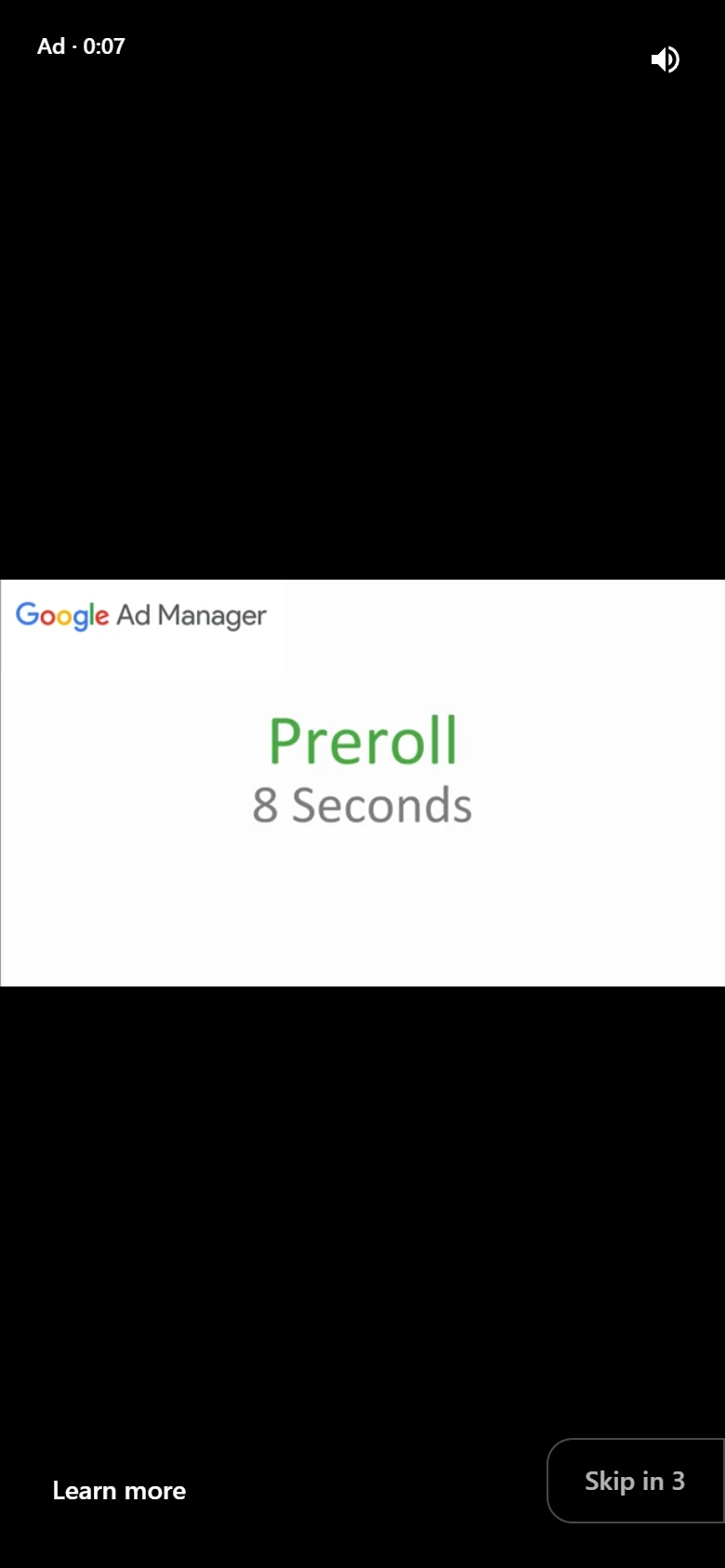
With the built-in player, the episode pauses under the ad layer:
- an Ad badge with the time left in the ad;
- a sound button to turn the ad’s sound on or off;
- Learn more, which opens the advertiser’s page, when the ad has one;
- Skip in 5, then Skip ad, when the ad allows skipping.
A break ends after 5 minutes at most, and the built-in player plays up to three ads in one break. When the tag has no ad, does not answer in time, or the ad cannot play, the break ends quietly and the episode goes on. Keyboard shortcuts do not reach the episode during an ad.
Related
Quick Links
Share