

Contents
On this page
The Watch app - Plugixa Stream
The Watch app is where your viewers browse and play. It is one page of your site, the Watch page, that holds the whole viewer experience: Home, the series screens, search, My List, the account screen and the full-screen player. Moving between them happens inside the app, without a page reload, so a viewer can go from a poster to an episode in a tap.
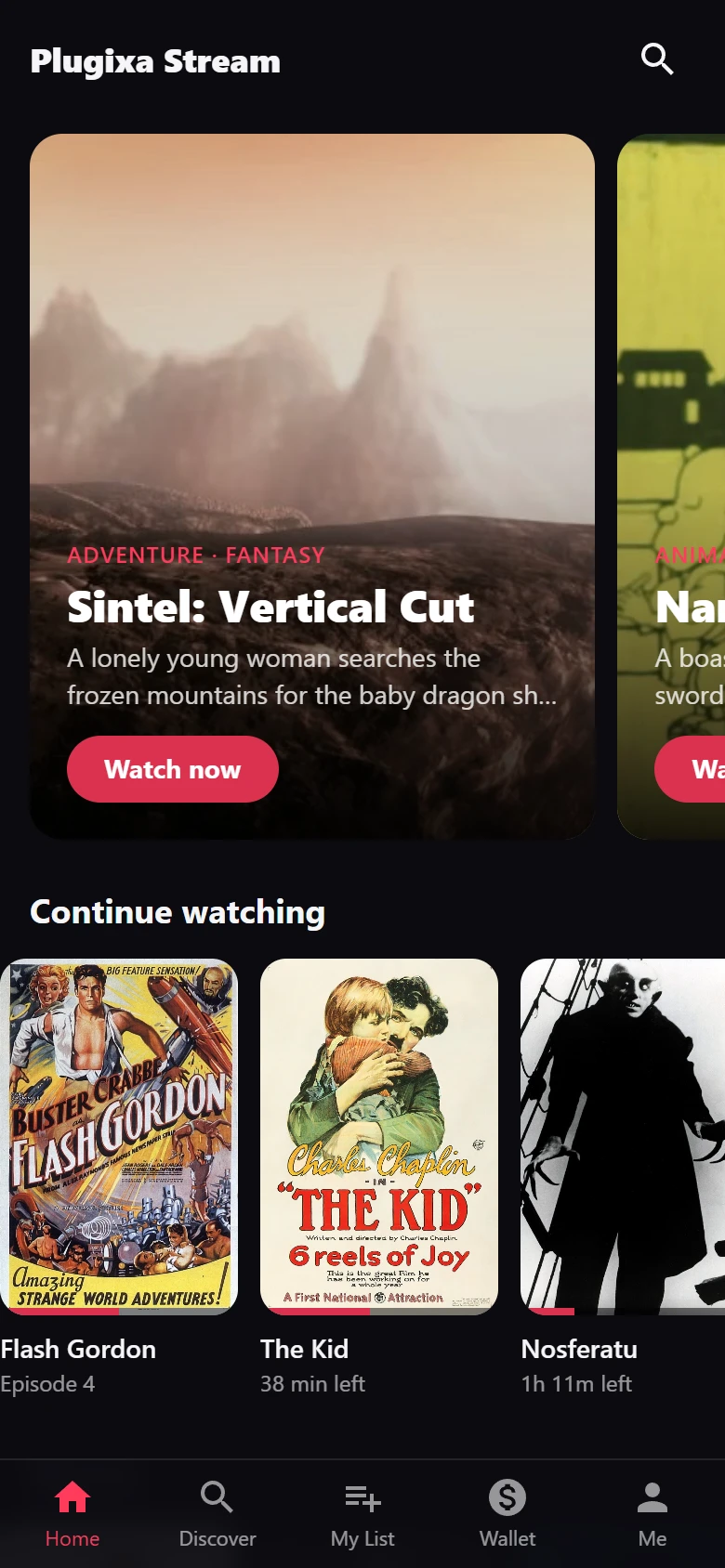
The Watch page
The plugin creates a page called Watch (at /watch) when you activate it, with the
[plugixa_stream_app] shortcode in it. If a page with that shortcode already exists, it
uses that one and does not add a second.
The Watch page is shown full-screen, without your theme’s header, footer or stylesheets, so the app looks the same with any theme. The WordPress admin bar stays for signed-in staff.
To use another page, put [plugixa_stream_app] on it and pick it under
Plugixa Stream -> Settings -> General -> Watch page. With First page with the
shortcode, the plugin uses the first published page that carries it. See
Settings.
A theme can replace the bare full-screen document with its own by shipping a file named
plugixa-stream-app.php.
Phone layout and big-screen layout
The app has one layout that adapts to the screen:
| Screen | Navigation | Catalog |
|---|---|---|
| Phone (narrower than 768 pixels) | A tab bar at the bottom, under the thumb | One column, rows you swipe sideways |
| Tablet, desktop and TV (768 pixels and wider) | A top menu in the header | Wide rows, a large carousel and episode cards with thumbnails |
The tabs are Home, Discover, My List and Me. Pro adds a Wallet tab PRO for coins and VIP, see Coins and unlocks. The header always shows your logo and app name on the left and a search button on the right. Set both in Appearance.
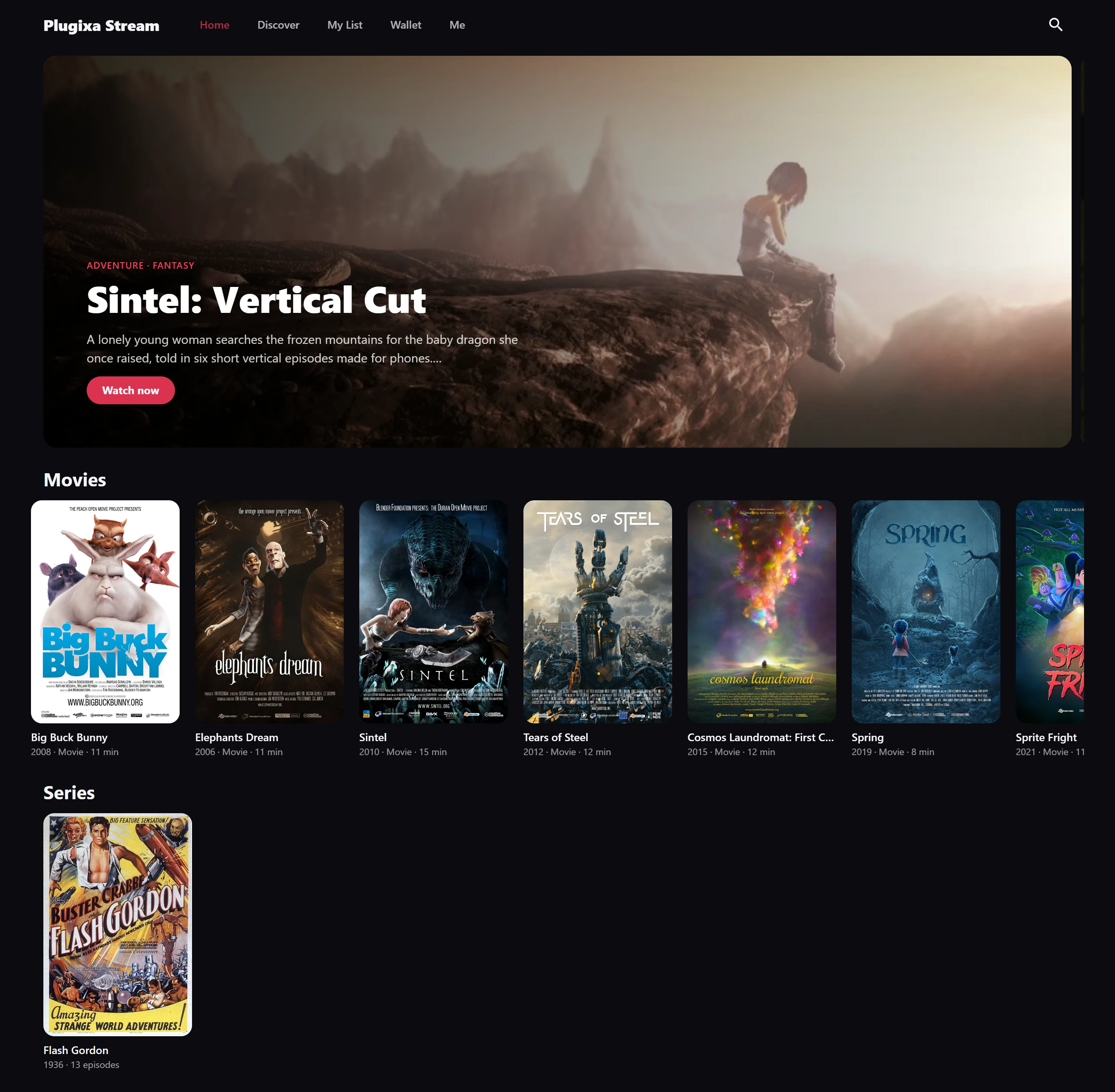
Home
Home is built from three parts, top to bottom:
- The featured carousel. Up to five series you marked as featured, each as a wide banner with its genres, title, a short blurb and a Watch now button. Viewers swipe or scroll through it; it does not move by itself.
- Continue watching. The series the viewer has started, each opening at the right episode. See Resume and My List.
- Your rows. Every row from Home rows, in the order you set there: hand-picked titles, featured series, the newest, one genre, or what is trending this week. See Home rows.
A row with nothing in it is left out. With no rows and no featured series, Home says “Nothing to watch yet. Check back soon.”
The series screen
Tapping a poster opens the series screen.
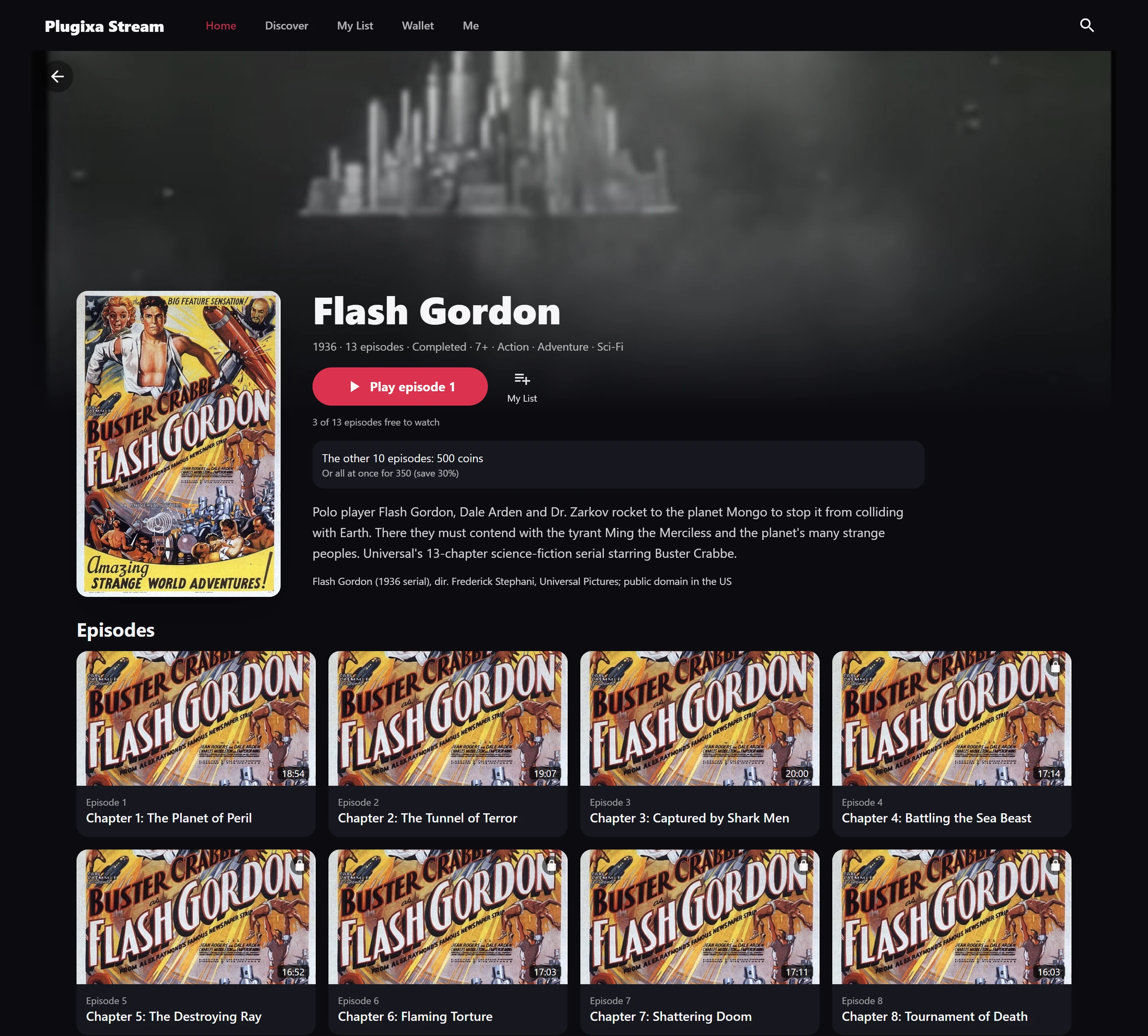
From top to bottom it shows:
- The banner, or the series’ trailer when it has one. The trailer starts muted after a moment and has a sound button; it does not start by itself when the viewer’s device asks for reduced motion or data saving, or when you turn it off in Settings -> General.
- The title and a line of facts: year, number of episodes, Ongoing or Completed, the age rating and up to three genres. A movie shows Movie and its running time instead of the episode count.
- The play button. It reads Play episode 1 for a new viewer and Continue episode 4 for one who already started. For a movie it reads Play or Resume.
- Trailer (when there is one) and My List.
- “3 of 13 episodes free to watch”, when some episodes are locked.
- The synopsis.
- The episodes. On a phone, a grid of numbered tiles, so a series of 80 short episodes fits on one screen. From tablet width up, cards with the episode’s thumbnail, length, number and title.
On the episode tiles, a lock icon marks an episode the viewer cannot play yet, a thin bar shows how far they got, and an episode they finished is dimmed. The locks come from the same check the player uses, so what the screen shows as open is exactly what plays. See Free and locked episodes.
A movie has no episode list: its play button starts the film.
Discover: search and filters
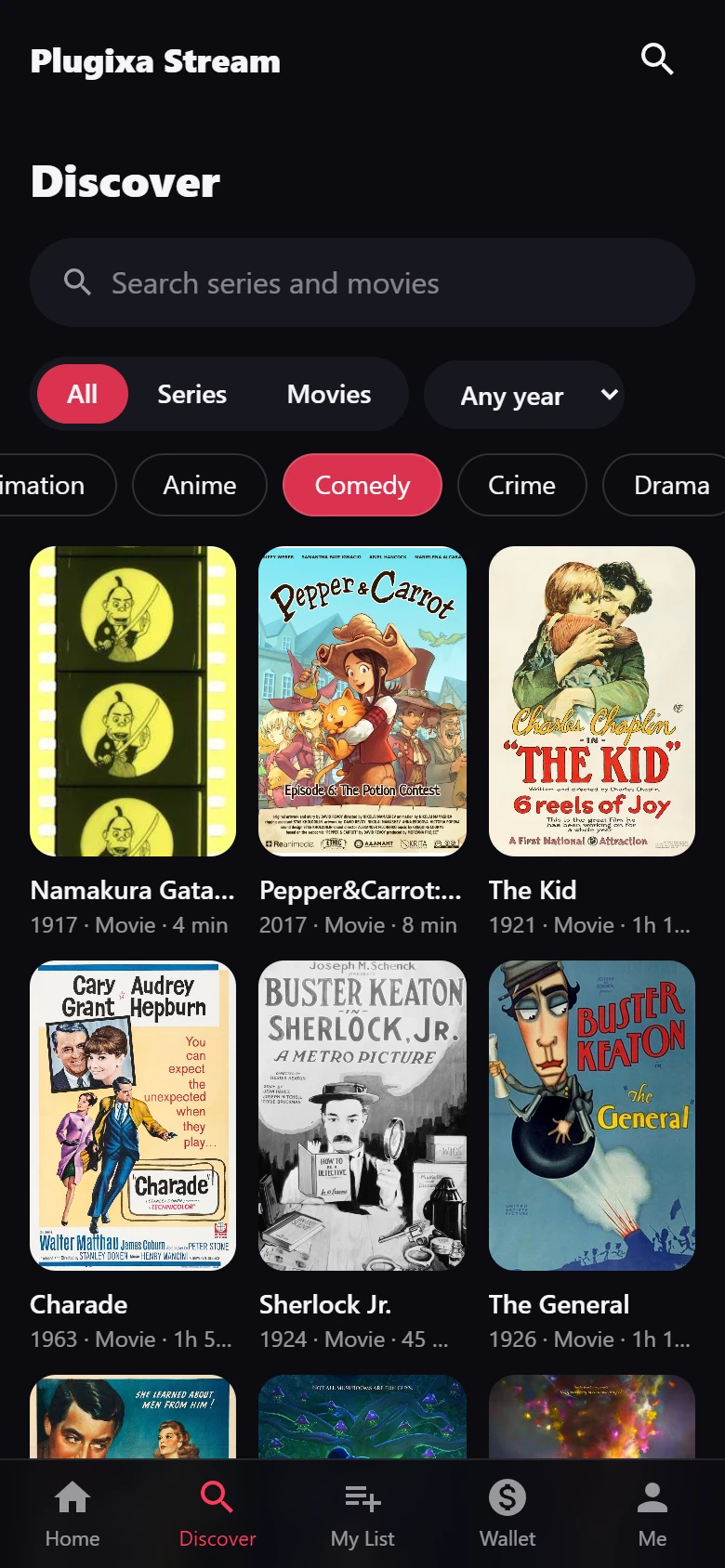
Discover (or the search button in the header) searches as the viewer types, across series and movies. Under the search box:
- All, Series and Movies switch which kind of title is shown.
- Any year opens a list of release years. Only years that have titles are offered.
- Genre chips filter by one genre. Tapping the same chip again clears it.
With no match, Discover says “Nothing matches that search.”
My List and Me
My List shows the series the viewer saved with the My List button. Me shows the signed-in viewer’s name, a Sign out link and their Watch history. Both are covered in Resume and My List.
Pro adds sections to Me: switching between viewer profiles PRO, see Profiles and kids mode, and the new-episode email switch PRO, see Email notifications.
Signing in
Guests can browse and watch every free episode without an account. My List, likes and Me ask them to sign in:
- Sign in opens your site’s WordPress login page and brings the viewer back to the Watch page afterwards.
- Create an account appears under it only when WordPress’s Settings -> General -> Membership -> Anyone can register is on.
A guest’s resume points are kept in their browser and move into their account when they sign in.
Links into the app
Every screen has its own address, so any of them can be shared or linked from a menu:
| Address | Opens |
|---|---|
/watch/ |
Home |
/watch/#/discover |
Discover |
/watch/#/list |
My List |
/watch/#/me |
Me |
/watch/#/series/12 |
The series or movie with id 12 |
/watch/#/series/12/ep/3 |
Episode 3 of that series, in the player |
For a tool that drops the part after #, /watch/?view=discover, ?view=list and
?view=me open those tabs too. The series pages, embeds and blocks build these links for you.
Quick Links
Share