

Contents
On this page
Orders and viewers - Plugixa Stream
Three places show the money side of your site: the Orders page lists every payment and VIP subscription, the Viewers page shows each viewer’s wallet, and the Revenue card on the dashboard sums it up. Orders and Viewers are in the Monetization menu of the admin app.
Orders
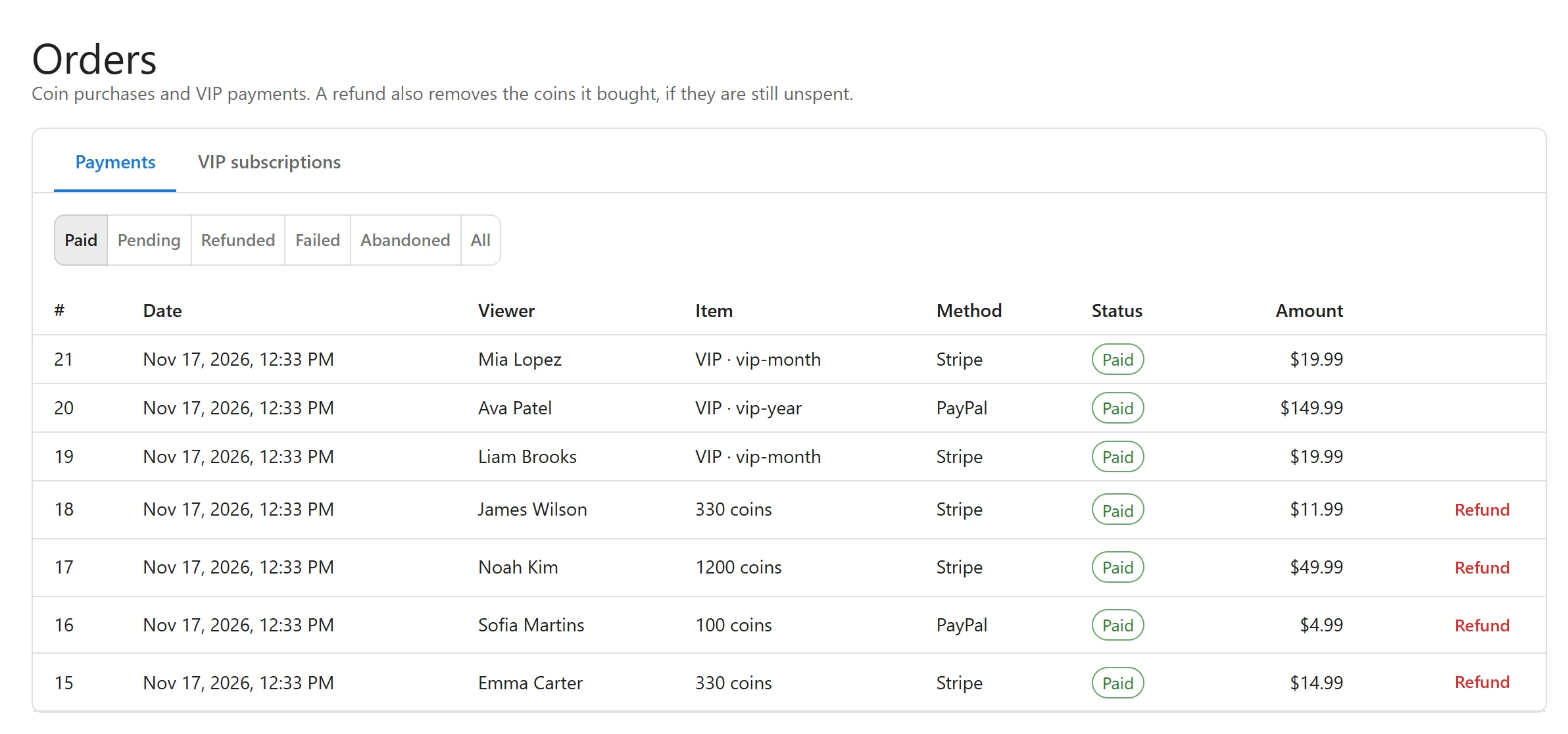
“Coin purchases and VIP payments. A refund also removes the coins it bought, if they are still unspent.”
The Payments tab lists orders, newest first, with these filters:
| Filter | Orders shown |
|---|---|
| Paid (the default) | Paid packs, first VIP payments and VIP renewals |
| Pending | Checkouts opened and not finished yet |
| Refunded | Refunded or disputed payments |
| Failed | Payments the gateway declined, or a checkout that could not be opened |
| Abandoned | Checkouts still unpaid after two days. A late payment still turns them Paid. |
| All | Every order |
| Column | What it shows |
|---|---|
| # | The order number |
| Date | When it was paid, or created if unpaid |
| Viewer | The viewer’s name. Click it to open their page. |
| Item | “300 coins” for a pack (bonus included), or “VIP ·” and the plan for a VIP payment |
| Method | Stripe or PayPal |
| Status | Paid, Pending, Refunded, Failed or Abandoned |
| Amount | What was charged, in the order’s currency |
The page shows the latest 100 orders for the chosen filter.
Refund a coin pack
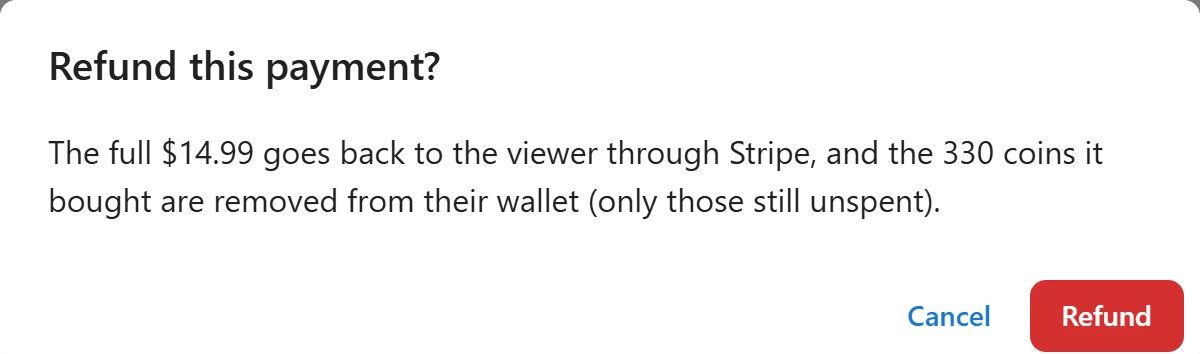
- Click Refund on a paid coin pack order.
- The dialog Refund this payment? says how much goes back, through which method, and how many coins are removed.
- Click Refund.
The full amount goes back through Stripe or PayPal at once, and the order turns Refunded. The pack’s coins leave the wallet. If the viewer already spent some of them, the episodes bought with coins since that payment are locked again, newest first, until the coins are covered. The viewer’s Coin history shows the refund and the episodes locked again.
The Refund button only appears on paid coin pack orders. Refund VIP payments from your Stripe Dashboard or PayPal account. Refunds and disputes started there update the order too, see Stripe and PayPal.
VIP subscriptions
The VIP subscriptions tab lists every subscription, last updated first: Viewer, Plan, Method, Status and Current period ends. A plan that will not renew shows Ending. Stop renewal ends the plan with its current period. See VIP subscriptions.
Viewers
“Wallets, unlocks and VIP status. Grant coins or take them back, with a reason the viewer sees.”
The list shows viewers who have a wallet, most recent activity first. A viewer gets a wallet with their first coin movement: a purchase, a check-in or a grant. Type in Search by name or email… to find anyone with an account, wallet or not.
| Column | What it shows |
|---|---|
| Viewer | Name and email address |
| Coins | The balance, and below it “paid · bonus” |
| VIP | “Until” and the end of the current period, for a VIP member |
Click a row to open the viewer’s page.
A viewer’s page
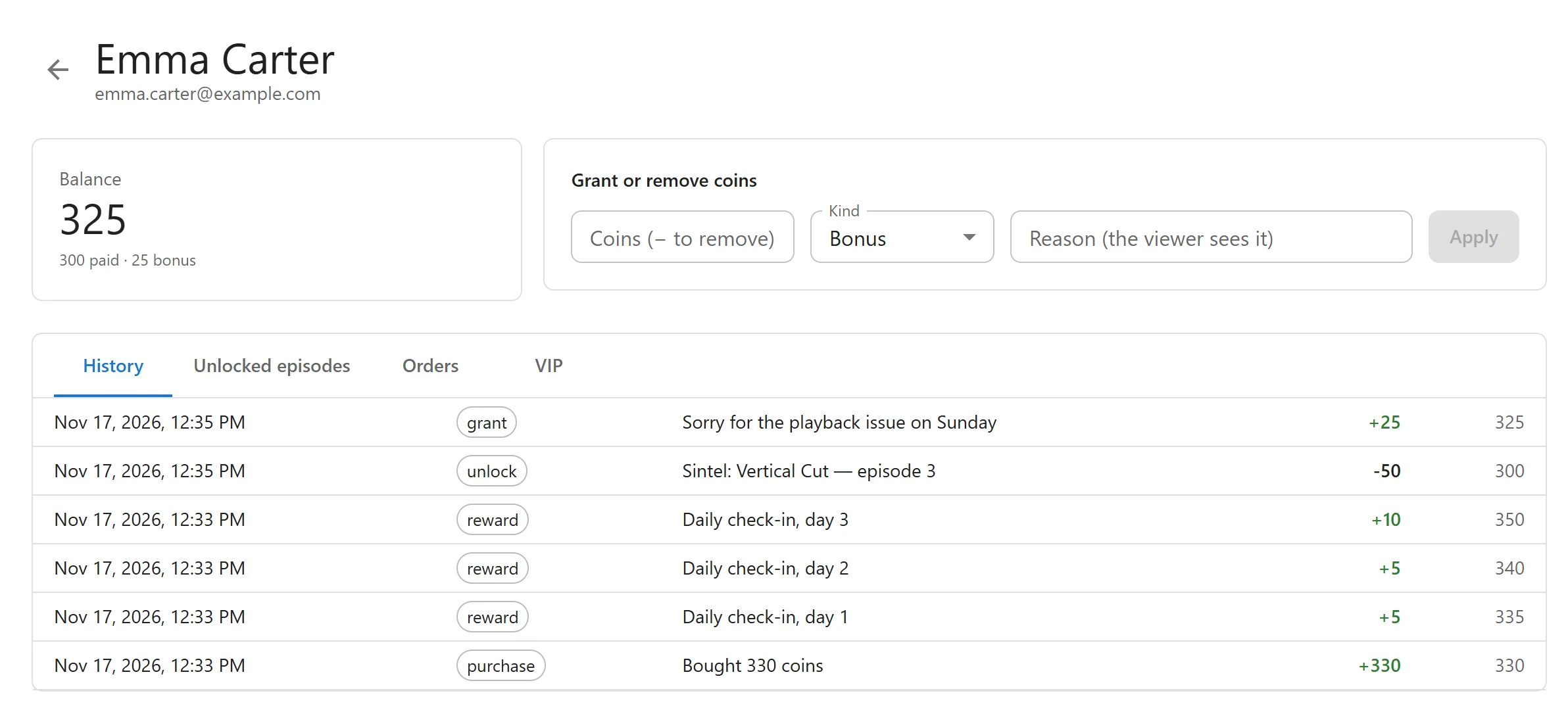
-
Balance: the total, the paid and bonus split, and the VIP end date when there is one.
-
Grant or remove coins: see below.
-
Four tabs:
Tab What it lists History The last 100 coin movements: date, type, note, coins in or out, and the balance after Unlocked episodes Each episode the viewer bought, the series and episode number, how ( coinsfor one episode,bundlefor a whole series) and the coins it costOrders The viewer’s last 50 orders, with product, method, status and amount VIP Their subscriptions, with plan, method, status, period end and Renews or Ends then
History types are purchase, reward (check-in), grant (by hand), unlock, refund,
revoke (episodes locked again after a refund) and expire (bonus coins past their date).
Grant or remove coins
-
Open the viewer’s page.
-
In Grant or remove coins, fill in:
Field What it is Coins (− to remove) A positive number to give, a negative one to take back Kind Bonus (the default) or Purchased. Bonus coins follow your bonus expiry, purchased coins never expire. Reason (the viewer sees it) Required. It shows in the viewer’s coin history. -
Click Apply.
Removing coins never takes the balance below zero. Removing Bonus coins takes bonus coins first, then purchased coins when the bonus runs out. Removing Purchased coins only takes purchased coins.
Orders, Viewers, Coupons, the Revenue card, refunds, stopping renewals, granting or removing coins and payment settings need the permission to manage settings. Other users of the admin app do not see the Monetization menu.
Revenue on the dashboard

The Revenue card on the Dashboard shows:
| Figure | What it counts |
|---|---|
| Today, Last 7 days, Last 30 days | Paid orders (packs, VIP payments and renewals) in that time. Today starts at midnight UTC. |
| Active VIPs | Viewers with a VIP plan running now |
| Episodes unlocked (30 days) | Episodes bought with coins, one by one or in a whole series |
| Coins spent (30 days) | Coins spent on those unlocks |
Refunded amounts drop out of the revenue, partial refunds included. Orders in different currencies are shown side by side, joined with a plus sign.
Related
Quick Links
Share