

Contents
On this page
PayPal - Plugixa Stream
PayPal takes payments on PayPal’s own page. The viewer leaves your site to pay with their PayPal account and comes back to the wallet once done. In the Watch app, PayPal is the PayPal method.
PayPal sells both coin packs (a one-time payment) and VIP plans (a PayPal subscription). Set it up under Settings > Payments, in the PayPal part of the tab. It works alone or next to Stripe: with both, viewers choose under Pay with.
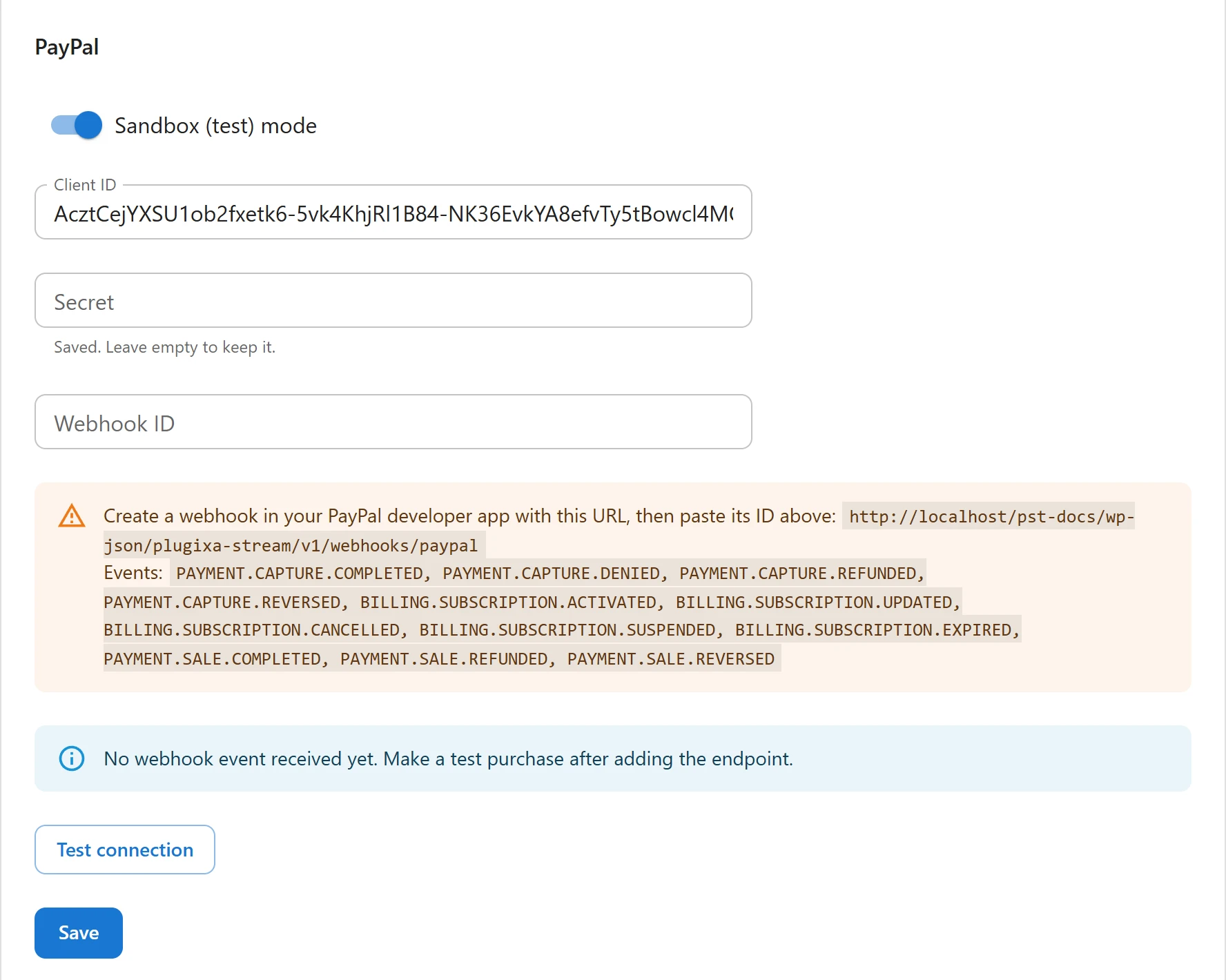
1. Create a PayPal app
- Sign in to the PayPal developer dashboard and create an app (REST API).
- Copy its Client ID and Secret. Sandbox and live apps have different credentials.
2. Save the credentials
| Field | Default | Notes |
|---|---|---|
| Sandbox (test) mode | On | On: payments go to PayPal’s sandbox, no real money. Off: live payments. Match it to the app you copied. |
| Client ID | Your app’s client ID | |
| Secret | Your app’s secret. Stored encrypted and never sent back to the browser: once saved, the field shows “Saved. Leave empty to keep it.” | |
| Webhook ID | The ID of the webhook you create in step 3 |
Click Save at the bottom of the tab. PayPal is offered to viewers as soon as the client ID and secret are saved.
Click Test connection: “Connected.” means PayPal accepted the client ID and secret. Otherwise the tab shows “PayPal refused the client ID and secret.”
3. Add the webhook
The webhook tells your site about payments, subscriptions, renewals and refunds. Each event is checked with PayPal against your Webhook ID, so without it every event is refused.
-
Copy the URL from the box on the tab. It looks like this:
https://example.com/wp-json/plugixa-stream/v1/webhooks/paypal -
In your PayPal app, add a webhook with that URL.
-
Subscribe to these events:
Event What the site does PAYMENT.CAPTURE.COMPLETEDMarks a coin pack order Paid and adds the coins PAYMENT.CAPTURE.DENIEDMarks the order Failed PAYMENT.CAPTURE.REFUNDEDMarks the order Refunded and removes its coins PAYMENT.CAPTURE.REVERSEDSame, for a reversed payment BILLING.SUBSCRIPTION.ACTIVATED,BILLING.SUBSCRIPTION.UPDATED,BILLING.SUBSCRIPTION.CANCELLED,BILLING.SUBSCRIPTION.SUSPENDED,BILLING.SUBSCRIPTION.EXPIREDKeeps the VIP status and its end date in step with PayPal PAYMENT.SALE.COMPLETEDMarks the first VIP payment’s order Paid, then records each renewal as a Paid order and moves the VIP end date PAYMENT.SALE.REFUNDED,PAYMENT.SALE.REVERSEDRecords the refund on that VIP payment’s order -
Copy the webhook’s ID into Webhook ID and click Save.
Under the box, the tab shows whether events arrive: “No webhook event received yet. Make a test purchase after adding the endpoint.”, a green message with the time of the last event, or a red one with “Check that the Webhook ID above is the one for this URL, and that Sandbox mode matches your PayPal app.”
4. Test, then go live
- Keep Sandbox (test) mode on, with your sandbox app’s credentials.
- Sign in on the site as a viewer, open Wallet and buy a coin pack with a PayPal sandbox buyer account.
- Check that the coins arrive and the order shows Paid on Orders.
To go live, turn Sandbox (test) mode off, save your live app’s client ID and secret, and create the webhook again in the live app with its own Webhook ID.
Check that PayPal accepts your site’s currency, set under Settings > Prices & coins.
The checkout flow
- The viewer taps a pack or a plan in the wallet, and PayPal if Stripe is set up too.
- PayPal’s page opens under your site’s name, with no shipping step.
- The viewer approves the payment and comes back. The site captures the payment with PayPal straight away, so the coins usually show at once, before the webhook. A payment PayPal holds for review is added when the webhook reports it.
- If the viewer cancels on PayPal’s page, they come back to the wallet and nothing is charged.
The return and the webhook can both report the same payment: the coins are added once.
Subscriptions
A VIP plan is sold as a PayPal subscription. The plugin creates the PayPal product and billing plan at the first checkout, one per plan, price and currency.
- Free trial: the account’s first plan starts with a free period of Free trial (days), then the regular billing.
- Promo code: on a plan, the discounted price is the subscription’s price for as long as it runs.
- Failed payments: PayPal suspends the subscription after two failed payments.
- Cancellation: PayPal stops the subscription at once, and the viewer keeps VIP until the date of the next payment that would have been taken.
See VIP subscriptions.
Refunds
For a coin pack, click Refund on the order in Orders. The full amount goes back through
PayPal and the coins the pack added are removed from the wallet. A refund made in your PayPal
account reaches the site through PAYMENT.CAPTURE.REFUNDED and has the same effect for a full
refund. A partial refund takes back the same share of the pack’s coins. Refunds and reversals of
VIP payments are recorded on their order too.
Refund VIP payments from your PayPal account: the Refund button only appears on coin pack orders.
Related
Quick Links
Share