

Contents
On this page
Free and locked episodes - Plugixa Stream
Every episode is either free, which anyone can watch, signed in or not, or locked. The usual setup is a series that opens with a few free episodes and locks the rest. In the free plugin a locked episode does not play at all. With Pro, viewers unlock it with coins or a VIP plan PRO.
How many opening episodes are free
Three settings decide it, from the most general to the most specific:
| Where | Setting | Default |
|---|---|---|
| Settings > General | Free episodes per series: how many opening episodes of every series anyone can watch | 5 |
| The series form | Free episodes: the same number for this series only. Empty uses the site default. | Empty |
| The episode dialog | Who can watch: Follow the series rule, Always free or Never free | Follow the series rule |
With Follow the series rule, an episode is free when its number is within the series’ free episodes. With the default of 5, episodes 1 to 5 are free and episode 6 onwards is locked. Always free and Never free ignore the number. Set Free episodes to 0 to lock a whole series, and a number at least as high as its episode count to make it all free. The number can be 0 to 1000.
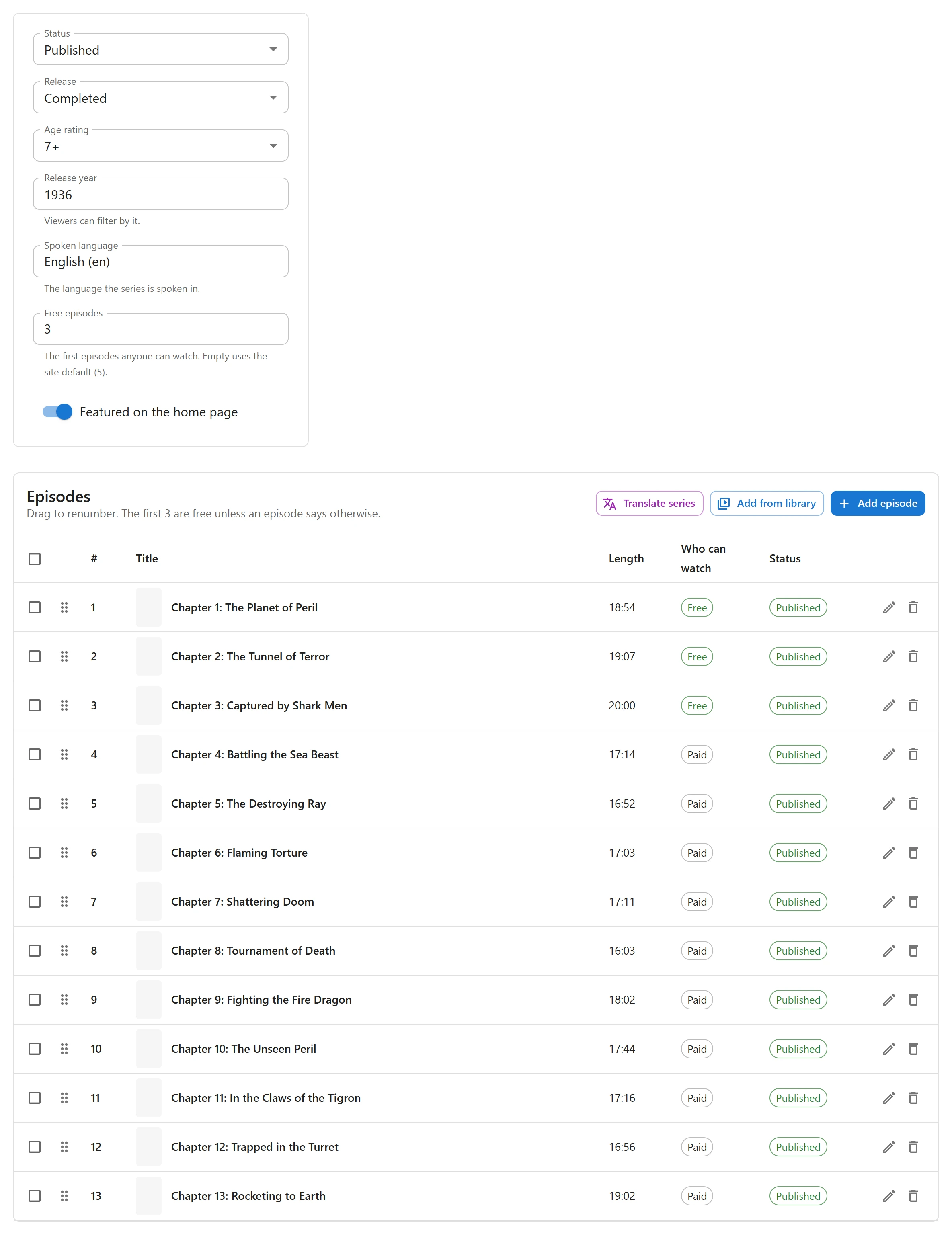
The Who can watch column of the Episodes panel shows the result for each episode: Free or Paid. To change several at once, tick them and click Make free, Make paid or Follow series rule. See Episodes.
Episode numbers count, not positions: when you drag an episode, the series is renumbered and the free episodes follow the new numbers.
A movie has a Free to watch switch instead. On, anyone can watch it. Off, it is locked.
What viewers see
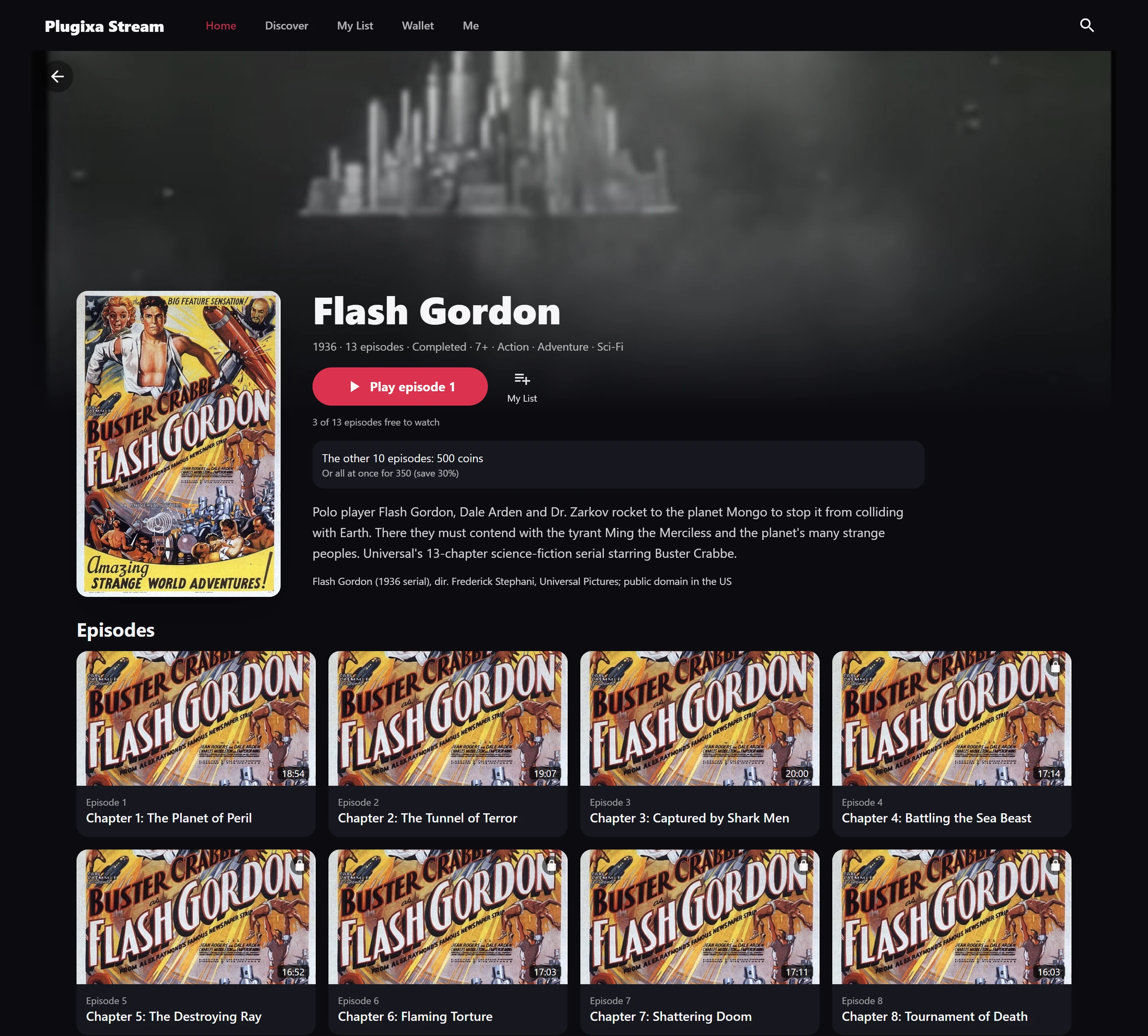
- On the series screen of the viewer app, locked episodes carry a lock, and the line “3 of 13 episodes free to watch” sits under the play button when not all of them are free.
- Swiping onto a locked episode shows a lock instead of the video.
In the free plugin, the locked screen says This episode is locked and “It is not available to watch on this site yet.” The free plugin sells nothing, so it offers nothing to buy: a locked episode simply cannot be watched. Use it for episodes you have not opened yet, or keep every episode free until you add Pro.
With Pro: coins and VIP
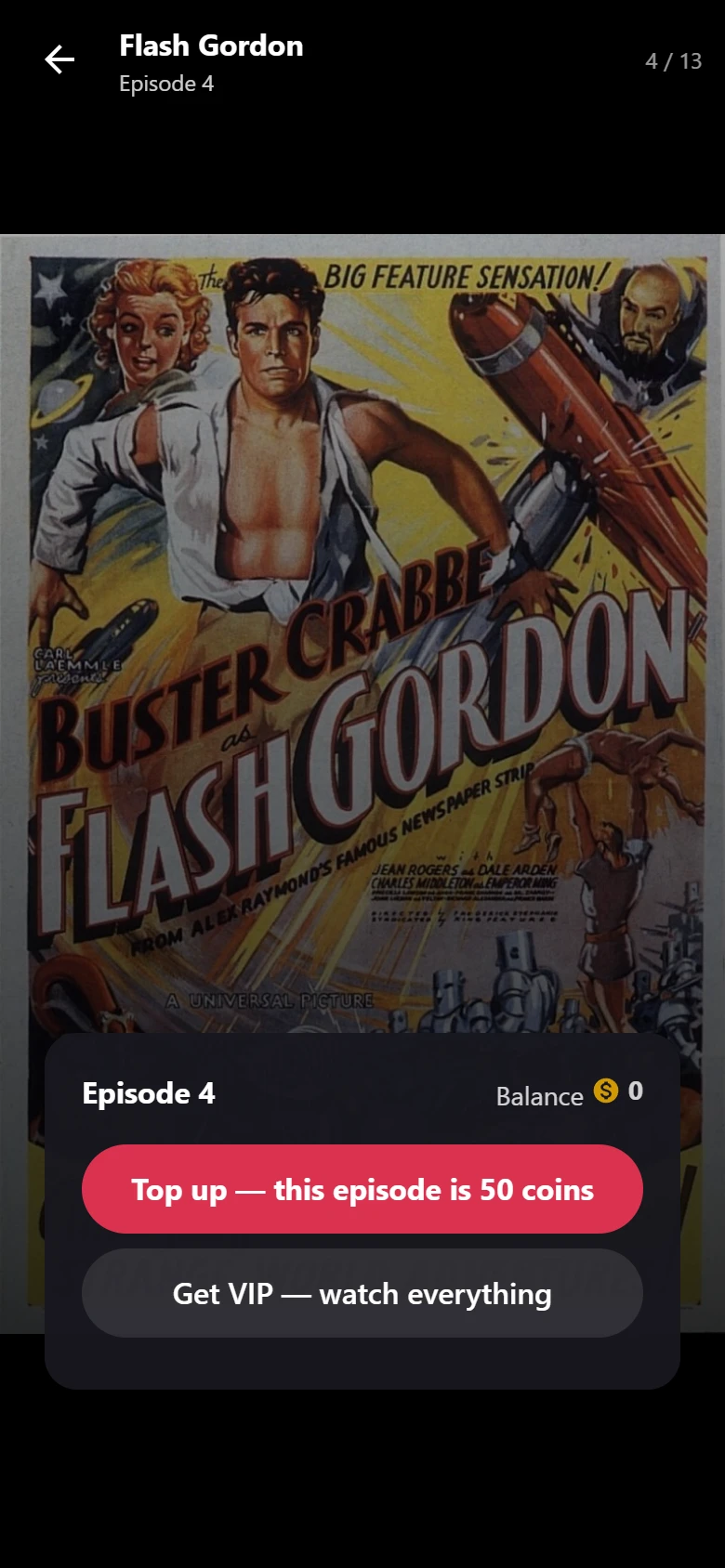
With Pro, the same locked episodes are for sale PRO. A viewer can play a locked episode once they have:
- unlocked it, or the whole series or movie, with coins. See Coins and unlocks and Prices.
- an active VIP plan, which opens every episode. See VIP subscriptions.
The locked screen then offers what the viewer can do: sign in, unlock the episode with coins, unlock the rest of the series, top up their coins, or get VIP. Coins and VIP only ever open episodes: an episode the rules above make free stays free for everyone.
With Screen limits PRO, an episode the viewer may watch can still be held back while their account is already playing on too many devices.
How the lock is enforced
The lock is decided on your server, every time an episode is opened. The player asks your site for the episode, and your site sends back the video only when the viewer may play it. For a locked episode it answers “locked” and sends no video address at all. Hiding the lock in the browser does not help: there is nothing to play.
The same check also hides episodes of a draft series and episodes that are not published yet.
Two limits to know:
- Embedded videos play from YouTube, Vimeo or another host. Locking one only hides it on your site: anyone with the link can watch it there. Use files on your server, or a video service with signed links, for episodes you lock. See Video sources.
- Files on your own server are handed out at their public URL once the viewer may play them. The URL is not signed, so a viewer who copies it can share it.
Show the viewer’s email over the video
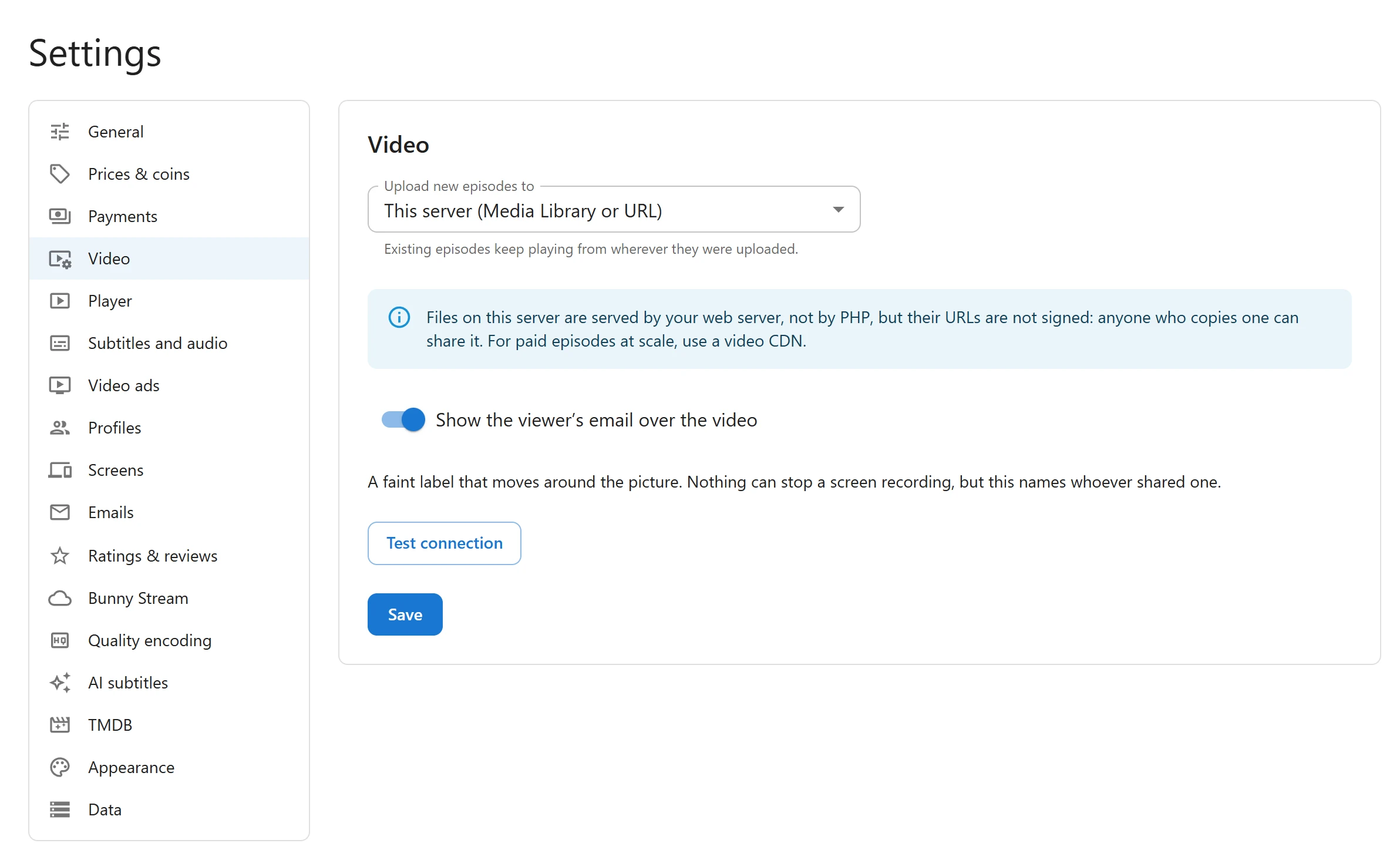
Open Settings > Video and turn on Show the viewer’s email over the video, then click Save.
Every signed-in viewer then sees their own email address and account number, such as
viewer@example.com · #42, as a faint label over the video. The label jumps to a new spot every
20 seconds, so it cannot be cropped out of a recording in one place. Guests see no label: they
have no address to show.
The label cannot stop anyone from recording the screen, but a leaked recording carries the name of the account that made it. See Settings.
Quick Links
Share