

Contents
On this page
AI subtitles - Plugixa Video
AI subtitles PRO listens to the audio of an uploaded video, writes subtitles in the spoken language and, if you ask, translates them into other languages. Each result is saved as an ordinary WebVTT subtitle track, so it plays, edits and deletes like a file you uploaded yourself. The same panel also opens a line-by-line editor for any subtitle file the video keeps on your server.
The work is done by OpenAI with your own API key, billed to your own OpenAI account. The service is Off on a new site: nothing is sent anywhere until an administrator chooses it.
AI subtitles is an app in the App manager, on by default in Pro. It needs the Media and Subtitles apps. If the AI subtitles tab is missing from Settings, switch the app on.
Setting it up
Open Settings -> AI subtitles. Only users who can manage the plugin’s settings can change these fields.
| Field | Default | Notes |
|---|---|---|
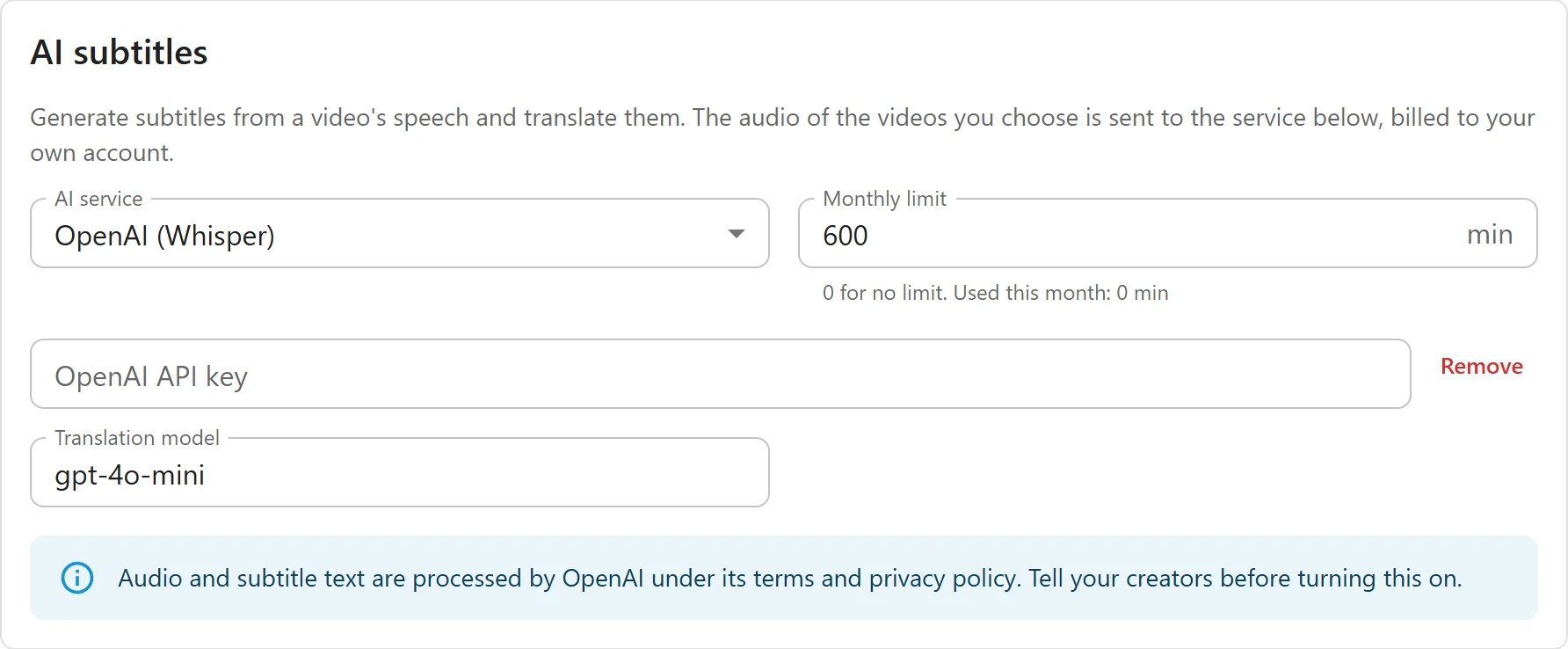
| AI service | Off | Off or OpenAI (Whisper). |
| Monthly limit | 0 | Minutes of audio per calendar month, for the whole site. “0 for no limit.” The help line shows the minutes already used this month. |
| OpenAI API key | Shown once OpenAI is chosen. Starts with sk-. |
|
| Translation model | gpt-4o-mini |
Any chat model id your OpenAI account can use. Speech is always transcribed with whisper-1. |
- Choose OpenAI (Whisper) under AI service.
- Paste your key from the API keys page of your OpenAI account into OpenAI API key.
- Set a Monthly limit if you want a cap on spending.
- Press Save.
The key is write-only: once saved it is never sent back to the browser, and the field only shows that a key is stored. Type a new key to replace it, or press Remove and save to delete it. With OpenAI chosen, the tab also reminds you: “Audio and subtitle text are processed by OpenAI under its terms and privacy policy. Tell your creators before turning this on.”
Generating subtitles
The AI subtitles panel is on the video form, below Content type, once the video has been saved. Anyone who can edit the video can use it.
- Open a video that has an uploaded video file. Subtitles are made from that file’s audio, so a YouTube, Vimeo or pasted link cannot be used.
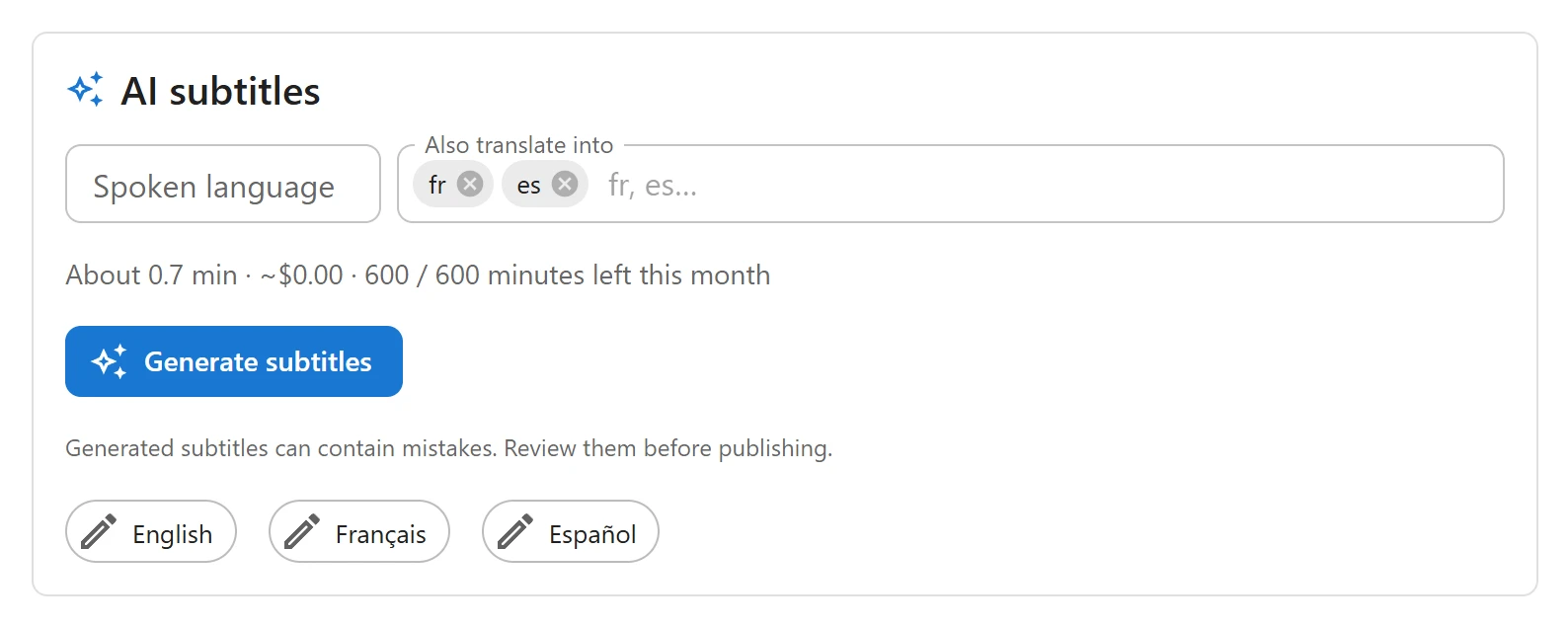
- Leave Spoken language empty to let the service detect it (the field shows “Detect”), or
type the language code, for example
en. - Under Also translate into, pick or type the codes of the languages you want, for example
frandes. Up to 10. - Check the estimate line, then click Generate subtitles.
The estimate reads, for example, “About 14.8 min · ~$0.10”, followed by the minutes left this month when a monthly limit is set. It is an estimate in US dollars, from OpenAI’s list prices, before anything is sent. A video that would go over the month’s limit cannot start: the button is disabled and the line turns red.
The job runs in the background. The chip beside the button shows Waiting to start, Listening and writing…, then Subtitles ready or Failed with the reason. You can leave the page. Only one job runs per video at a time.
When it is done, the new tracks appear in the video’s Subtitles section, labelled with their language code in capitals. If the video already had a subtitle file in that language, it is replaced, and the label you gave it is kept. “Generated subtitles can contain mistakes. Review them before publishing.”
How the minutes are counted
- A job counts the video’s audio length once, however many translations it includes.
- It is counted when it starts, so two jobs started together cannot both slip under the limit.
- Failed jobs are not counted. The month restarts on the first day of each calendar month (UTC).
What can go wrong
| Message | What to do |
|---|---|
| “Upload a video file first: subtitles are made from its audio.” | The video has no uploaded file. |
| “FFmpeg is needed to extract the audio…” | The audio is cut out with FFmpeg. Install it or set its path in Settings -> Media. |
| “No speech was found in this video.” | Nothing to transcribe. |
| “The spoken language could not be recognised. Choose it and generate again.” | Type the Spoken language code and generate again. |
| “The translation came back with a different number of lines. Try again.” | The translation model returned a broken answer. Start the job again. |
| “OpenAI answered 401…” and similar | OpenAI’s own error, such as a wrong key or no credit. |
Editing subtitles line by line
Below the panel, every subtitle file the video keeps on your server has a chip with its label: files you uploaded in the Subtitles section and files written by AI. Click a chip to open the editor. The editor works even while the AI service is off.
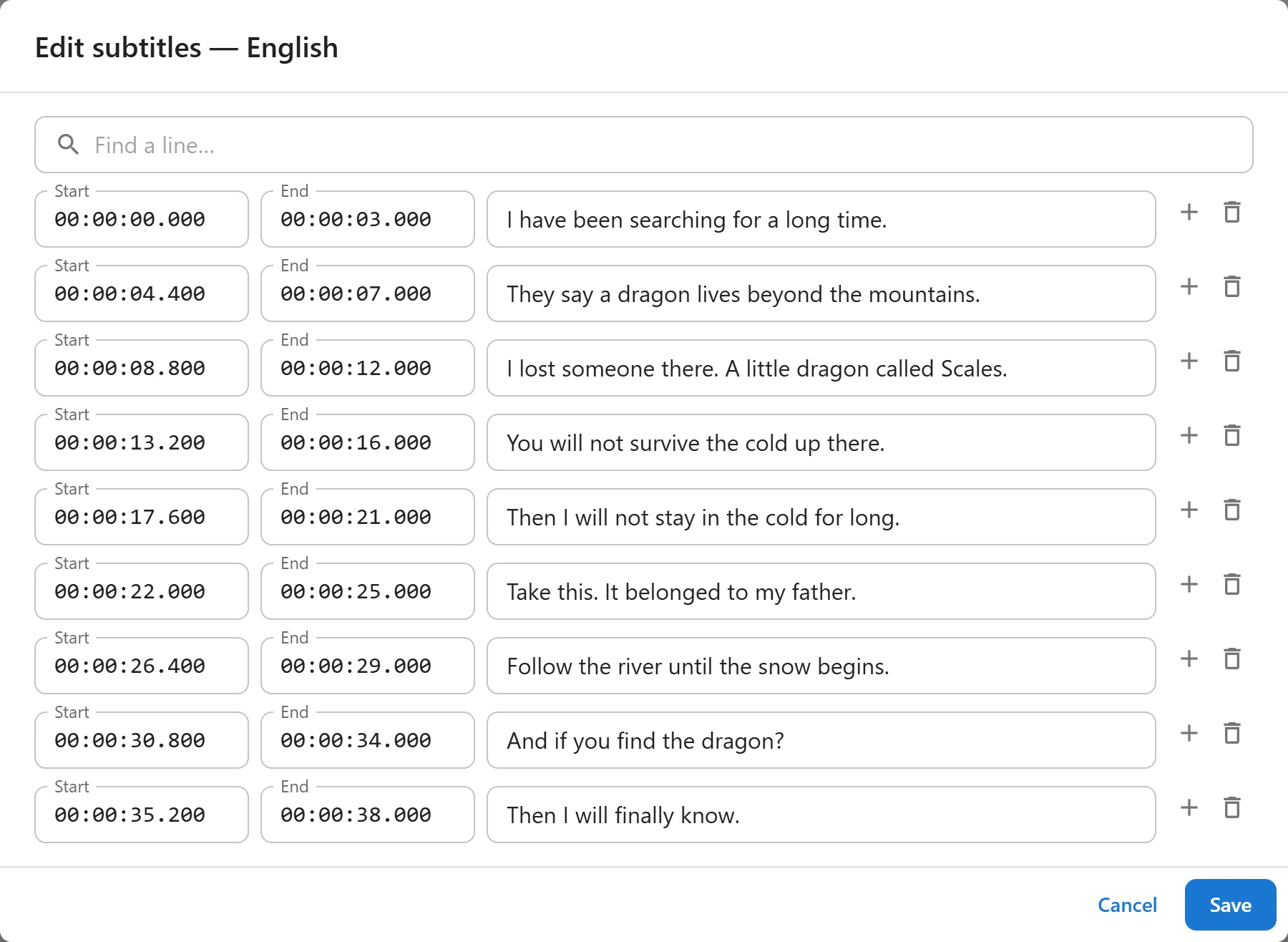
- Each row has a Start and End time and the text. Times are shown as
00:01:02.500; you can also type1:02.5or62.5. - The plus button (Add a line after) adds an empty line that starts where this one ends and lasts two seconds. The bin button deletes the line.
- Use Find a line… to search the text. Without a search, a long file shows its first 200 lines: “Showing the first lines. Search to reach the others.”
- A row that ends before it starts, or has an unreadable time, turns red and Save stays disabled until it is fixed.
Save rewrites the file. Lines are sorted by start time, lines without text are dropped, and
only the <b>, <i> and <u> tags are kept. A file can hold up to 10,000 lines.
What is sent to OpenAI
Nothing is sent until an administrator chooses OpenAI and saves a key, and then only when
someone clicks Generate subtitles. Everything is sent from your server to
api.openai.com, with your API key.
| When | What is sent |
|---|---|
| Transcription | The video’s sound only, as a small mono MP3 (16 kHz, 32 kbit/s), and the spoken language code if you typed one. Long videos are sent in parts of under 25 MB each. |
| Translation | The subtitle lines as text, in batches of 80, with the source and target language codes, to the translation model. |
The video picture, its title and description, and any data about your viewers are not sent. The temporary audio files are deleted from your server when the job ends. OpenAI’s terms and privacy policy apply. See also Privacy and uninstall.
For developers
plugixa_video_ai_subtitles_donefires when a job has written its tracks, with the video id and the job.plugixa_video_ai_priceschanges the prices used for estimates, in millionths of a dollar, for example when you translate with a model other thangpt-4o-mini.plugixa_video_ai_providersregisters another speech-to-text provider.
See Hooks and Subtitles and transcript for how viewers choose a track.
Quick Links
Share