

Contents
On this page
Elementor widgets - Plugixa Video
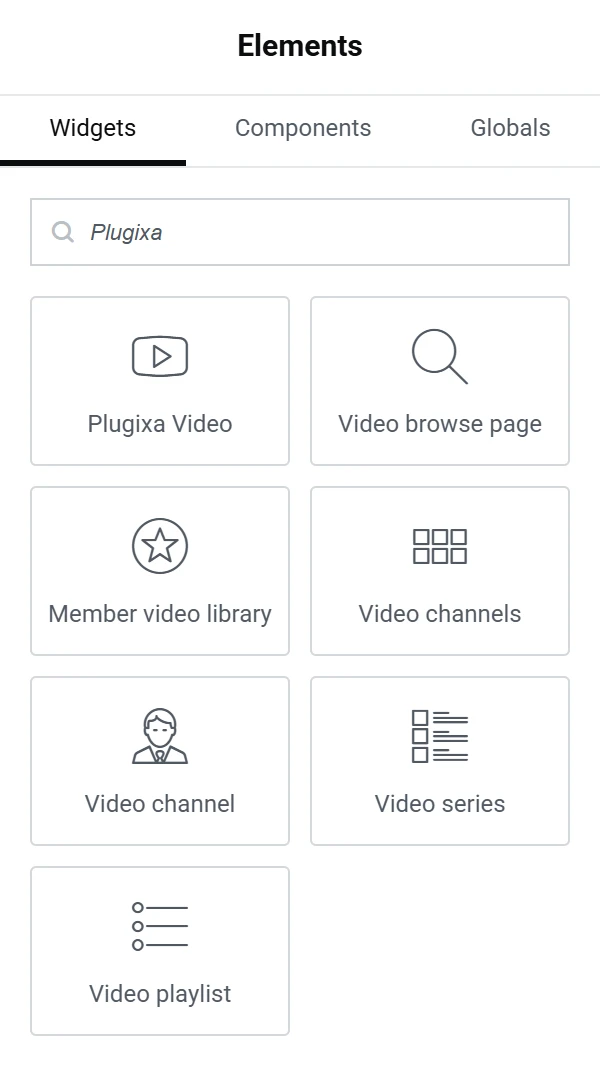
If you build your pages with Elementor, the plugin’s player and pages are there as widgets, with nothing to install. They appear when Elementor is active, in their own Plugixa Video category of the widget panel. Each widget prints the same thing as its shortcode and its block.
The widgets
| Widget | Shows | Controls |
|---|---|---|
| Plugixa Video | The player for one video. | Video, Not in the list? Enter its ID, Autoplay |
| Video browse page | Search, filters and rows of videos by category. | none |
| Member video library | The signed-in member’s library. | none |
| Video channels | A grid of all channels. | none |
| Video channel | One channel and its videos. | Channel, Not in the list? Enter its ID |
| Video series PRO | One series with its seasons and episodes. | Series, Not in the list? Enter its ID |
| Video playlist | One playlist, in its own order. | Playlist, Not in the list? Enter its ID |
A widget for an app that is switched off in the App manager is not offered: Member video library needs the Library app, Video channels and Video channel the Channels app, Video series the Series app and Video playlist the Playlists app. Video series comes with Pro.
Add a video to a page
- Edit the page with Elementor and open the Plugixa Video category in the widget panel.
- Drag Plugixa Video into a column.
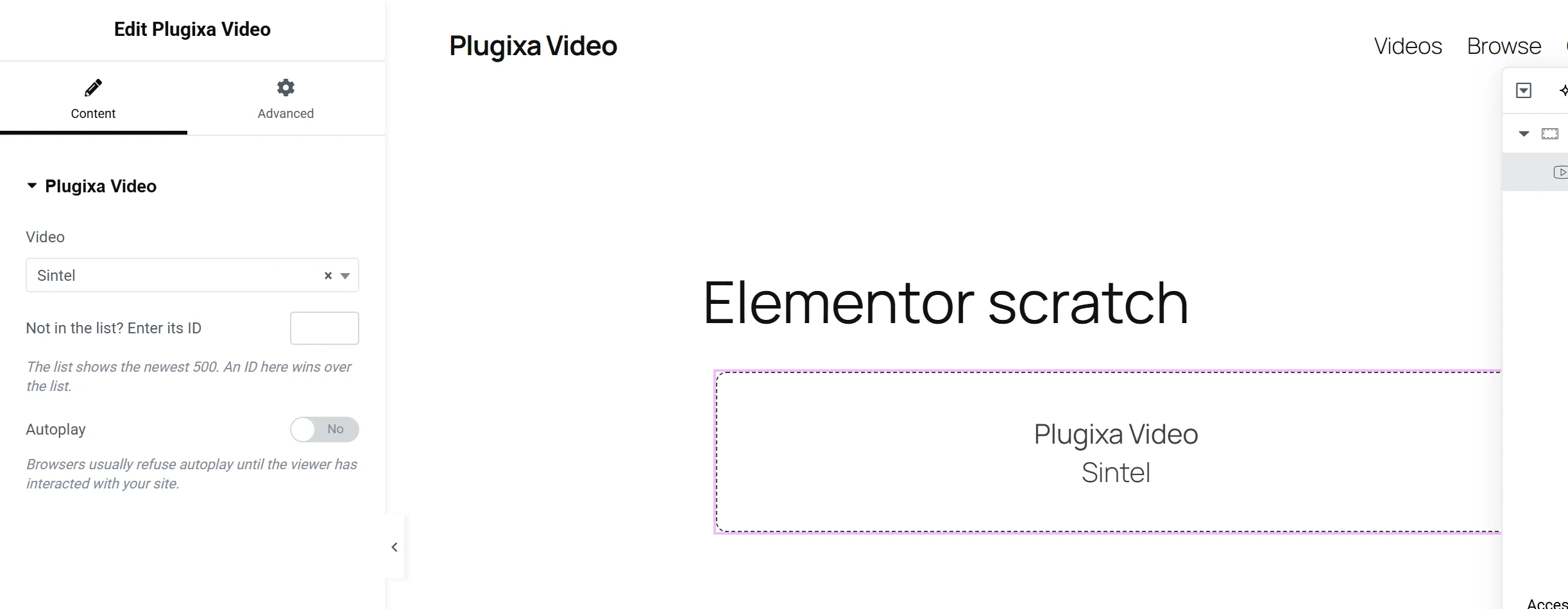
- In the Content tab, choose the video in Video. Type to search the list.
- Update the page.
Controls
Choosing the record
The Plugixa Video, Video channel, Video series and Video playlist widgets have a list to choose from, labelled Video, Channel, Series or Playlist.
| Control | Notes |
|---|---|
| The list | Your published, unlisted and private records by title, the newest 500. |
| Not in the list? Enter its ID | “The list shows the newest 500. An ID here wins over the list.” Use it for older records. |
With nothing chosen, the widget prints nothing on the page. A record’s id is the number in
its edit address in the admin app, such as #/videos/706.
Autoplay
The Plugixa Video widget has an Autoplay switch: “Browsers usually refuse autoplay until the viewer has interacted with your site.” See The player.
Widgets without controls
Video browse page, Member video library and Video channels show one page that needs no choice, so their Content tab only describes what visitors will see there.
In the Elementor editor
The widgets show a labelled placeholder in the editor, with the widget’s name and the title of the chosen record, or what to choose. The real player and page appear on the published page and in Elementor’s preview: the public app that fills them does not run inside the editor.
Width
The widgets always take the width of their Elementor column. The Width on the site
setting and the width attribute do not apply to them, because full width would break out
of the column: to make a video wider, make its column or section wider in Elementor.
Video, channel and series pages
You do not need a widget for a video’s, a channel’s or a series’ PRO own page: those pages show their player or page on their own. Use the widgets on the pages you design, such as a home page or a landing page.
Quick Links
Share