

Contents
On this page
Page layouts and channel looks - Plugixa Video
The free plugin sets one layout for every video page and one design for the whole site, in Appearance. Pro PRO lets you make exceptions:
- Page layout on a video: this video’s page uses another layout than the site’s.
- Channel look on a channel: the channel’s page and the pages of its videos use another design preset than the site’s.
Both are fields on the forms, saved with the form’s Save button, for anyone who can edit that video or channel. Both start on Same as the site, which changes nothing. There is no app to switch on.
Page layout for one video
The Page layout panel is on the video form, once the video has been saved. “How this video’s page is arranged. Needs a block theme.”
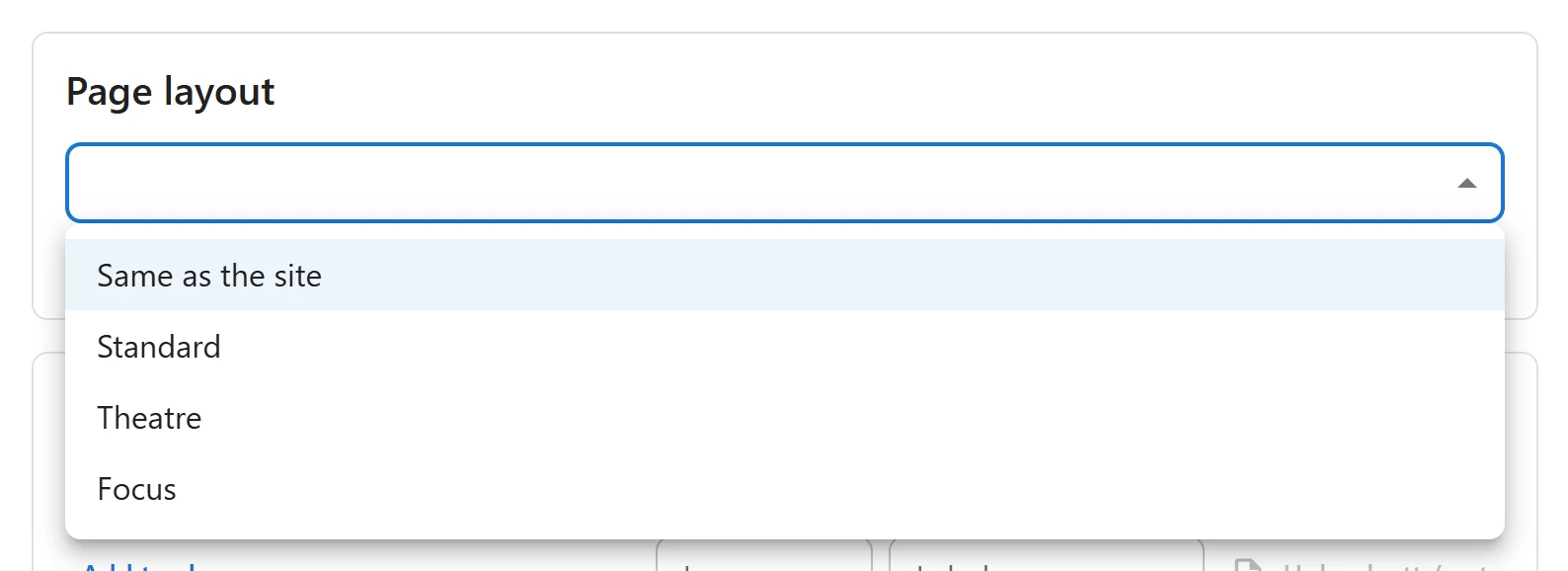
| Choice | The page |
|---|---|
| Same as the site | Uses the Video page layout chosen in Appearance. |
| Standard | The player and details, with the next videos at the side. |
| Theatre | The player across the whole page, everything else below. |
| Focus | Only this video: no next videos and nothing starts on its own. |
For example, set a feature film such as Metropolis to Theatre, or a lesson you want watched without distraction to Focus, and leave the rest of the library on the site’s layout.
Needs a block theme
Layouts are block templates, so they need a block theme such as Twenty Twenty-Five. With a classic theme the Page layout panel does not appear.
Pro adds one template per layout to the Site Editor, named Video: Standard layout, Video: Theatre layout and Video: Focus layout. Choosing a layout on the form assigns that template to the video. You can open these templates in Appearance -> Editor -> Templates to rearrange them; every video using the layout follows.
Channel look
The Channel look panel is on the channel form, once the channel has been saved. “Used on this channel’s page and on its videos.”
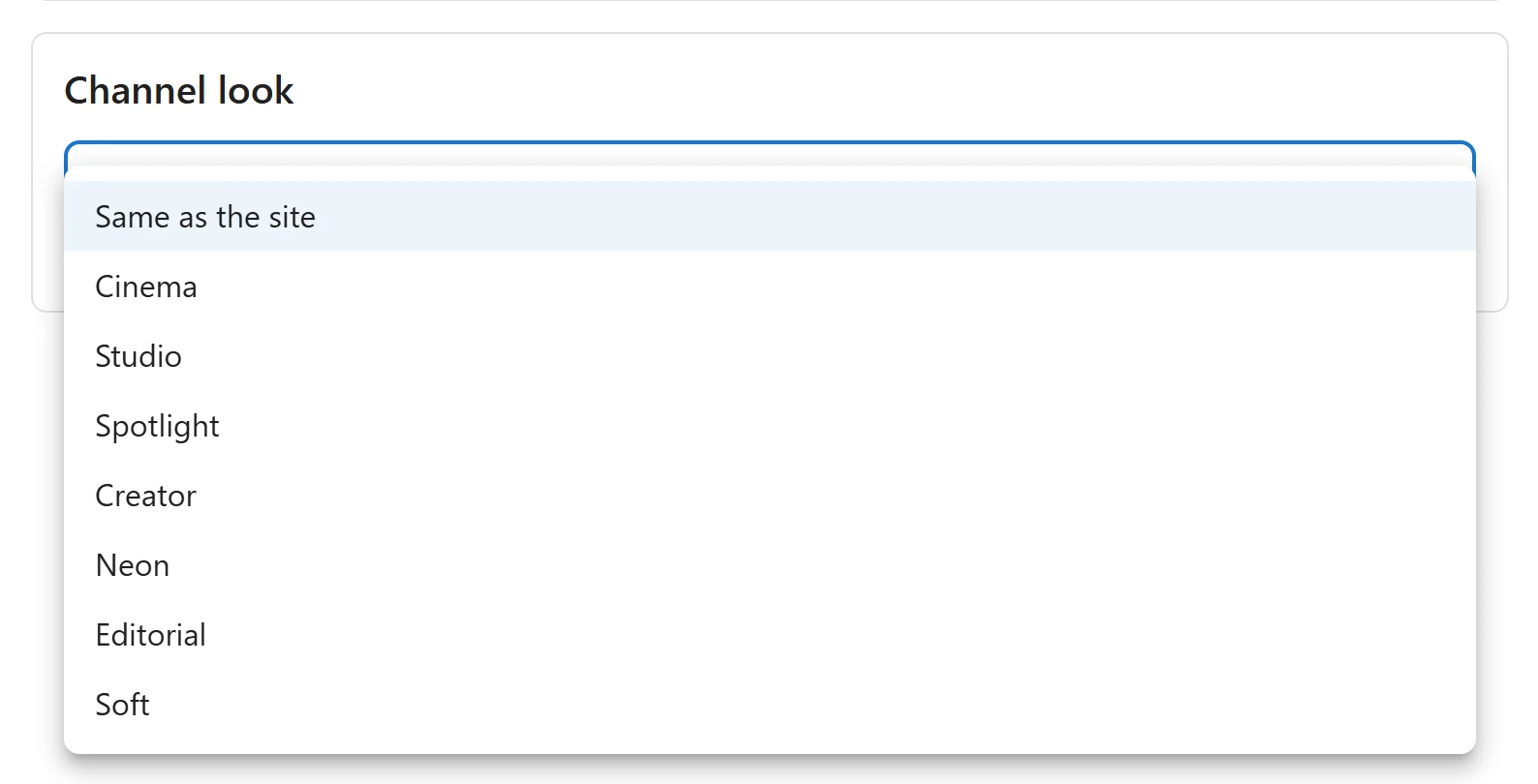
Choose one of the design presets:
| Preset | Comes with | Description |
|---|---|---|
| Cinema | Free | Dark and immersive, for films and series. |
| Studio | Free | Clean and light, for tutorials and business video. |
| Spotlight | Free | Charcoal with square edges, for shows and channels. |
| Creator | Free | Near-black and violet, for creators and communities. |
| Neon | Pro | Dark with vivid accents, for gaming and music. |
| Editorial | Pro | Serif type on warm paper, for documentaries and journalism. |
| Soft | Pro | Gentle colours and round corners, for lifestyle and education. |
Presets you saved yourself in Appearance with Save as my preset are listed too.
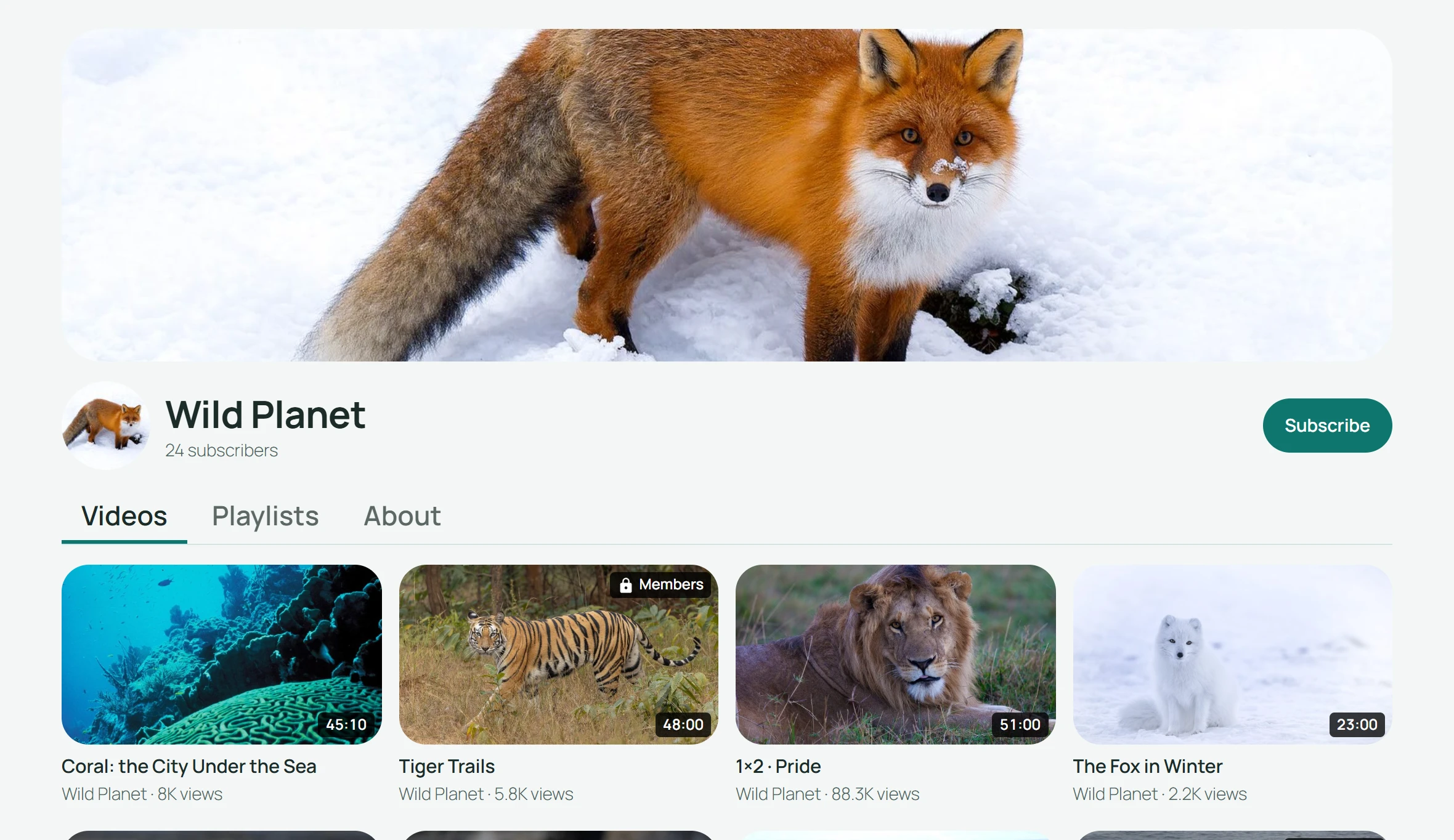
The chosen preset is applied, with its own light or dark appearance, to:
- the channel’s own page;
- the page of every video that belongs to the channel.
Everywhere else, the site’s design stays. For example, give Silver Screen Classics the Editorial look and Full Tilt the Neon look while the rest of the site keeps Cinema.
To go back, choose Same as the site and save.
Related
- Appearance: the site’s preset, the layout for all video pages, and the Pro color editor where you save your own presets.
- Channels: the channel form.
Quick Links
Share