

Contents
On this page
- Uploaded videos are not converted
- Conversions are stuck or failed
- An upload is refused
- Your server runs nginx
- Videos do not play, or say “Sign in to watch this video” for everyone
- Members-only videos and page caching
- A video is missing from the video sitemap
- “Plugixa Video could not finish updating its database”
- “Two copies of Plugixa Video are active”
Troubleshooting - Plugixa Video
This page lists the problems people meet most, what causes each one, and how to fix it. Start with the section that matches what you see.
Two tools help with most of them:
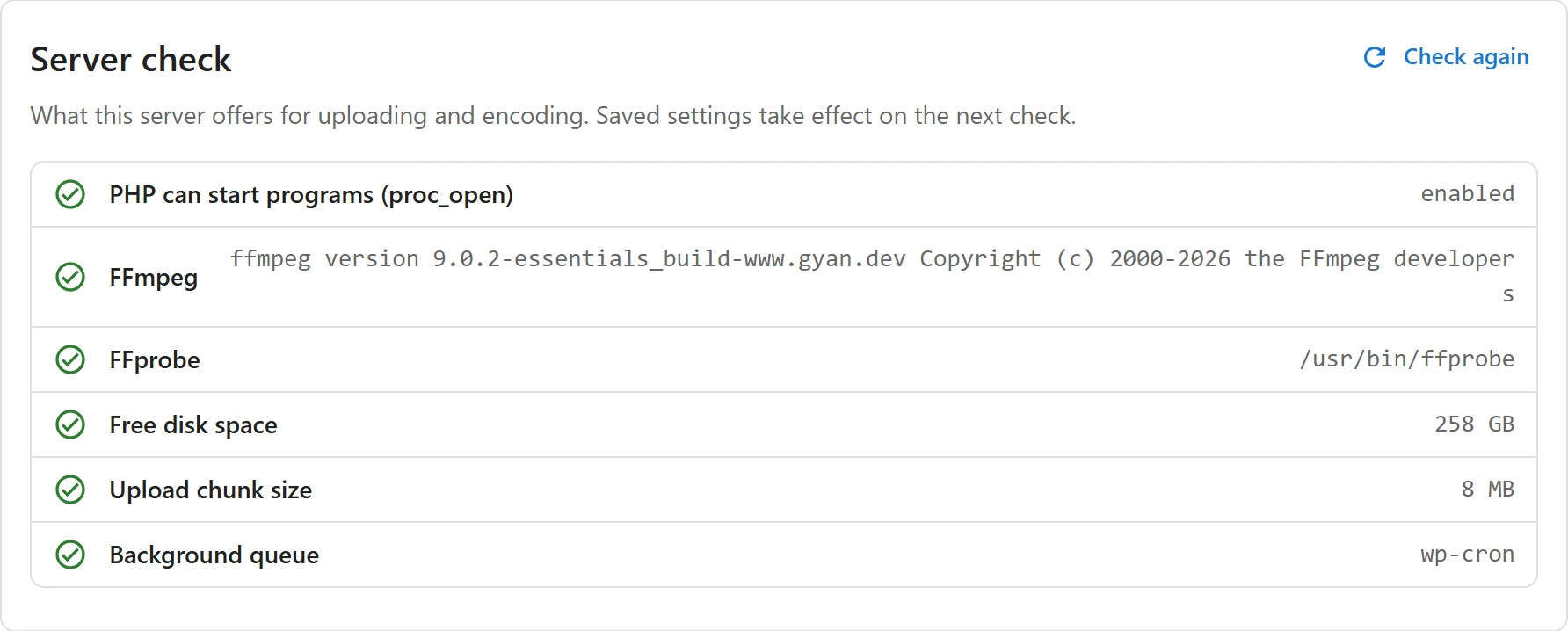
- Plugixa Video -> Settings -> Media PRO: the Server check list shows what the server offers for uploading and converting. Click Check again after your host changes something.
- Notices at the top of the WordPress dashboard, the Plugins screen and the plugin’s own pages, shown to administrators only while a problem exists.
Uploaded videos are not converted
Uploading and converting videos is part of Pro. See Uploading and encoding.
Symptom: an uploaded video plays in one quality only, or never gets 360p, 480p and 720p.
The plugin converts uploads into adaptive HLS with FFmpeg, in the background. Look at the Server check:
| Row | If it is flagged | Fix |
|---|---|---|
| PHP can start programs (proc_open) | Your host disabled proc_open(), which FFmpeg needs. |
Ask your host to allow it, or use an outside encoding service such as Bunny Stream. |
| FFmpeg shows “Not found” | FFmpeg is not installed, or not on the server’s path. | Install it, or enter its full path in FFmpeg location on the same tab. The file must be named ffmpeg (or ffmpeg.exe), or the field is cleared on save. |
| FFprobe | ffprobe is not next to ffmpeg. |
Install the full FFmpeg package, which includes both. |
Without FFmpeg, nothing breaks: a file browsers can play, such as an MP4 with H.264 video, plays as uploaded. Viewers get one quality, and long or busy videos may load slowly. See Uploading and encoding.
Also check that Convert videos automatically after upload is on, under Settings -> Media.
Conversions are stuck or failed
Part of Pro PRO.
The plugin shows a warning notice in these cases. Each notice has Hide for a week.
| Notice | Cause | Fix |
|---|---|---|
| “Videos are waiting to be converted, but this server can no longer convert them.” | The converter the videos were queued for is gone, for example FFmpeg was removed. The notice gives the reason. | Fix what the notice names, such as installing FFmpeg again, then press Try again on the video. |
| “N video conversions are stuck.” | A conversion waited more than 15 minutes to start, or ran more than 7 hours. Background jobs are probably not running. | Ask your host to run WP-Cron from a server cron job, then press Try again on the video. |
| “N video conversions failed this week.” | FFmpeg could not convert the file. | Open the video and press Try again. If it fails again, the file may be damaged: export it again as an MP4 and upload it. |
| “Your server has only size of disk space left for videos.” | Less than 1 GB free. | Free up space or ask your host for more. New uploads and conversions may fail. |
Conversions run from WordPress’s background queue, which needs visits to the site or a server cron. On a site with little traffic, set up a real cron job for WP-Cron.
An upload is refused
Part of Pro PRO.
| Message | Fix |
|---|---|
| “Upload a video file (mp4, m4v, mov, mkv, webm, avi).” | Only these file types are accepted. |
| “The file is larger than the size allowed.” | Raise Largest upload under Settings -> Media (4096 MB by default). |
| “Not enough free disk space on the server for this file and its renditions.” | Free up disk space. |
| “This file is not a video the server can read.” | Export the file again as an MP4 and upload it. |
Files are sent in pieces sized under your PHP upload limit, so a low upload_max_filesize does
not stop large videos. The Upload chunk size row is flagged only when PHP allows less than
2 MB per request.
Your server runs nginx
The plugin protects its folder with an .htaccess file, which nginx ignores. Without the rule
below, anyone who knows a video’s folder address could open its playlists, its original upload
and unfinished uploads directly. Add it to your site’s server block and reload nginx:
location ~* /uploads/plugixa-video/.*(\.m3u8|\.part|/source\.[^/]*)$ { deny all; }
Converted videos keep playing: the player gets their playlists through a signed link from the plugin, not from the folder.
Videos do not play, or say “Sign in to watch this video” for everyone
Symptom: the player shows “This video could not be played.”, or a free video asks guests to sign in.
The player asks the site for each video through the WordPress REST API, at
/wp-json/pvx/v1/videos/<id>/source. The page itself never contains the video’s address. If a
security plugin, firewall or host rule blocks the REST API, or blocks it for visitors who are
not signed in, the player cannot get the video. A block that answers “not logged in” is shown
to the viewer as “Sign in to watch this video.”
To check, open https://example.com/wp-json/pvx/v1/videos?per_page=1 in a private window. You
should see a short JSON answer starting with {"success":true. If you get an error page, allow
the pvx/v1 routes in your security plugin or firewall. The admin app uses the same API, so a
blocked API also breaks the Plugixa Video screens.
Members-only videos and page caching
The video page can be cached safely: it holds no video address, and the player asks the server for one after checking access, with an answer that tells caches not to keep it. A cached page cannot leak a members-only video.
Symptom: a signed-in member sees “Sign in to watch this video.”
The page they got was cached for guests. Guest pages carry no sign-in token, so the player asks as a guest. Make sure your caching plugin or host does not serve cached pages to signed-in users; most do this by default. See Access control.
A video is missing from the video sitemap
The video sitemap is at /video-sitemap.xml. A video is listed only when it:
- is Published (not unlisted, private, scheduled or a draft);
- has no password PRO;
- has a poster image. Google needs a thumbnail, so a video without a poster is left out rather than sent incomplete. The structured data on its page is left out too.
If the whole sitemap answers “not found”, check Settings -> Reading in WordPress: a site set to discourage search engines publishes no sitemap. See SEO.
“Plugixa Video could not finish updating its database”
Symptom: a red notice lists one or more parts of the plugin with a reason.
After an update, the plugin creates or changes its tables. If that failed, the listed parts may not work. The plugin tries again by itself every hour. To try now, click Try again in the notice; when it works, a notice says “Plugixa Video finished updating its database.” If it keeps failing, send the reason shown to your host: it is usually a database permission or storage problem.
“Two copies of Plugixa Video are active”
Free and Pro are separate plugins that use the same data, and only one can run. Activated from WordPress’s Plugins screen, Pro deactivates Free for you. Activated another way, such as WP-CLI or a hosting panel, both stay active and the notice names the copy that was not loaded. Deactivate the copy you no longer need. Your videos are shared and stay as they are.
Quick Links
Share