

Contents
On this page
Custom fields - Plugixa Video
Custom fields PRO add your own information to the records the plugin keeps: a director, a filming location, a rating, a “restored” checkbox, a release region. Each field can be made filterable, so it appears in the admin Filters panel of its list, and searchable, so the list’s search box also looks in its answers.
Custom fields is an app in the App manager, on by default in Pro.
Answers are admin information: they are shown on the forms and used by the admin lists, and the plugin does not print them on public pages.
The Custom fields page
Open Custom fields in the app’s sidebar. It is there for users who can manage the plugin’s settings.
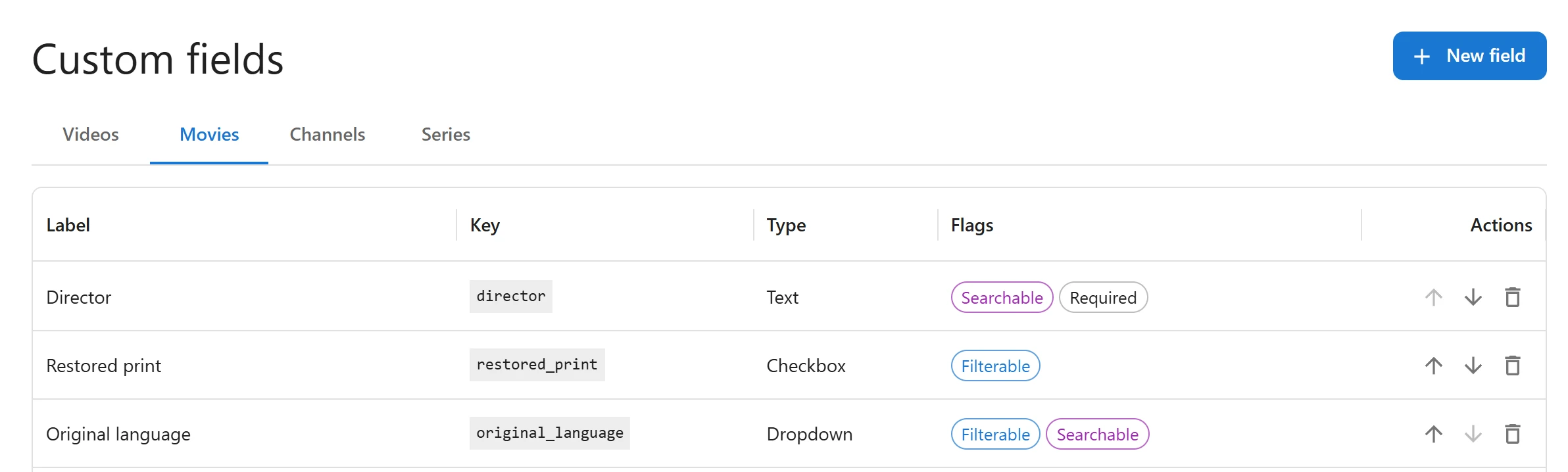
The tabs pick the kind of record the fields belong to:
| Tab | Where the fields show |
|---|---|
| Videos | On every video form, under the heading Custom fields. |
| Movies | On the video form only when Content type is Movie, under the heading Movie fields. |
| Channels | On the channel form. |
| Series | On the series form. |
The list shows each field’s Label, Key, Type and Flags: Filterable, Searchable, Required, or Hidden for a field not shown on forms. The arrows move a field up or down; that order is the order on the form. Click a row to edit the field. The bin button deletes it: “Delete this field and every answer stored for it?”
Adding a field
Click New field on the tab of the record type you want.
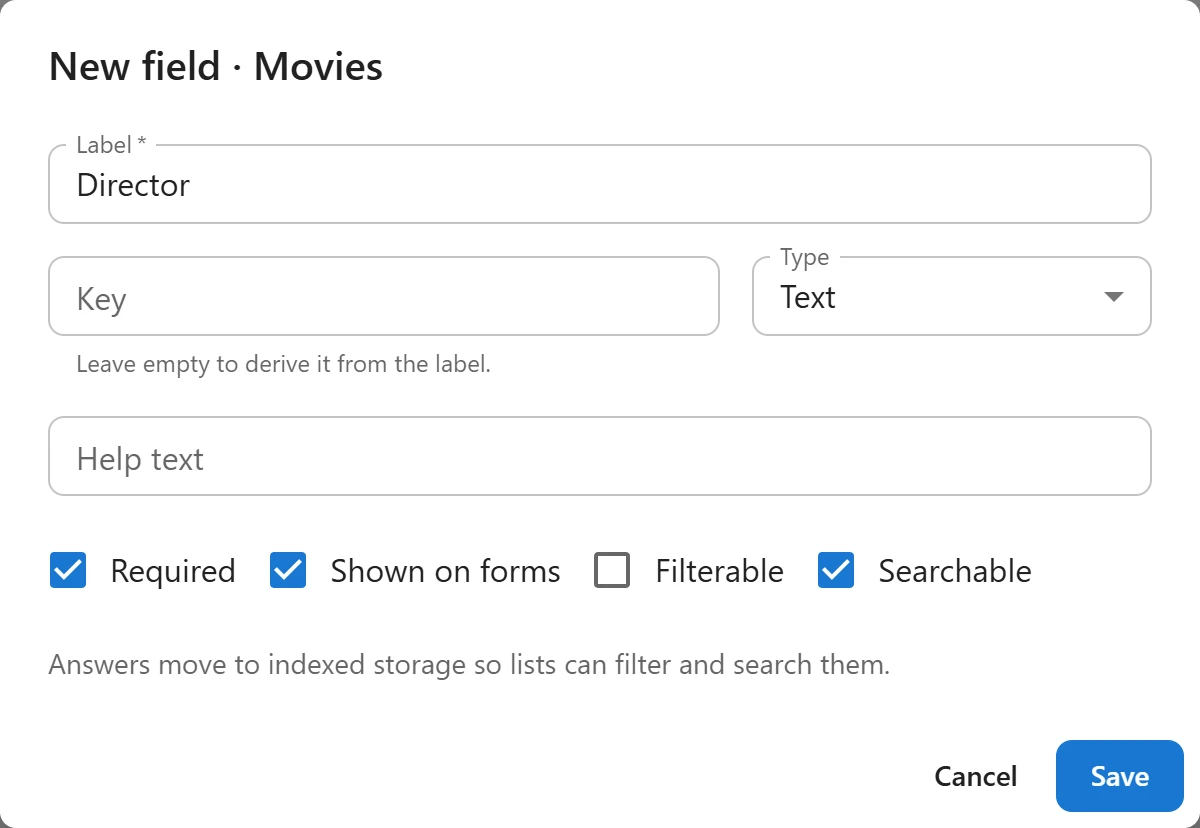
| Field | Notes |
|---|---|
| Label | Required. What editors see on the form. |
| Key | The field’s internal name. “Leave empty to derive it from the label.” Must be unique within the record type. |
| Type | See the table below. |
| Options (one per line) | For Dropdown, Multiple choice and Radio buttons. At least one is needed. |
| Help text | Shown under the field on the form. |
| Required | The record cannot be saved without an answer: “Director is required.” |
| Shown on forms | Ticked by default. Untick to hide the field from forms while keeping its answers. |
| Filterable | Adds the field to the list’s Filters panel. |
| Searchable | The list search also matches this field’s answers. |
Key and Type cannot be changed once the field is created, because every stored answer depends on them. Press Save.
Field types
| Type | What it holds | Filterable | Searchable |
|---|---|---|---|
| Text | One line of text | Yes | Yes |
| Paragraph | Several lines of text | Yes | Yes |
| Number | A number | Yes | No |
| Date | A date | Yes | No |
| Dropdown | One of your options | Yes | Yes |
| Multiple choice | Several of your options | No | No |
| Radio buttons | One of your options | Yes | Yes |
| Checkbox | Yes or no | Yes | No |
| Web address | An http or https link |
Yes | Yes |
| An email address | Yes | Yes | |
| Colour | A color such as #ff0000 |
Yes | Yes |
The checkboxes in the dialog are greyed out where a type cannot be filtered or searched. For a type that can be both, ticking Filterable also makes it searchable.
When a field becomes filterable or searchable, “Answers move to indexed storage so lists can filter and search them.” Existing answers are moved for you; nothing is lost.
Filling in fields
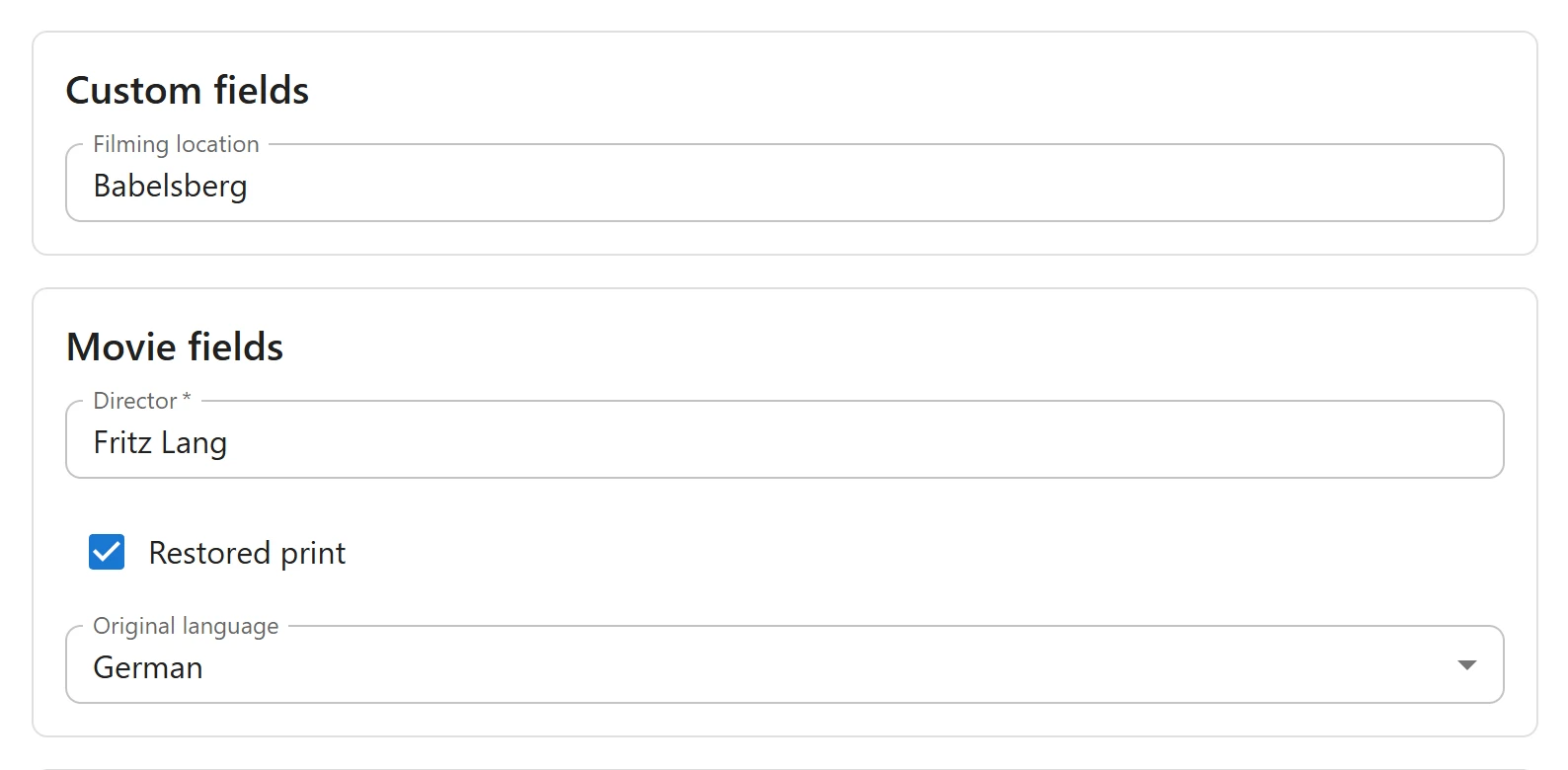
The fields appear on the form of each record, in a Custom fields panel (and Movie fields for a movie). Answers are checked when you press Save, and the record is not saved if one is wrong, with a message such as “Year must be a number.” or “Website must be a web address.” A Dropdown can be cleared by choosing the empty entry at the top of its list.
Filtering and searching the lists
A filterable field appears in the Filters panel of its list (Videos, Channels or Series) under the heading Custom fields, or Movie fields for movie fields on the Videos list. The filter follows the field’s type: text, a choice among the options, a number, a date, or yes and no for a checkbox. See Videos for how the Filters panel works.
A searchable field’s answers are matched by the list’s search box, as well as the title.
Good to know
- Deleting a record deletes its answers. Deleting a field deletes every answer stored for it.
- Answers are included in the plugin’s admin REST responses for the record, under
custom_fields. See REST API.
Quick Links
Share