

Contents
On this page
Playlists - Plugixa Video
A playlist puts videos in the order you choose and plays them one after another. You make playlists in the admin app, and signed-in members make their own from the player and their library.
Playlists are an app, on by default. Switched off, the playlist screens, the Save button and the library’s Playlists tab are hidden, and the data is kept. See App manager.
Visibility
Every playlist has one of three visibilities:
| Visibility | Who can open it |
|---|---|
| Public | Everyone. It is listed, for example on its owner’s channel page. |
| Unlisted | Anyone with the link |
| Private | Only its owner, and editors |
The Playlists list
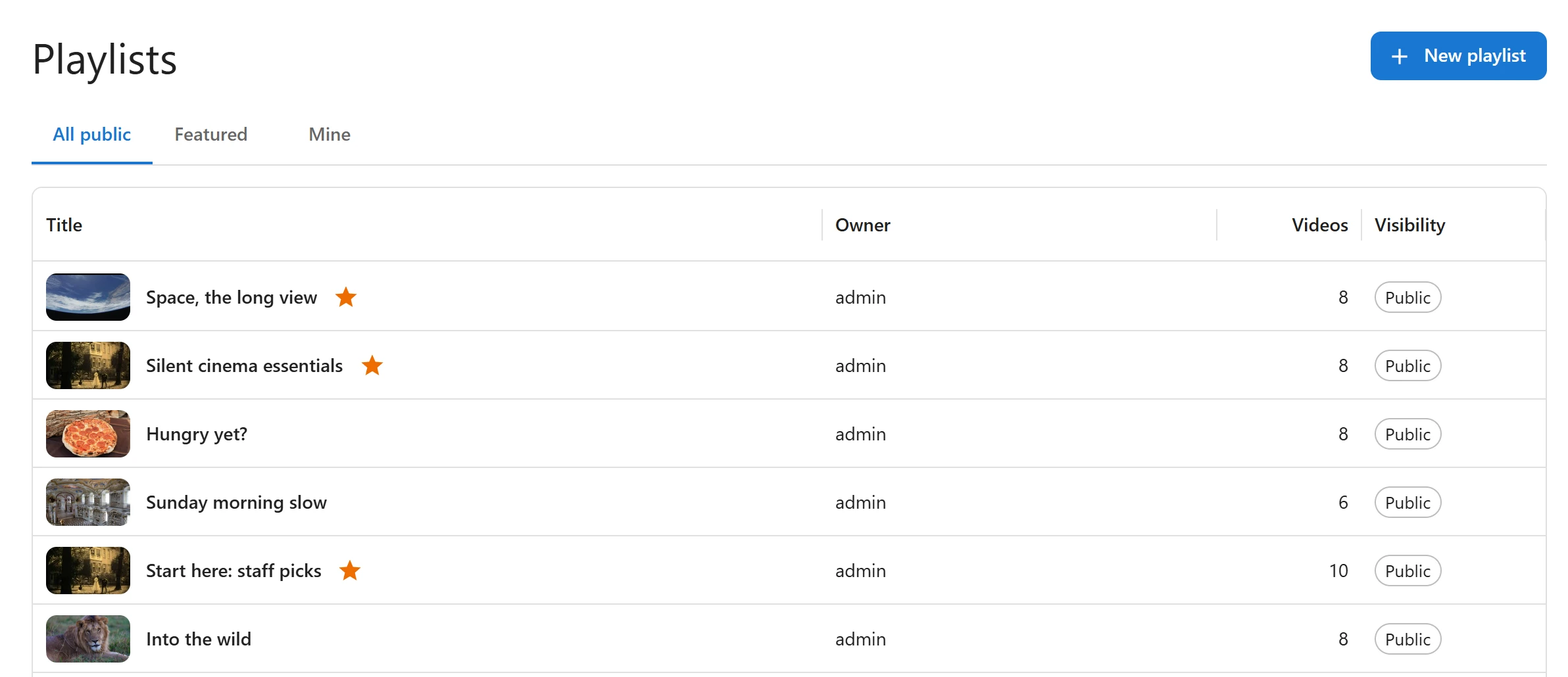
Open Playlists in the sidebar. Three tabs choose what the list shows:
| Tab | Shows |
|---|---|
| All public | Every public playlist, yours and your members’ |
| Featured | The public playlists featured on the browse page |
| Mine | The playlists you own, whatever their visibility |
The columns are Title (with a star for a featured playlist), Owner, Videos and Visibility.
Create a playlist
- Open Playlists and click New playlist.
- Type a Title and, if you like, a Description.
- Choose the Visibility.
- Under Videos, search for videos with Add videos and pick them.
- Put them in order with the up and down arrows. The bin icon removes a video.
- Click Save.
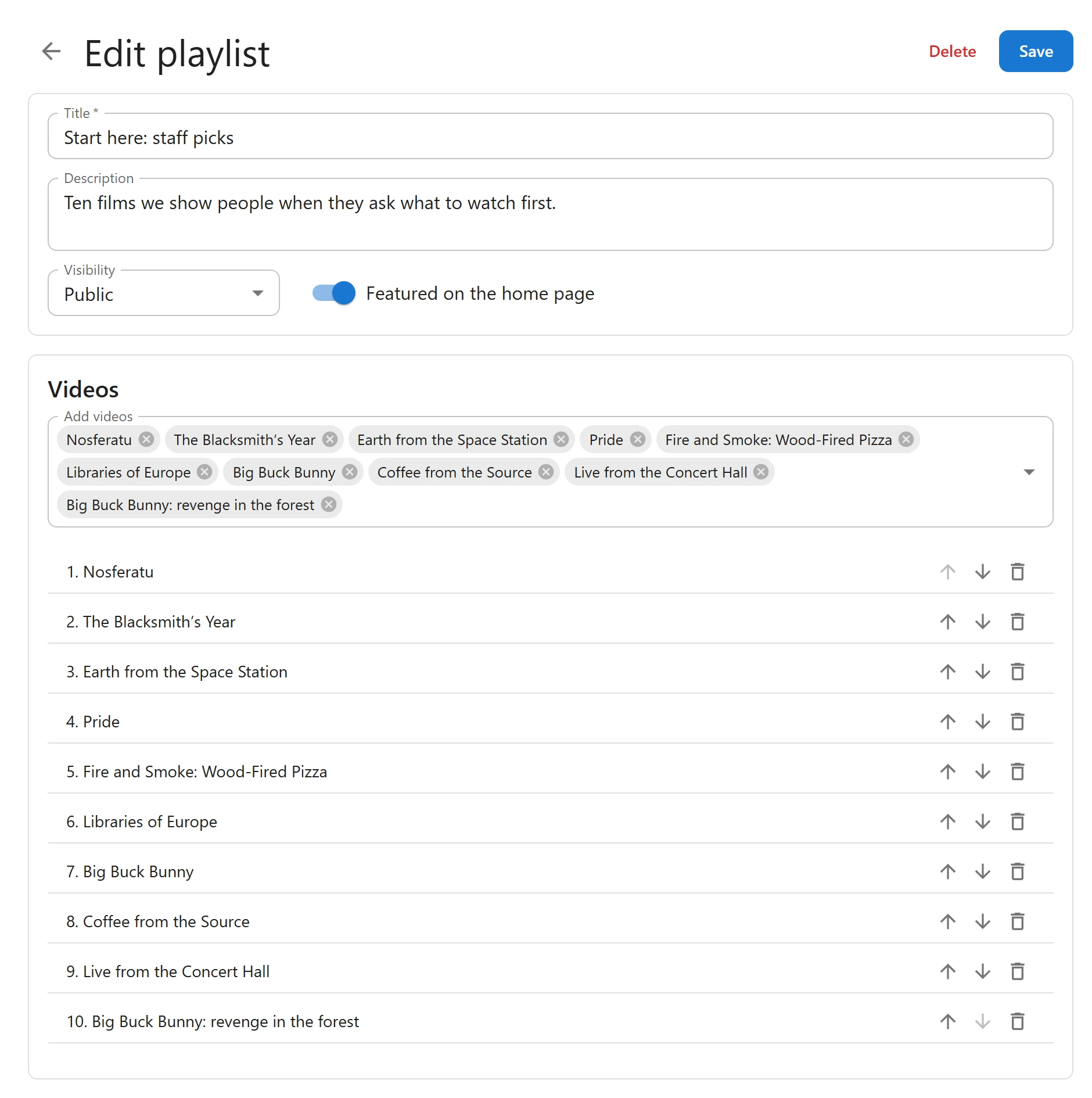
Delete, at the top of the form, deletes the playlist after you confirm. The videos themselves are not touched.
A playlist holds up to 500 videos. A playlist only shows videos that are published, or scheduled, to the people opening it. Its owner and editors see every video in it.
Featured on the home page
Turn on Featured on the home page to give a public playlist its own row on the browse page, under its title. Only public playlists can be featured, and only editors and administrators can feature one. The browse page shows up to six featured playlists. See Browse and search.
Showing a playlist on a page
Show any public or unlisted playlist with its shortcode:
[pvx_playlist id="915"]
The playlist view has the title, the owner, the number of videos, and Play all and Shuffle buttons. A video opened from a playlist plays inside it: the list stays beside the player, and the next video of the playlist plays next. See Shortcodes and Blocks.
Members’ playlists
Signed-in members make their own playlists, up to 100 each.
Save a video to a playlist
- Under the player, click Save.
- Tick the playlists the video should be in, or untick to remove it.
- To start a new playlist, type a New playlist name and click Create. The video is added to it at once.
A visitor who is not signed in is sent to the sign-in page. A new playlist is private until its owner changes it.
Manage playlists in the library
In the member’s library, the Playlists tab lists their playlists and has a field to create a new one. Opening a playlist shows it in place, on the library page.
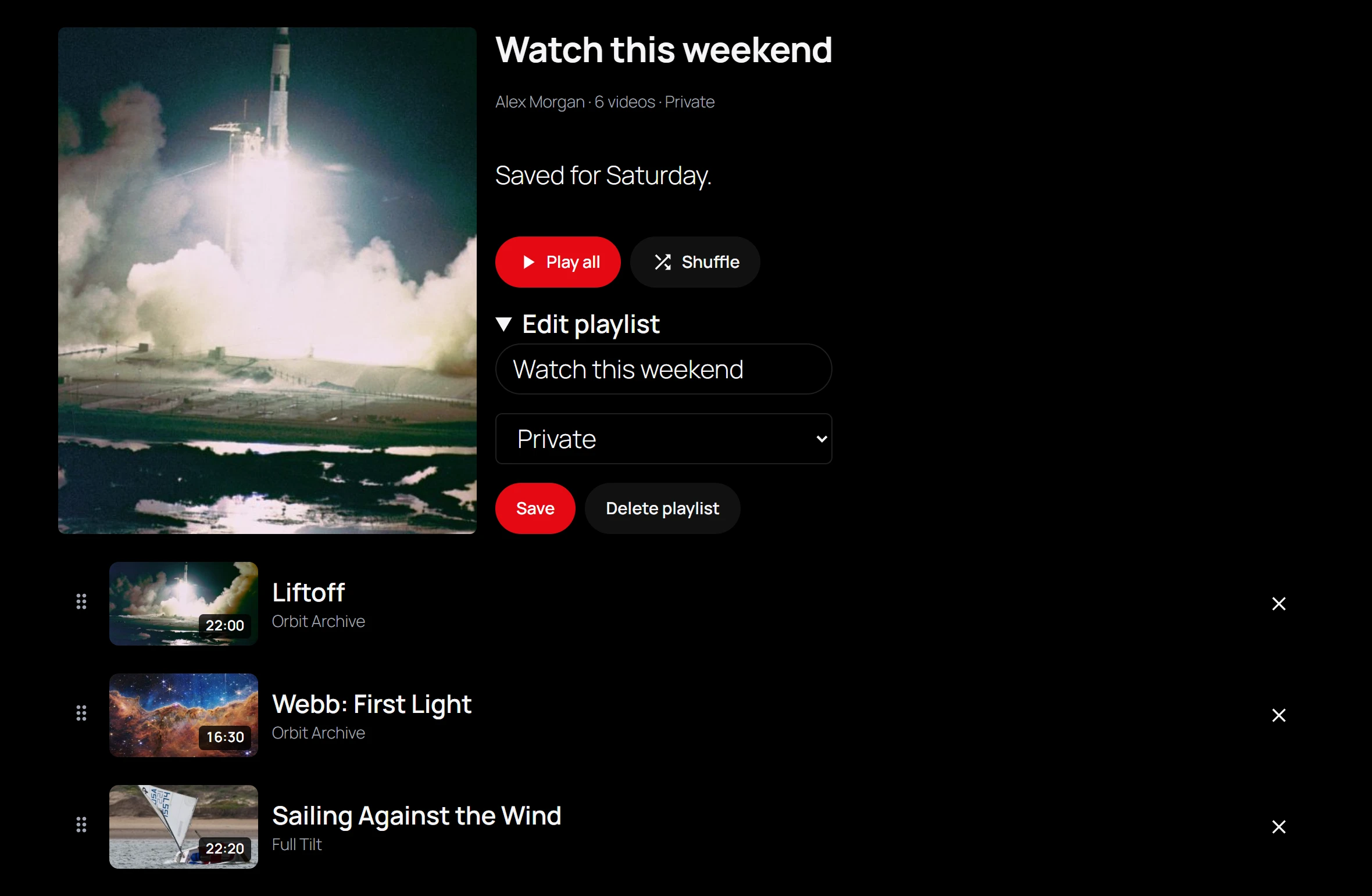
The owner of a playlist can:
- reorder it: drag a video by its handle and drop it in its new place. The new order is saved at once, and “Order saved” confirms it;
- remove a video: the remove button on its row;
- rename it or change its visibility: open Edit playlist, change the name or the visibility, and click Save;
- delete it: Delete playlist in the same section, after confirming.
Members’ public playlists show on the Playlists tab of their channel page, if they own a channel. See Channels and Member library.
Quick Links
Share