

Contents
On this page
Videos - Plugixa Video
Every video lives in one list, Videos, the first screen of the admin app. With Pro, movies and episodes are in it too PRO. This page covers the list and the form you use to add and edit a video.
The Videos list
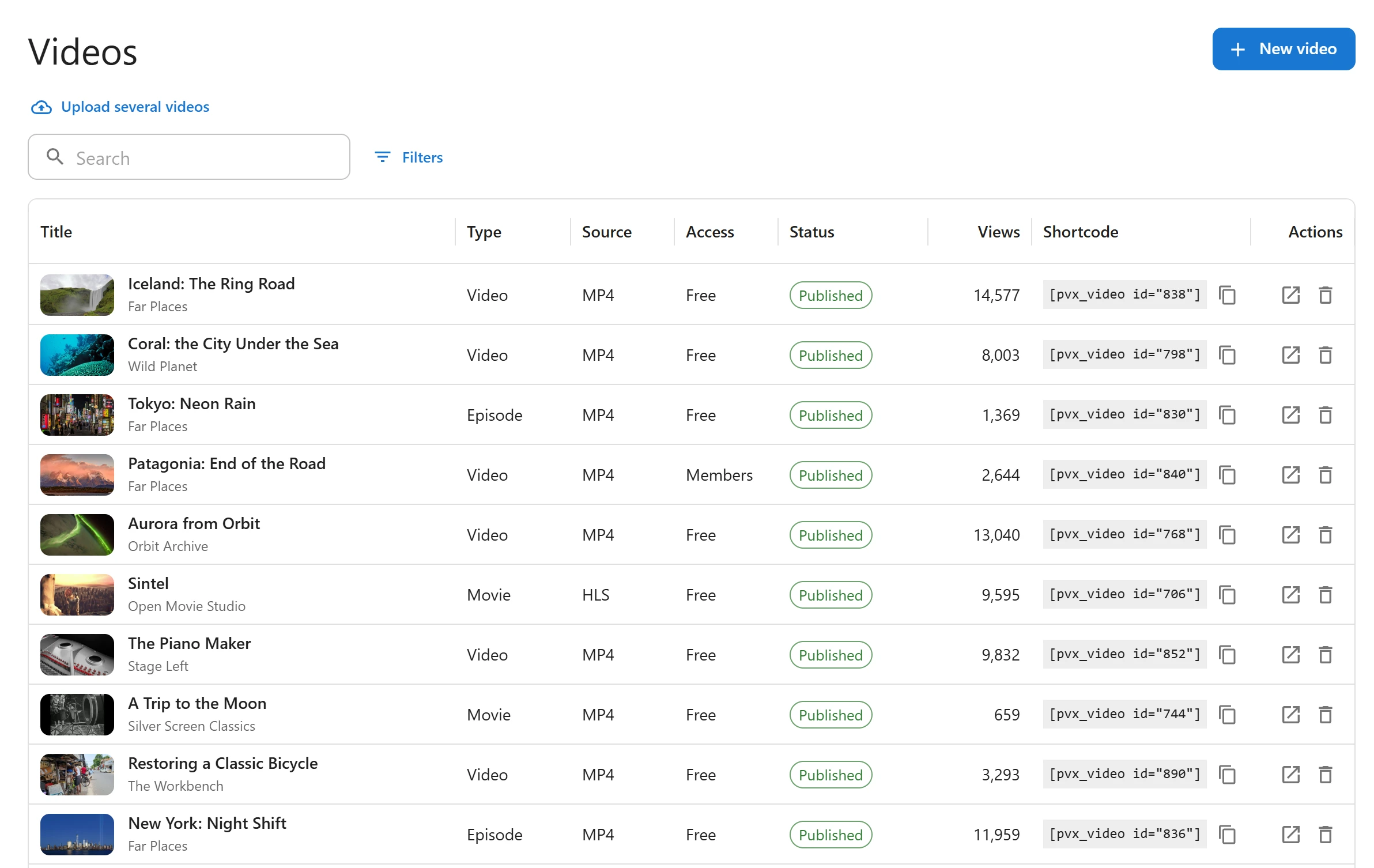
| Column | What it shows |
|---|---|
| Title | The poster, the title and, under it, the channel |
| Type | Video, or Movie and Episode PRO |
| Source | HLS, MP4, YOUTUBE or VIMEO |
| Access | Free, Members or Paid PRO |
| Status | Published, Unlisted, Scheduled, Pending review, Draft or Private |
| Views | The video’s view count |
| Shortcode | [pvx_video id="..."] with a copy button |
| Actions | View (published and unlisted videos) and Delete |
Click a row to open the video. Sort by Title or Views by clicking the column heading. The list shows 20 videos a page, and 10, 50 or 100 if you choose.
Delete moves the video to the trash after you confirm. Creators see only their own videos here. See Creators and moderation.
Above the list:
- New video opens an empty video form.
- Upload several videos PRO opens the bulk upload screen. It shows while the Uploads and transcoding app is on. See Uploading and encoding.
- The Get started list, until you hide it. See Getting started.
Search and filters
The Search box searches as you type. Filters opens a panel on the right:
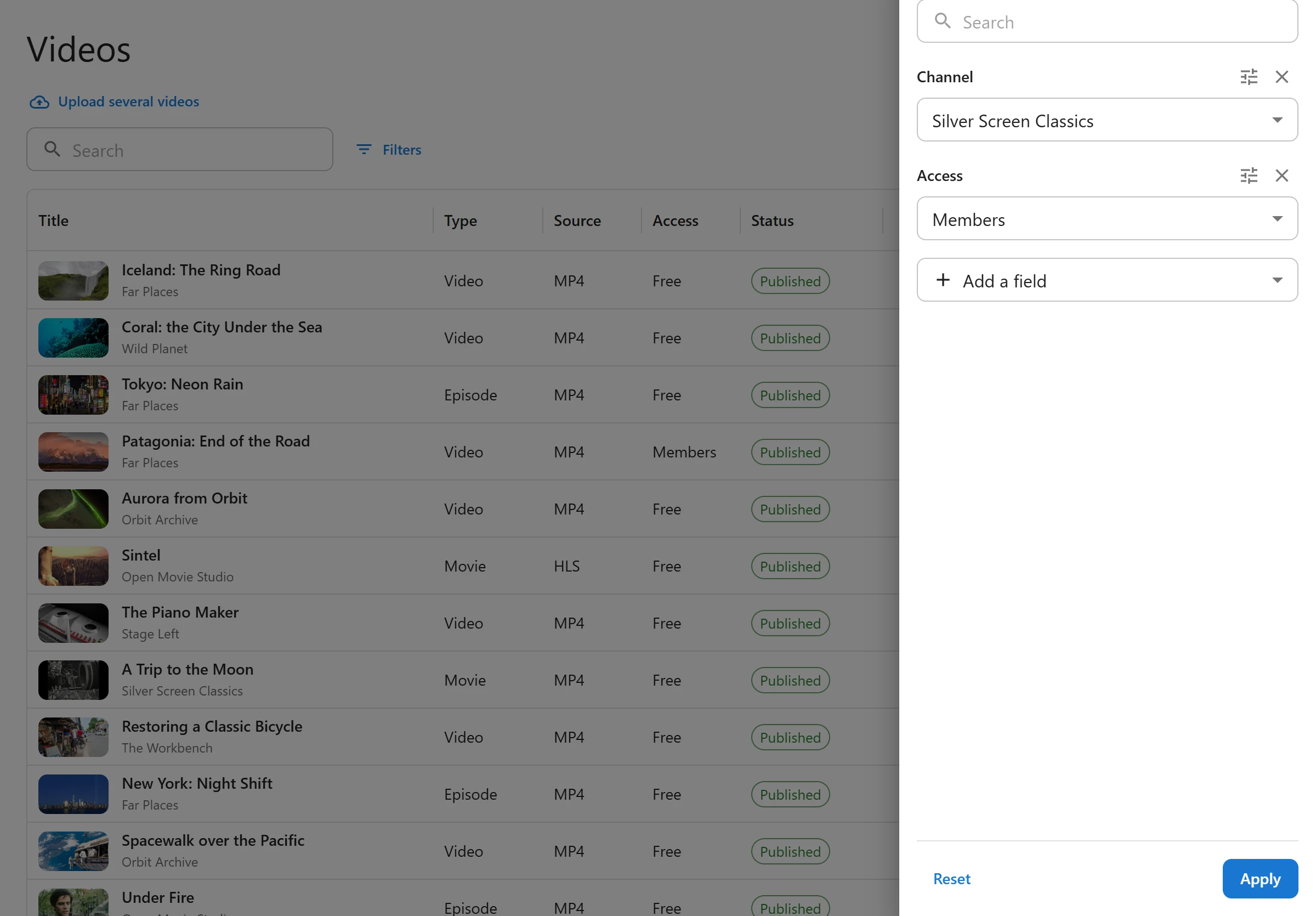
- Click Add a field and choose what to filter on.
- Set the value. Some fields have a Change comparison button, for example to find a number greater than, or between, two values.
- Click Apply. Reset clears every filter and the search.
The fields are Status, Content type, Source, Access, Channel, Series, Category, Tag, Duration (seconds), Price, Views, Release year, Age rating, Release date and Last modified. Series PRO is offered while the Series app is on. With Pro, the custom fields you mark as filterable are added PRO, see Custom fields.
Applied filters show as chips above the list. Click a chip’s cross to remove one, or Clear all. Filters are kept in the page address, so you can bookmark a filtered list.
The video form
The form has a wide column for the content and a narrow one for publishing. Click Save at the top to save every panel at once.
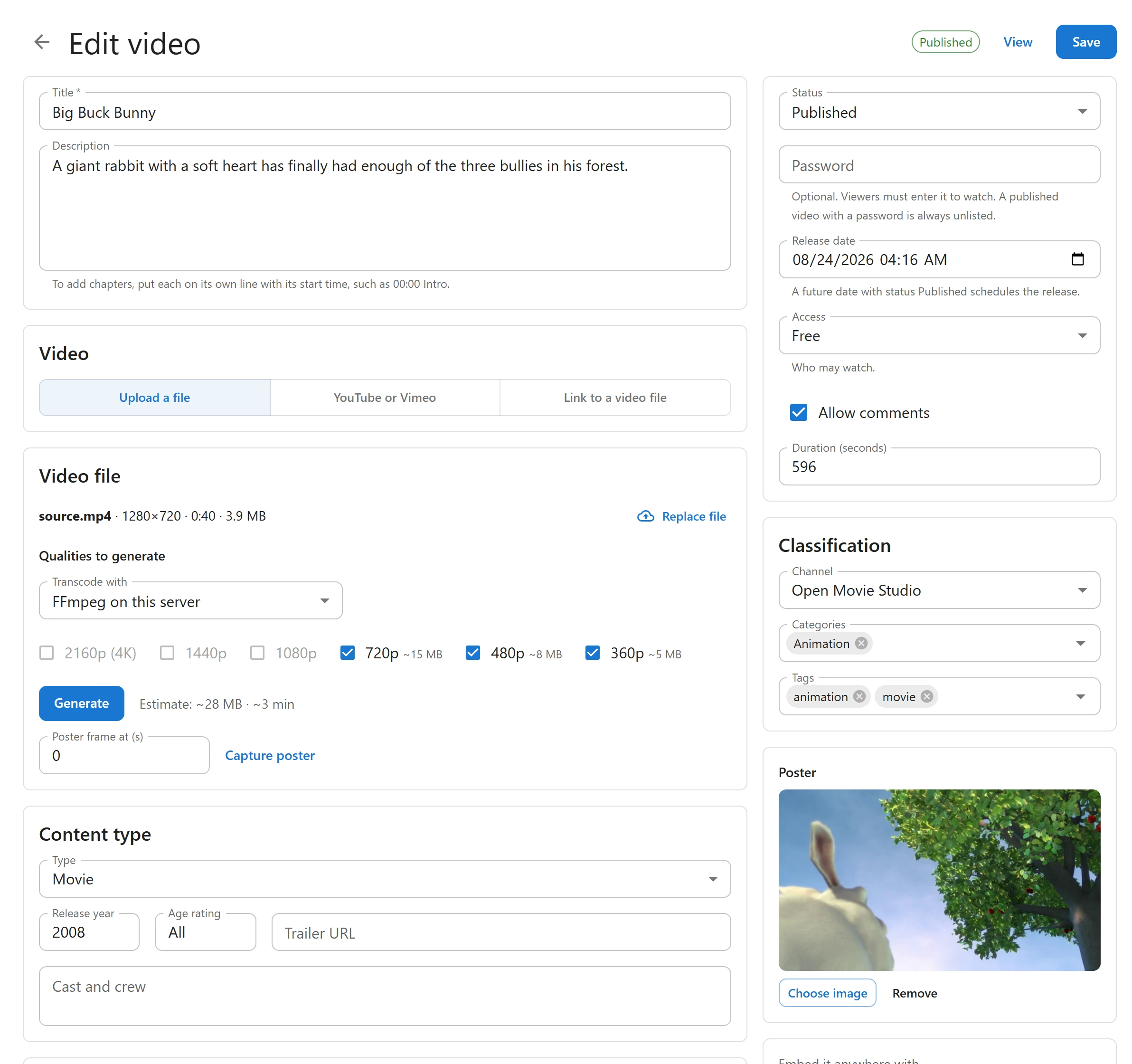
Title and description
Title is required. Description is shown on the video’s page. A line that starts
with a time, such as 00:00 Intro, becomes a chapter. See
Chapters.
Video
Choose how the video plays: Upload a file, YouTube or Vimeo or Link to a video file. Upload a file PRO is offered while the Uploads and transcoding app is on. Each choice is covered in Video sources.
With Upload a file, the Video file panel appears under it. See Uploading and encoding.
Content type
The free plugin holds plain videos. With Pro, a video can also be a movie or an episode:
| Type | What it adds |
|---|---|
| Video | Nothing more |
| Movie | Release year, Age rating, Trailer URL and Cast and crew |
| Episode | Series, Season and Episode numbers, plus the movie fields |
Episode is offered while the Series app is on, and an episode must have a series. See Movies and series.
Panels added by Pro
With Pro, more panels appear here PRO: Rental for paid videos (Selling videos), AI subtitles (AI subtitles), Audio tracks (Audio tracks), Custom fields (Custom fields) and Page layout (Page layouts).
Subtitles
Part of Pro PRO.
Each track has a Language code, a Label viewers see, the URL (.vtt) of the file and a Default box. Only one track can be the default. Add track adds a row. On a saved video, Upload .vtt / .srt uploads a file instead. See Subtitles and transcript.
Related videos
Part of Pro PRO.
Pinned videos come first in the video’s related list, in the order you pick them, up to 24. The rest is chosen automatically. See Related videos and Up next.
Status, password and release date
| Field | What it does |
|---|---|
| Status | Draft, Pending review, Published, Unlisted or Private |
| Password PRO | Optional. Viewers must type it to watch. A published video with a password is always unlisted. |
| Release date | A date in the future with the status Published schedules the release. |
- Published: on its own page, in lists and in search.
- Unlisted: only people with the link can watch. It stays out of lists, search results and sitemaps, and goes live at once, whatever the release date.
- Private: only people who may edit the video can see it.
- Pending review: waiting for an editor to publish it.
A video cannot be Published or Unlisted before it has a file or a link: saving shows “Add a video file or a link before publishing.” See Access control for unlisted and password videos.
Scheduling a release
- Set Release date to a day and time in the future.
- Set Status to Published and click Save.
The status chip at the top shows Scheduled, and the field says the video is shown as “Coming soon” until that date. WordPress publishes it on time. While scheduled, an episode PRO is listed on its series page with a Coming soon badge and its date, and cannot be opened. See Movies and series.
To edit a scheduled video, leave the status on Published: the date decides whether it waits.
Access
Access decides who may watch: Free (everyone) or Members (signed-in users). With Pro, Paid PRO adds a Price field. See Access control.
Comments and duration
- Allow comments: shows WordPress comments under the video. Ticked for a new video.
- Duration (seconds): filled in for you from an upload or a Vimeo link. Type it for other links.
Classification
Channel, Categories and Tags. You can only choose a channel you may edit. See Channels and Categories and tags.
Poster
The image shown before the video plays, on cards and in search results. An upload or a YouTube or Vimeo link sets one for you when the video has none. A video needs a poster to be listed in the video sitemap. See SEO.
Embed it anywhere
A saved video shows its shortcode, such as [pvx_video id="708"], at the bottom of the
right column. See Shortcodes.
Quick Links
Share