

Contents
On this page
Player logo - Plugixa Video
The player logo PRO puts an image of your choice, usually your logo, over the video while it plays. It sits in one corner of the player and can link to a page of your choice.
There is no app to switch on: the feature is part of Pro and does nothing until you choose an image.
Setting it up
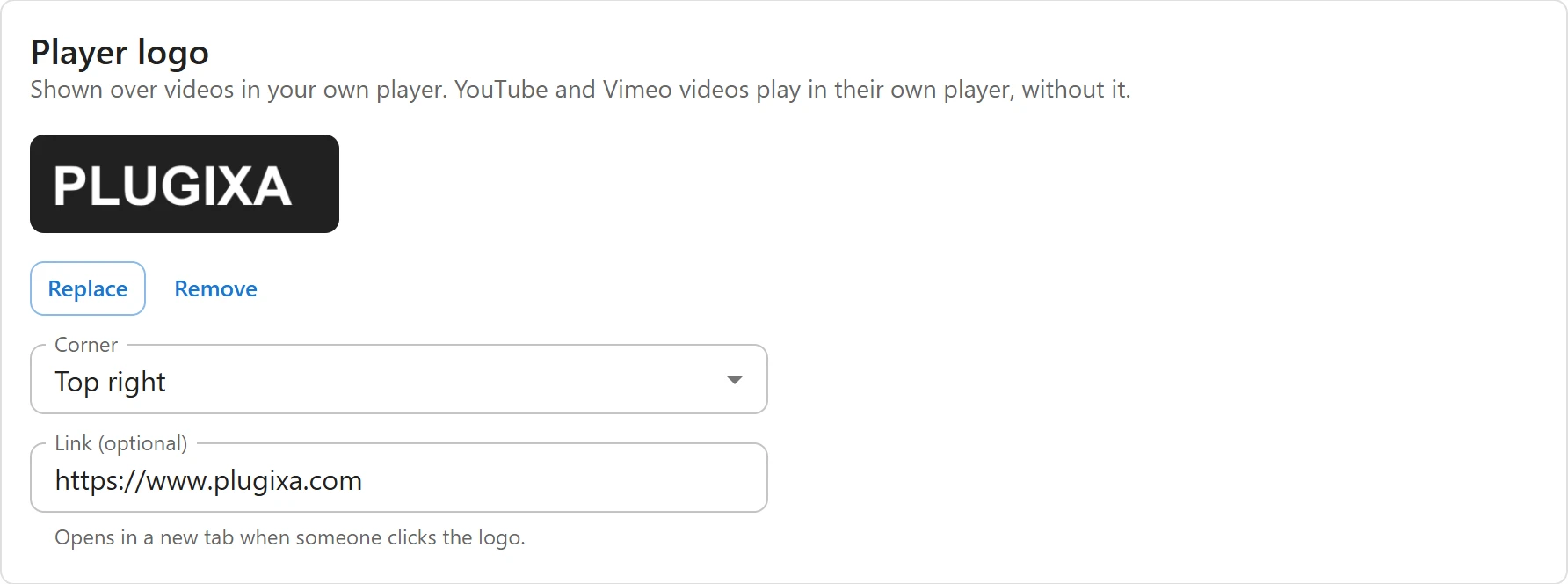
Open Settings -> Player logo. Only users who can manage the plugin’s settings can change it.
- Click Choose an image and pick or upload an image in the media library. A preview shows at once.
- Choose the Corner: Top right (the default), Top left, Bottom right or Bottom left.
- Optionally fill in Link (optional), a web address starting with
http://orhttps://. “Opens in a new tab when someone clicks the logo.” - Press Save.
To change the image, click Replace. To stop showing a logo, click Remove and save.
The logo is drawn on top of the picture, so an image with a transparent background reads best on both light and dark scenes. The player uses the image’s medium size from the media library.
How it looks
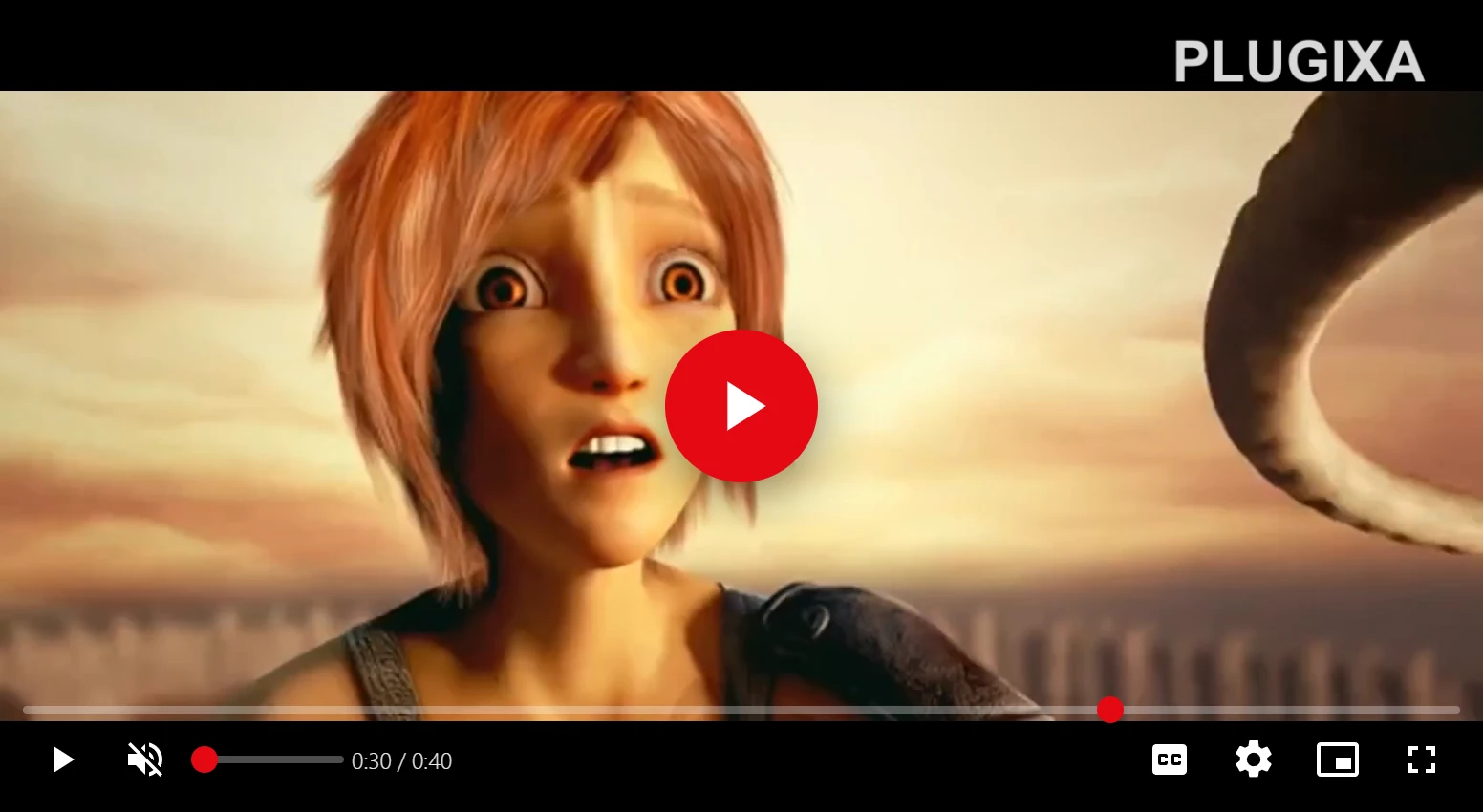
- The logo is shown at most 56 pixels high (less on narrow screens) and never wider than a fifth of the player, at 85% opacity.
- In a bottom corner it sits just above the control bar, so it never covers the buttons.
- The player’s menus and controls stay above the logo.
- Without a link, the logo is decoration: clicks pass through it to the player. With a link, screen readers announce it by your site’s name.
Which videos show it
The logo is shown on every video that plays in the plugin’s own player: uploaded and converted videos, MP4 links and HLS streams, wherever the player appears.
It is not shown on YouTube and Vimeo videos. They play inside YouTube’s and Vimeo’s own players, and YouTube’s terms do not allow covering its player. See Video sources.
The logo is the same on every video. If the image is deleted from the media library, the logo simply stops showing.
Related
- Appearance: colors and the player’s look.
- Player: the controls the logo sits beside.
Quick Links
Share