

Contents
On this page
Selling videos - Plugixa Video
With Pro you can sell a video, rent it out for a limited time, or let a membership plan unlock it. Payments run on Stripe Checkout and PayPal, built into the plugin: no WooCommerce or other shop plugin is needed.
Selling is the Payments app in the App manager, on by default in Pro. It needs the Access app, because a sold video is simply a video whose access is Paid. See Access control for the other access modes.
Before you start
- Choose your currency under Settings -> General, in the Prices card: Currency and Symbol position (before or after the amount). Every price, order, invoice and checkout uses this currency.
- Save the keys of at least one payment provider under Settings -> Payments. See Stripe and PayPal. Until a provider is set up, a paid video stays locked and offers nothing to buy.
- Optionally set the Rental period (hours) under Settings -> Payments. It is 48 hours on a new site and can be 1 to 8760 hours (one year). It applies to every rental.
An order keeps the currency it was paid in, so changing the currency later does not rewrite past orders.
Put a price on a video
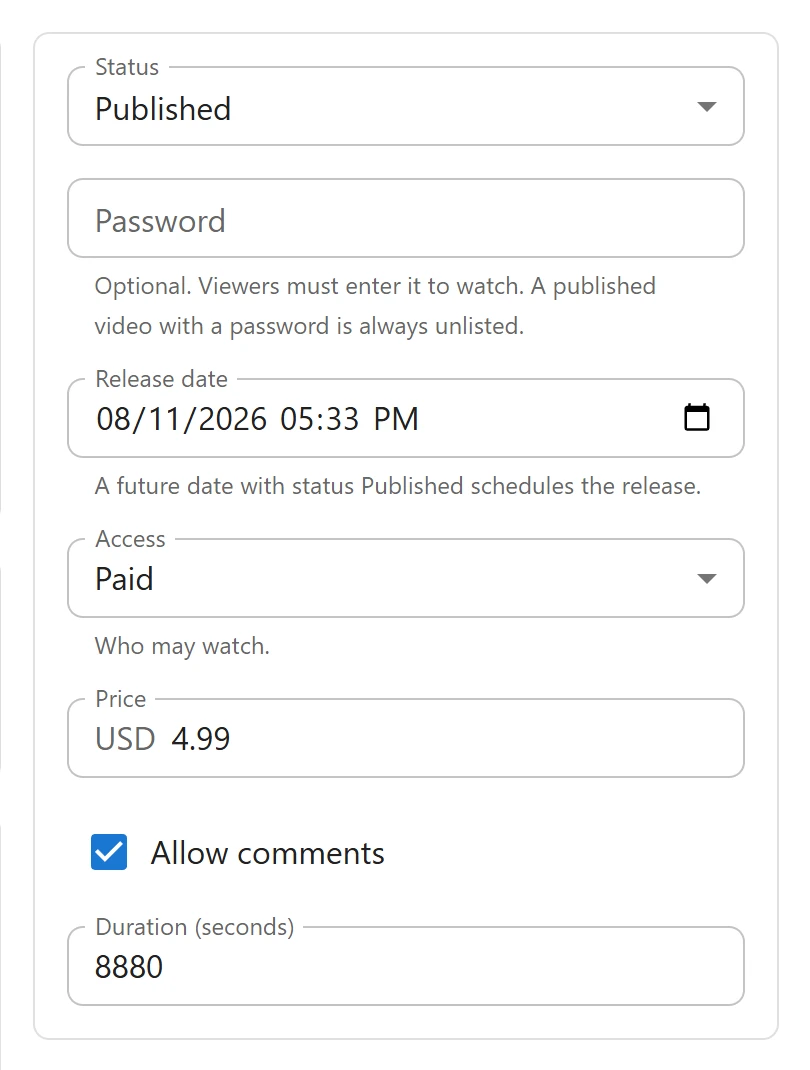
- Open the video under Videos and find the card with Status and Access in the side column.
- Set Access to Paid. The Paid choice only exists while the Payments app is on.
- Type the purchase Price. The currency code shows beside the field.
- To also rent the video, scroll the main column to the Rental card and type a Rental price.
- Click Save. The rental price is saved with the rest of the video.
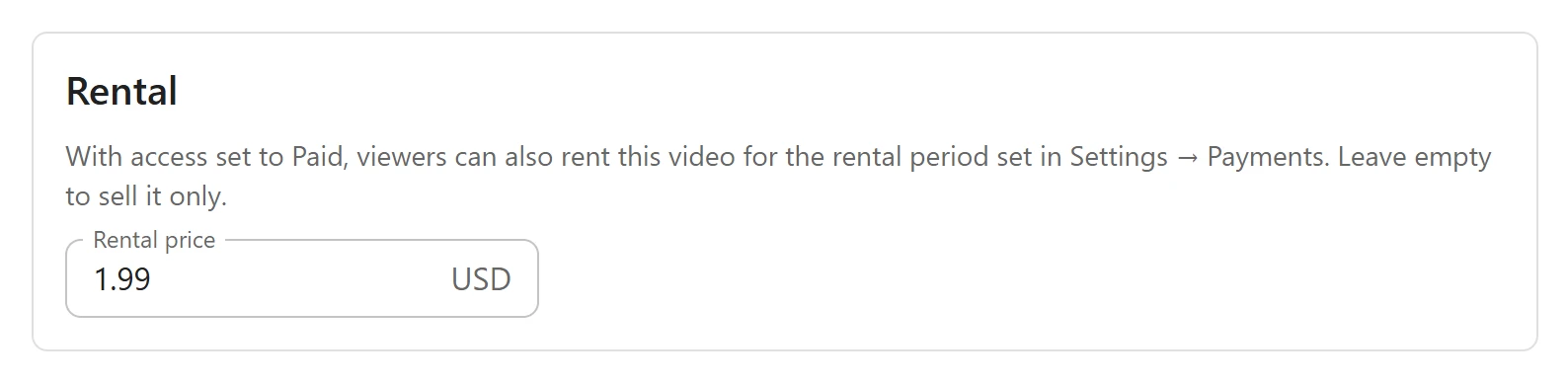
The Rental card reads: “With access set to Paid, viewers can also rent this video for the rental period set in Settings → Payments. Leave empty to sell it only.”
| Price set | What the viewer is offered |
|---|---|
| Price only | Buy |
| Rental price only | Rent |
| Both | Buy and Rent |
| Neither | Only the membership plans that cover the video, if any |
A price of 0 or an empty field means “not offered”. Membership plans that are On sale and cover the video are always added to the list, see Membership plans.
What the locked player shows
When someone who may not watch a paid video opens it, the player shows a lock instead of the video, with one button per way to unlock it. Labels and prices come from the server:
| Offer | Button | Line under it |
|---|---|---|
| Purchase | Buy and the price | “Yours to keep” |
| Rental | Rent and the price | “Watch for 2 days” with the default 48 hours (a period that is not whole days is shown in hours) |
| Membership plan | The plan’s name and its price per month or year | “7-day free trial” when the plan has a trial, otherwise “Unlocks every video in the plan” |
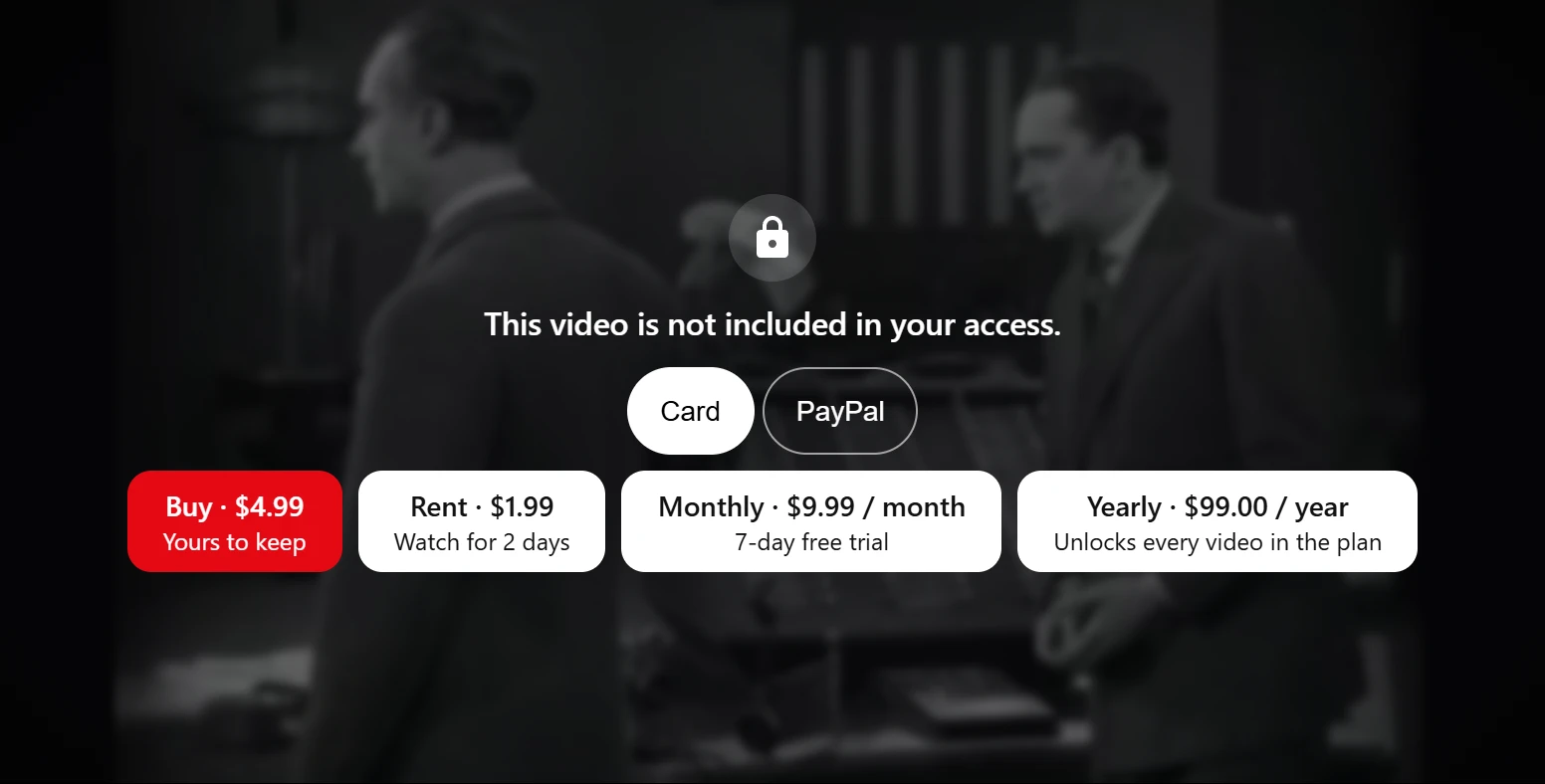
- A signed-in viewer sees “This video is not included in your access.” and the offer buttons. When both Stripe and PayPal are set up, a Pay with choice (Card or PayPal) sits above the offers. Clicking an offer sends the viewer to the provider’s payment page.
- A guest sees “Sign in to watch this video.”, the same offers as links to the sign-in page, and a Sign in button. Buying always needs an account, because access is tied to it.
If the viewer can already watch the video, the checkout is refused with “You can already watch this video.” An offer that was removed in the meantime answers “This offer is no longer available.”
The price is always read from the video or plan on the server. The browser only says which offer was clicked, never an amount.
How access is granted
The provider tells the site about each payment through its webhook, and the site also asks the provider when the buyer comes back to the video page. Whichever arrives first unlocks the video; the second changes nothing.
| Bought | Access |
|---|---|
| Purchase | Permanent |
| Rental | From the moment of payment, for the rental period in force when the order was placed |
| Membership | To the end of the paid period, plus 2 days of grace while a renewal is collected |
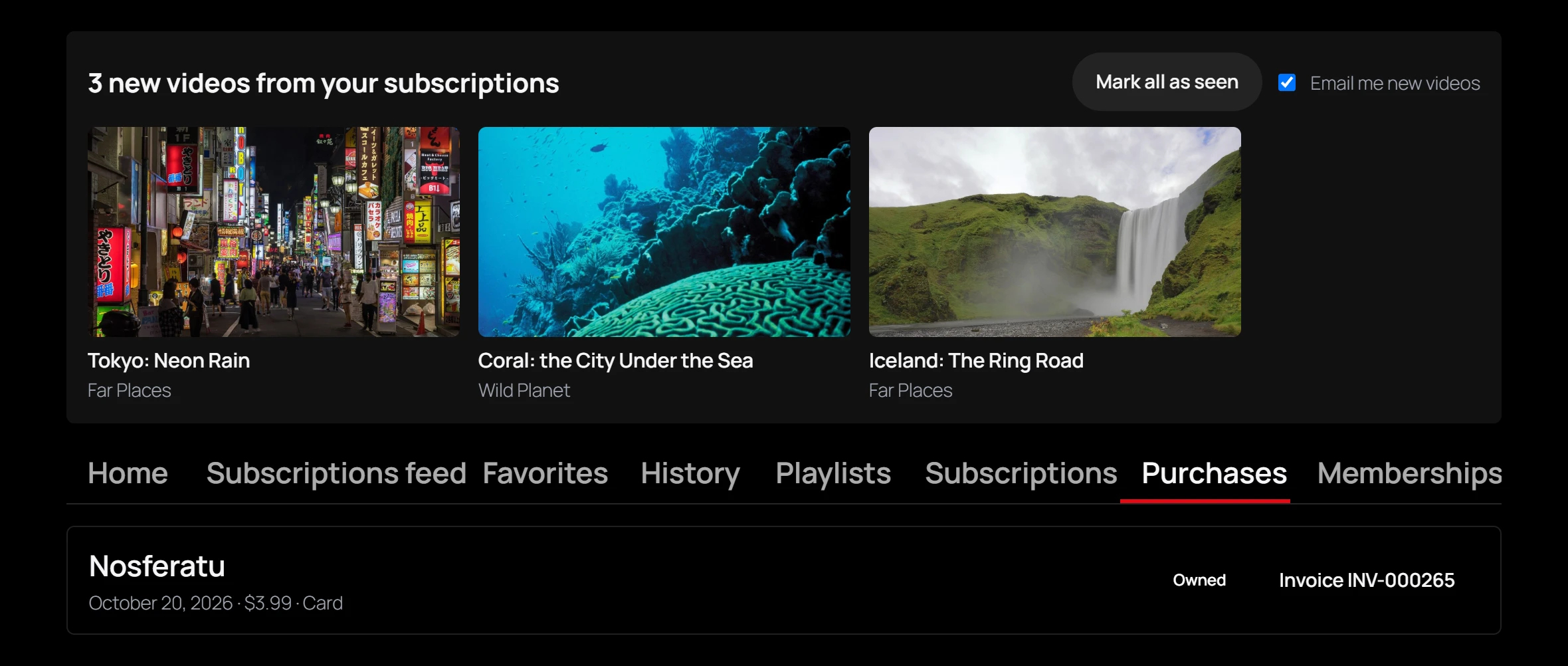
Buyers find what they paid for in the member library, on the Purchases and Memberships tabs. Each purchase shows a badge such as Owned, Rented until a date and time, Rental ended, Refunded or Disputed, and a link to each of its invoices.
A checkout nobody finished is checked again after 6 hours. If the provider holds an approved payment (for example a PayPal buyer who closed the tab on the way back), it is taken and access is granted. Otherwise the order is marked Abandoned. Money that still arrives later pays it.
How access is taken back
Refunds and disputes remove access on their own, whether they start on the Orders page or in the Stripe or PayPal dashboard:
- A full refund removes what the order unlocked.
- A partial refund leaves access in place. It is recorded in the earnings ledger all the same.
- A dispute (a chargeback opened at the buyer’s bank) removes access as soon as it is opened. If you win the dispute, access does not come back by itself.
Access is only taken back once the provider confirms it. Without a working webhook, a refund made in the provider’s dashboard changes nothing on the site, so set the webhook up as described on the Stripe and PayPal pages.
Who can do what
- Anyone who can edit a video can set its Access, Price and Rental price.
- The Orders, Earnings and Membership plans screens, and Settings -> Payments, are for users who manage the plugin’s settings.
Related
Quick Links
Share