

Contents
On this page
Movies and series - Plugixa Video
Movies and series PRO add two more kinds of video to the library, beside plain videos. They are part of Pro: the free plugin holds plain videos only. A movie is a video with film details. A series holds a show’s details, and each of its episodes is a full video, with its own source, access rule, progress and comments.
Series are an app, on by default in Pro. Switched off, the series screens and pages are hidden and their data is kept. See App manager.
Movies
To make a video a movie, open it and set Type to Movie in the Content type panel. The panel then adds:
| Field | Example |
|---|---|
| Release year | 1927 |
| Age rating | PG-13 |
| Trailer URL | A link to the trailer |
| Cast and crew | Free text, on several lines if you like |
On the public browse page, visitors can filter by type to see only movies. See Browse and search. With Pro, you can add fields of your own that only movies have, see Custom fields.
Create a series
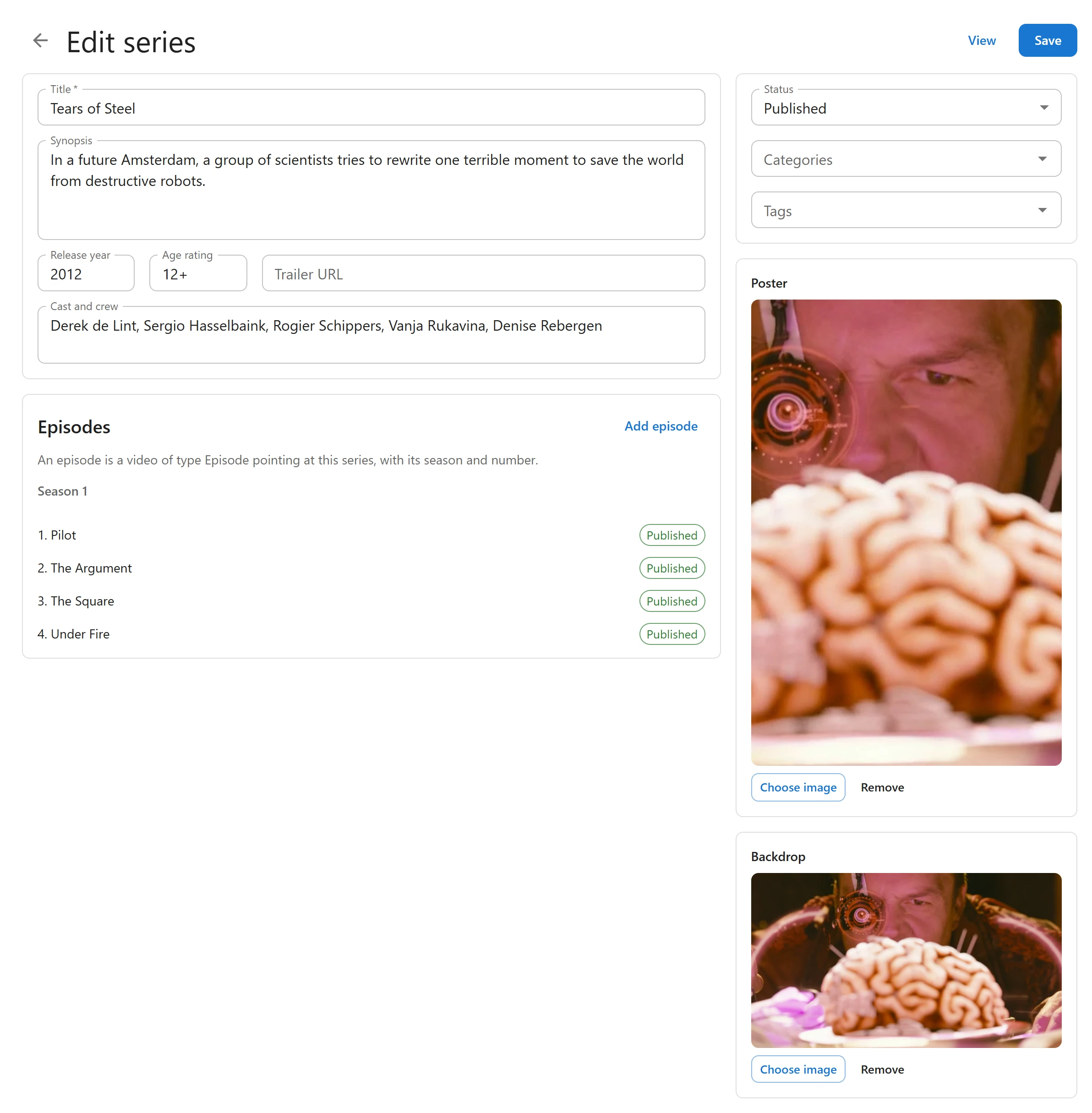
- Open Series in the sidebar and click New series.
- Fill in Title, Synopsis, Release year, Age rating, Trailer URL and Cast and crew.
- On the right, set Status, and choose Categories and Tags if you use them.
- Add a Poster (portrait, 2 to 3) and a Backdrop (the wide image behind the top of the series page).
- Click Save.
The Series list shows each series with its Release year, Age rating and Status. Its Filters panel offers Status, Category, Release year and Age rating.
Add episodes
An episode is a video of type Episode that points at a series, with its season and number.
- Open the series and click Add episode in the Episodes panel, or click New video in the Videos list.
- Add the video’s source and title as usual. See Videos.
- In Content type, set Type to Episode.
- Choose the Series, then type the Season and Episode numbers. Both start at 1.
- Save.
Episodes are played and listed in order of season, then episode number. Back in the series form, the Episodes panel lists every episode by season, with its status. Click one to open it.
Each episode keeps its own Access, so you can make the first episode free and the rest for members only.
The series page
Each published series has its own page at /series/<slug>, for example
/series/tears-of-steel. You can also show a series anywhere with its shortcode:
[pvx_series id="906"]
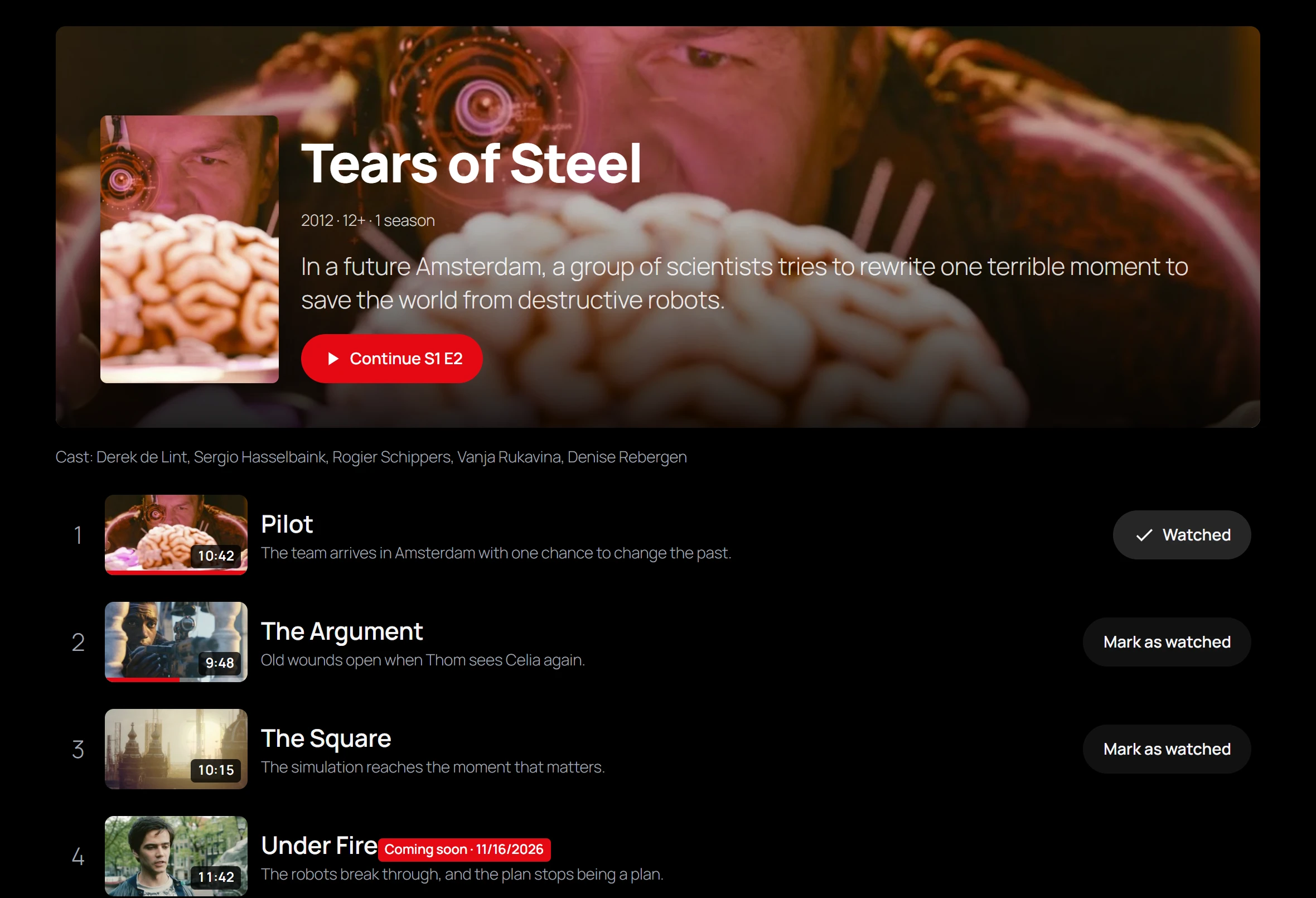
| Part | What it shows |
|---|---|
| Backdrop and poster | From the series form |
| Details | The year, the age rating and the number of seasons |
| Synopsis | From the series form |
| Main button | Play S1 E1, or Continue S1 E3 once the viewer has started |
| Trailer | When the series has a trailer URL |
| Cast | From Cast and crew |
| Season tabs | One tab per season, when there is more than one |
| Episode list | Number, thumbnail with length and a progress bar, title and summary |
Continue watching
For a signed-in viewer, the plugin remembers where they stopped in every video, on any device. A video counts as watched once 95% of it has been played, since the credits rarely are.
On a series page, the main button takes the viewer to:
- the first episode, if they have not started the series;
- the last episode they played, if they did not finish it;
- the episode after it, if they finished it.
Videos started and not finished also appear in a Continue watching row on the browse page and on the Home tab of the member’s library. See Member library.
Mark as watched
A signed-in viewer sees Mark as watched beside each episode. Clicking it counts the episode as watched, so its progress bar is full and Continue moves on to the next episode. The button then reads Watched.
Coming soon: scheduled episodes
To announce an episode before it is out:
- Create the episode with its series, season and number.
- Set Release date to the day and time it comes out.
- Set Status to Published and save. The status shows Scheduled.
Until that date, the episode is listed on the series page with a Coming soon badge and its release date. Its title and thumbnail are not links, and it has no Mark as watched button. WordPress publishes it at the release time. See Videos for scheduling.
What plays next
For an episode, the related list beside the player starts with the following episodes of the same series, after any videos you pinned, and Up next plays from it. See Related videos and Up next.
Quick Links
Share