

Contents
On this page
Appearance - Plugixa Video
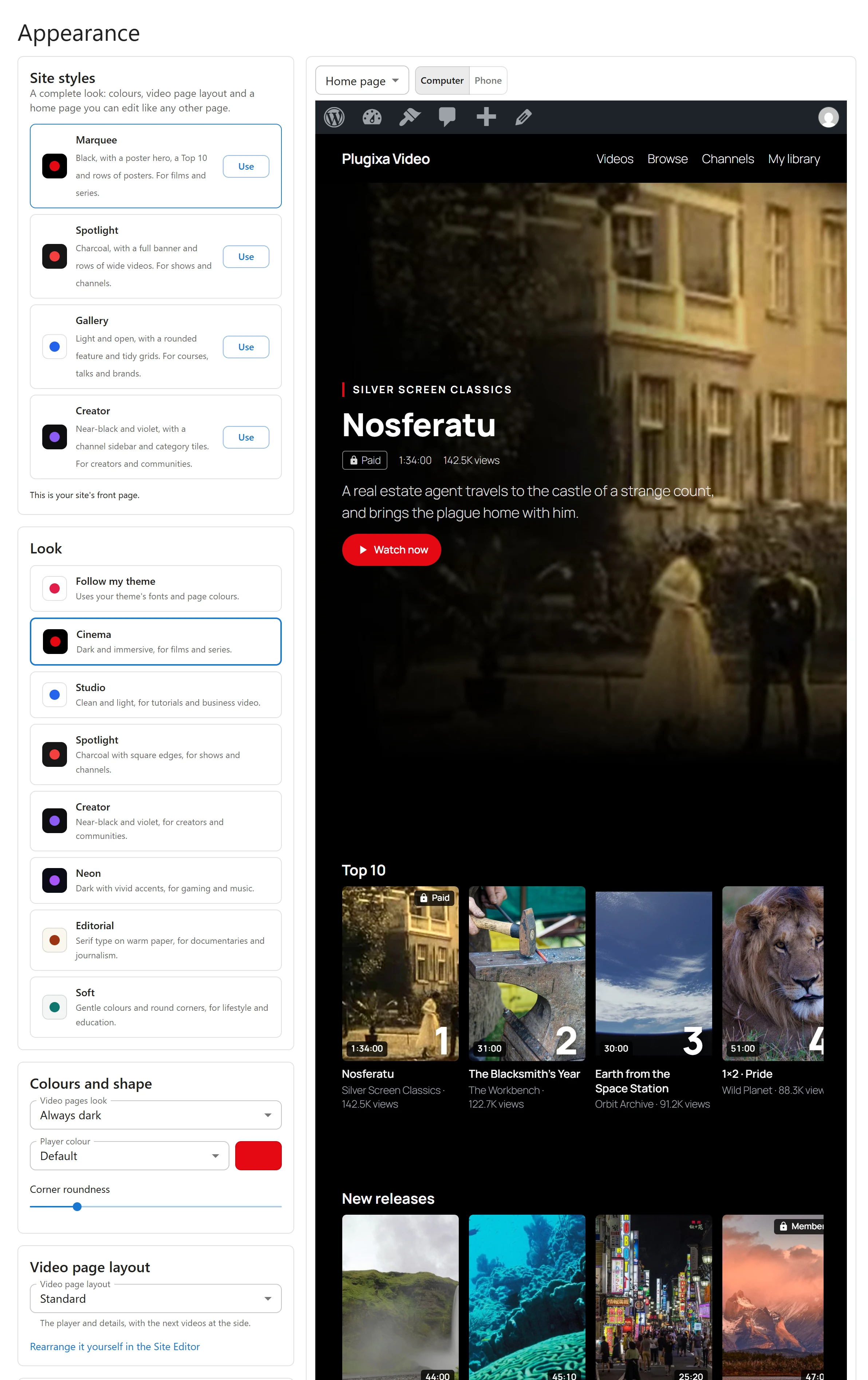
The Appearance screen sets how the player and the video pages look on your site. Its left column holds the choices, and its right column shows a real page of your site with them applied, before you save.
Open it from Appearance in the app’s sidebar (#/appearance). Changing it needs the
right to manage settings: other users see it read-only.
The preview
The right column shows one of your pages with your unsaved choices: pick Home page, Video page or Browse page in Page to preview, and Computer or Phone for its width. The video page shown is your newest published video, and “Publish a video to see a preview here.” shows until you have one.
When anything differs from what is saved, a bar at the bottom says “You have unsaved changes.” with Discard and Save.
Site styles
A site style is a complete look in one click: the colors, the video page layout and a home page built from the plugin’s blocks, ready to edit like any other page.
| Style | Description | Look | Video page layout |
|---|---|---|---|
| Marquee | “Black, with a poster hero, a Top 10 and rows of posters. For films and series.” | Cinema | Theatre |
| Spotlight | “Charcoal, with a full banner and rows of wide videos. For shows and channels.” | Spotlight | Standard |
| Gallery | “Light and open, with a rounded feature and tidy grids. For courses, talks and brands.” | Studio | Focus |
| Creator | “Near-black and violet, with a channel sidebar and category tiles. For creators and communities.” | Creator | Standard |
- Click Use on a style.
- If the plugin already made a home page, confirm: “This replaces the content of your video home page. The earlier version stays in its revisions. Continue?”
- The style is saved at once, and the home page is created, titled Videos, or updated. Click View the home page to see it.
- To make it the first page of your site, click Make it my site’s front page. Once it is, the screen says “This is your site’s front page.”
Applying a style replaces your look, your player color and the video page layout with the style’s own. Applying another style later updates the same home page instead of adding a new one. On a block theme, the home page uses the Video: Home page template.
Look
A look is a set of colors, fonts and shapes for the player and the video pages.
| Look | Description |
|---|---|
| Follow my theme | “Uses your theme’s fonts and page colours.” The default. |
| Cinema | “Dark and immersive, for films and series.” |
| Studio | “Clean and light, for tutorials and business video.” |
| Spotlight | “Charcoal with square edges, for shows and channels.” |
| Creator | “Near-black and violet, for creators and communities.” |
Choosing a look also sets its light or dark page color and resets the player color and corners to the look’s own. Pro adds more looks: see Page layouts.
Colours and shape
| Setting | Choices |
|---|---|
| Video pages look | Match my theme, Always light or Always dark. |
| Player colour | The color of the player’s timeline, buttons and highlights. Default uses the look’s color, My own colour takes any color, and your theme’s palette colors are listed by name. |
| Corner roundness | A slider from 0 to 32 pixels for the player and the cards. It starts at 12, or the look’s own. |
Always light and Always dark paint the whole video page in that look, not only the player, so no stripe of your theme’s page color shows between the parts.
Video page layout
On a block theme, choose how a video page is arranged:
| Layout | Description |
|---|---|
| Standard | “The player and details, with the next videos at the side.” The default. |
| Theatre | “The player across the whole page, everything else below.” |
| Focus | “Only this video: no next videos and nothing starts on its own.” |
Every layout keeps your theme’s header and footer, and ends with the comments. To arrange the page yourself, click Rearrange it yourself in the Site Editor. Once you have edited the template there, your version is used instead of these layouts, and the screen says so with Edit in Site Editor and Reset. Reset deletes your edited template and goes back to the layouts, after you confirm.
On a classic theme, the screen says “Layouts need a block theme. Your theme keeps its own layout, and these colours still apply.”
Back to the default look, at the bottom of the column, returns to Follow my theme, Match my theme, the default player color and Standard. Click Save to keep it.
Width on the site
How wide the player and the plugin’s pages render inside your theme is set in Settings -> General -> Player, under Width on the site:
| Choice | Result |
|---|---|
| Full width of the theme container | The default. The player and pages use the full width of your theme’s container, edge to edge like a streaming app. A full-width player is never taller than the screen. |
| Theme’s wide width | Your theme’s wide width, lined up with its header and footer. |
| Theme’s content width | Your theme’s reading width, like the text of a post. |
It uses WordPress’s own alignment classes, so any theme that supports wide and full width
places the player correctly. Each shortcode can override it with
width="full", width="wide" or width="content". See
Shortcodes.
Block theme templates
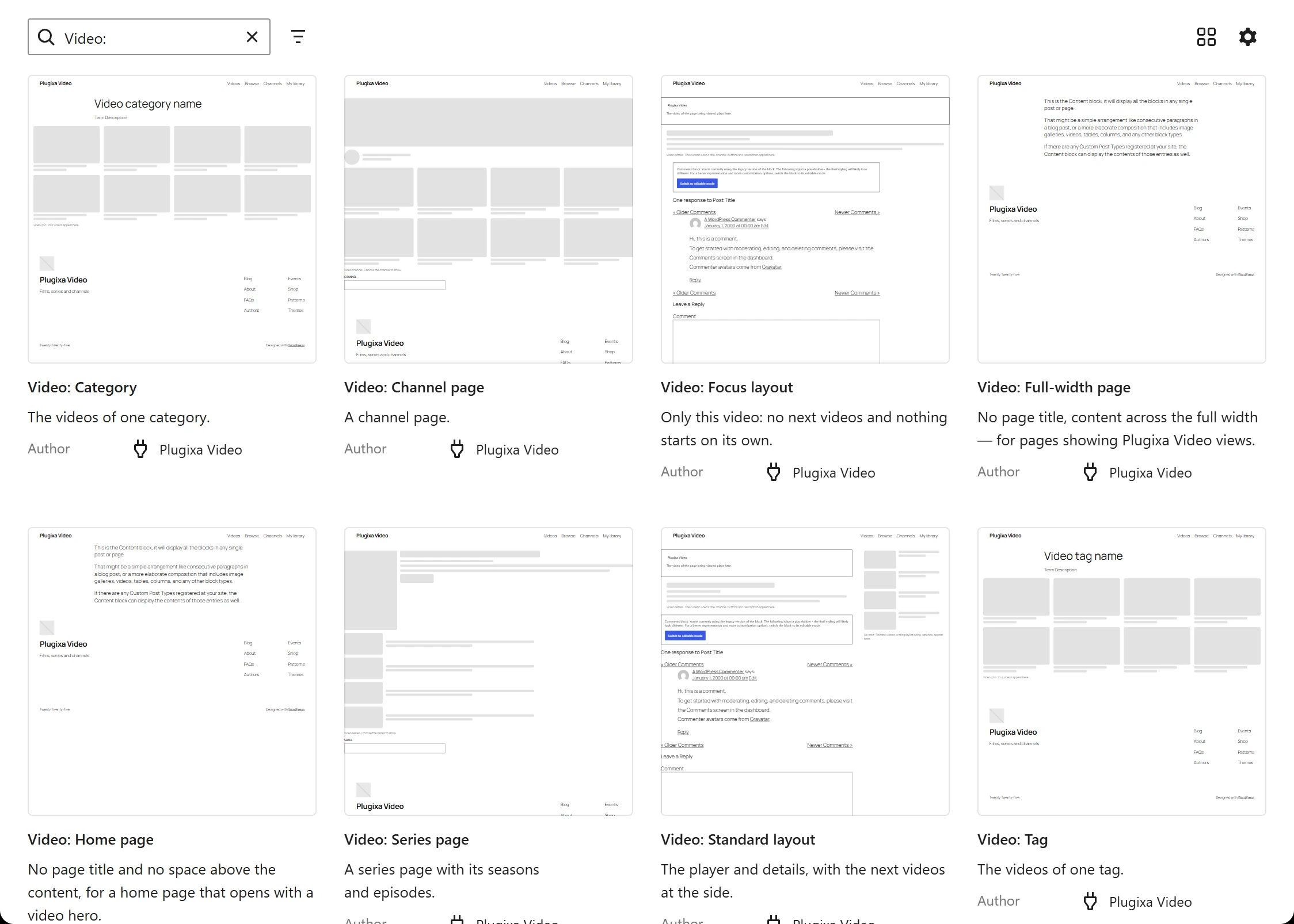
On a block theme, the plugin gives its pages their own templates, built from real blocks. They keep your theme’s header and footer and are listed in Appearance -> Editor -> Templates, each starting with “Video:”:
| Template | Used for |
|---|---|
| Video: Video page | Each video’s page, in the layout chosen above. |
| Video: Channel page | Each channel’s page. |
| Video: Series page PRO | Each series’ page, with its seasons and episodes. |
| Video: Category | The videos of one category. |
| Video: Tag | The videos of one tag. |
| Video: Home page | A page that opens with a hero: no page title and no space above it. Used by site styles. |
| Video: Full-width page | Any page holding the plugin’s shortcodes or blocks: no page title, content across the full width. |
The setup wizard gives the browse and library pages it creates the Video: Full-width page template. For a page you make yourself, choose it in the page’s Template setting in the editor.
Edit any of them in the Site Editor like a theme template. Your edited version belongs to
the active theme and wins over the plugin’s, and a theme that ships its own
single-pvx_video.html wins too.
Classic themes
On a classic theme, the plugin adds the player and its details to each video page’s content,
and the channel or series PRO to their pages. Video category and tag pages get the plugin’s
video grid instead of your theme’s blog list. A theme can provide its own version as
plugixa-video/taxonomy.php, or plugixa-video/taxonomy-pvx_category.php for categories
only.
The plugin also stops your theme printing the featured image above its own pages, so the player is not pushed down under a copy of its poster.
Block styles
The looks are also block styles. Select a Plugixa Video, Video details, Up next or Video grid block, and in Styles choose Cinema, Studio, Spotlight or Creator to give that one block a different look from the rest of the site. See Blocks.
The styles never touch your theme: the player’s styles are scoped to the plugin’s own elements.
Quick Links
Share