

Contents
On this page
Chapters - Plugixa Video
Chapters split a long video into named parts. There is no separate field to fill in: you write one line per chapter, with its start time, in the video’s Description. The player then marks each chapter on the timeline, names the chapter playing, and lists them all in a menu.
Add chapters
-
Open the video in Videos.
-
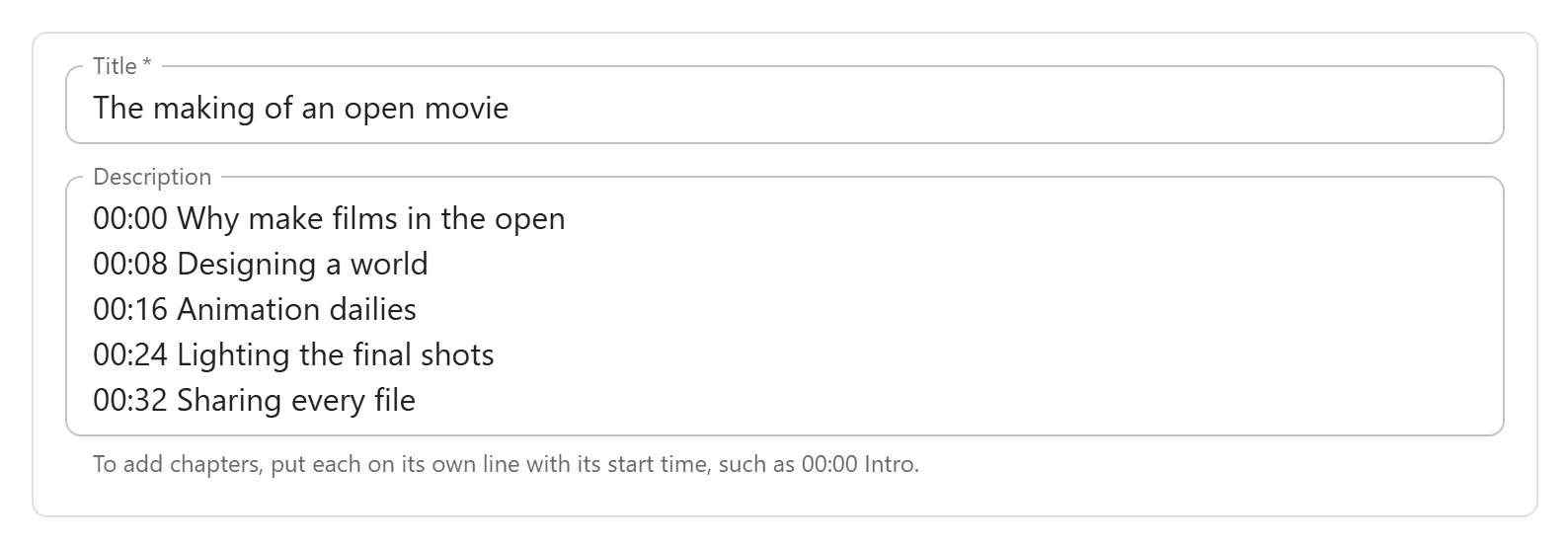
In Description, put each chapter on its own line, starting with its start time:
00:00 Why make films in the open 03:40 Designing a world 09:15 Animation dailies 17:30 Lighting the final shots 23:05 Sharing every file -
Save the video.
The form reminds you under the field: “To add chapters, put each on its own line with its start time, such as 00:00 Intro.” The lines stay in the description, so viewers also read them as text on the video page.
The rules
| Rule | Detail |
|---|---|
| At least two | A description with only one time line has no chapters: one time is taken as a time mentioned in passing. |
| Time format | m:ss, mm:ss or h:mm:ss, such as 3:40, 03:40 or 1:02:15. Seconds go up to 59, and so do minutes when hours are given. |
| In order | Each chapter must start later than the one before. A line that does not is skipped. |
| Within the video | A chapter starting at or after the end of the video is dropped. |
| Title | Everything after the time, up to 100 characters. |
| First chapter | Does not have to start at 00:00. Before the first chapter, no chapter name shows. |
The time can be written in a few common ways, so chapter lists copied from elsewhere usually work as they are:
00:00 Intro
- 01:30 Getting set up
• 4:05 - First steps
[12:40] Questions
1:02:15 | Wrap-up
A line can start with a hyphen, a bullet or an asterisk, the time can sit in round or square brackets, and the title can follow a space, a hyphen, a colon, a full stop or a pipe.
What viewers see
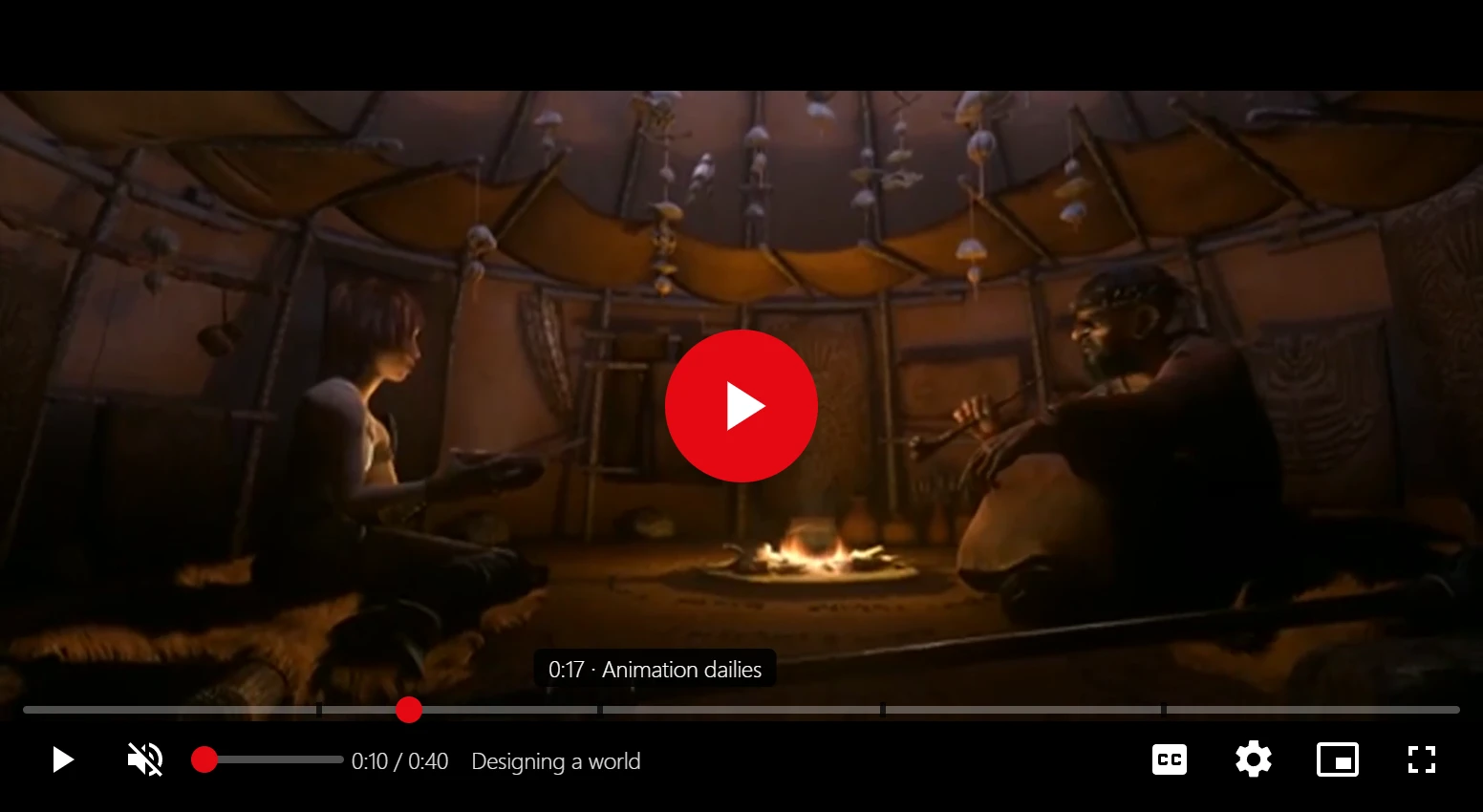
- Timeline marks: a small dark notch on the timeline where each chapter starts. The
first chapter gets none when it starts at
00:00. - Chapter on hover: pointing at the timeline shows the time and the chapter there, such
as
9:15 · Animation dailies. - Chapter name: the chapter playing now, in the control bar beside the time.
- Chapter menu: the Chapters group in the player’s Settings menu lists every chapter with its start time. Click one to jump to it. The chapter playing is highlighted.
Links to a chapter
Each chapter has its own link: the video page’s address with ?t= and the start in seconds,
such as /video/the-making-of-an-open-movie/?t=555 for 9:15. The player opens at that
moment. You can share these links yourself, and the plugin gives them to search engines as
the video’s key moments. See Video SEO.
Which videos can have chapters
Chapters are part of the free plugin. They work on videos that play in the plugin’s own player: HLS or MP4 links, MP4 files from the media library, and files uploaded with Pro. A YouTube or Vimeo video plays in its own player, which the plugin cannot add marks to, so its time lines stay plain text and no chapter links are sent to search engines. Add chapters on YouTube itself, in the YouTube video’s description.
The timeline only shows chapters that fit in the video’s real length, read from the file when it loads. A video whose stored length is wrong still gets the right marks.
Quick Links
Share