

Contents
On this page
Analytics - Plugixa Video
Analytics PRO shows how much your videos are watched: views and watch time per day, and the ten most watched videos in the period you choose. Everything is counted by the plugin’s own player and stored in your own database. No cookie is set and no outside service is contacted.
Analytics is part of Pro. The free plugin keeps only a simple view counter, used to sort videos by “most viewed”.
Open Plugixa Video -> Analytics. The page comes from the Analytics app, which is on by default in Pro.
Who sees what
- Administrators and editors see the figures for every video on the site.
- Creators see the figures for their own videos only. See Creators and moderation.
Choose a period
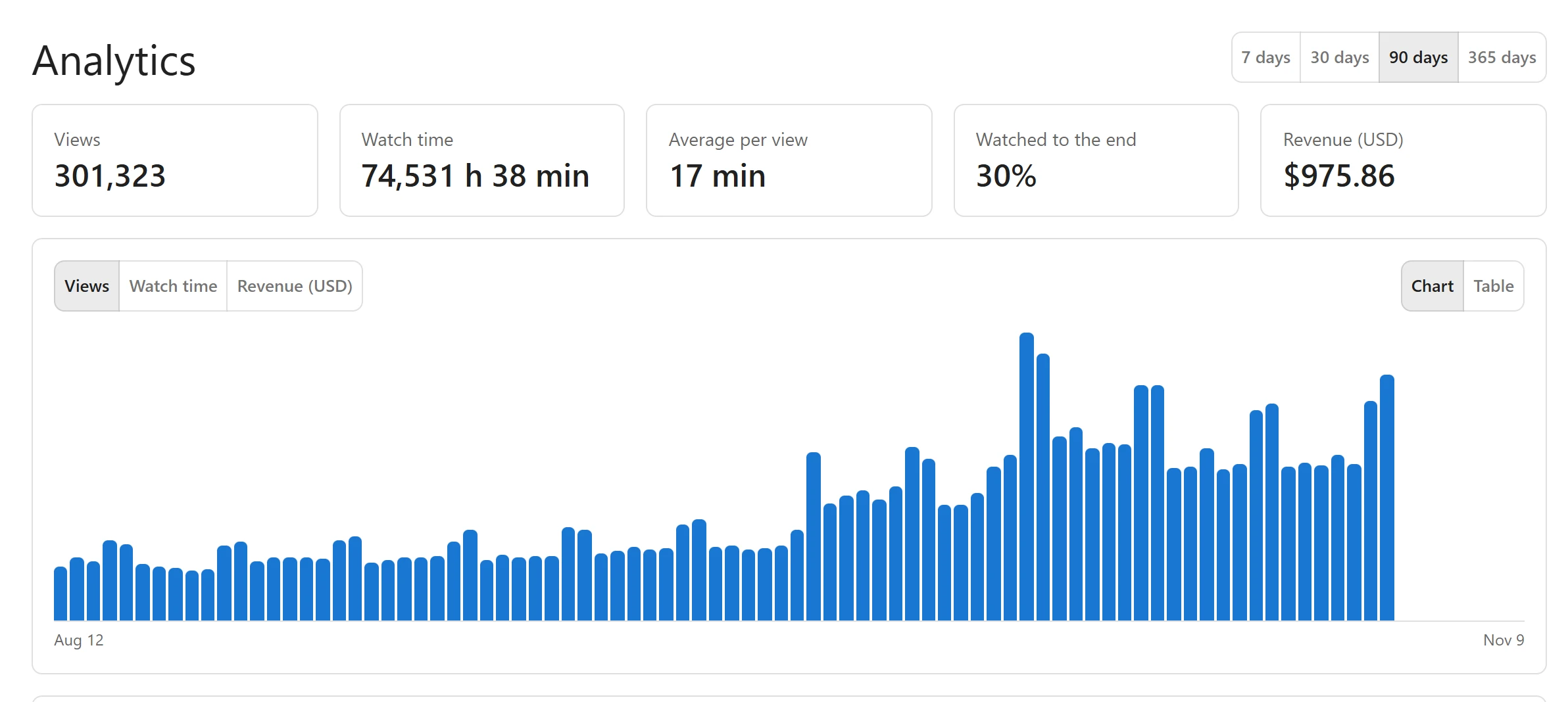
The buttons at the top right pick the period: 7 days, 30 days (the default), 90 days or 365 days. Each period ends today, on your site’s clock.
The tiles
| Tile | What it shows |
|---|---|
| Views | How many viewers started each video, added up over the period. |
| Watch time | The total time spent watching, shown as seconds, minutes or hours. |
| Average per view | Watch time divided by the views the plugin’s player measured. |
| Watched to the end | The share of those views that reached the end of the video. |
When nothing has been counted yet, the page says so: “Nothing yet. A view is counted once someone has watched a few seconds of a video.”
The chart
Under the tiles, one measure is charted per day. Use the left buttons to switch between Views and Watch time, and the right buttons to show the figures as a Chart or a Table. Hover or focus a bar to read that day’s exact figure.
Top videos
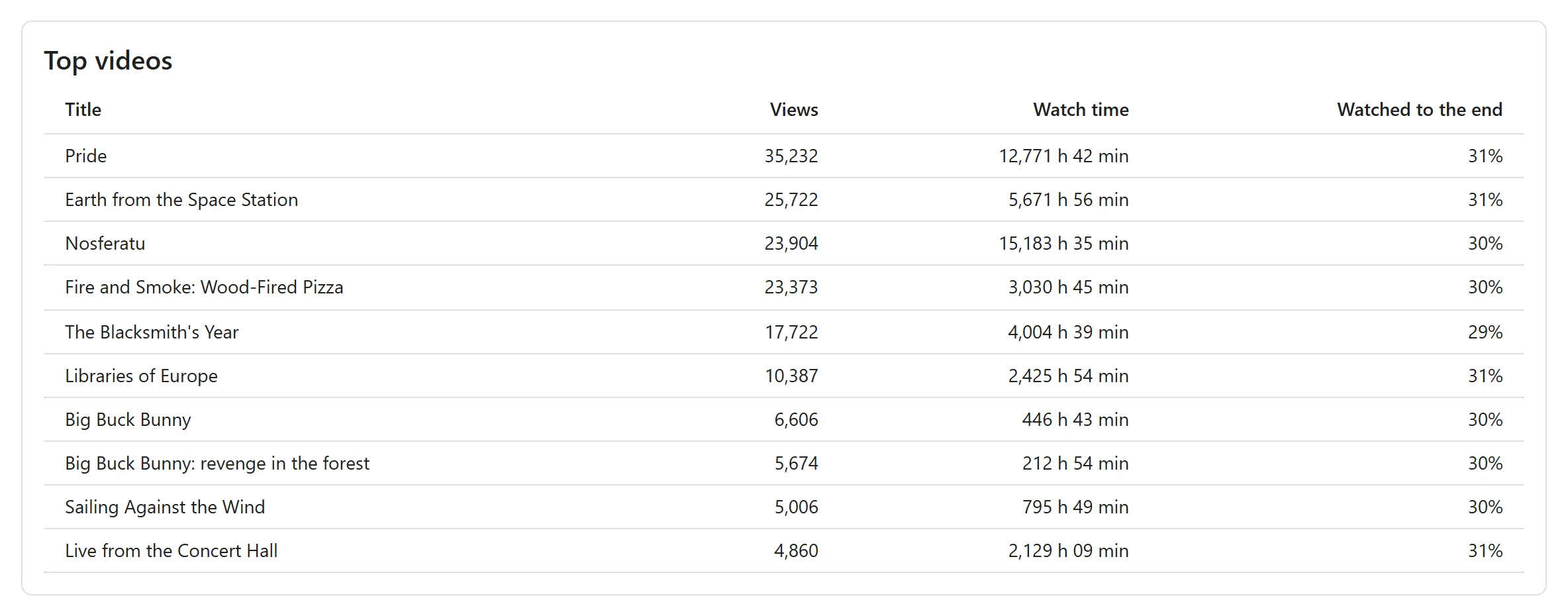
The Top videos table lists the ten most viewed videos in the period, with their Views, Watch time and the share Watched to the end. Click a title to open the video.
How a view is counted
- Uploaded and linked videos (HLS and MP4) play in the plugin’s own player. It reports nothing until the viewer has really watched about 3 seconds: that first report is the view. After that it sends the time watched, about every 30 seconds and when the viewer pauses or leaves. Seeking forward adds no watch time.
- YouTube and Vimeo videos play in their own player, which tells the plugin nothing. A view is counted when the viewer presses play, with no watch time and no “watched to the end”. That is why Average per view and Watched to the end leave them out.
- One viewer counts once per video per day, however often they reload the page.
- Bots are not counted. A request with no browser name, or one that names itself a bot, crawler, spider, preview tool, Lighthouse or a headless browser, is ignored.
- Limits against inflated figures. One report can add at most 120 seconds, and one viewer can add at most 6 hours of watch time to one video in a day.
The view count shown on a video’s page and used for “most viewed” lists is raised by the same counting, once per viewer per day.
Cookieless counting
To tell viewers apart without a cookie, the plugin makes a fingerprint of the viewer’s address, browser name and the video, using a secret key that is replaced every day. It is a one-way hash: the address and browser name are not stored, and the hash cannot be turned back into them.
Because the key changes daily, the same person cannot be recognised the next day or across two videos. The hashes themselves are deleted by a daily cleanup job, and yesterday’s key is overwritten. What stays is only the daily totals per video: views, plays, watch time and finishes.
Sites behind Cloudflare or a proxy
Behind a proxy, every visitor seems to come from the proxy’s address, so many viewers look like one and your views come out too low. Tell the plugin where the real address is:
- Open Plugixa Video -> Settings and choose the Analytics tab.
- Under Is your site behind a proxy? choose Yes, Cloudflare or Yes, another proxy or load balancer. Leave it on No otherwise.
- Click Save.
The tab shows a hint when the page itself reached you through Cloudflare or a proxy. Keep the setting on No if you have no proxy: the headers it reads could otherwise be faked by any visitor. See Settings.
Switching Analytics off
Switch the Analytics app off in the App manager and the page leaves the menu, the player stops reporting, and the figures stay in the database. Video view counts still go up, but only when a video’s source is loaded, as a ranking signal for related videos and “most viewed” lists.
More with Pro
Audience insights adds a retention curve per video, how often a video stops to buffer, revenue per day and a CSV export, on this same page.
Quick Links
Share