

Contents
On this page
Channels - Plugixa Video
A channel groups videos by creator or brand. It has a public page with a banner, its videos, its owner’s playlists and an About tab, and signed-in viewers can subscribe to it in one click. You can publish videos without any channel.
Channels are an app, on by default. Switched off, the channel screens, pages and subscriptions are hidden and their data is kept. See App manager.
The Channels list
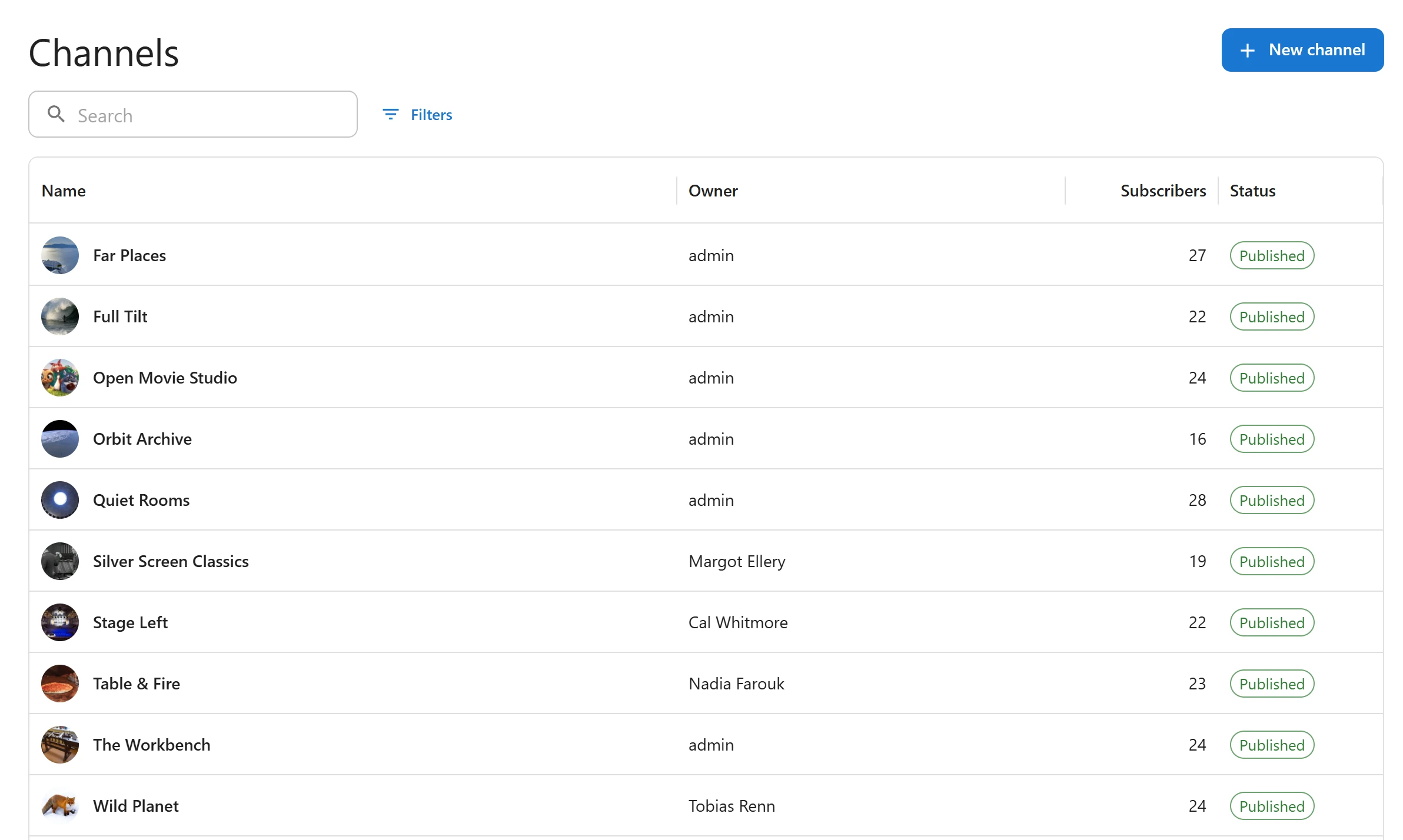
Open Channels in the sidebar.
| Column | What it shows |
|---|---|
| Name | The avatar and the channel’s name |
| Owner | The user the channel belongs to |
| Subscribers | How many signed-in viewers follow it |
| Status | Published, Draft, Pending review or Private |
The list has the same search box and Filters panel as the Videos list, with the fields Status and Created. Creators PRO see only their own channels. See Videos.
Create a channel
-
Open Channels and click New channel.
-
Fill in the form:
Field What it is Name Required. The channel’s title. About The text on the channel’s About tab Links Add link adds a Label and a URL, for example the creator’s website or social profiles Status Published makes the page public. Avatar A square image, shown on the page, in the channel grid and on subscriptions Banner A wide image (4 to 1) across the top of the channel’s page -
Click Save.
The channel belongs to the user who created it. That user is its Owner.
With Pro, the form also has a Channel look panel PRO, used on the channel’s page and on its videos, and the Custom fields you defined for channels PRO. See Appearance and Custom fields.
Put videos in a channel
Open a video and choose the channel under Channel, in the Classification panel. A video has one channel at most. Creators PRO can only choose a channel they may edit. See Creators and moderation.
The channel page
Each published channel has its own page at /channel/<slug>, for example
/channel/far-places. You can also show one channel anywhere with its shortcode:
[pvx_channel id="692"]
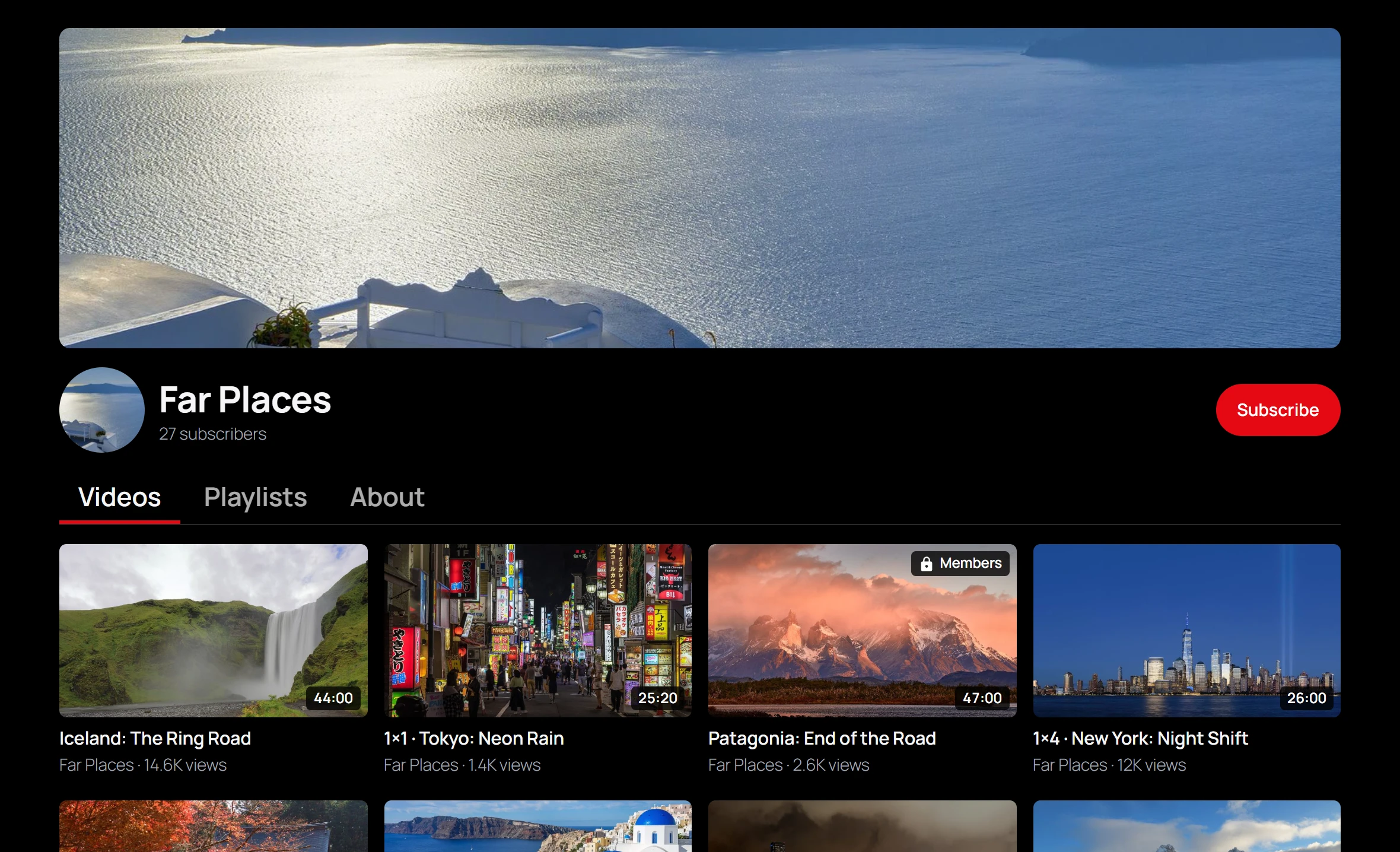
| Part | What it shows |
|---|---|
| Banner, avatar and name | From the channel form |
| Subscriber count | Such as “27 subscribers” |
| Subscribe | Follows the channel. It reads Subscribed once followed. |
| Videos | The channel’s published videos, 24 at a time |
| Playlists | The public playlists of the channel’s owner, while the Playlists app is on |
| About | The About text, and the links |
To list every channel, use [pvx_channels]. It shows a grid of published channels with
their avatar and subscriber count. See Shortcodes
and Blocks.
Subscriptions
Signed-in viewers subscribe with the Subscribe button, on the channel’s page or under a video of that channel. Clicking again unsubscribes. A visitor who is not signed in is sent to the sign-in page.
Only a published channel can be subscribed to. Subscribers see:
- New from your subscriptions on the Home tab of their library;
- the Subscriptions feed tab: the latest published videos of every channel they follow, newest first;
- the Subscriptions tab: the channels they follow.
See Member library. With Pro, members can also get a badge and email digests of new videos PRO, see Notifications.
When a user is deleted, their subscriptions are deleted too. When a channel is deleted for good, its subscriptions go with it.
Quick Links
Share