

Contents
On this page
Uploading and encoding - Plugixa Video
Uploading and encoding PRO lets you upload video files straight from the video form. When your server has FFmpeg, the plugin converts each upload into adaptive HLS in the background, so viewers get the best quality for their connection. Without FFmpeg, a file browsers can play is published as uploaded.
Uploading and encoding is part of Pro. The free plugin plays videos you link instead: a YouTube or Vimeo link, a link to an MP4 or HLS file, or an MP4 picked from the WordPress media library. See Video sources.
Uploads are part of the Uploads and transcoding app, on by default in Pro. See App manager.
Upload a file in the video form
- Open Videos and click New video, or open an existing video.
- Under Video, choose Upload a file.
- Drop the file on the box, or click Choose a file.
On a new video, the file becomes a draft at once, named after the file unless you typed a title. The upload starts straight away and shows its progress with a Cancel button.
| Limit | Value |
|---|---|
| File types | MP4, M4V, MOV, MKV, WEBM and AVI |
| Largest file | 4096 MB by default. Change it with Largest upload in Settings -> Uploads and transcoding. |
Files are sent in chunks of up to 8 MB, so the PHP upload limit of your host does not cap the size of a video. A chunk that fails on a network blip is sent again. An upload that was abandoned is cleared by a daily job after a day.
When the upload finishes, the server reads the file’s size, resolution and length, sets Duration (seconds), and makes a poster from a frame 10% into the video if the video has no poster yet.
Publish automatically when the video is ready
While the video is a draft, the panel offers Publish automatically when the video is ready. Tick it and leave the page if you like: the video goes live by itself as soon as it can play. If the first quality is still converting, it waits for that quality rather than send the first viewers through the original file.
The label follows the Status you picked: with Unlisted or Private chosen, it reads Make it unlisted automatically when the video is ready or Make it private automatically when the video is ready. If someone changes the status by hand in the meantime, that choice stands. For a creator whose videos need review, the video goes to Pending review instead. See Creators and moderation.
Upload several videos
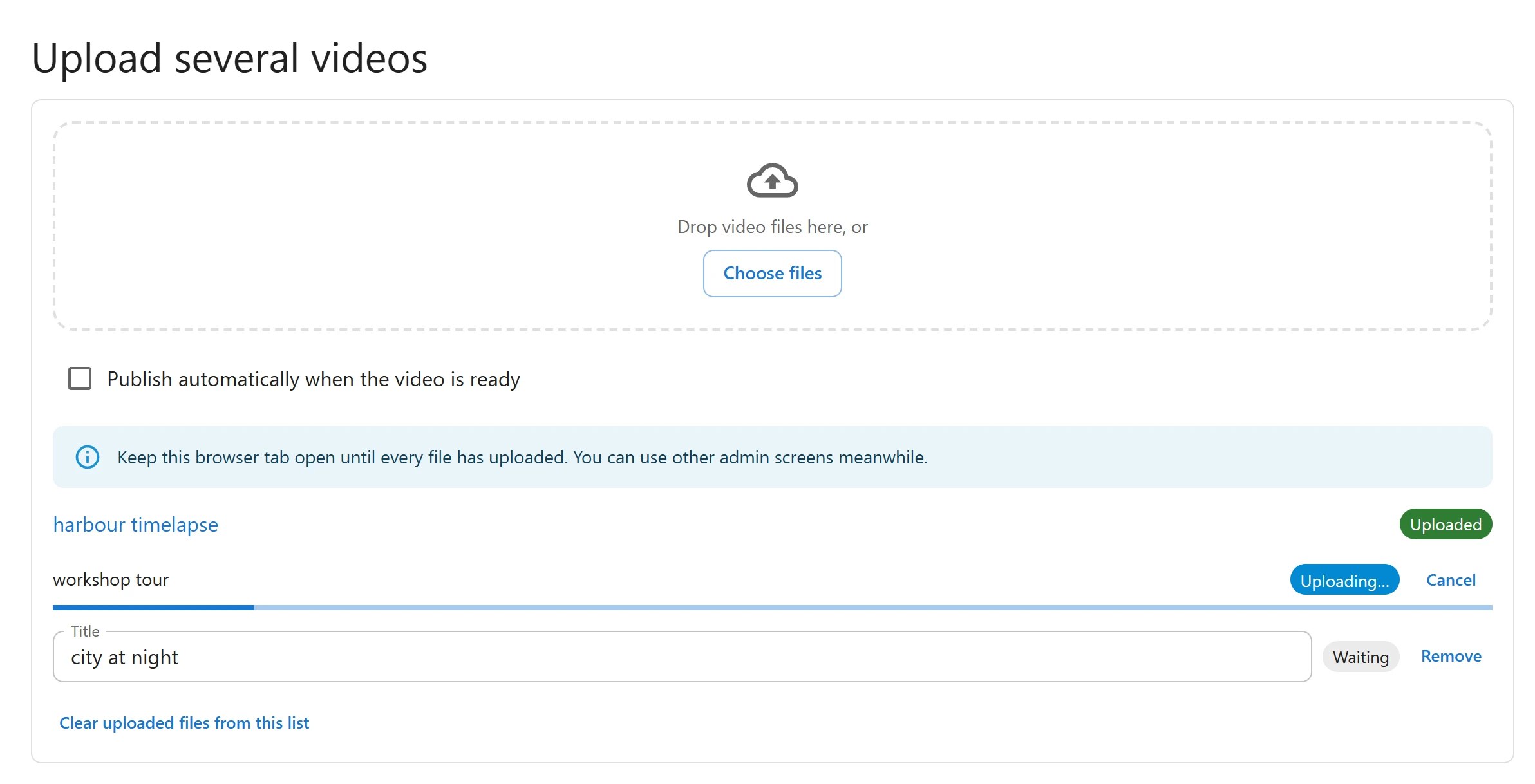
- Open Videos and click Upload several videos.
- Tick Publish automatically when the video is ready if each video should go live by itself.
- Drop the files on the box, or click Choose files.
Each file becomes a draft named after the file, and the files upload one at a time, because many hosts limit how many PHP requests can run at once. While a file is Waiting, you can change its title. When it is Uploaded, its title links to the video. A file that Failed has Try again.
Keep the browser tab open until every file has uploaded. You can use other admin screens meanwhile. Clear uploaded files from this list tidies the list.
With FFmpeg: adaptive HLS
When FFmpeg is available, conversion starts by itself after each upload, unless you untick Convert videos automatically after upload in Settings -> Uploads and transcoding. Every quality the file allows is queued.
| Quality | Video bitrate |
|---|---|
| 720p | 2800 kbps |
| 480p | 1400 kbps |
| 360p | 800 kbps |
Each quality is encoded as H.264 with AAC stereo audio at 128 kbps, in 6-second segments. A quality higher than the uploaded file is not offered, because it would only be upscaled. A file a few lines short of a quality, such as 1072 lines, still gets that quality.
When browsers can play the uploaded file, the video plays from it until the first quality is ready, then switches to HLS by itself. The player picks the quality for each viewer’s connection, and viewers can also choose one.
Higher quality PRO
Every Pro licence converts to 360p, 480p and 720p, and adds 1080p to Qualities to generate. 1440p and 2160p (4K) need the Pro licence for unlimited sites. A quality above your plan shows greyed out, with “Generated and served up to” under the boxes. After a downgrade or an expired licence, qualities already converted above the new limit are kept but no longer served. See Free vs Pro.
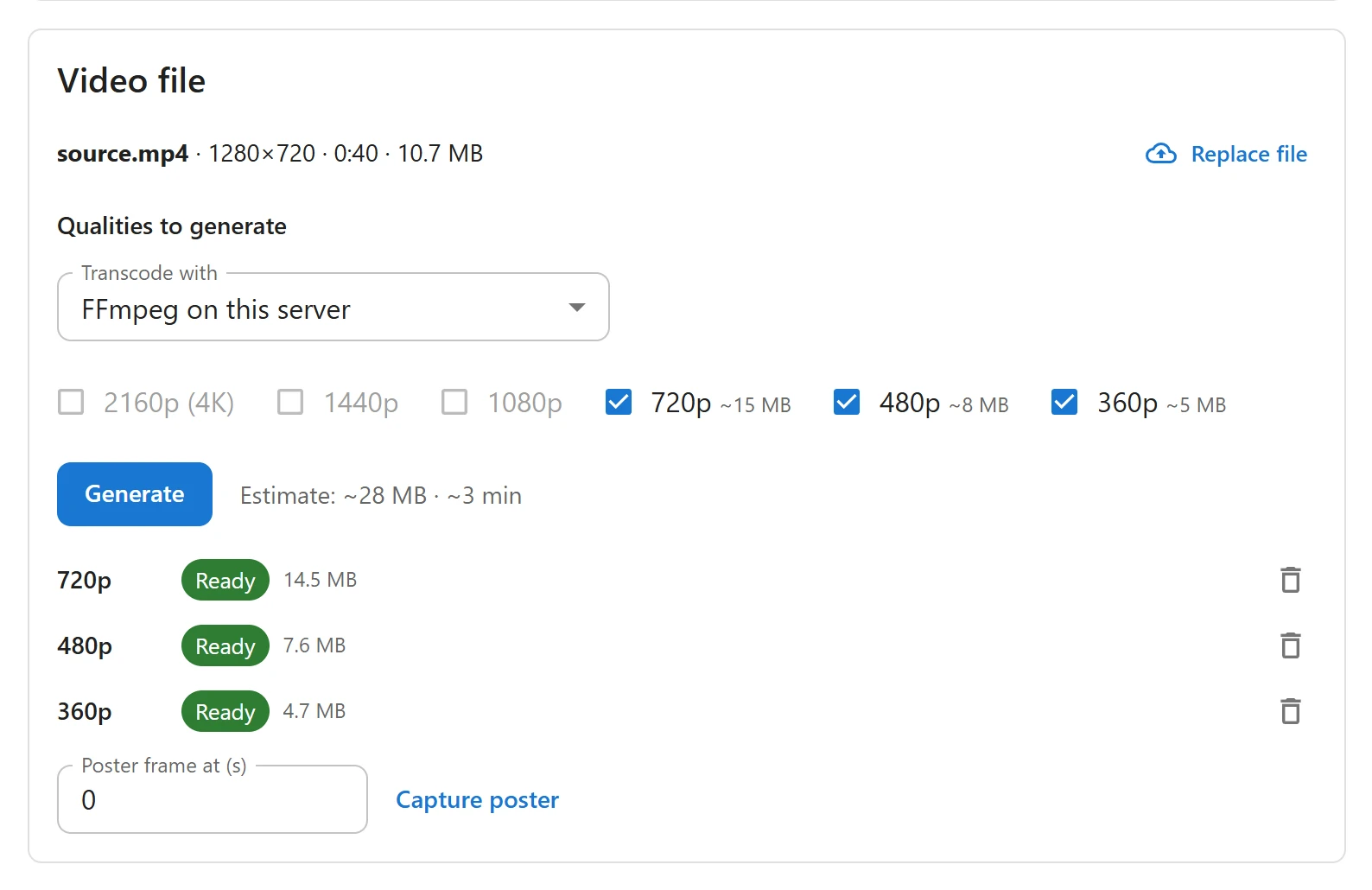
The Video file panel
| Part | What it does |
|---|---|
| File line | The file name, resolution, length and size, with Replace file |
| Qualities to generate | Tick the qualities you want. Each shows its estimated size. |
| Transcode with | Shown when more than one conversion service is available |
| Generate | Queues the ticked qualities. Estimate shows the total size and time. |
| Quality rows | Each quality with its state: Queued, Encoding…, Ready or Failed |
| Poster frame at (s) | Type a second and click Capture poster to make that frame the poster |
A quality that Failed, or that is taking too long, has Try again. The bin icon deletes a quality that is not encoding. Replace file uploads a new file for the same video.
How conversion runs
Conversion never runs during a page view. Each quality is one job in a background queue, and a job may run for up to 6 hours. The queue runs when your site gets traffic, or from a server cron job running WP-Cron. A quality waiting more than 15 minutes, or encoding more than 7 hours, counts as stuck.
Without FFmpeg
Your server cannot convert videos when FFmpeg is not installed, or when the host has
disabled PHP’s proc_open(). That is fine:
- A file browsers can play, such as an MP4 with H.264 video, is ready to publish as soon as it is uploaded. The panel says: “This video is ready to publish and will play as uploaded.” Viewers get one quality, and long or busy videos may load slowly.
- A file browsers cannot play, such as an MKV or AVI file, cannot be published. Export it as an MP4 (H.264) and upload it again, or use a YouTube, Vimeo or MP4 link.
- Your browser takes the poster frame instead of the server, when it can play the file.
The original file is streamed through PHP, so each viewer holds a PHP worker while watching. This is why a converted quality always takes over when there is one.
Finding FFmpeg
The plugin uses, in this order:
- The
PLUGIXA_VIDEO_FFMPEGconstant, if you define it inwp-config.php. - FFmpeg location in Settings -> Uploads and transcoding. Only an existing file
named
ffmpeg(orffmpeg.exe) is accepted. ffmpegon the server’s PATH.
FFprobe is looked for in the same folder, with the same naming. The Server check in the same settings tab shows whether PHP can start programs, FFmpeg, FFprobe, free disk space, the upload chunk size and the background queue. Click Check again after a change. See Settings.
Conversion warnings
When conversion has a problem, a warning appears on the WordPress Dashboard, the Plugins screen and the plugin’s own screens, for users who may change settings:
| Warning | What to do |
|---|---|
| Videos are waiting to be converted, but this server can no longer convert them | Fix FFmpeg, or choose another conversion service |
| A video conversion is stuck | Ask your host to run WP-Cron from a server cron job, then press Try again on the video |
| A video conversion failed this week | Press Try again. If it fails again, export the file as an MP4 and upload it again. |
| Only a little disk space is left for videos | Shown under 1 GB. Free up space or ask your host for more. |
Each warning has Hide for a week. A server without FFmpeg gets no warning by itself: only conversions waiting for it do.
Where the files are stored
Uploads live in wp-content/uploads/plugixa-video/. Each video gets its own folder named
after its id and a random string, so a video’s files cannot be guessed from its id:
wp-content/uploads/plugixa-video/
  708-k3j9x2.../
    source.mp4        the uploaded file
    master.m3u8       the list of qualities
    720p/index.m3u8   one playlist per quality
    720p/seg_0000.ts  the 6-second segments
The plugin writes an .htaccess file into this folder that blocks directory listings and
direct access to playlists, original files and unfinished uploads. Playlists are served
only through a signed link, see
Access control. Segments are plain files
your web server sends directly.
A video’s folder is deleted when the video is deleted for good, not when it goes to the trash.
nginx
nginx ignores .htaccess files. Add this rule to your site’s server block, so playlists,
original uploads and partial uploads cannot be opened directly:
location ~* /uploads/plugixa-video/.*(\.m3u8|\.part|/source\.[^/]*)$ { deny all; }
Bunny Stream
You can also hand conversion and delivery to Bunny Stream instead of your server. See Bunny Stream.
Quick Links
Share