

Contents
On this page
Video sources - Plugixa Video
A video plays from one source. You choose it in the Video panel of the video form, and every source plays in the same player with the same controls.
| Choice | Source saved | Plays |
|---|---|---|
| Upload a file PRO | Your file, converted to HLS when the server can, or as uploaded | From your site |
| YouTube or Vimeo | youtube or vimeo |
In an embed from YouTube or Vimeo |
| Link to a video file | hls for a link ending in .m3u8, otherwise mp4 |
From the address you entered, as it is |
Switching between the choices keeps what you typed under each, until you save.
The free plugin offers YouTube or Vimeo and Link to a video file, including an MP4 picked from the WordPress media library. Upload a file comes with Pro.
Upload a file
Part of Pro PRO.
Choose Upload a file and drop a file, or click Choose a file. The file is stored on your server and, when FFmpeg is available, converted into adaptive HLS with several qualities. This choice is part of Pro, and is offered while the Uploads and transcoding app is on.
Everything about uploads, from file types to qualities, is on Uploading and encoding.
Link to a video file
Use this for a file or stream that is already hosted somewhere: your CDN, a video host or your media library.
- Choose Link to a video file.
- Paste the address into Video file link, or click Library to pick a video from the WordPress media library.
- Save.
| Link | Example | Notes |
|---|---|---|
| HLS stream | https://cdn.example.com/films/sintel/master.m3u8 |
Adaptive quality, with automatic and manual quality choice in the player. Subtitles carried in the stream can play too. |
| MP4 file | https://example.com/video.mp4 |
One quality. |
A linked file plays as it is, without conversion. The player loads its HLS engine only for HLS videos. If you paste a YouTube or Vimeo link here, the form switches to YouTube or Vimeo for you.
A link you enter is as protected as the server that hosts it. See Access control.
YouTube or Vimeo
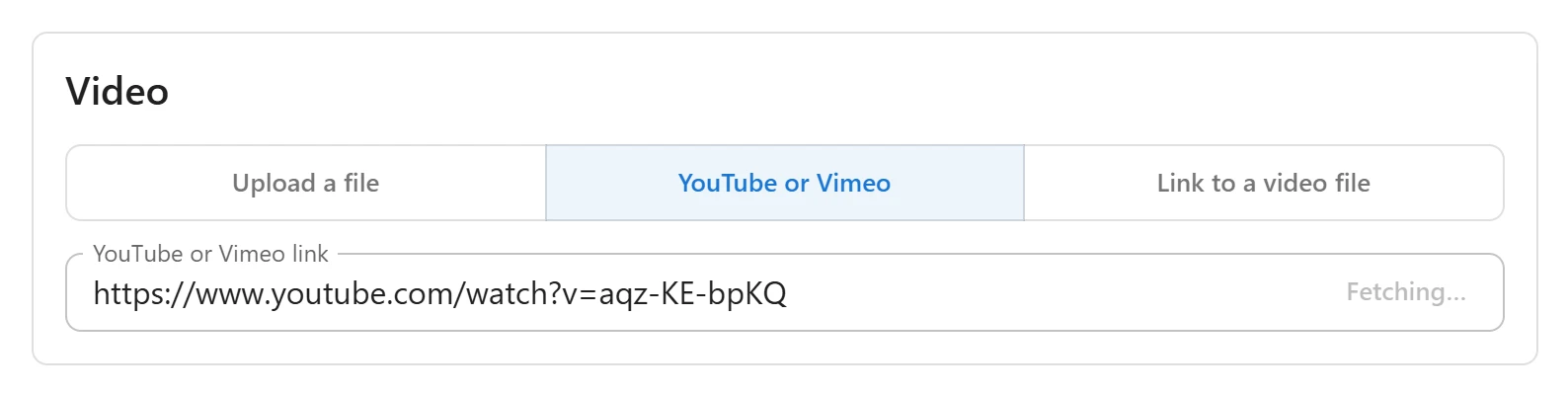
- Choose YouTube or Vimeo.
- Paste the link into YouTube or Vimeo link.
- On a new video, the details are fetched as soon as you leave the field. At any time, you can click Fetch details at the end of the field.
- Check the fields, then save.
These link forms are recognized:
| Provider | Forms |
|---|---|
| YouTube | youtube.com/watch?v=..., youtu.be/..., youtube.com/embed/..., /shorts/..., /live/... and youtube-nocookie.com links |
| Vimeo | vimeo.com/123456789, with the privacy hash of an unlisted video (vimeo.com/123456789/abcdef1234 or ?h=...), and channel and group links |
A link that is neither shows “This is not a YouTube or Vimeo link.” under the field.
What Fetch details fills in
Your site asks the provider’s public oEmbed service about the link. No API key is needed.
| Field | YouTube | Vimeo |
|---|---|---|
| Title | Yes | Yes |
| Description | No | Yes |
| Duration (seconds) | No | Yes |
| Poster | Yes | Yes |
Only fields that are still empty are filled: what you typed is never replaced. The poster is copied into your media library, and only when the video has none yet. For YouTube, the largest thumbnail is tried first.
If nothing is found, the form says “No details were found for this video. It may be private or removed.” Fill in the fields yourself and save: the video still plays.
Privacy-friendly embeds
- YouTube videos play from youtube-nocookie.com, the privacy-enhanced domain.
- Vimeo videos play with Do Not Track switched on.
- The embed loads in the visitor’s browser only on pages that show that video.
Your server builds the embed address from the stored link itself, without asking YouTube or Vimeo anything when a visitor watches. Your server contacts them only when an editor fetches a link’s details. Both services are listed with their terms in Privacy and uninstall.
Members-only access applies on your site. It cannot stop someone watching the same video on YouTube or Vimeo, so keep a members-only video private or unlisted there too.
Changing the source
You can change a video’s source at any time: choose another option and save. With Pro, uploading a file replaces any link the video had. It stays the same video, with the same page and shortcode.
Quick Links
Share