

Contents
On this page
The player - Plugixa Video
Every video on your site plays in the same player, whether it is an HLS stream, an MP4 file,
or a YouTube or Vimeo link. It appears on each video’s own page, and wherever you place it
with the [pvx_video] shortcode, the Plugixa Video block or the Elementor widget.
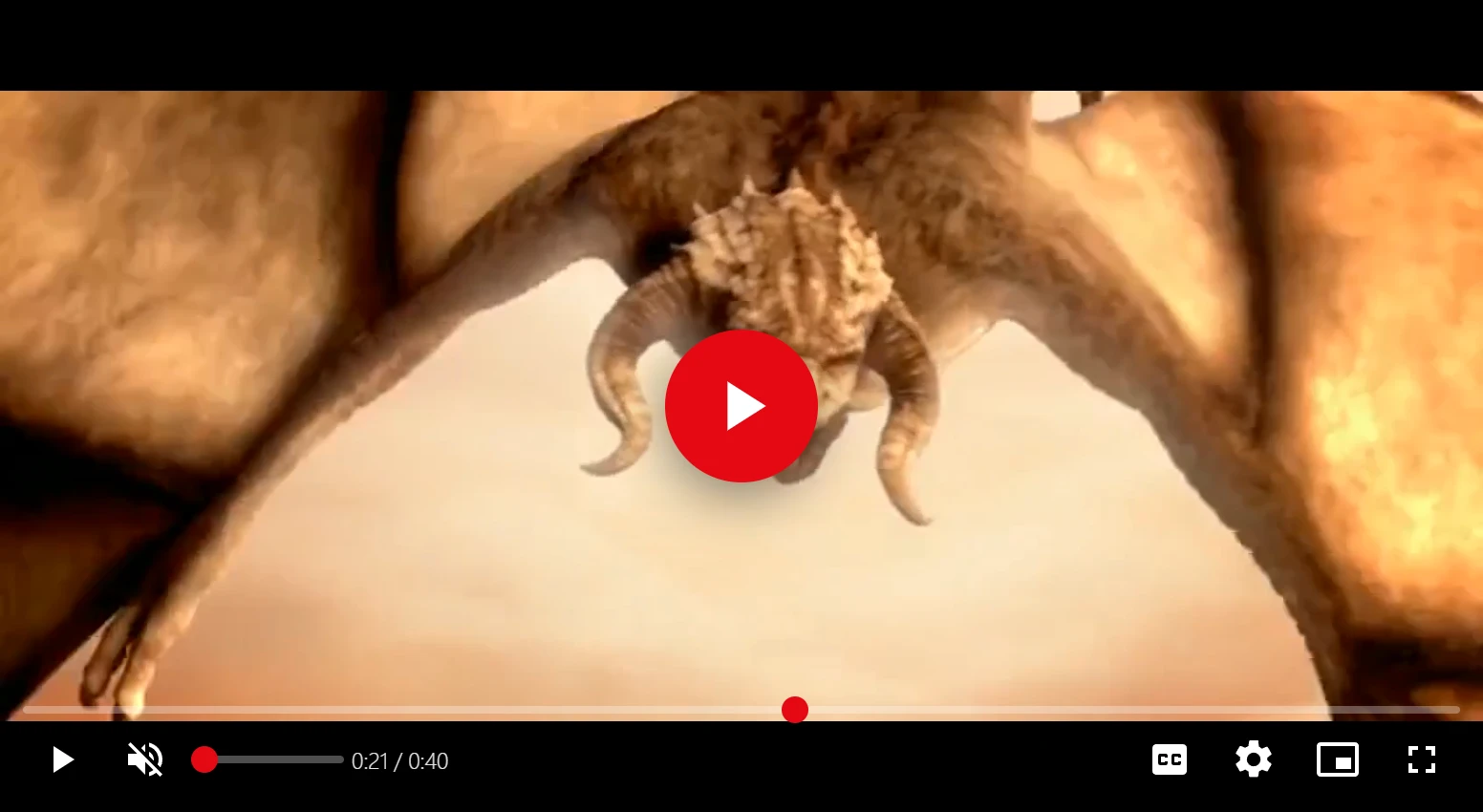
What viewers see
The control bar sits along the bottom of the video:
| Control | What it does |
|---|---|
| Timeline | Shows how far the video has played. Drag or click it to jump. |
| Play / Pause | Starts and stops the video. A click on the picture does the same. |
| Mute and Volume | Mute, and a volume slider. The slider is hidden on narrow screens. |
| Time | The current time and the length, such as 3:40 / 26:00. |
| Chapter name | The chapter playing now, when the video has chapters. |
| Subtitles PRO | Turns subtitles on and off. Only shown when the video has subtitles. |
| Settings | Opens the menu for quality, speed, audio, subtitles and chapters. |
| Picture-in-picture | Only shown in browsers that support it. |
| Full screen | Fills the screen with the player, and Exit full screen leaves it. |
Subtitles and their controls are part of Pro. See Subtitles and transcript.
While a video plays, the controls hide after 2.5 seconds without mouse movement, and come back as soon as the pointer moves or the player gets keyboard focus.
The Settings menu
The Settings button opens a menu with a group for each thing the viewer can change. A group only appears when there is a choice to make.
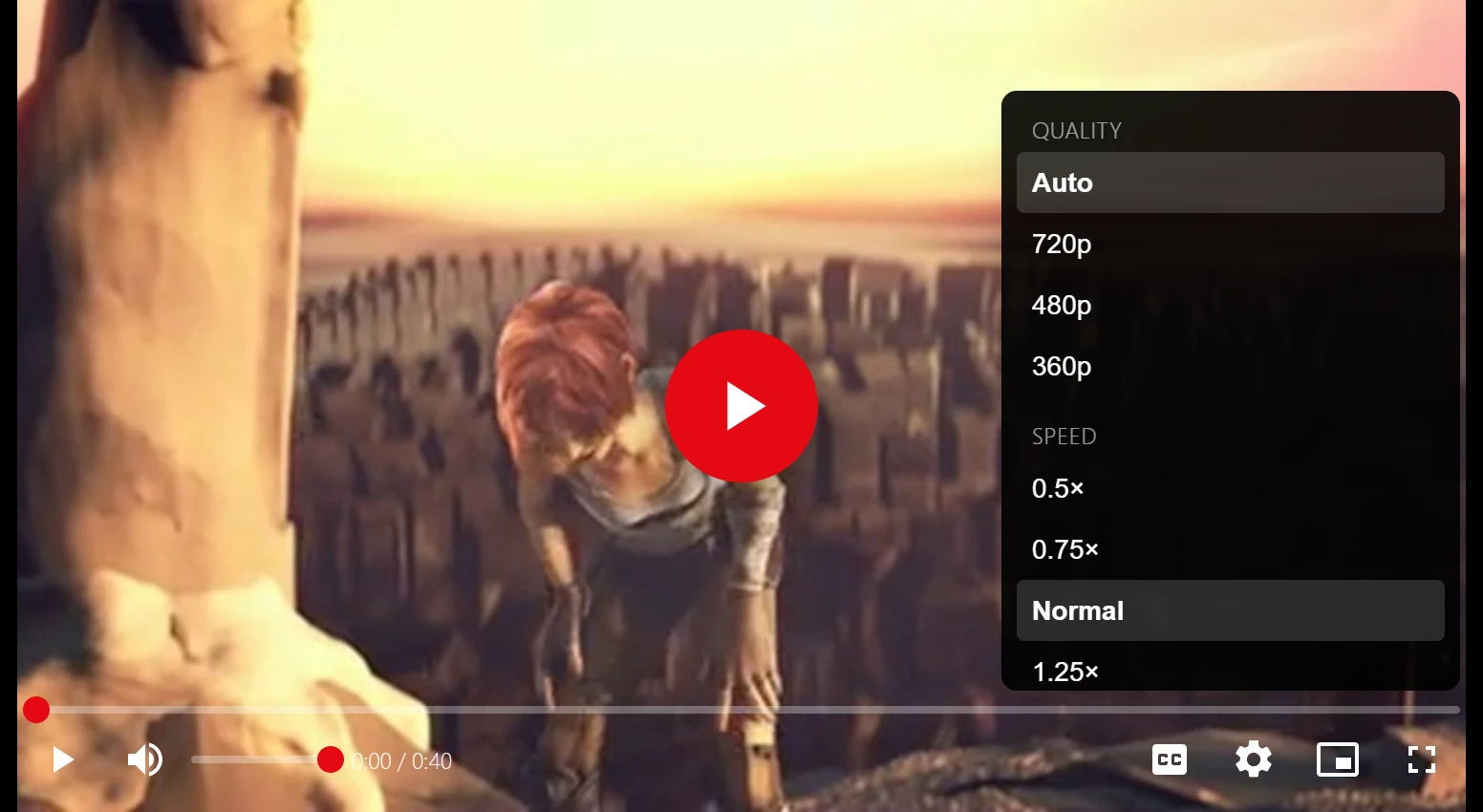
| Group | Choices |
|---|---|
| Quality | Auto and each quality of an HLS stream, highest first, such as 720p, 480p and 360p. |
| Speed | 0.5×, 0.75×, Normal, 1.25×, 1.5× and 2×. |
| Audio | The video’s audio tracks, when it has more than one. See Audio tracks. |
| Subtitles PRO | Off and each subtitle language. |
| Subtitle size, Subtitle background PRO | See Subtitles and transcript. |
| Chapters | Each chapter with its start time. Click one to jump there. |
Quality: automatic and by hand
An HLS video plays in Auto quality by default: the player picks the quality the connection can carry, and never one larger than the player is on screen. The viewer can choose a quality by hand in the menu, and the switch happens at the next piece of video, without a pause. Choosing Auto again goes back to automatic.
The Quality group only appears when the video has more than one quality, so an MP4 file has none. In Safari and on iPhone and iPad, HLS plays through the browser’s own engine, which chooses the quality itself, and the menu has no Quality group there.
Keyboard shortcuts
The shortcuts work while the player has focus: click it, or reach it with the Tab key.
| Key | Action |
|---|---|
| Space or K | Play or pause |
| J / L | Back or forward 10 seconds |
| Left arrow / Right arrow | Back or forward 5 seconds |
| Up arrow / Down arrow | Volume up or down by 10% |
| M | Mute or unmute |
| F | Full screen on or off |
| C | Subtitles on or off PRO |
| I | Picture-in-picture on or off |
| 0 to 9 | Jump to 0% to 90% of the video (5 jumps to the middle) |
| Escape | Close the Settings menu |
Shortcuts are ignored while Ctrl, Cmd or Alt is held, so browser shortcuts keep working, and while the timeline or volume slider has focus, where the arrow keys move the slider.
Picture-in-picture and full screen
Picture-in-picture moves the video into a small floating window, so the viewer can keep watching while scrolling the page or using another tab. The button only shows in browsers that offer it.
Full screen fills the screen with the whole player, controls included. On iPhone, where a web page cannot take over the screen, the video itself goes full screen with the phone’s own controls.
Touch screens
On a phone or tablet, a tap on the picture plays or pauses. Videos play inside the page instead of jumping to the phone’s full-screen player. On narrow screens the volume slider is hidden: use the Mute button or the device’s volume buttons.
Resume where you left off
For viewers who are signed in, the player remembers where they stopped, and the next time they open the video it starts from there, on any device, with the note “Resumed where you left off”.
The position is saved every 15 seconds of playback, when the viewer pauses, when the video ends and when they leave the page. The player starts from the beginning instead when:
- they stopped in the first 5 seconds;
- they stopped in the last 10 seconds;
- they watched at least 95% of it, which counts as finished.
Turn it off with Resume videos where signed-in viewers left off in Settings -> General -> Player. It is on by default. Guests have no saved position. The same saved positions fill Continue watching in the member library.
A link to a moment, such as https://example.com/video/sintel/?t=120, starts at that second
instead, whatever was saved. With several players on one page, the link applies to the first.
YouTube and Vimeo videos
A YouTube or Vimeo video first shows its poster and a play button, and nothing is loaded
from YouTube or Vimeo until the viewer clicks it. Then their own player opens in place, with
their controls: the menu, shortcuts, subtitles and chapters above belong to the plugin’s
player and apply to HLS and MP4 videos. YouTube videos load from youtube-nocookie.com, and
Vimeo videos with Do Not Track. See
YouTube and Vimeo.
Autoplay
A player placed with autoplay="true", or with Autoplay switched on in the block or
Elementor widget, starts on its own once it loads:
[pvx_video id="706" autoplay="true"]
Browsers decide whether that is allowed, and most refuse to start a video with sound before the viewer has interacted with the site. The player does not mute the video to force it, so in that case it simply waits for a click. A YouTube or Vimeo video with autoplay loads its player straight away instead of waiting for the click.
When a video cannot be played
A viewer without access sees the poster with a message instead of the controls:
| Situation | Message |
|---|---|
| A guest on a video for signed-in viewers | “Sign in to watch this video.” with a Sign in button |
| A signed-in viewer on a members video | “This video is for members.” |
| A viewer whose access does not include the video | “This video is not included in your access.” |
| The file cannot be played | “This video could not be played.” |
Who may watch what is set per video. See Access control.
Light on your pages
- The player’s script and styles load only on pages that show a video or one of the plugin’s pages. Other pages of your site load nothing from it.
- The HLS engine is a separate file, downloaded only for an HLS video.
- A player further down the page starts loading when it comes near the screen, so a page with many videos does not load them all at once.
- The player’s box has its final size before any script runs: 16:9, and at full width never taller than the screen. Nothing on the page moves when the video appears.
- The page never contains the video’s address. The player asks your server for it, which checks access first, so a cached page cannot give away a members video.
How wide the player renders in your theme is set in Appearance. For every way to place it, see Shortcodes, Blocks and Elementor widgets.
Quick Links
Share