

Contents
On this page
YouTube and Vimeo import - Plugixa Video
The Import page PRO brings YouTube and Vimeo videos into your library in bulk. Find them by searching, by opening a channel or playlist, or by pasting a list of links, tick the ones you want and import them with one set of settings. A channel or playlist can also be kept in sync, so its new uploads arrive on their own.
Imported videos stay on YouTube or Vimeo and play as embeds, exactly like a video you add by hand with a YouTube or Vimeo link (see Video sources). Only the thumbnail is downloaded, to become the video’s poster.
YouTube & Vimeo import is an app in the App manager, on by default in Pro.
API key and access token
Pasted links work without any key. Searching, opening a channel or playlist, and auto-sync read the host’s API, so they need the site’s own key. Add them in Settings -> Import:
| Field | Where to get it |
|---|---|
| YouTube Data API key | In the Google Cloud console, under APIs & Services: enable “YouTube Data API v3” and create an API key. |
| Vimeo access token | On developer.vimeo.com, under My apps: create an app and generate an access token. The “Public” scope is enough; add “Private” to list your own unlisted videos. |
Both are write-only: once saved they are never shown again, only the fact that one is stored. Type a new value to replace it, or press Remove and save. Without a key, the matching tabs say “Searching and reading channels uses the YouTube API: add a key in Settings → Import.”
With a YouTube key saved, the video form’s free Fetch details also fills in the duration, description and channel name from the API.
YouTube gives each key 10,000 free API units a day. A search page uses 100 of them; a channel or playlist page uses about 2. When the day’s units are used up, YouTube answers “The YouTube API quota for today is used up. It resets at midnight Pacific time.”
Importing videos
Open Import in the app’s sidebar. Anyone who can add videos can import.
1. Choose the import settings
The Import settings bar at the top applies to every video of the import. Click it to open it.
| Setting | Default | Notes |
|---|---|---|
| Status | Draft | Draft, Pending review, Published or Private. |
| Access | Free | Free, Members or Paid, with a Price for paid videos. See Access control. |
| Channel | No channel | The import is refused for a channel you may not add videos to. |
| Categories | Added to every video. | |
| Copy the video’s tags | On | Tags from YouTube or Vimeo. Missing tags are created only if you may create tags; otherwise only existing ones are used. |
| Keep the original publish date | On | The date the video was published on YouTube or Vimeo. |
Videos are created as you, through the same checks as the video form: a Creator’s imports wait for review, as their own videos would (see Creators and moderation).
2. Find the videos
| Tab | How it works |
|---|---|
| Search | Pick YouTube or Vimeo, type words and click Search. 25 results a page. |
| Channel / playlist | Paste a link and click Open. YouTube: a channel (youtube.com/@name, /channel/UC…, /user/name) or a playlist (a link with ?list=). Vimeo: an account (vimeo.com/name), /channels/…, /groups/… or /showcase/…. Newest first. |
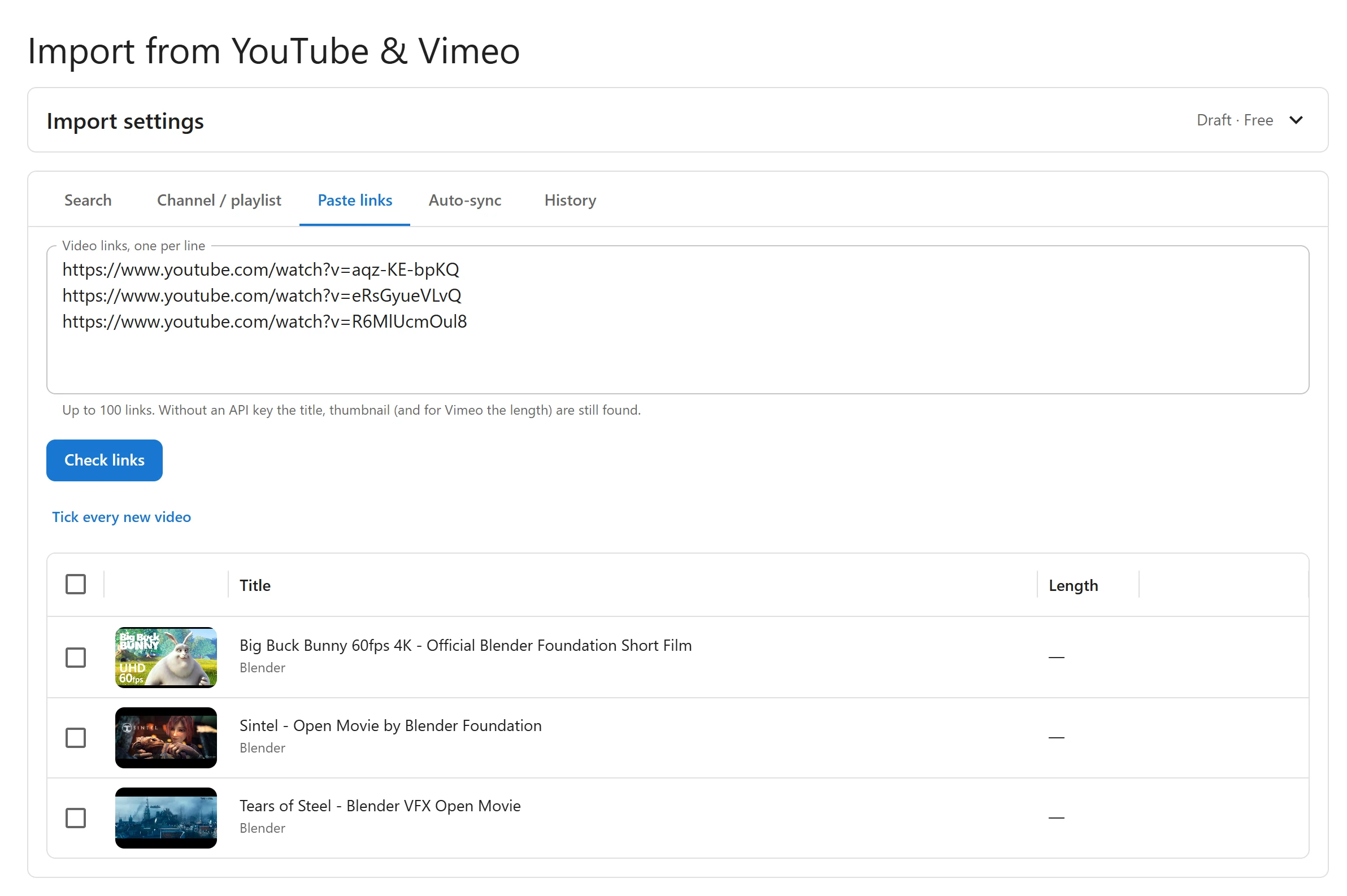
| Paste links | One video link per line, up to 100, then Check links. Without an API key the title and thumbnail (and for Vimeo the length) are still found. Tick every new video ticks them all. |
Each result shows the thumbnail, title, channel, date and Length. A video already in your library shows In the library and cannot be ticked; that includes videos you added by hand with the same link. A pasted line that cannot be imported shows the reason, such as “Not a YouTube or Vimeo video link.” or “Listed twice.” Private and deleted videos are left out.
Ticks are kept while you change pages and tabs.
3. Import
The bar at the bottom shows how many videos are ticked. Click Import. Up to 500 videos go in one import. “Importing 12 videos in the background. You can leave this page.”
The page switches to History, which lists recent imports with their counts, for example “10 imported, 2 already there, 0 failed, of 12”. Click Details to see each video’s result: Imported, Already there, Failed with the reason, or Waiting. Editors who may edit others’ videos see everyone’s imports; others see their own.
A video already in the library is skipped, never duplicated.
Auto-sync
The Auto-sync tab keeps channels and playlists in step with your library. It is shown to users who can manage the plugin’s settings, and needs the host’s key.
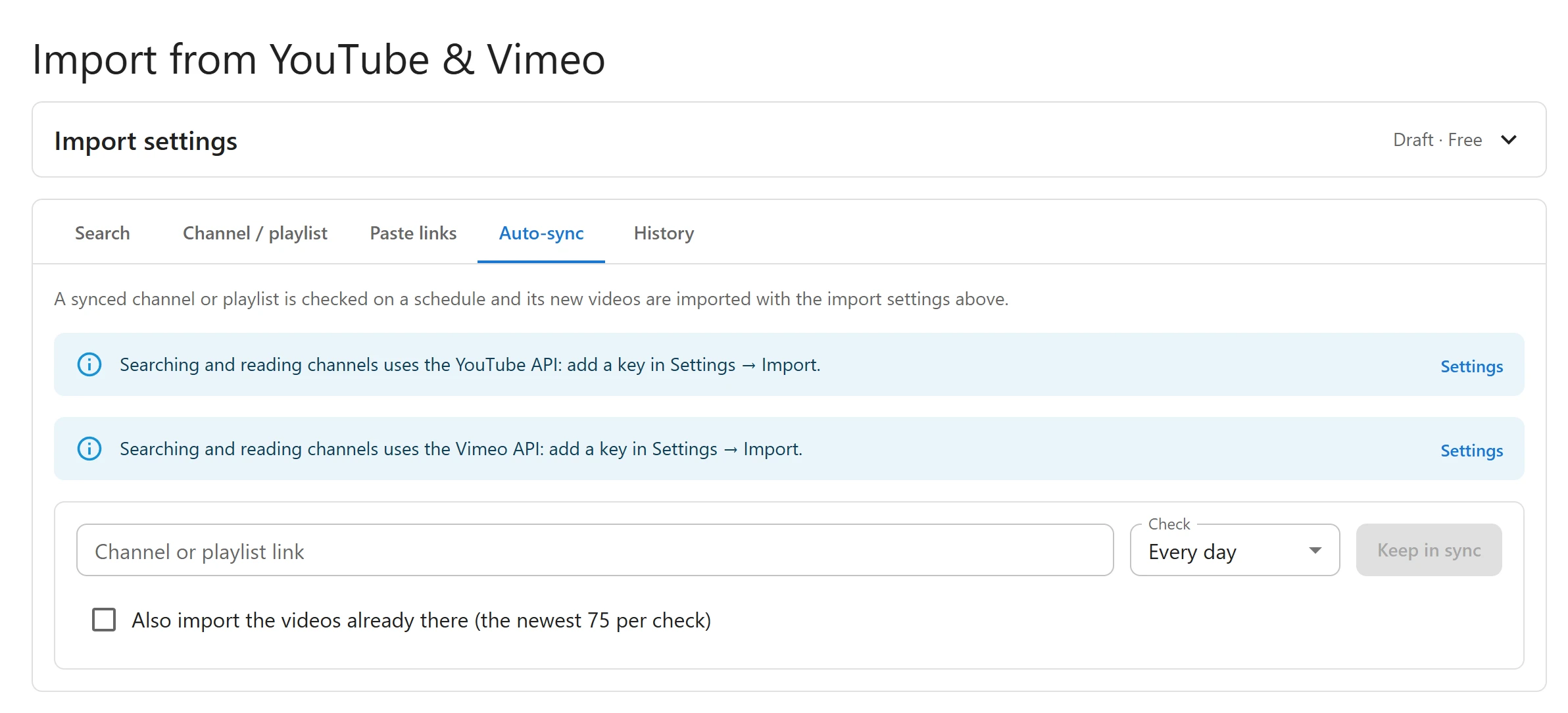
- Set the Import settings bar first: a feed keeps the settings it was created with.
- Paste a channel or playlist link.
- Choose how often to Check: Every hour, Every day (the default) or Every week.
- Tick Also import the videos already there (the newest 75 per check) to bring in the existing videos too. Left unticked, only videos published from now on are imported.
- Click Keep in sync. The link is read once to check it works and to name the feed.
Each feed shows its title and link, “Last checked … · 5 imported” or its last error, its frequency, an On switch to pause it, Check now, and a delete button. Deleting a feed asks “Stop syncing this channel? Videos already imported stay.”
The schedule
A WordPress scheduled task (WP-Cron) runs every hour and checks every feed that is switched on and due: a daily feed is due a day after its last check, a weekly one a week after. Each check reads the newest 75 videos of the channel or playlist and imports the ones not yet in the library, oldest first, through an ordinary import that you see in History marked Auto-sync. The videos are created as the user who created the feed.
WP-Cron runs when your site has visits. On a quiet site, checks can be later than planned.
What is sent to YouTube and Vimeo
Only when someone searches, opens a link, checks pasted links or a feed runs. Your server sends
the search words or the channel, playlist and video identifiers, with your API key or token, to
www.googleapis.com (YouTube) or api.vimeo.com (Vimeo). Pasted links without a key use the
public oEmbed services, as the video form does. Nothing about your viewers is sent.
YouTube API terms,
Google privacy policy,
Vimeo terms, Vimeo privacy policy.
Quick Links
Share