

Contents
On this page
PayPal - Plugixa Video
PayPal is offered beside Stripe card payment, or on its own. The buyer approves the payment on PayPal and comes back to the video. Purchases and rentals are PayPal orders; memberships are PayPal subscriptions.
Set PayPal up under Settings -> Payments, in the PayPal part of the tab: “Offered beside card payment when set up. From developer.paypal.com → Apps & Credentials, create a REST app and copy its client id and secret.”
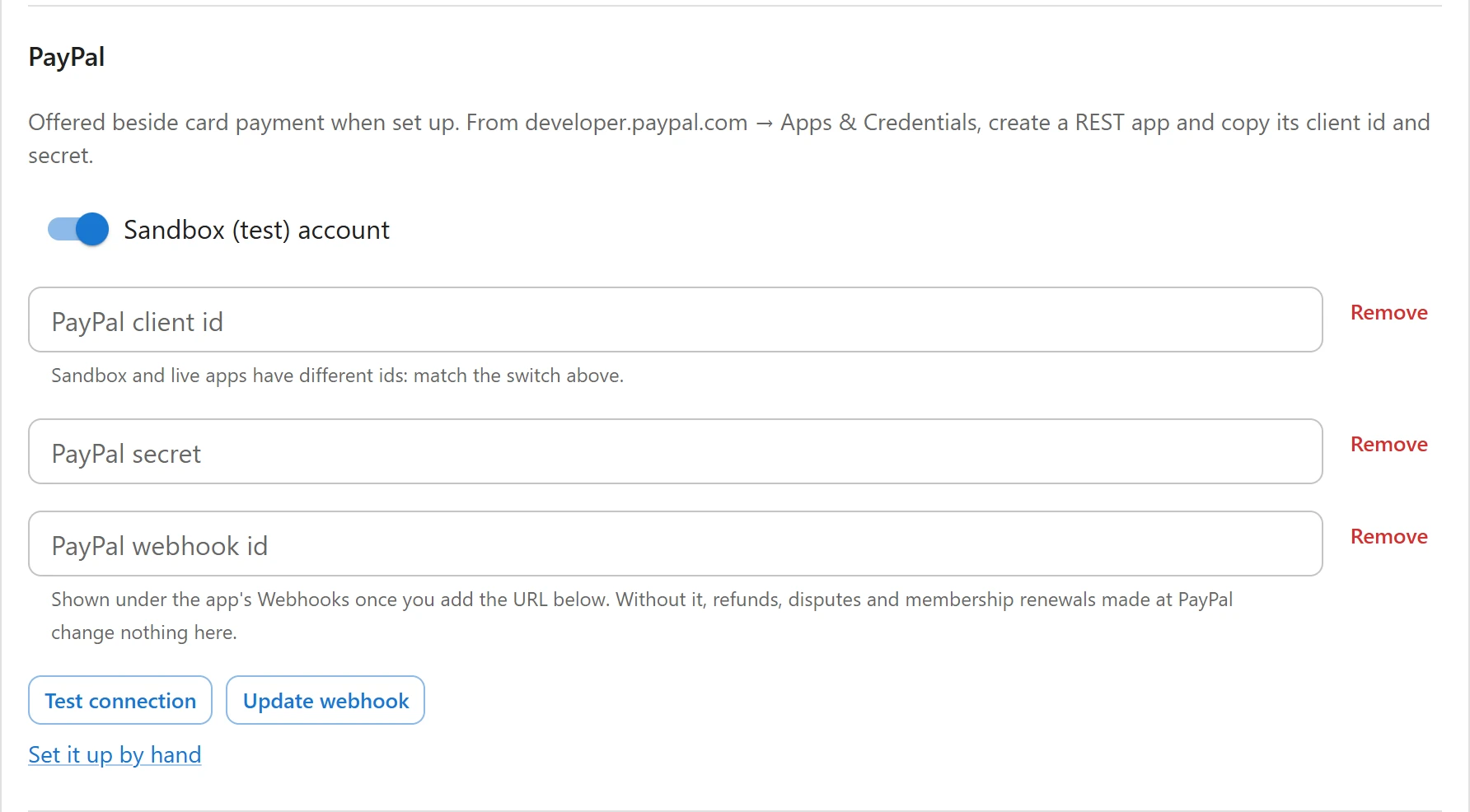
1. Save your keys
| Field | Notes |
|---|---|
| Sandbox (test) account | On: the plugin talks to PayPal’s sandbox, where no real money moves. Off on a new site. |
| PayPal client id | “Sandbox and live apps have different ids: match the switch above.” |
| PayPal secret | The REST app’s secret. |
| PayPal webhook id | “Shown under the app’s Webhooks once you add the URL below. Without it, refunds, disputes and membership renewals made at PayPal change nothing here.” Filled in for you when the plugin creates the webhook. |
Click Save at the bottom of the Settings page. As for Stripe, keys are stored encrypted, never sent back to the browser, and can be replaced or removed.
Click Test connection. The plugin asks PayPal for a fresh access token. “Connected. Your keys work.” means the client id and secret match; otherwise PayPal’s answer is “PayPal refused the client id or secret.”
2. Set up the webhook
PayPal reports captures, renewals, refunds and disputes to your site through a webhook. Each event is checked with PayPal (its signature verification service) using the webhook id before anything is done with it.
Automatically: click Set up webhook automatically (or Update webhook once one is
saved). The plugin creates or updates the webhook in your PayPal app and saves its id. Like Stripe,
this needs an https address on a public host.
By hand:
-
Click Set it up by hand to see your webhook URL and the events. The URL looks like this:
https://example.com/wp-json/pvx/v1/webhooks/paypal -
In your PayPal REST app, add a webhook with that URL and these events:
Event What the site does CHECKOUT.ORDER.APPROVEDTakes a payment the buyer approved but never finished coming back from PAYMENT.CAPTURE.COMPLETEDMarks a purchase or rental Paid and grants access PAYMENT.CAPTURE.DENIEDMarks the order Failed PAYMENT.CAPTURE.REFUNDEDRecords the refund; a full refund removes access PAYMENT.CAPTURE.REVERSEDMarks the order Disputed and removes access CUSTOMER.DISPUTE.CREATEDMarks the order Disputed and removes access BILLING.SUBSCRIPTION.ACTIVATEDStarts a membership BILLING.SUBSCRIPTION.CANCELLED,BILLING.SUBSCRIPTION.EXPIREDEnds a membership PAYMENT.SALE.COMPLETEDRecords a membership payment and extends access PAYMENT.SALE.REFUNDEDRecords a refund of a membership payment; a full refund ends it BILLING.SUBSCRIPTION.PAYMENT.FAILEDEmails the member that the renewal failed -
Copy the webhook id PayPal shows into PayPal webhook id and click Save.
3. Test, then go live
With Sandbox (test) account on, buy a paid video as a signed-in member with a PayPal sandbox buyer account, and check the order on Orders.
To go live, turn the switch off, save the live app’s client id and secret, and set up the webhook again: sandbox and live apps have their own webhooks.
Currencies
PayPal is only offered when the site currency is one PayPal takes. Of the currencies in Settings -> General, PayPal takes USD, EUR, GBP, CAD, AUD, CHF, JPY, SEK, NOK, DKK, PLN, BRL and MXN. With any other currency (TRY, INR, AED, SAR, QAR, EGP, ZAR, MAD, DZD, TND or XOF) only Stripe is offered.
The payment flow
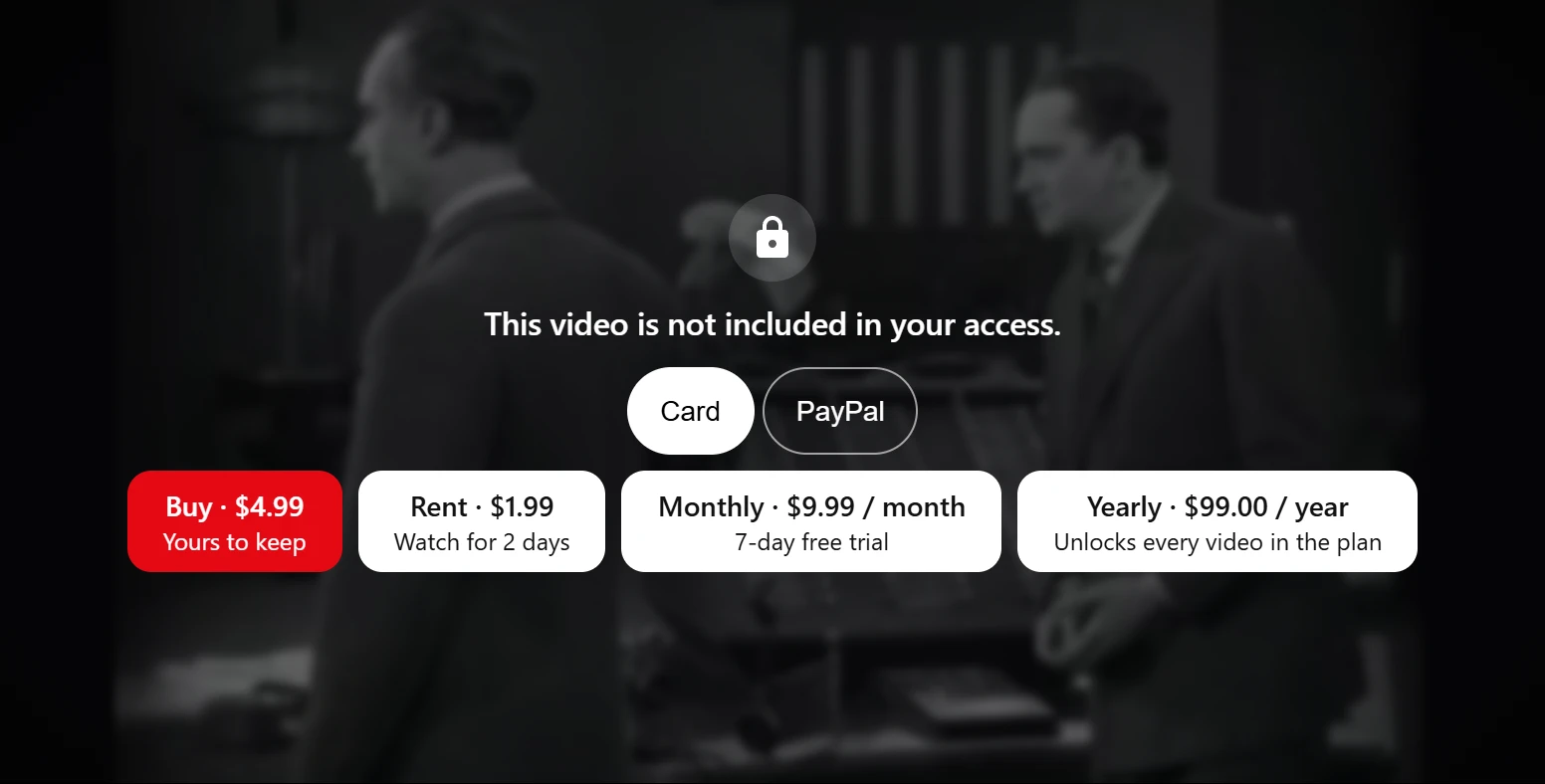
When both Stripe and PayPal are set up, the locked player shows a Pay with choice, Card or PayPal, above the offers. See Selling videos.
Purchases and rentals
- The buyer picks PayPal and clicks Buy or Rent.
- The site creates a PayPal order for the item and price, with your site name as the brand and no shipping address asked.
- The buyer approves on PayPal and comes back to the video page. The site takes (captures) the payment at that moment and the video unlocks.
- If the buyer closes the tab on the way back, the webhook takes the payment instead, and an order still pending after 6 hours is checked with PayPal once more.
Memberships
- The buyer picks PayPal and a plan.
- The first time a plan is bought with PayPal, the plugin creates a matching billing plan in your PayPal account (with its trial, if any) and reuses it afterwards. Changing the plan’s price, period, trial or name creates a new billing plan; current subscribers stay on theirs.
- The buyer approves the subscription on PayPal and comes back. Access starts once PayPal reports the subscription active.
- Each renewal PayPal collects extends access to the next billing date, plus 2 days of grace.
PayPal subscriptions are created to stop after one failed payment, and PayPal does not retry them. The member is emailed, and access ends 2 days after the paid period unless they subscribe again.
Refunds and cancellations
- Refund on the Orders page refunds the whole PayPal payment. For a membership, Refund last refunds its latest payment and cancels the subscription.
- Cancel on the Orders page cancels the subscription at PayPal and ends access at once.
- When a member cancels from their library, PayPal cannot wait for the end of the period, so the subscription is cancelled at PayPal straight away. The member still keeps access to the end of the period they paid for.
Refunds made in your PayPal account are acted on too, through the webhook. See Orders and refunds.
Related
Quick Links
Share