

Contents
On this page
Subtitles and transcript - Plugixa Video
Subtitles PRO let a video carry text in as many languages as you like. Viewers turn them on in the player, choose their language, size and background, and on the video page they can open the whole text as a transcript, search it and click a line to jump to that moment.
Subtitles and the transcript are part of Pro: the subtitle tracks and menus in the player, the Subtitles section of the video form, and the transcript under the video. Chapters stay in the free plugin, see Chapters.
Subtitles play in the plugin’s own player, so they apply to HLS and MP4 videos. A YouTube or Vimeo video plays in its own player, with the subtitles you set up on YouTube or Vimeo.
Add subtitles to a video
The Subtitles section of the video form lists the video’s tracks, one row each.
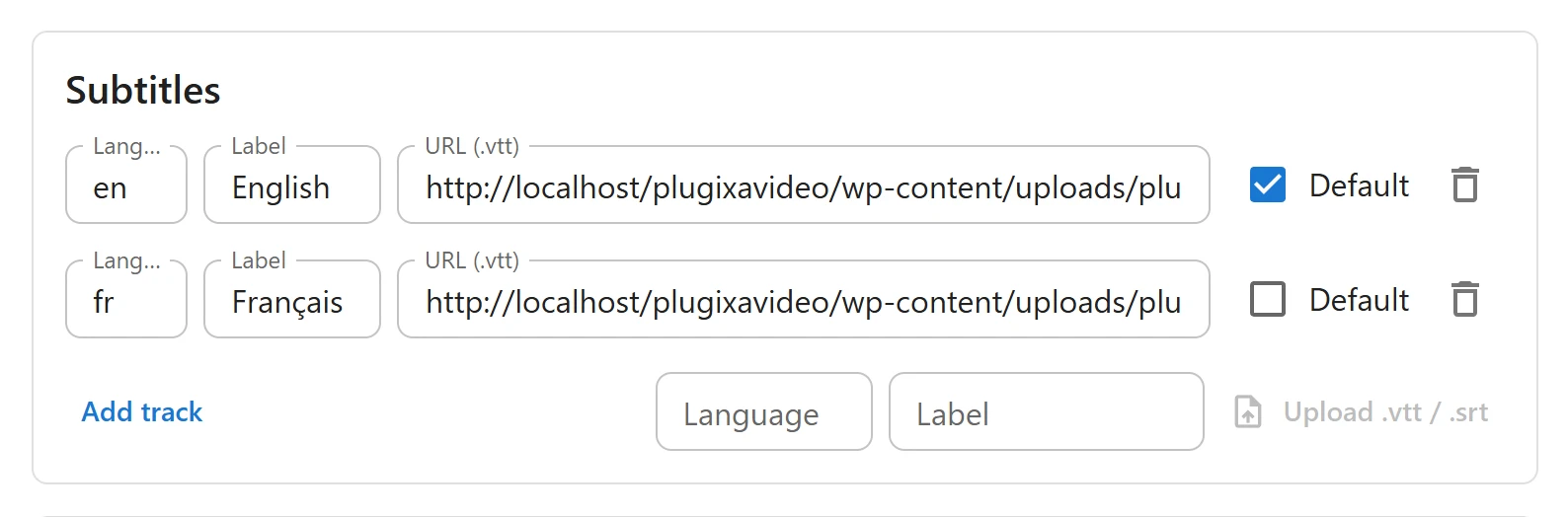
Upload a file
- Open the video in Videos and save it once if it is new: the upload appears on saved videos only.
- In Subtitles, type the Language code, such as
en,frorpt-br. - Optionally type the Label viewers see in the menu, such as
Français. Left empty, the label is the code in capitals:FR. - Click Upload .vtt / .srt and choose the file. The button stays greyed out until a language is typed.
The track is added to the list straight away. You do not need to save the form for the upload itself, but save it for any other change you make to the list.
| Rule | Detail |
|---|---|
| Formats | .vtt (WebVTT) or .srt. An SRT file is converted to WebVTT on upload. |
| Size | Up to 2 MB per file. |
| Language code | Two or three letters, optionally followed by a region or script: en, fr, pt-br, zh-hans. |
| Text encoding | UTF-8. A file from an older tool in Windows-1252 is converted. |
| Same language again | Replaces that language’s file and keeps its place and default. |
The upload can answer with:
- “Enter a language code such as en, fr or pt-br.”
- “Upload a .vtt or .srt subtitle file.”
- “This subtitle file is too large.”
- “No subtitles were found in this file.” The file has no cue with a timing line.
Uploading needs the Subtitles app, which is on by default in Pro. Switched off in the App manager, the upload button goes away, and tracks already uploaded keep playing.
Link a file hosted elsewhere
Click Add track and fill in Language, Label and URL (.vtt) with the address of a WebVTT file, then save the video. A file on another server must allow your site to read it (CORS), or the browser will not load it.
The default track
Tick Default on the track that should start on its own. Only one track can be the default: ticking one unticks the others. The first track you add is the default until you choose another.
Remove a track
Click the bin icon on its row and save the video. A file you uploaded is deleted from the server when the save no longer lists it.
What viewers see
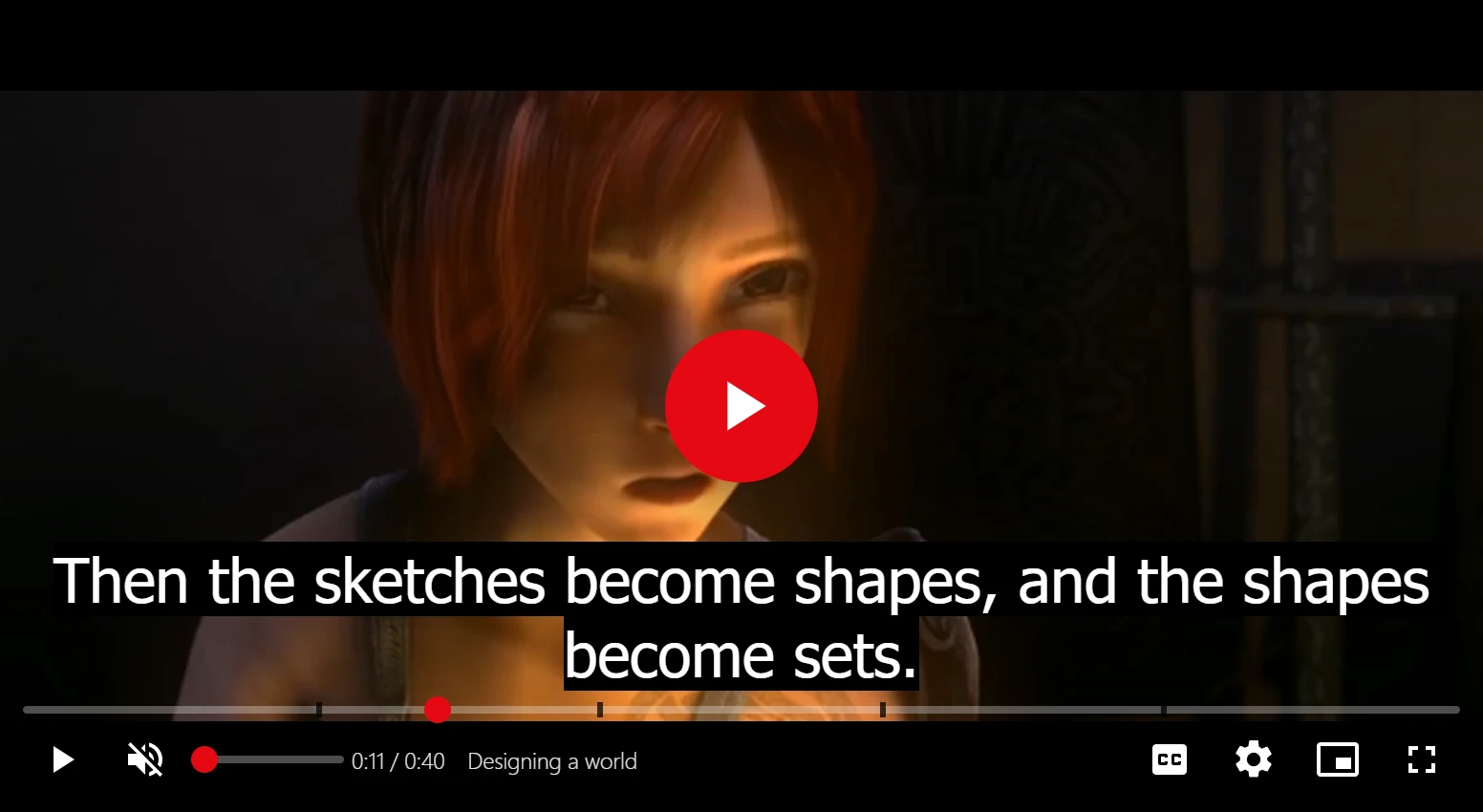
When a video has subtitles, the player shows a Subtitles button, and its Settings menu gains three groups:
| Group | Choices |
|---|---|
| Subtitles | Off and each track, by its label. |
| Subtitle size | 75%, 100%, 150% and 200%. |
| Subtitle background | None, Translucent or Solid. Translucent is the default. |
The C key turns subtitles on and off. See The player for the other shortcuts.
Which track starts
The player remembers each viewer’s choices on their device: the language they last chose (or that they turned subtitles off), the size and the background. When a video starts:
- If the viewer turned subtitles off, they stay off.
- If the viewer chose a language before and this video has it, that track starts.
- Otherwise the track marked Default starts. With no default, subtitles start off.
The transcript
On a video page, a video with subtitles gets a Transcript button next to Like, Favorite, Save and Share. It opens the whole text under the video, one line per subtitle with its time.
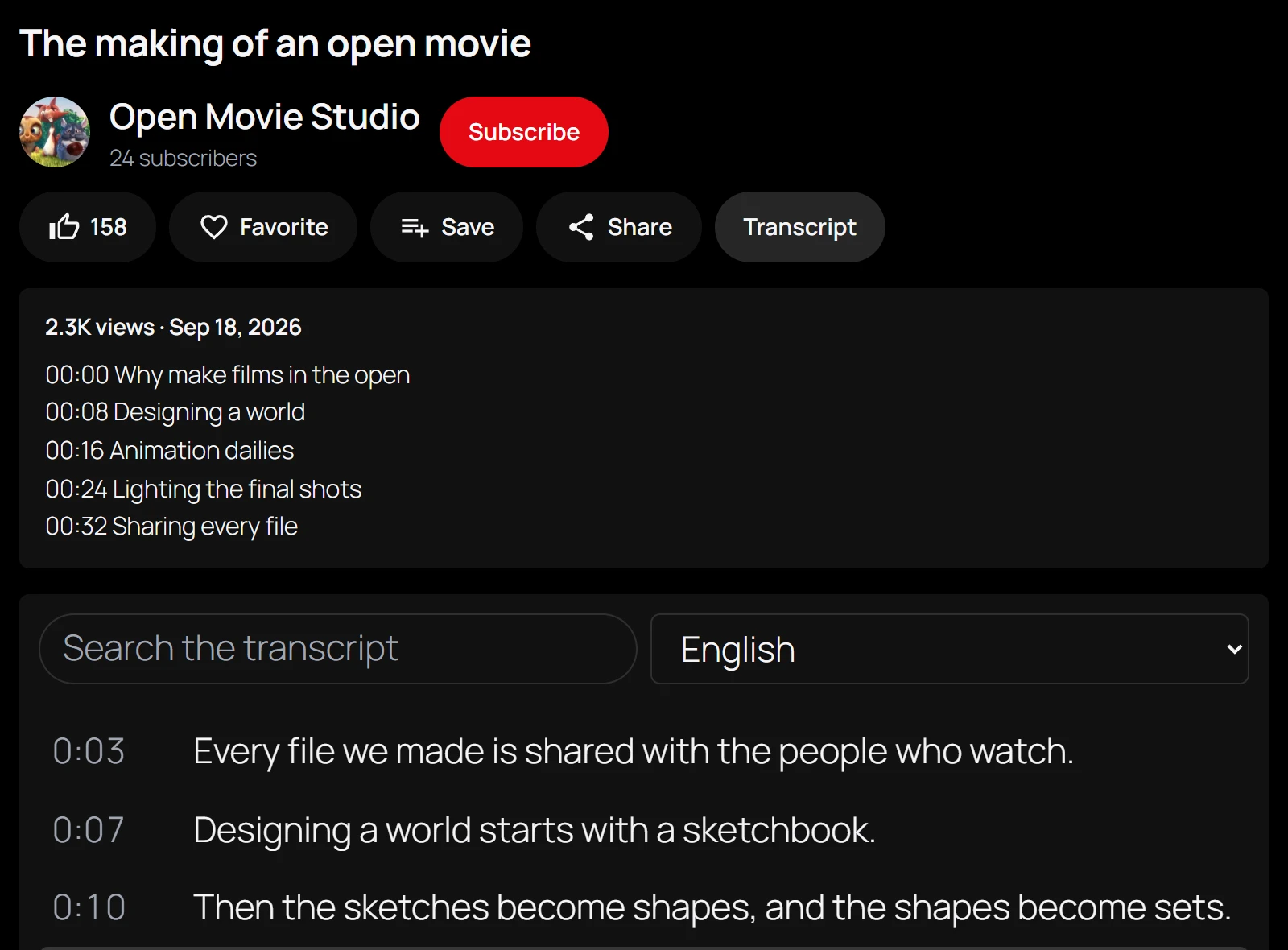
- Click a line to jump to that moment and play.
- Search the transcript narrows the list to the lines that contain the words. Accents and capitals do not matter: “ete” finds “été”. With no match: “No lines match your search.”
- Transcript language appears when the video has more than one track.
- The line playing now is highlighted, and the list scrolls to keep it in view. After you scroll the list by hand, it stops following the video for 5 seconds.
The transcript starts in the viewer’s chosen subtitle language, else the default track, else the first. The subtitle file is only downloaded the first time the transcript is opened. If it cannot be read, for example a file on another server that refuses cross-origin reads, the panel says “The transcript could not be loaded.”
The transcript is part of the buttons under the video. With the Video details block, it shows when Like, save and share buttons is on.
Generate subtitles with AI
Typing subtitles by hand takes time. You can also generate them from the video’s audio and translate them into other languages. See AI subtitles.
Quick Links
Share